How to Fix Lines on a Monitor Screen in Windows 10

Use a screenshot test, cable and port checks, monitor diagnostics, display settings, and driver rollback to pinpoint lines on a Windows 10 monitor.
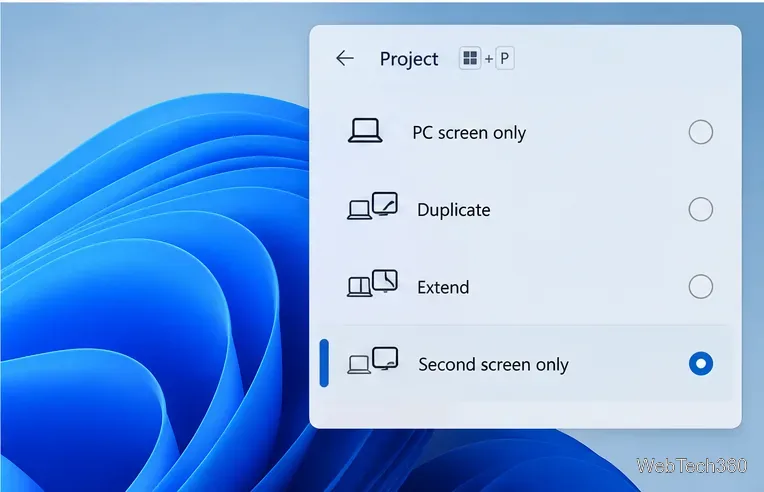
If you want to turn off a laptop screen without shutting down or putting the computer to sleep, Windows 11 can do it with built-in settings. The easiest option is to set a short screen-off timeout and keep the sleep timeout longer. If you use an external monitor, Windows + P and Second screen only can make the laptop display inactive while the second display stays on.
Windows does not provide one universal keyboard shortcut that instantly powers off only the built-in panel on every laptop. Manufacturer hotkeys vary, so the methods below are safer and more consistent than relying on old third-party monitor-off utilities.
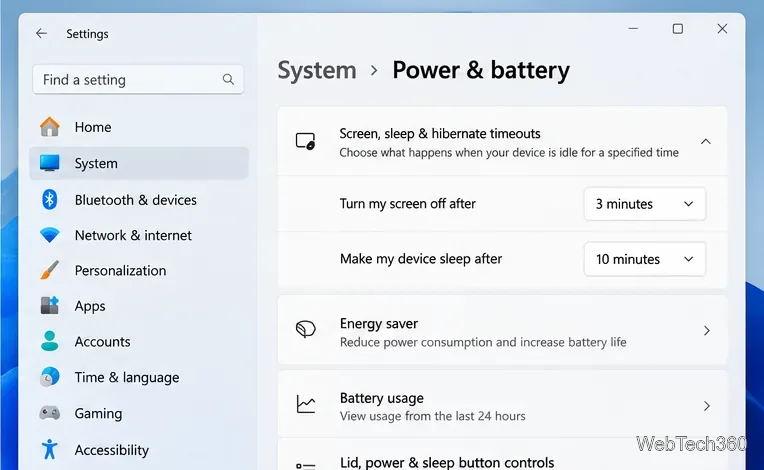
Windows 11 separates the display timeout from the sleep timeout. Microsoft documents these controls under Power & battery settings.
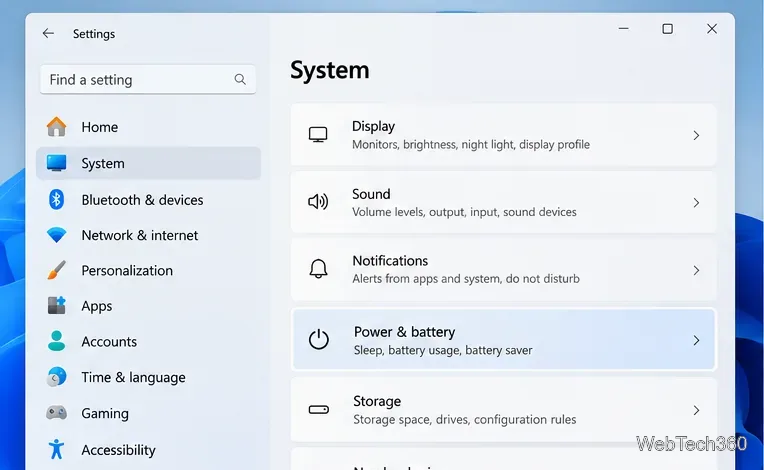
On laptops that show separate battery and plugged-in values, choose a timeout for each. A short display timeout saves power, while a longer sleep timeout lets downloads, music, background tasks, and other work continue for longer.
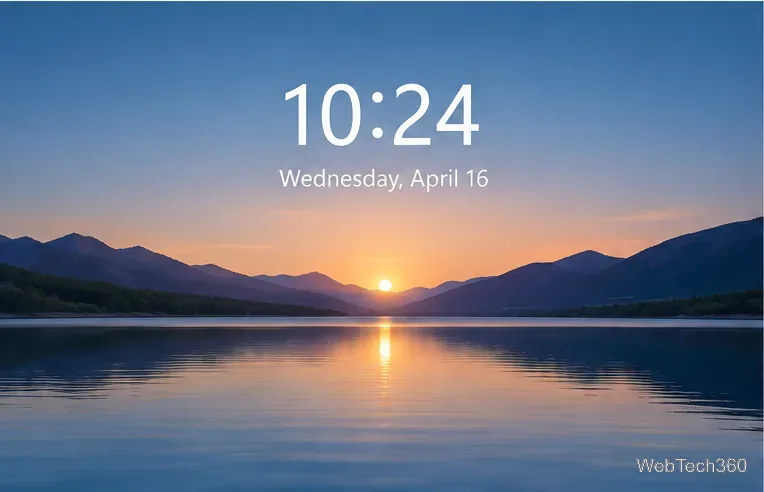
If waiting for your normal idle timer is too slow, press Windows + L to lock the PC. Microsoft says Windows powers off the display after 60 seconds of inactivity on the lock screen by default. This behavior is separate from the normal unlocked display timeout. You can read the technical details in Microsoft Learn's console lock display timeout documentation.
This method is useful when you are stepping away because it also protects your session. When you return, move the mouse or press a key and sign in again.
When a monitor or TV is connected, Windows can send the desktop only to that second display. Microsoft lists this mode in its multiple-monitor guidance.
The external display remains active while the laptop's built-in screen stops showing the desktop. To use the laptop panel again, press Windows + P and choose PC screen only, Duplicate, or Extend.
Some newer Windows 11 laptops have presence-sensing hardware. On supported devices, Settings can offer Automatically turn off my screen when I leave under Power & battery > Screen and sleep. Microsoft notes that availability depends on the hardware. See the official presence sensing settings guide.
On some laptops, the manufacturer may expose a display-off action for a physical button or function key. Windows' available power-button choices vary by hardware. If you do not see a display-off option under Control Panel > Power Options > Choose what the power buttons do, do not force an unsupported setting; use the screen timeout, lock-screen method, or an OEM hotkey documented for your laptop.
For a precise power-plan change, Windows also includes powercfg. Microsoft documents monitor-timeout-ac and monitor-timeout-dc in the Powercfg command-line reference. For example:
powercfg /change monitor-timeout-ac 5
powercfg /change monitor-timeout-dc 3
Those commands set the screen to turn off after five minutes when plugged in and three minutes on battery. They do not change the separate sleep timeout.
Turning off the display is not the same as putting the laptop to sleep. If the PC remains awake, apps and network tasks can continue. Move the mouse, touch the trackpad, or press a key to wake the screen. If you used Windows + L, you will also need to unlock the PC. Avoid setting sleep to Never on battery unless you really need it, because the laptop will continue consuming power even with the screen off.
Use a screenshot test, cable and port checks, monitor diagnostics, display settings, and driver rollback to pinpoint lines on a Windows 10 monitor.
Show two other time zones beside your Windows 10 clock. Set up each additional clock, give it a clear label, and find it in the taskbar calendar.
Find the File Explorer extension that delays right-click menus in Windows 10, test it safely with ShellExView, and restore any menu features you still need.
Stop Windows 10 from powering down a specific network adapter or USB device with plan-level settings and Device Manager controls, plus tips to avoid excess battery drain.
Check whether Windows 10 uses a digital license or product key, find a firmware-stored OEM key, and save license details securely for a reinstall.
Identify a Windows 10 Task Manager process by checking its executable path, file properties, publisher, linked services, and a Microsoft Defender scan.
Create a searchable Windows 10 folder inventory with PowerShell. Save every file and subfolder path as plain text or export details to a sortable CSV.
Add a custom reminder, quote, or label to your Windows 10 desktop with a Rainmeter text skin. Create the INI file, load it, then adjust its font and position.
Use Bluetooth Swift Pair on Windows 10 to pair a compatible accessory from a notification, with setup steps and fixes when the prompt does not appear.
Learn what common laptop function key symbols mean, how Fn and Fn Lock affect them, and how to confirm the right shortcut for your Windows 10 laptop model.








