How to Set Different Scaling Levels for Multiple Monitors in Windows 10

Adjust each Windows 10 monitor independently with per-display scaling, keep text readable, and troubleshoot custom scaling or blurry apps.
To turn on a microphone in Windows 10, allow microphone access in Settings > Privacy > Microphone, then select the right device in Settings > System > Sound. If the microphone is already allowed, the problem may be a muted headset, the wrong input device, or an app that has its own audio settings. Check these in order and stop once your mic works.
Windows can block microphone access at the device level, the app level, or both. Open Start > Settings > Privacy > Microphone. Under “Microphone access for this device,” select Change if it appears, then turn access on. Also turn on Allow apps to access your microphone.
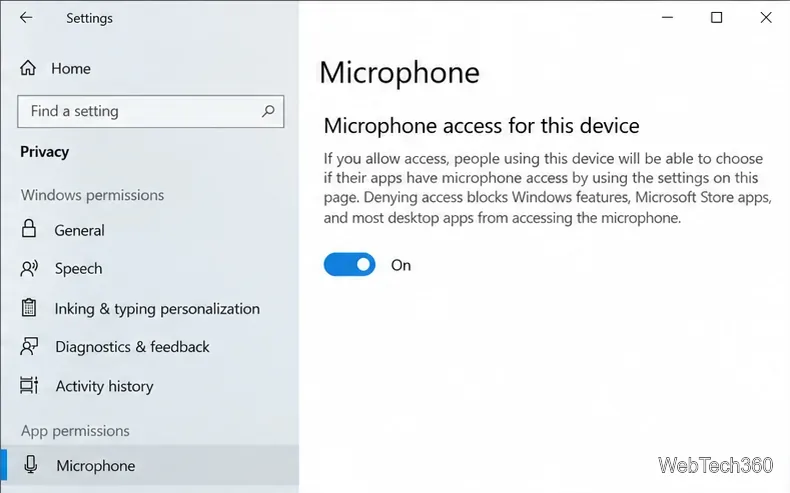
Scroll to the app controls. Under Choose which Microsoft Store apps can access your microphone, enable the app you want to use. For traditional desktop software, turn on Allow desktop apps to access your microphone. Windows does not offer the same individual switch for each desktop app, so this setting applies more broadly. After changing access, close and reopen the app.
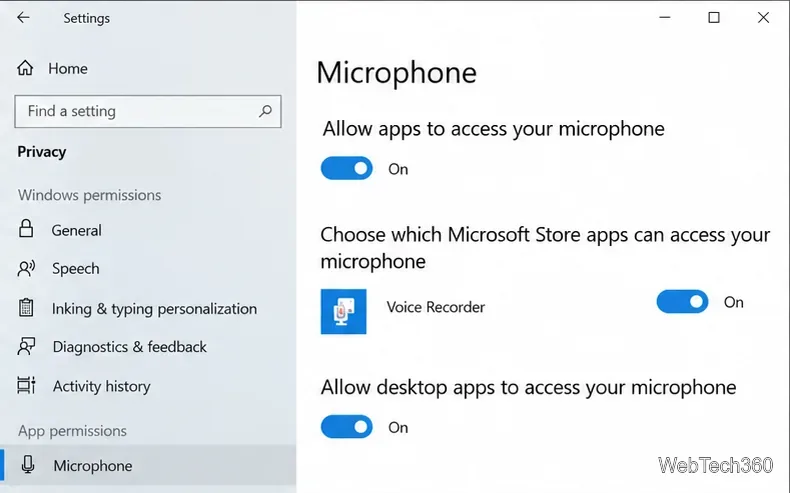
Microsoft’s microphone permission guide documents these Windows 10 controls. If a setting is unavailable or says it is managed by your organization, a work or school policy may control it.
Go to Start > Settings > System > Sound. In the Input section, open Choose your input device and select the microphone you actually want to use. A laptop may list its built-in microphone, while a desktop could show a webcam mic, USB headset, audio interface, or Bluetooth headset. If you use Bluetooth, make sure the headset is paired and connected.
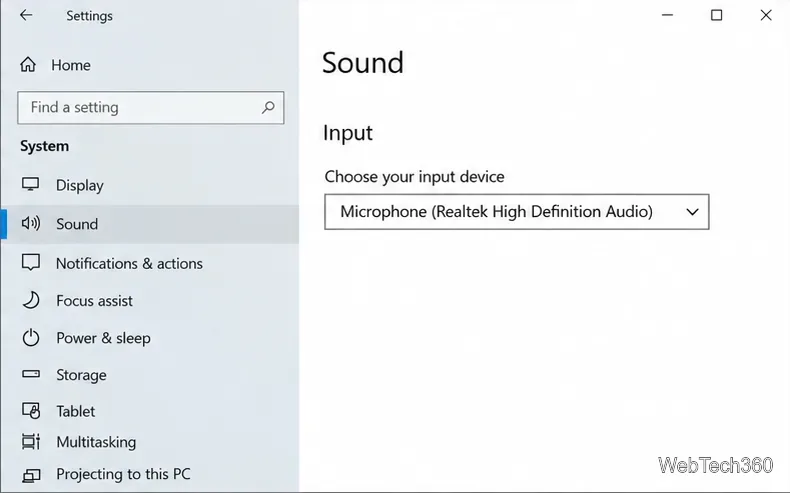
Speak at a normal volume and watch the Test your microphone indicator. If it responds, Windows is receiving sound. If the indicator barely moves, select the device’s properties and raise its input volume. In the classic Microphone Properties > Levels tab, check that the microphone is not muted; adjust Microphone Boost only if that control is available and the level is still too low.
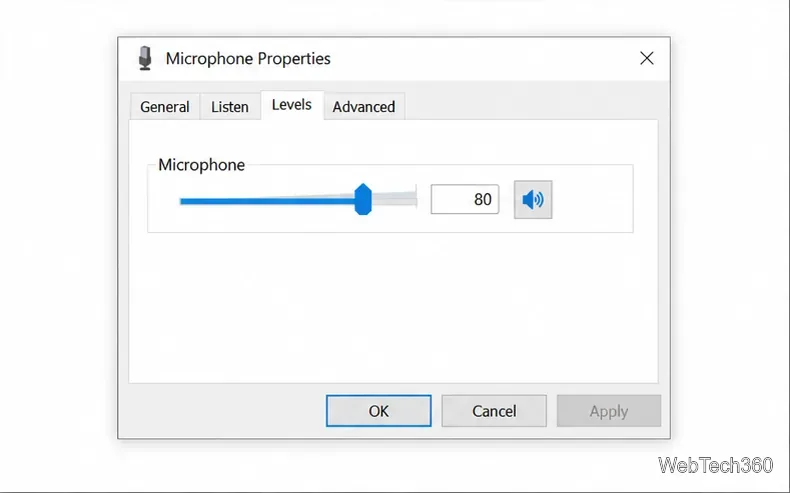
For the current Windows setup and test flow, see Microsoft’s guide to setting up and testing microphones.
A device can be disabled in the older Sound control panel even when it is connected. Open Control Panel > Hardware and Sound > Sound, then select the Recording tab. Right-click an empty area in the device list and enable Show Disabled Devices and Show Disconnected Devices.
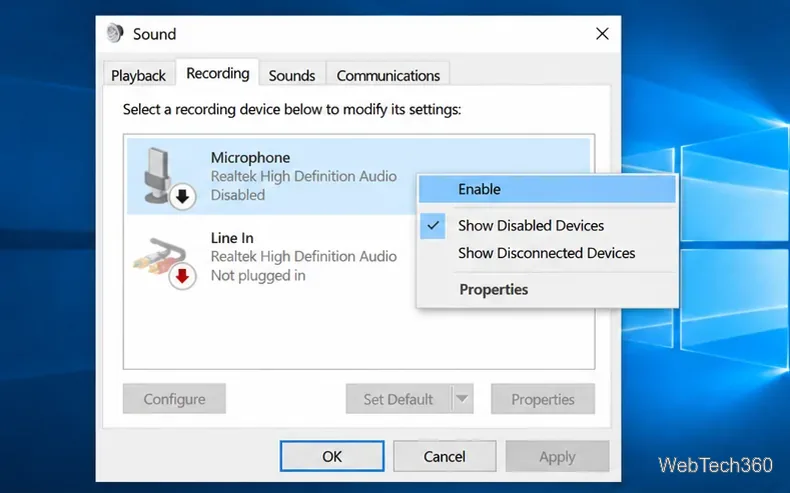
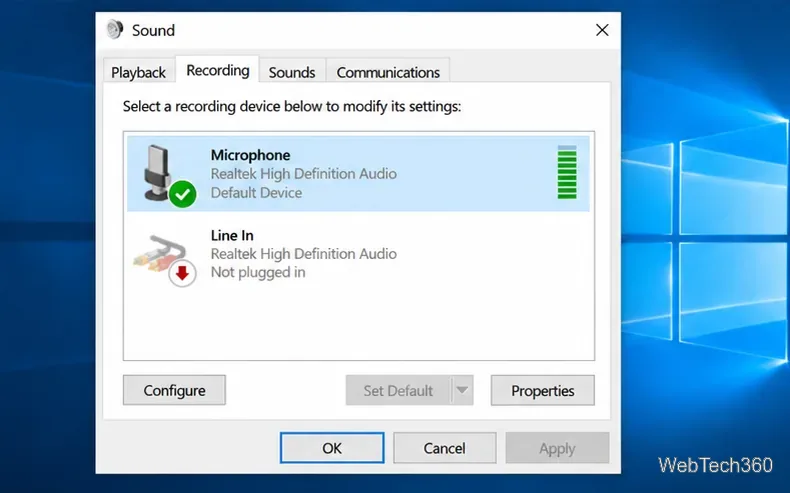
If your microphone appears faded or marked as disabled, right-click it and select Enable. Then right-click the working mic and choose Set as Default Device if you want Windows to use it as the normal recording input. Speak and confirm that the green level meter moves. Microsoft’s Sound control panel instructions also describe enabling a recording device and checking its meter.
Check the hardware before changing drivers. Make sure the headset’s mute button or inline switch is off, the cable is fully seated, and the plug is in the microphone or headset jack rather than a headphone-only jack. For a USB microphone, try another port. If your computer has a physical microphone privacy switch, turn it on. Also check any manufacturer audio utility, such as the one supplied with the PC, for a muted or disabled input.
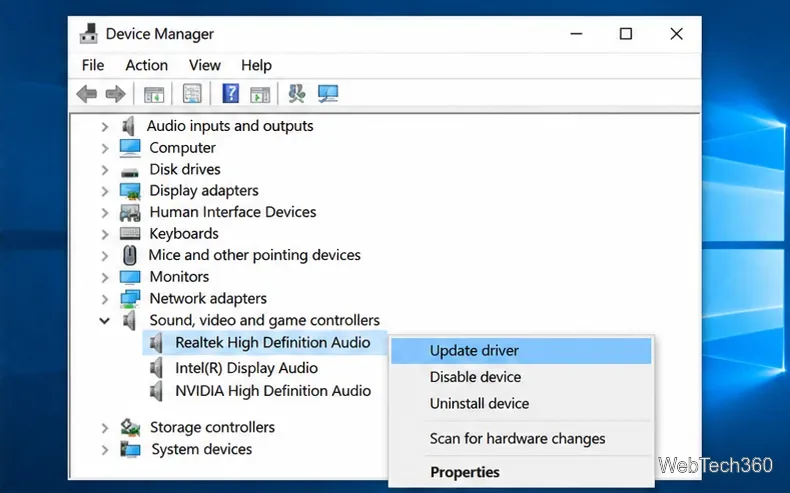
If the mic still does not appear in Settings or the Recording tab, open Device Manager from the Start button’s right-click menu. Expand Sound, video and game controllers, right-click the audio device, and choose Update driver. If the microphone remains missing after reconnecting it and restarting Windows, right-click that device category and select Scan for hardware changes. Use your PC or audio-device manufacturer’s support page if Windows cannot find a suitable driver.
You can also open the Get Help app and run its audio troubleshooter. Some Windows 10 builds additionally show a Recording Audio troubleshooter under Settings > Update & Security > Troubleshoot > Additional troubleshooters. Microsoft’s microphone troubleshooting guide covers input selection, recording tests, and audio-driver recovery.
If the Windows test meter moves but a call or recording app still gets silence, choose the same microphone in that app’s audio settings. Check that the app’s own mic control is not muted. For a website, allow microphone access when the browser asks; Windows permission alone does not override a site permission that was previously blocked.
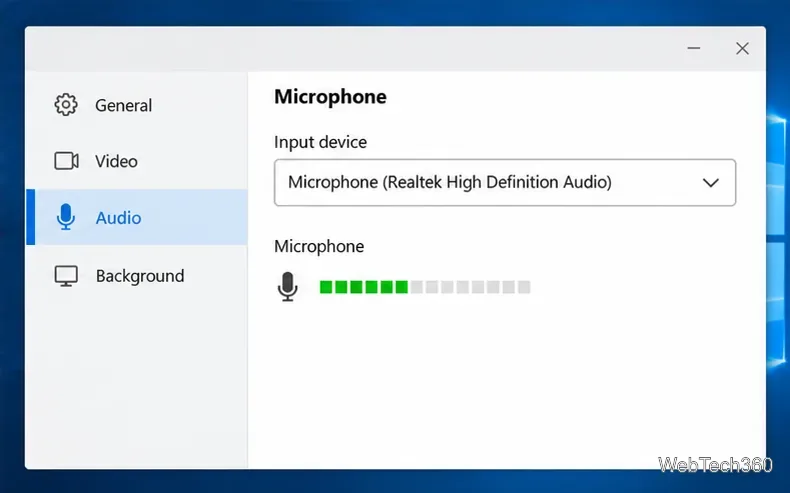
If Windows sees no microphone, focus on the connection, device enablement, and driver. If Windows’ meter moves but only one app fails, focus on that app’s selected input and mute or site-permission settings.
Adjust each Windows 10 monitor independently with per-display scaling, keep text readable, and troubleshoot custom scaling or blurry apps.
Use AirType’s browser pairing setup to type on an iPhone from a Windows 10 PC, with current setup steps, troubleshooting, and privacy limits.
Hide the mouse pointer in Windows 10 videos, games, and other apps with built-in typing controls or PowerToys CursorHide’s adjustable inactivity timer.
Find Control Panel Power Options on a Windows 10 desktop, open the page with a Run command, and adjust power plans, display timeouts, sleep, and button behavior.
Learn what Windows 10 deletion leaves behind, how to use SDelete on an HDD, and why SSDs and cloud backups need separate treatment.
Use FFmpeg’s DirectShow tools to open an integrated webcam’s driver properties in Windows 10, find the correct device, and troubleshoot missing controls.
Identify a keypress in Windows 10 with a browser event tester or SharpKeys, then separate layout, software, and keyboard hardware issues.
Use double quotes around each complete path with spaces in Command Prompt. Learn how to list, change to, copy, and troubleshoot Windows 10 files and folders.
Turn off the Windows 10 Start menu’s hover-to-expand behavior with a legacy Mach2 command, check build limits, and see the built-in app-list alternative.
Fix the iTunes Library.itl read error on Windows 10 by updating iTunes, restoring a compatible backup, or safely creating a new library without deleting media files.








