How to Set Different Scaling Levels for Multiple Monitors in Windows 10

Adjust each Windows 10 monitor independently with per-display scaling, keep text readable, and troubleshoot custom scaling or blurry apps.
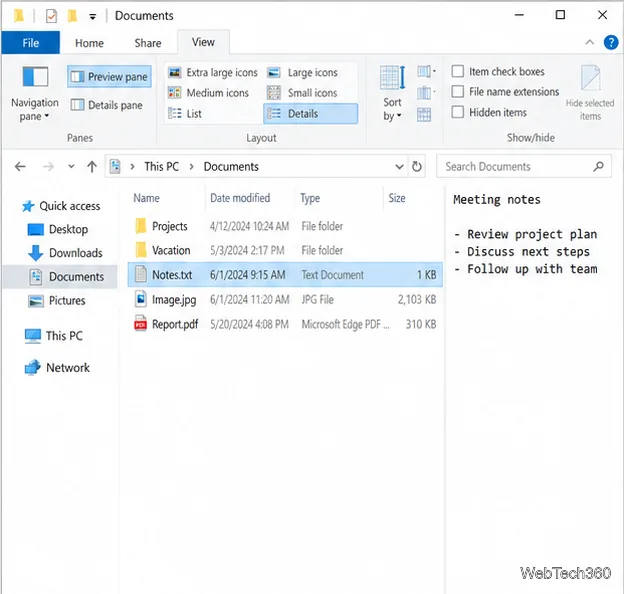
To turn on the Preview pane in Windows 10 File Explorer, open a folder and press Alt+P. The pane opens on the right. You can also select View > Preview pane on the ribbon. Then select a file to see its contents without opening it in another app.
The Preview pane is useful when you need to identify a document or image quickly. It is separate from large-icon thumbnails: changing icon size is not required, and the pane will not preview every file format.
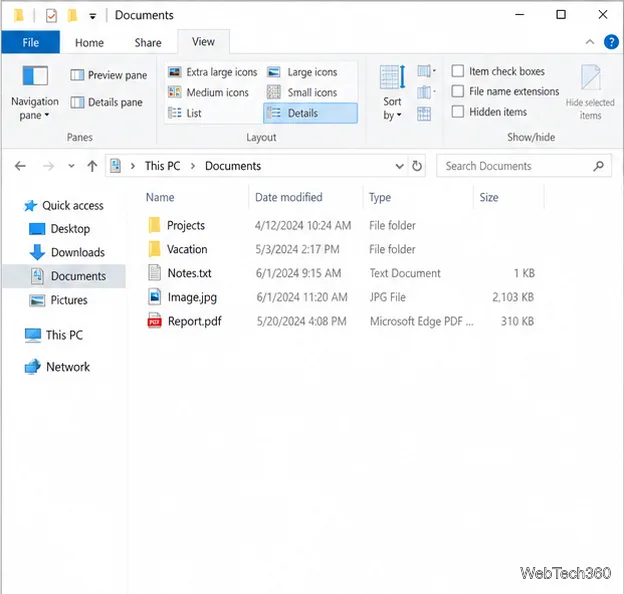
The View ribbon also contains a Details pane control. Choose Preview pane when you want to see file contents. The Details pane shows properties and other information about the selected item; it does not serve the same purpose.
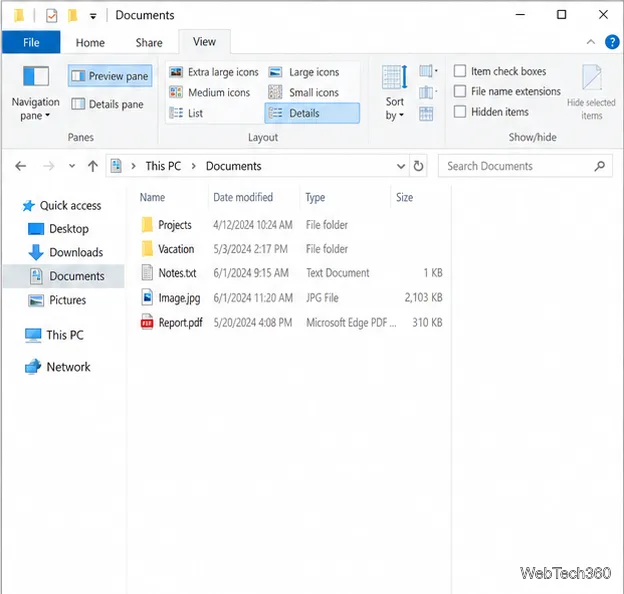
With File Explorer active, press Alt+P to show or hide the Preview pane. Press the same shortcut again to close it. This is the fastest way to toggle the pane without opening the ribbon. Microsoft lists Alt+P as the Windows shortcut for showing or hiding the Preview pane in its Windows keyboard shortcuts reference.
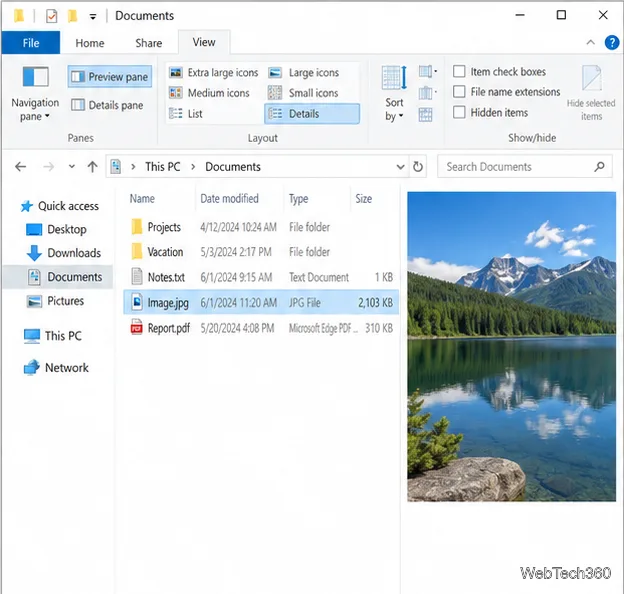
The pane displays content for file types Windows can preview. For example, a plain-text file can show readable text, and an image can appear as a larger view. Documents may preview when a compatible preview handler is available. The exact formats depend on Windows components and installed software, so support is not universal.
A thumbnail and a Preview pane are different. A thumbnail is a small image or icon shown in the folder's layout; the Preview pane uses the larger area on the right to show more of the selected file. You can keep Details view or another layout while using the pane.
A blank pane does not necessarily mean the Preview pane is turned off. Check the following:
If you trust both a downloaded file and its source, right-click the file in File Explorer, select Properties, and choose Unblock if that option appears. Select Apply and OK, then sign out and back in if the preview remains blocked. Microsoft notes that the change may not take effect until the next login. Do not unblock a file you do not trust; the restriction is a security measure, not a general Preview pane failure. Read Microsoft's instructions for internet-downloaded files before changing the block.
To reclaim the folder's width, press Alt+P again or return to View > Preview pane and select the command to toggle it off. The change only hides the viewing area; it does not alter or delete the selected file.
Adjust each Windows 10 monitor independently with per-display scaling, keep text readable, and troubleshoot custom scaling or blurry apps.
Use AirType’s browser pairing setup to type on an iPhone from a Windows 10 PC, with current setup steps, troubleshooting, and privacy limits.
Hide the mouse pointer in Windows 10 videos, games, and other apps with built-in typing controls or PowerToys CursorHide’s adjustable inactivity timer.
Find Control Panel Power Options on a Windows 10 desktop, open the page with a Run command, and adjust power plans, display timeouts, sleep, and button behavior.
Learn what Windows 10 deletion leaves behind, how to use SDelete on an HDD, and why SSDs and cloud backups need separate treatment.
Use FFmpeg’s DirectShow tools to open an integrated webcam’s driver properties in Windows 10, find the correct device, and troubleshoot missing controls.
Identify a keypress in Windows 10 with a browser event tester or SharpKeys, then separate layout, software, and keyboard hardware issues.
Use double quotes around each complete path with spaces in Command Prompt. Learn how to list, change to, copy, and troubleshoot Windows 10 files and folders.
Turn off the Windows 10 Start menu’s hover-to-expand behavior with a legacy Mach2 command, check build limits, and see the built-in app-list alternative.
Fix the iTunes Library.itl read error on Windows 10 by updating iTunes, restoring a compatible backup, or safely creating a new library without deleting media files.








