Home
» WINDOWS
»
How to Turn Your Mic and Camera On or Off During a Windows 10 Video Call
How to Turn Your Mic and Camera On or Off During a Windows 10 Video Call
During a video call on Windows 10, use the meeting app’s microphone and camera buttons to mute yourself or stop sending video. Select a button again to turn that feature back on. Windows 10’s Privacy settings can allow or block apps from using a device, but they are not a per-call mute switch. The quickest place to control your call is usually the toolbar inside the app.
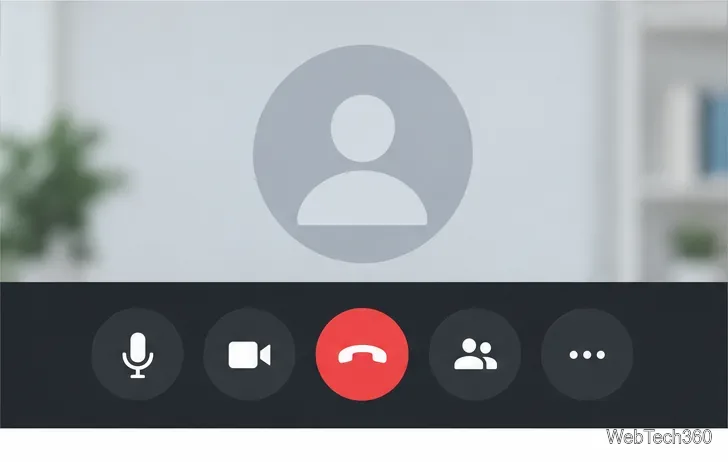
Typical meeting controls: select the microphone or camera button to change that device for the current call.
Turn your microphone or camera on and off in a call
Move your pointer over the call window if its controls are hidden. In some apps, you may need to click the window once to show the toolbar.
Select the microphone button to mute or unmute your audio. Select the camera button to stop or resume your video.
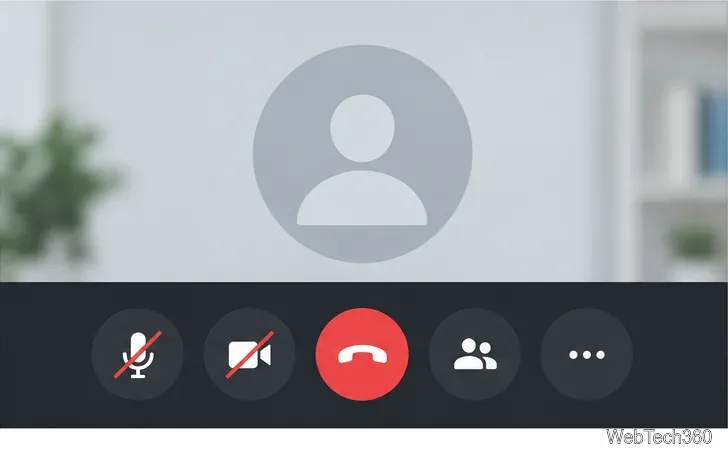
Check the icon and your preview before speaking or sharing video. A slash or “unmute”/“start video” label usually means the device is currently off. The exact wording and icon placement depend on the app.
For example, Microsoft Teams uses Mic and Camera in its meeting controls. Select either control again to switch it back on. In Zoom, use the Mute/Unmute audio control and the Start Video/Stop Video control. Zoom’s Windows desktop app also lists Alt+A for mute/unmute and Alt+V for start/stop video; these are Zoom shortcuts, not Windows-wide commands. See the official guides for Teams meeting controls, Zoom’s microphone controls, and Zoom keyboard shortcuts.
A slash through the microphone or camera icon usually indicates that feature is off; labels vary by app.
Some services let you choose the mic or camera before joining, or set the mic to stay muted when you enter. That only sets your starting state; you can still use the in-call controls later. If a host or meeting policy prevents participants from unmuting, you may need to ask the host to allow it.
Allow a video-call app to use your mic and camera
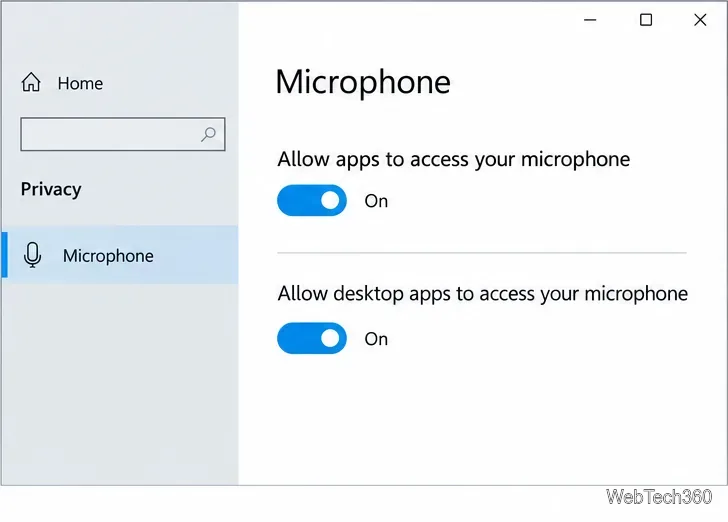
If an app’s controls are unavailable, or the app says it cannot find a device, check Windows permissions. In Windows 10, open Start > Settings > Privacy, then select Microphone in the left pane. Turn on Microphone access for this device and Allow apps to access your microphone. Scroll down and turn on Allow desktop apps to access your microphone for desktop software such as Teams or Zoom.
Desktop conferencing apps need the Windows desktop-app microphone permission.
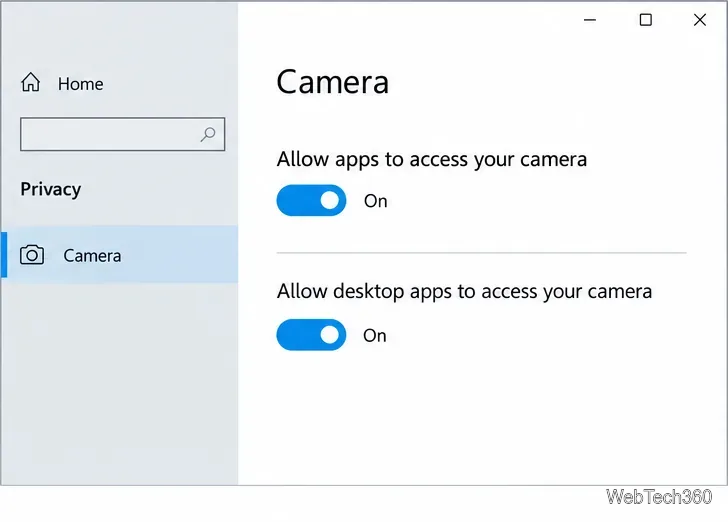
For the camera, go to Start > Settings > Privacy > Camera. Turn on Camera access for this device and Allow apps to access your camera, then check Allow desktop apps to access your camera. Windows Store apps may have individual permissions in the list. Traditional desktop apps are generally controlled by the broader desktop-app toggle instead of an individual app switch. Microsoft explains both sets of Windows camera and microphone privacy settings in its support documentation.
Use the matching desktop-app camera permission when a call app cannot access your camera.
These Windows switches affect app access beyond the current call. Turning one off can block other programs too, and turning it back on does not automatically unmute or restart video inside the meeting. Use the in-call buttons for temporary privacy. If you join from a browser, also allow the specific meeting website to use the microphone and camera in the browser’s site-permission prompt or settings.
If the mic or camera still will not switch
Check the selected device. Open the audio or video settings from the meeting app and choose the microphone or camera you actually use. A laptop may have more than one input or camera.
Check hardware controls. Look for a webcam privacy shutter, a keyboard mic/camera key, or a mute switch on your headset. A hardware control can override what the app appears to be doing.
Check meeting restrictions. A host may mute participants or prevent them from unmuting. The host can change the meeting setting or invite you to speak.
Refresh the connection. Leave and rejoin after granting permission, then check the app’s device settings again. If Windows says an administrator controls the setting, contact your device administrator.
Are the old PowerToys shortcuts still available?
No. Older instructions describe PowerToys Video Conference Mute and shortcuts such as Win+Shift+A or Win+Shift+O. Microsoft removed Video Conference Mute in PowerToys version 0.88, so do not rely on those steps in current PowerToys. Windows 10 also has no built-in universal keyboard shortcut that toggles both devices for every calling app; use the app’s controls or that app’s own shortcuts instead. The PowerToys project notice about removing Video Conference Mute documents the change.
Windows 10 support note: Microsoft ended standard support for Windows 10 on October 14, 2025. The settings above can still help on a working Windows 10 PC, but unsupported systems no longer receive free security updates or technical support from Microsoft.