How to Check Hard Drive Health in Windows Server
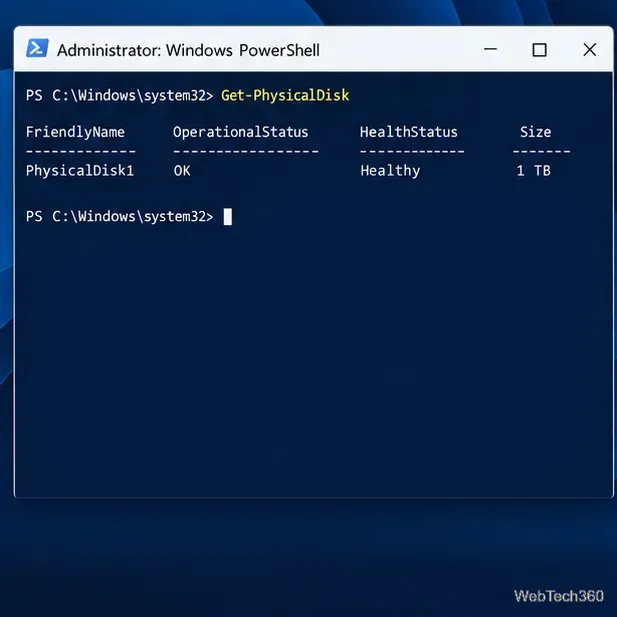
Check Windows Server disk status and reliability counters, verify SMART data when available, and separate hardware warnings from NTFS errors.
Need an em dash right now? Copy this one: —. For repeat typing, use the Windows numeric-keypad code, Windows Symbols panel, Mac keyboard shortcut, Word’s character dialog, or Google Docs’ special-character picker. The five options below work in different situations; pick the one that matches your keyboard and app.
The marks look similar but serve different purposes: em dash —, en dash –, and hyphen -. An em dash can set off an interruption or an explanatory phrase. An en dash often connects a range, such as “pages 12–18.” A hyphen joins parts of a word, as in “step-by-step.” The em dash is Unicode character U+2014, which is useful when a dialog asks for a character code. In American English, em dashes are commonly set without spaces, though a publication’s style guide takes priority.
| Method | Best for | What to use |
|---|---|---|
| Windows Alt code | Full-size keyboard | Alt + 0151 on the numeric keypad |
| Windows Symbols panel | Windows without a keypad | Windows key + period, then Symbols |
| Mac shortcut | Fast typing on a U.S. layout | Option + Shift + hyphen |
| Microsoft Word | Inserting from the ribbon | Insert > Symbol > More Symbols |
| Google Docs | Inserting from a browser document | Insert > Symbols > Special characters |
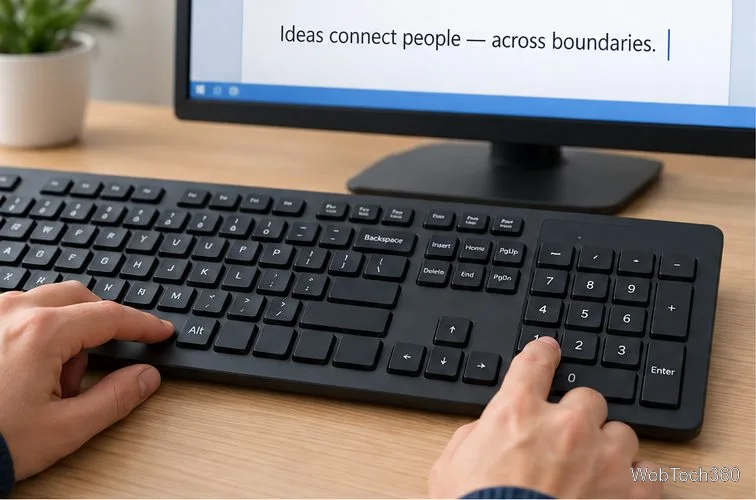
Place the cursor in a text field, hold Alt, enter 0151 on the numeric keypad, and release Alt. Include the leading zero. Microsoft lists Alt+0151 for the em dash; Alt+0150 is the en dash, so the final digit matters. Turn on Num Lock if your keypad requires it. The number row above the letters usually won’t substitute for a separate numeric keypad.
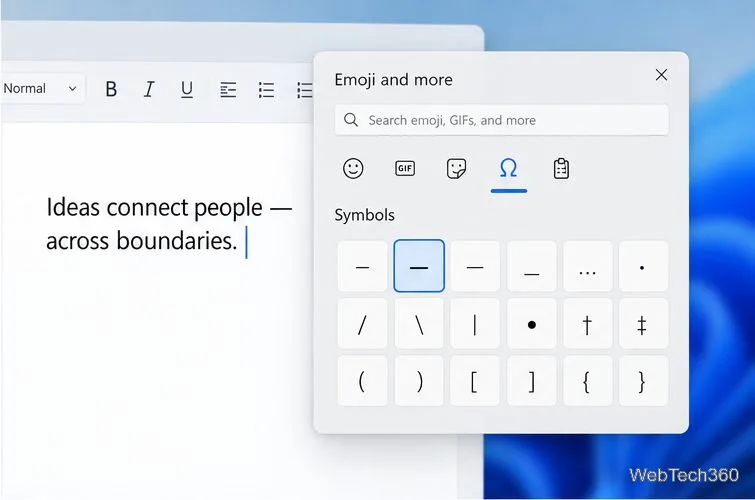
If there’s no numeric keypad, press Windows key + period (.) to open the Emoji and more panel. Choose Symbols (the omega icon), then browse the punctuation marks and click the em dash. It is inserted at the active cursor in the app. The exact grid can vary by Windows version, so look for the long dash rather than relying on a fixed grid position. Microsoft’s Windows keyboard tips describe the Symbols panel and Alt codes.
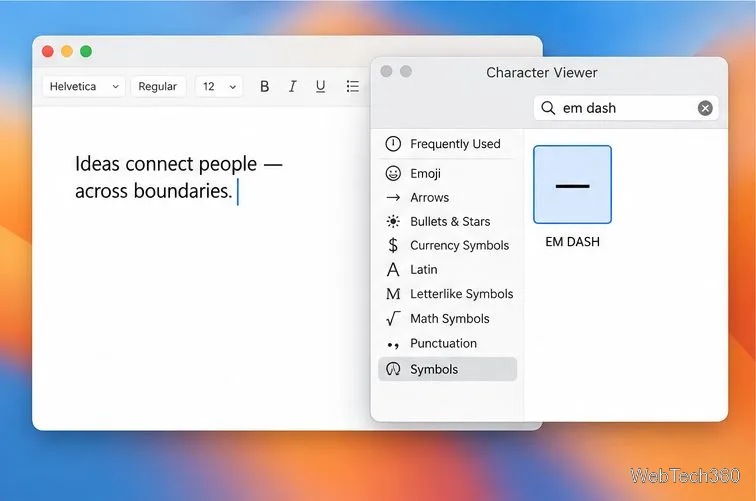
On a Mac using the common U.S. keyboard layout, press Option + Shift + hyphen (-). The hyphen key is beside the zero key. If your keyboard layout produces a different character, open Character Viewer with Control + Command + Space, search for “em dash,” and select the mark. Apple documents Character Viewer as a way to enter characters and explains that keyboard layouts affect which key combinations work.
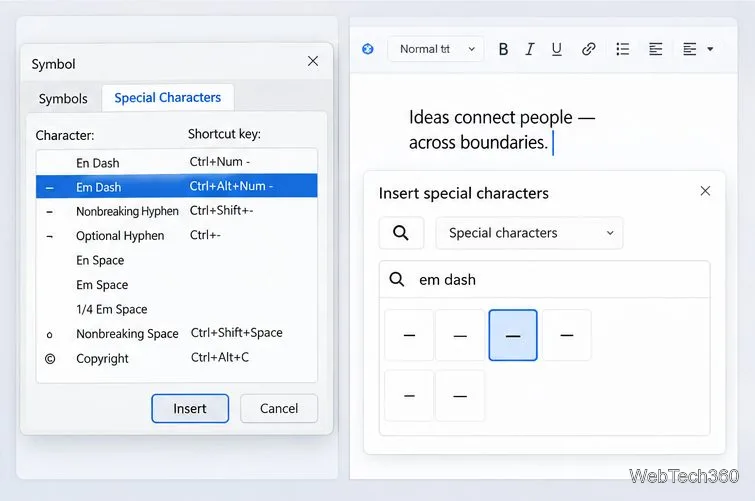
In desktop Word, click where the dash should go, then choose Insert > Symbol > More Symbols. Open the Special Characters tab, select Em Dash, and double-click it (or choose Insert, then Close). The symbol dialog is useful when you do not want to memorize a key combination. Word for Windows also documents Ctrl + Alt + the minus key on the numeric keypad as a direct em-dash shortcut. See Microsoft’s Word symbol instructions and Word keyboard shortcuts.
In a Google Doc, place the cursor, open Insert > Symbols > Special characters, then enter the Unicode value 2014 or choose the punctuation category. Click the em dash to insert it. You can also draw the character in the picker if you do not know its name. Google’s special-character instructions cover the available ways to find and insert symbols.
Check the glyph before continuing: — is the em dash; – is the shorter en dash; - is a hyphen. If Alt+0151 fails, confirm you used the numeric keypad and included the zero. If a Mac shortcut does not match your layout, use Character Viewer. In Word or Docs, the insertion menus avoid keyboard-layout differences. On Mac, some apps can also convert two hyphens into an em dash when smart dashes are enabled; Apple notes that text substitutions and smart dashes are not available in every app. See its Mac punctuation settings for that option.
Check Windows Server disk status and reliability counters, verify SMART data when available, and separate hardware warnings from NTFS errors.
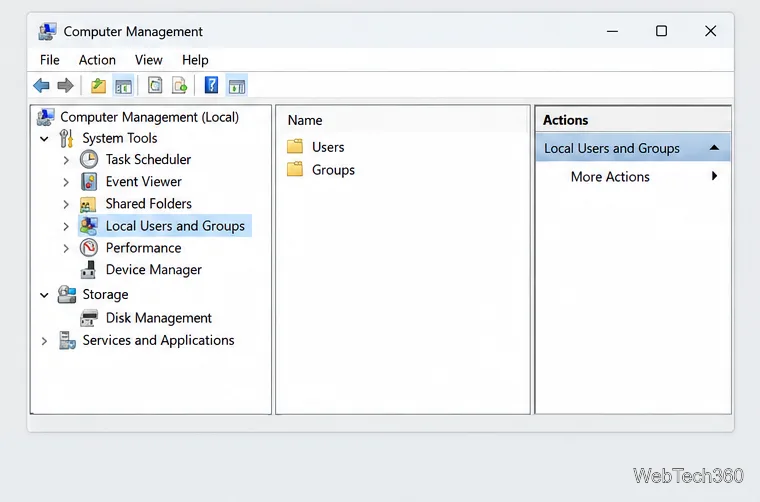
Create, grant admin rights to, disable, or remove local Windows Server users with Computer Management or PowerShell. Learn when to use Active Directory instead.
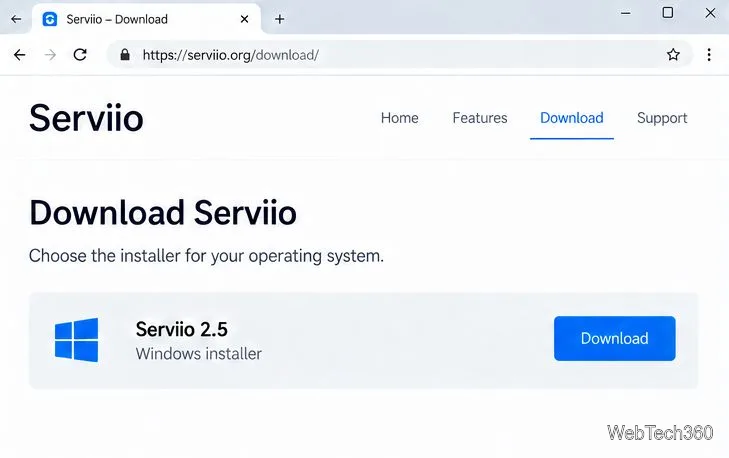
Install Serviio on Windows Server, share local or NAS media folders, and test DLNA playback. Learn how to check the Windows service, firewall, and Pro-only browser features.
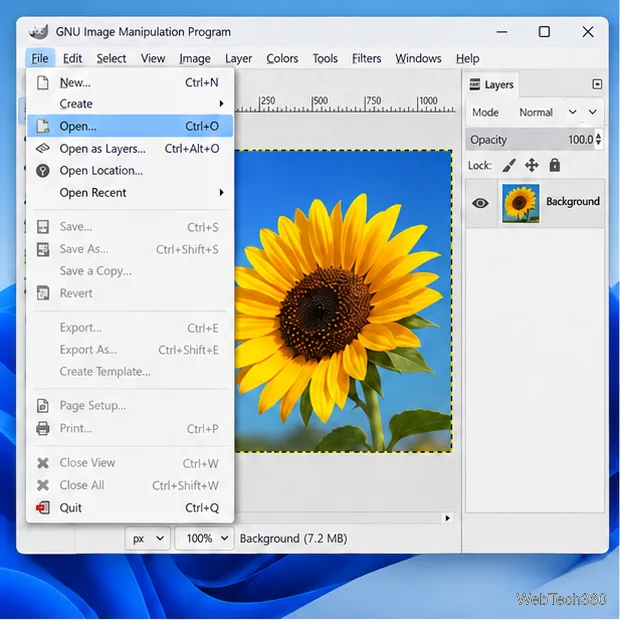
Convert PNG, JPG, or BMP files to Windows ICO with GIMP. Prepare a square image, keep transparency when needed, add standard sizes, and check the export.
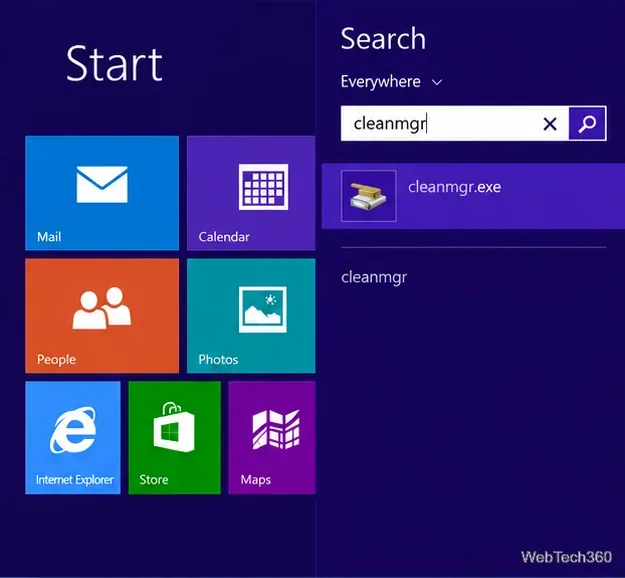
Clear thumbnail, DNS, Internet Explorer, Microsoft Store, Search, and Live Tile data with Windows 8’s built-in tools, and learn what each cleanup removes.
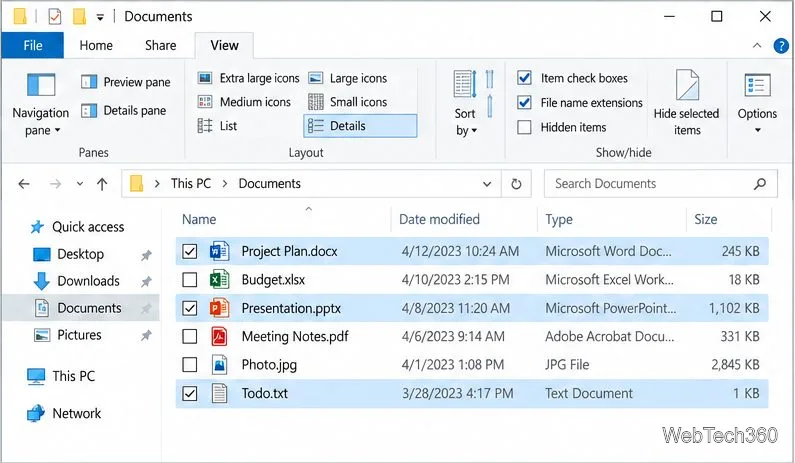
Turn off Windows 10 item check boxes in File Explorer with the View ribbon, or use Folder Options if the toggle is missing. See what changes and how to select multiple files without boxes.
Install VMware Workstation Pro on a compatible Windows Server host, from checking support and downloading the right build to creating your first VM.
Browse and copy Ext2, Ext3, or Ext4 files on Windows with a read-only workflow. See what Linux Reader’s free edition supports and when WSL fits.
Install Caddy’s native Windows binary, serve a test site, enable automatic HTTPS for a domain, and run Caddy as a Windows Server service.
Run Linux Docker containers alongside Windows Server by creating an Ubuntu Hyper-V VM, installing Docker Engine, and publishing a test service safely.