How to Open a Linux Shell in a Folder on Windows 10

Open a Linux shell in any Windows 10 folder with File Explorer, PowerShell, and WSL. Check the Linux path and fix common setup issues.
To uninstall Chromium on Windows, close its processes, remove it in Settings, and delete its profile only if you no longer need that data. If it arrived unexpectedly or returns after removal, scan for unwanted software and review changed browser settings. Chromium is a legitimate open-source project; a third-party copy can still be unwanted. Chrome and Edge are separate browsers built using Chromium code, so removing Chromium does not uninstall them.
The interface illustrations show representative Windows 11 controls; Windows 10 labels and layouts differ slightly.
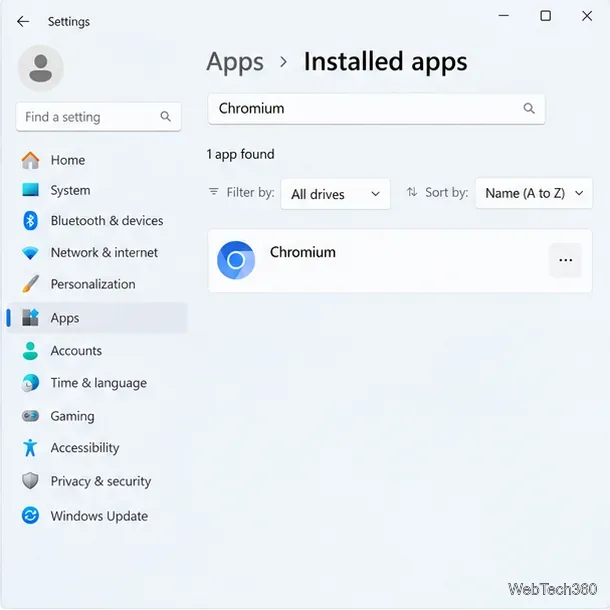
Open Settings > Apps > Installed apps and search for Chromium. On Windows 10, look under Settings > Apps > Apps & features. Remove only the entry that is actually named Chromium. Do not uninstall Chrome, Edge, Brave, or another browser just because it uses Chromium code. Read the Chromium Project overview.
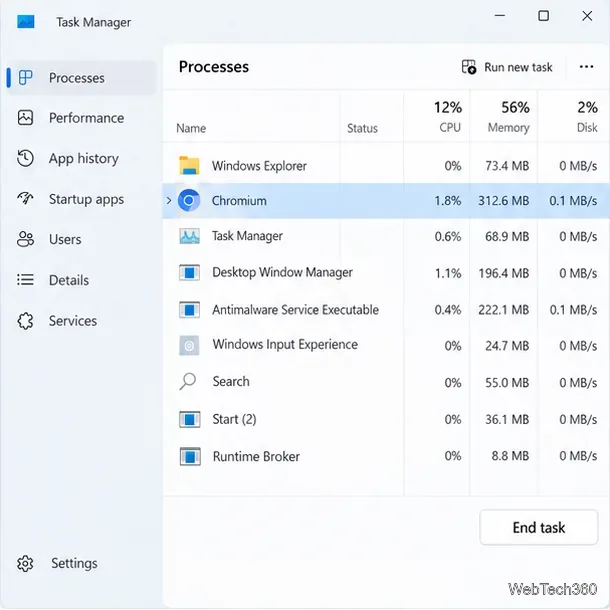
Press Ctrl+Shift+Esc to open Task Manager, select Chromium under Processes, and choose End task. If entries are grouped, close the Chromium group only. Skip this step if it is not running, and do not end unfamiliar Windows processes.
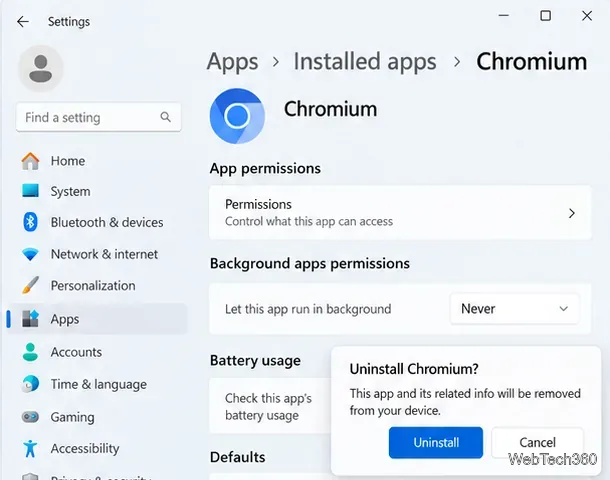
On Windows 11, open Settings > Apps > Installed apps, choose the three-dot menu beside Chromium, then Uninstall. On Windows 10, use Settings > Apps > Apps & features. If Chromium is not listed, try Control Panel > Programs > Programs and Features. For an uninstall error, use Microsoft’s troubleshooting guidance; do not delete registry entries by hand.
If Chromium was installed without your knowledge or changed another browser, run a full scan from Windows Security > Virus & threat protection. Update security intelligence first. For threats that persist while Windows runs, use Microsoft Defender Offline, which restarts the PC and scans outside the normal Windows session. Chromium itself is not automatically malware.
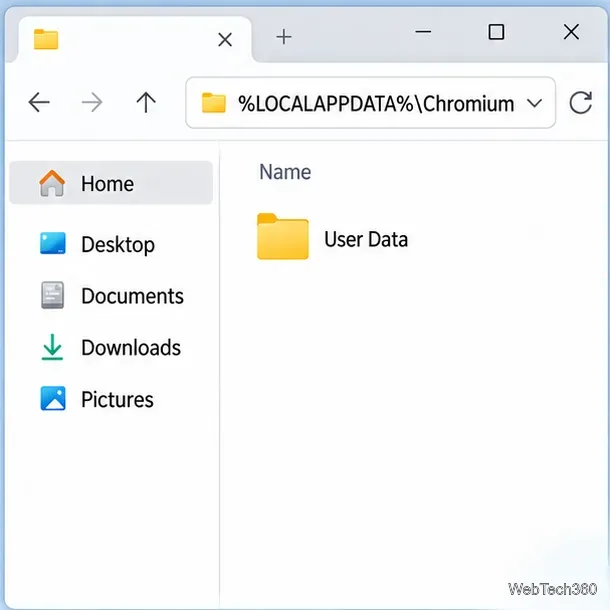
The app and its profile are separate. Chromium profile data can include bookmarks, history, and cookies, so back up anything you need first. For the default Windows build, enter %LOCALAPPDATA%\Chromium in File Explorer; its profile is usually in User Data. Delete only the folder you have confirmed belongs to the removed Chromium app, never a Chrome or other browser folder. The Chromium documentation notes that profile locations can vary or be customized.
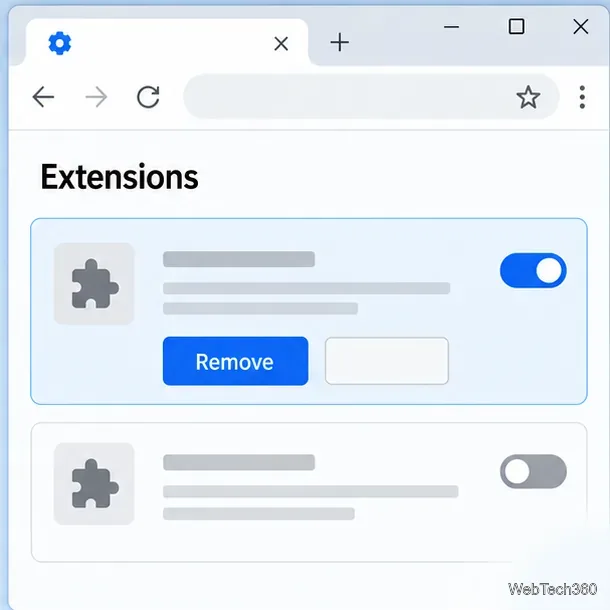
In any browser showing redirects or pop-ups, review its extensions, startup page, and search engine. Remove only add-ons you do not recognize or trust; uninstalling Chromium does not remove extensions from Chrome, Edge, or Firefox. See Google’s instructions to manage Chrome extensions.
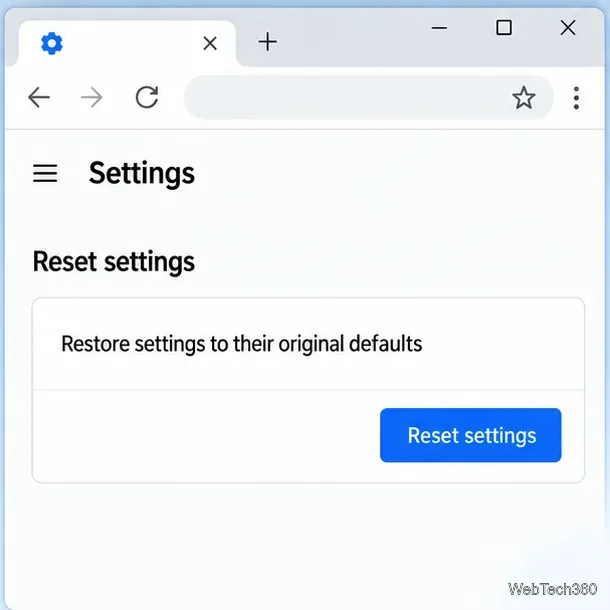
Reset only the browser whose settings changed. In Chrome, go to Settings > Reset settings > Restore settings to their original defaults. Google says this resets items such as search and startup pages but keeps bookmarks and passwords; see its reset guide. In Edge, open edge://settings/reset and choose the restore-defaults option. In Firefox, select Help > More troubleshooting information > Refresh Firefox; Mozilla lists what a refresh removes in its Firefox guide. A reset can remove extensions and custom settings.
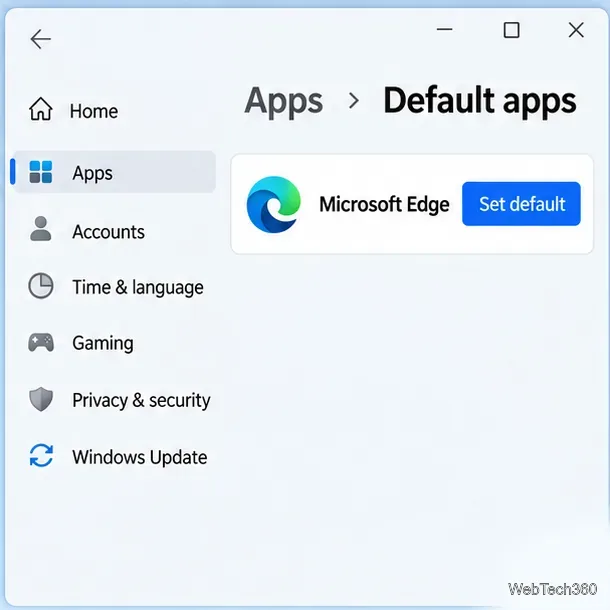
If Windows’ default changed, open Settings > Apps > Default apps and choose your browser. Windows 10 lists it under Web browser; Windows 11 may show Set default. See Microsoft’s default-browser instructions for Edge as an example.
After restarting, check Installed apps again. If Chromium returns, run a full or Offline scan and review startup entries that clearly belong to it. Do not disable system services or edit the Registry based on a guess. On a work- or school-managed PC, ask IT whether a policy is reinstalling it.
On macOS, quit Chromium and use its uninstaller if included; otherwise move it from Applications to Trash. Follow Apple’s uninstall steps. Its usual profile is ~/Library/Application Support/Chromium. On Linux, use the package manager or app store that installed Chromium; its usual profile is ~/.config/chromium. Back up needed data before deleting either profile.
No. Chromium is an open-source browser project. A third-party installer can bundle unwanted software or imitate Chromium, so investigate an unexpected installation and scan the device.
No. They are separate installed browsers. Removing Chromium does not remove them, their profiles, or their bookmarks.
Open a Linux shell in any Windows 10 folder with File Explorer, PowerShell, and WSL. Check the Linux path and fix common setup issues.
Use a screenshot test, cable and port checks, monitor diagnostics, display settings, and driver rollback to pinpoint lines on a Windows 10 monitor.
Show two other time zones beside your Windows 10 clock. Set up each additional clock, give it a clear label, and find it in the taskbar calendar.
Find the File Explorer extension that delays right-click menus in Windows 10, test it safely with ShellExView, and restore any menu features you still need.
Stop Windows 10 from powering down a specific network adapter or USB device with plan-level settings and Device Manager controls, plus tips to avoid excess battery drain.
Check whether Windows 10 uses a digital license or product key, find a firmware-stored OEM key, and save license details securely for a reinstall.
Identify a Windows 10 Task Manager process by checking its executable path, file properties, publisher, linked services, and a Microsoft Defender scan.
Create a searchable Windows 10 folder inventory with PowerShell. Save every file and subfolder path as plain text or export details to a sortable CSV.
Add a custom reminder, quote, or label to your Windows 10 desktop with a Rainmeter text skin. Create the INI file, load it, then adjust its font and position.
Use Bluetooth Swift Pair on Windows 10 to pair a compatible accessory from a notification, with setup steps and fixes when the prompt does not appear.








