How to Set Different Scaling Levels for Multiple Monitors in Windows 10

Adjust each Windows 10 monitor independently with per-display scaling, keep text readable, and troubleshoot custom scaling or blurry apps.
To uninstall a Microsoft Store app in Windows 10, open Settings > Apps > Apps & features, select the app, and choose Uninstall. You can also remove many apps from the Start menu. These steps remove an installed app; they do not uninstall the Microsoft Store itself.
Windows 10 shows Store apps and traditional desktop programs in its app lists, so the list alone does not always tell you how something was installed. If the Uninstall command is missing or the removal fails, use the checks below before trying another method.
Settings is the most reliable place to search when the app is not pinned to Start or you have many installed programs.

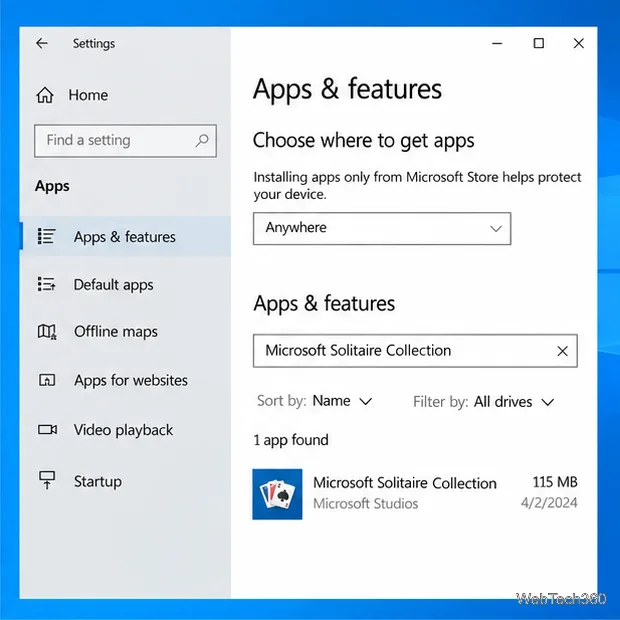
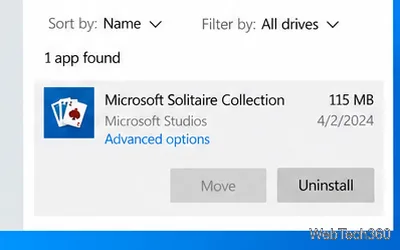
Microsoft's Windows app-removal instructions also describe the Settings route. The exact labels can vary on other Windows versions, but Apps & features is the Windows 10 page name.
For a quick removal, open Start and find the app in the alphabetical app list. Right-click the app (or press and hold it on a touch screen), then select Uninstall. Confirm if Windows asks. Depending on the app, Windows may remove it directly or open a settings page to finish the job.
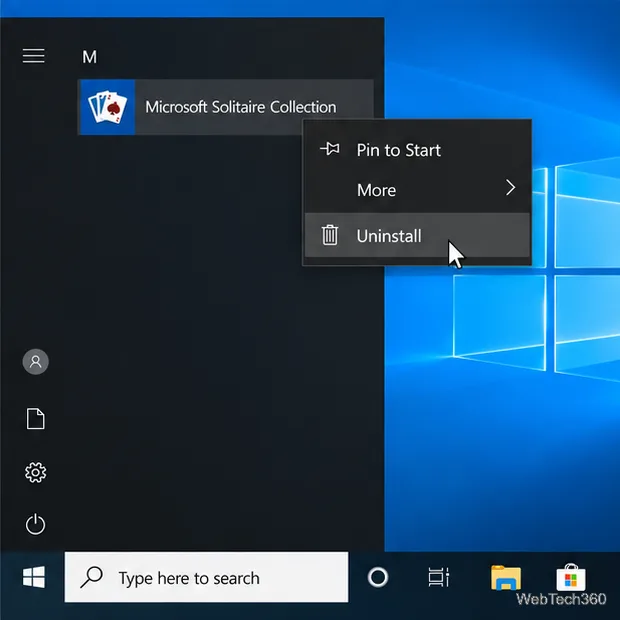
The Start menu is convenient, but it is not a test of where an app came from. Desktop programs can also have an Uninstall entry, and some Store apps cannot be removed this way. If you do not see the command, try the Settings method before concluding that the app is a desktop program.
Save or export anything important first. Uninstalling can remove files or settings stored only on the PC, while cloud-synced data depends on the app's account and sync service. If you plan to reinstall the app, search for its exact name in Microsoft Store and check that the listing is still available for your device and account. Removing an app does not remove Microsoft Store, and it does not automatically cancel a separate subscription.
For reference, Microsoft also maintains a general guide to uninstalling apps and programs in Windows, including the Start menu and Control Panel options.
Adjust each Windows 10 monitor independently with per-display scaling, keep text readable, and troubleshoot custom scaling or blurry apps.
Use AirType’s browser pairing setup to type on an iPhone from a Windows 10 PC, with current setup steps, troubleshooting, and privacy limits.
Hide the mouse pointer in Windows 10 videos, games, and other apps with built-in typing controls or PowerToys CursorHide’s adjustable inactivity timer.
Find Control Panel Power Options on a Windows 10 desktop, open the page with a Run command, and adjust power plans, display timeouts, sleep, and button behavior.
Learn what Windows 10 deletion leaves behind, how to use SDelete on an HDD, and why SSDs and cloud backups need separate treatment.
Use FFmpeg’s DirectShow tools to open an integrated webcam’s driver properties in Windows 10, find the correct device, and troubleshoot missing controls.
Identify a keypress in Windows 10 with a browser event tester or SharpKeys, then separate layout, software, and keyboard hardware issues.
Use double quotes around each complete path with spaces in Command Prompt. Learn how to list, change to, copy, and troubleshoot Windows 10 files and folders.
Turn off the Windows 10 Start menu’s hover-to-expand behavior with a legacy Mach2 command, check build limits, and see the built-in app-list alternative.
Fix the iTunes Library.itl read error on Windows 10 by updating iTunes, restoring a compatible backup, or safely creating a new library without deleting media files.








