How to Create a List of All Items in a Folder on Windows 10

Create a searchable Windows 10 folder inventory with PowerShell. Save every file and subfolder path as plain text or export details to a sortable CSV.
To use a command-line switch on Windows 10, launch a program's executable file followed by the switch it supports. For example, Chrome can be started in Incognito mode with --incognito. Use Command Prompt when you need the option once, or add the same switch to a desktop shortcut when you want a reusable launch option.
The important rule is that the application defines its own switches. Windows does not make a random /, -, or -- option work for every program. Check the app's official documentation before using a switch. Microsoft's command-line syntax guide also explains how Windows documentation represents required and optional arguments.
A command-line switch is an argument added after a program name to change how that particular launch behaves. It can open a special mode, select a file or profile, enable logging, or change another startup setting. The exact syntax is application-specific.
"C:\Path With Spaces\app.exe" --switchIf the executable path contains spaces, wrap the path in quotation marks. Put the switch after the closing quote, separated by a space. Do not assume that --switch, -switch, and /switch are interchangeable.
Some programs show their supported options when run with /?, -h, or --help, but this is not universal. The safest source is the program's own documentation.
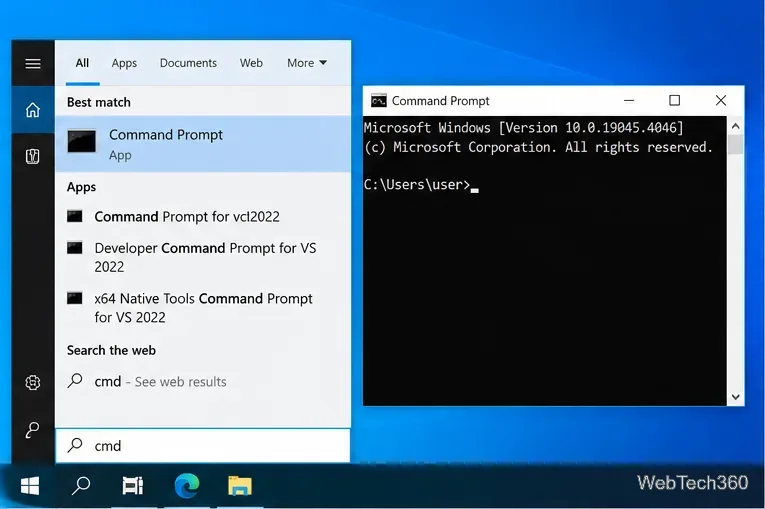
Open Start, type cmd, and select Command Prompt. You normally do not need administrator rights unless the application or action itself requires elevation. Microsoft's cmd documentation describes the Windows 10 command interpreter and its own parameters.
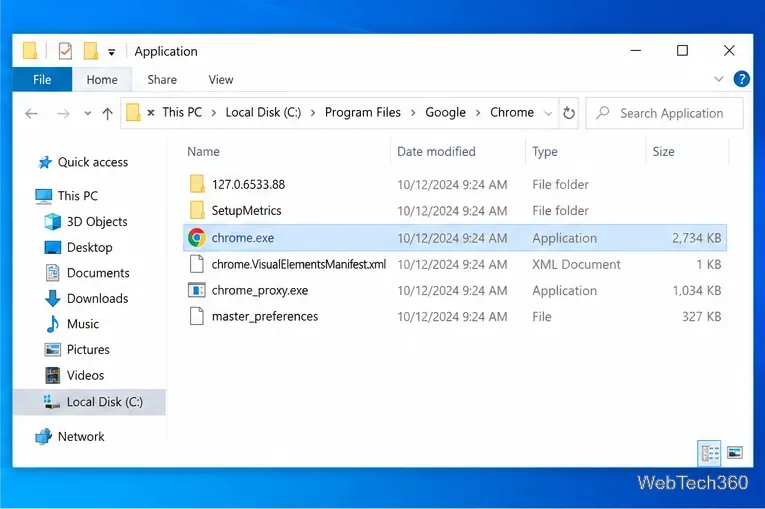
Locate the program's .exe file in File Explorer and copy or note its full path. Installation folders vary by application, Windows architecture, and how the program was installed, so do not copy a path from a guide unless it matches your PC.
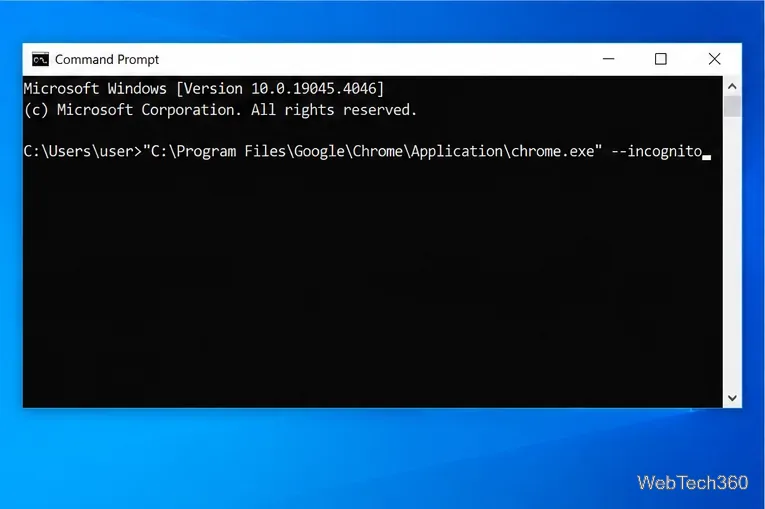
For Chrome, Chromium's current source still defines incognito as the switch that launches the browser in Incognito mode. A typical command is:
"C:\Program Files\Google\Chrome\Application\chrome.exe" --incognitoIf Chrome is installed elsewhere, replace the path with the location on your system. Chromium also documents the general Windows pattern of adding flags after the executable, while warning that many flags are intended for temporary or development use and can change. See the Chromium flag guide and the Chromium switch source.
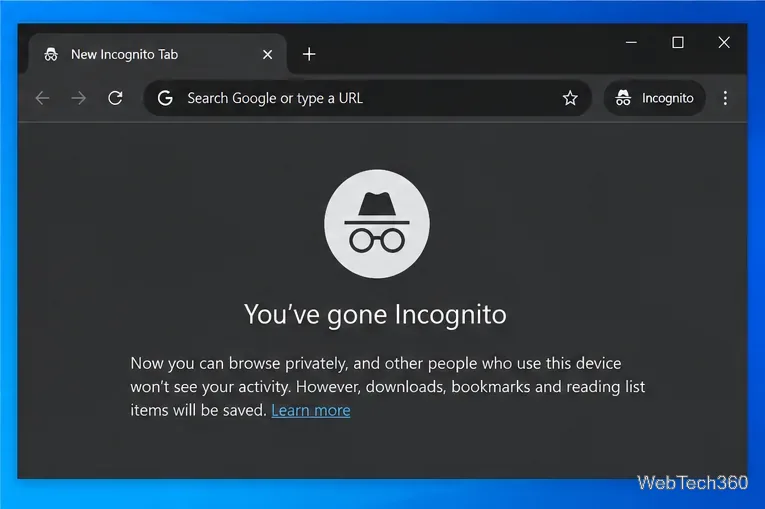
Press Enter. If the switch is valid, the application should start with the requested behavior. If nothing changes, recheck the spelling, dashes, spacing, executable path, and whether the installed version actually supports that option.
A shortcut is useful when you want the same launch behavior repeatedly without typing the command every time.
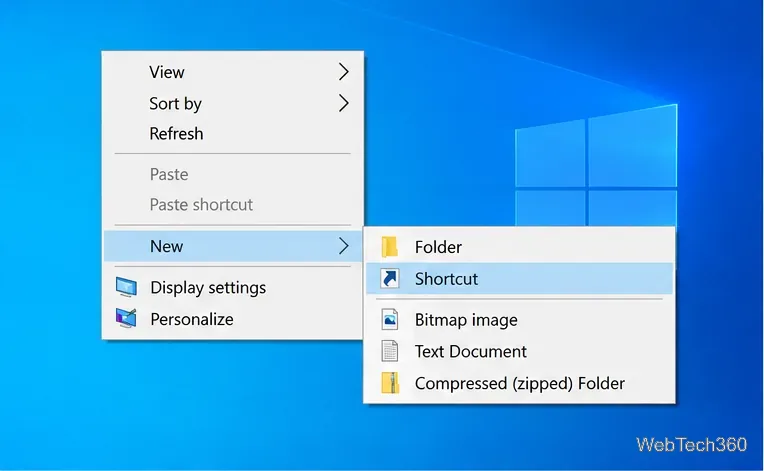
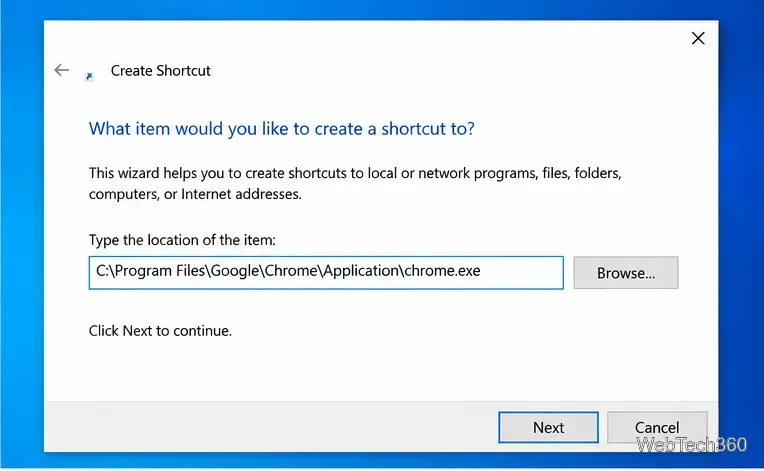
Right-click an empty area of the desktop and choose New > Shortcut. Microsoft also documents desktop shortcut creation through Windows. Browse to the application's executable or type its path, then finish the wizard. See Microsoft's desktop shortcut instructions.
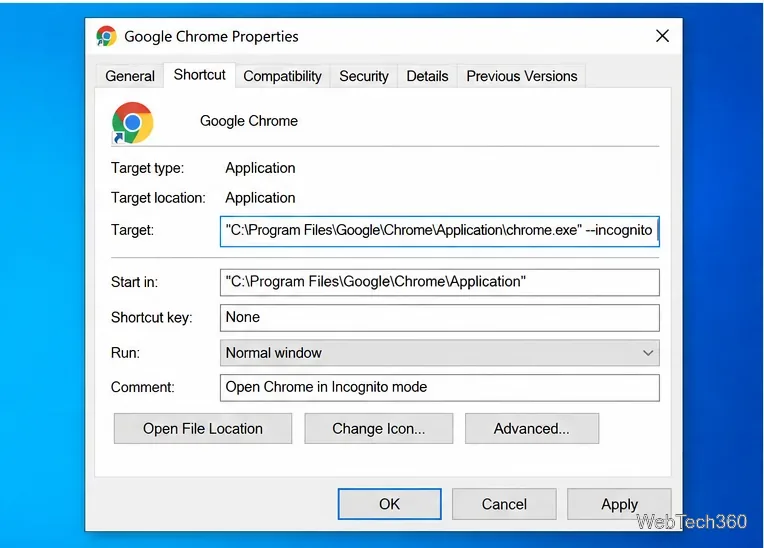
Right-click the new shortcut, choose Properties, and open the Shortcut tab. In Target, leave the quoted executable path unchanged. After the final quotation mark, type one space and then the switch:
"C:\Program Files\Google\Chrome\Application\chrome.exe" --incognitoClick Apply and OK. The switch must remain outside the quotes; otherwise Windows may interpret it as part of the file path.
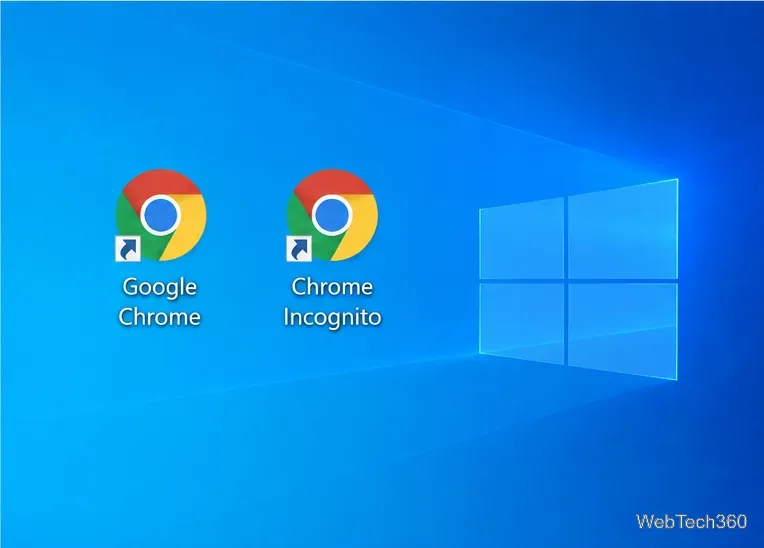
Give the shortcut a descriptive name such as Chrome Incognito. Opening that shortcut will pass the switch each time, while your normal Chrome shortcut can still launch the browser normally.
/, some use -, and others use --.Yes. These command-line and shortcut techniques still work on Windows 10 systems. However, Microsoft ended standard Windows 10 support on October 14, 2025. If you still use Windows 10, review Microsoft's Windows 10 end-of-support guidance for supported upgrade or Extended Security Updates options.
Create a searchable Windows 10 folder inventory with PowerShell. Save every file and subfolder path as plain text or export details to a sortable CSV.
Add a custom reminder, quote, or label to your Windows 10 desktop with a Rainmeter text skin. Create the INI file, load it, then adjust its font and position.
Use Bluetooth Swift Pair on Windows 10 to pair a compatible accessory from a notification, with setup steps and fixes when the prompt does not appear.
Learn what common laptop function key symbols mean, how Fn and Fn Lock affect them, and how to confirm the right shortcut for your Windows 10 laptop model.
Turn off your Windows 10 display instantly with ScreenSleep, set a keyboard shortcut, and see when to use the built-in screen timeout instead.
Fix the “running scripts is disabled on this system” PowerShell error on Windows 10 with a current-user policy, a temporary session option, and safe steps for downloaded scripts.
Change the Windows 10 drag-selection color with a backup-first registry walkthrough, RGB examples, troubleshooting tips, and steps to restore your original values.
Check your router’s connected-device list or scan a local network with Fing Desktop on a supported PC. Learn what each method can show and how to verify unfamiliar entries.
Messenger does not offer a documented per-friend online alert. Learn how Active Status works, where to check the green dot, and which notifications you can enable instead.
Use 7-Zip to find an exact filename or wildcard match inside a ZIP or other supported archive on Windows 10 without unpacking its files.








