How to Set Different Scaling Levels for Multiple Monitors in Windows 10

Adjust each Windows 10 monitor independently with per-display scaling, keep text readable, and troubleshoot custom scaling or blurry apps.
To keep CPU, memory, disk, and network readings visible while you work in Windows 10, install XMeters and add its meters to the taskbar. Windows Task Manager remains the built-in tool for investigating which process is using resources; XMeters provides a compact, at-a-glance display that stays on the taskbar.
XMeters offers CPU, memory, storage, and network monitoring, with configurable colors and meter styles. You can show all four categories or hide the ones you do not need. Its meters are status indicators, not a replacement for Task Manager: they do not identify the app responsible for a spike or give you the same process-level detail.
The Storage meter is for disk activity, not a drive-capacity readout. To check free space, use File Explorer or Windows Storage settings. For exact CPU, memory, disk, and network use by app, open Task Manager with Ctrl+Shift+Esc.
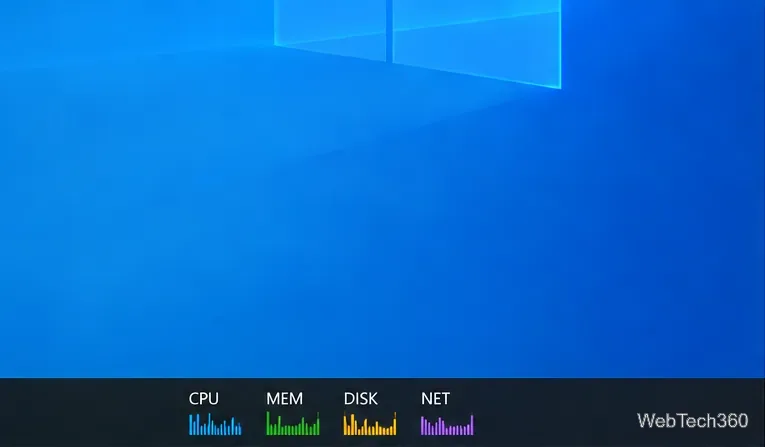
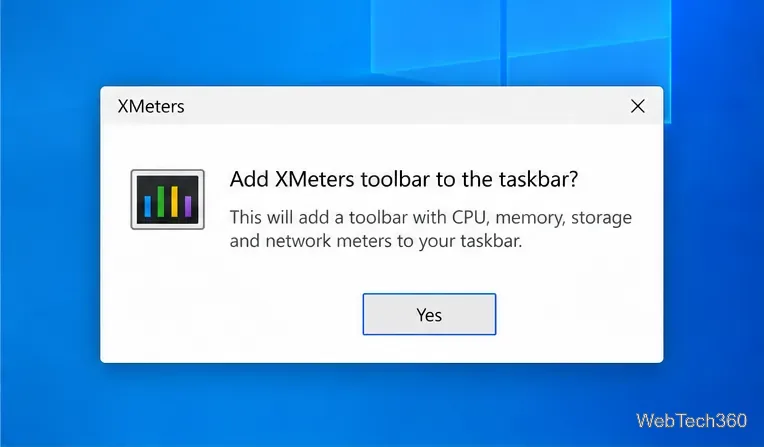
Open XMeters settings by right-clicking one of its meters, then use the settings window to select the categories you want. The available settings are organized around CPU, Memory, Storage, and Network. Turn off categories you do not need to keep the taskbar from becoming crowded.
For CPU, the original XMeters settings include an option to show individual cores. Turn that option off for one combined CPU reading; leave it on if you want to compare activity across cores. Choose a separate color for each metric so the bars remain easy to distinguish against your taskbar background.
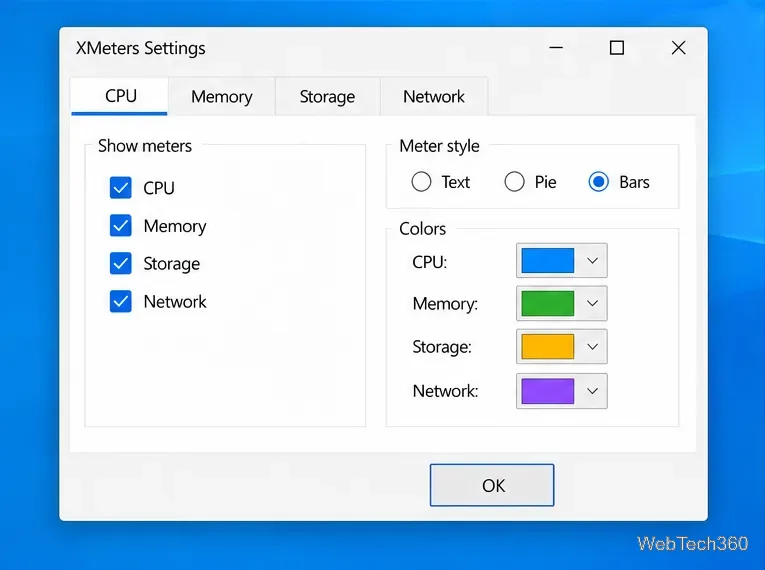
XMeters supports text, pie-chart, and bar-style meters. Pick the format you can read at a glance: text is compact, while bars make relative activity easier to spot. If the colors blend into your taskbar, change them in the settings for the relevant metric.
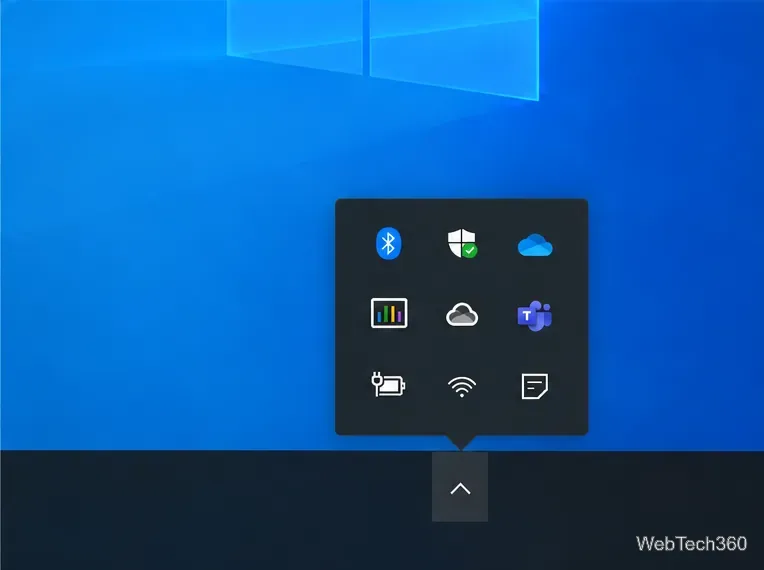
Windows may place background-app icons in the hidden notification area. To show XMeters on the taskbar in Windows 10, right-click the taskbar, choose Taskbar settings, then under Notification area select Select which icons appear on the taskbar. Turn XMeters on. You can also click the up-arrow by the clock and drag its icon into the visible notification area.
When a meter stays high, press Ctrl+Shift+Esc to open Task Manager. On the Processes tab, review the CPU, Memory, Disk, and Network columns to find which running app is consuming resources. Select a column heading to sort by that resource. The Performance tab shows broader system graphs, while the XMeters taskbar display lets you keep an eye on activity without leaving your current window.
The XMeters download page currently lists Windows 10 compatibility, but the developer's site carries a 2017 copyright notice and does not provide a clear recent release history. Treat it as a legacy utility: download only from the developer, review any Windows security prompt, and confirm that the installer works with your system before relying on it.
Microsoft ended standard Windows 10 support on October 14, 2025. The PC will continue to run, but Microsoft no longer provides regular free security fixes and technical support for Windows 10. See Microsoft's taskbar guidance and Task Manager overview for Windows' built-in options.
Adjust each Windows 10 monitor independently with per-display scaling, keep text readable, and troubleshoot custom scaling or blurry apps.
Use AirType’s browser pairing setup to type on an iPhone from a Windows 10 PC, with current setup steps, troubleshooting, and privacy limits.
Hide the mouse pointer in Windows 10 videos, games, and other apps with built-in typing controls or PowerToys CursorHide’s adjustable inactivity timer.
Find Control Panel Power Options on a Windows 10 desktop, open the page with a Run command, and adjust power plans, display timeouts, sleep, and button behavior.
Learn what Windows 10 deletion leaves behind, how to use SDelete on an HDD, and why SSDs and cloud backups need separate treatment.
Use FFmpeg’s DirectShow tools to open an integrated webcam’s driver properties in Windows 10, find the correct device, and troubleshoot missing controls.
Identify a keypress in Windows 10 with a browser event tester or SharpKeys, then separate layout, software, and keyboard hardware issues.
Use double quotes around each complete path with spaces in Command Prompt. Learn how to list, change to, copy, and troubleshoot Windows 10 files and folders.
Turn off the Windows 10 Start menu’s hover-to-expand behavior with a legacy Mach2 command, check build limits, and see the built-in app-list alternative.
Fix the iTunes Library.itl read error on Windows 10 by updating iTunes, restoring a compatible backup, or safely creating a new library without deleting media files.








