Home
» WINDOWS
»
How to Wrap Your Mouse Across Multiple Monitors in Windows 10
How to Wrap Your Mouse Across Multiple Monitors in Windows 10
Windows 10 can extend your desktop across several screens, but it does not include a built-in setting that wraps the pointer from one outer edge to the opposite edge. To make the mouse wrap across multiple monitors, use Little Big Mouse (LBM): arrange the displays, enable the horizontal or vertical loop you need, apply the layout, and turn LBM on.
What mouse wrapping changes
Normally, Windows moves the pointer only across adjoining display edges. A loop lets it leave the outside edge of the display group and reappear at the opposite side: horizontally from left to right, or vertically from top to bottom. LBM routes the pointer; Windows still controls the desktop layout and application windows.
Before you start
Connect and enable the monitors. LBM supports Windows 10/11 x64.
The current release is 5.6.0 and requires .NET 10 Runtime (x64). Check the release notes for the version you install.
The installer is not code-signed, so Windows SmartScreen may show a warning. Only consider continuing if you downloaded it from an official project source and are comfortable with that warning.
Set up mouse wrapping in Windows 10
1. Extend and arrange the displays in Windows
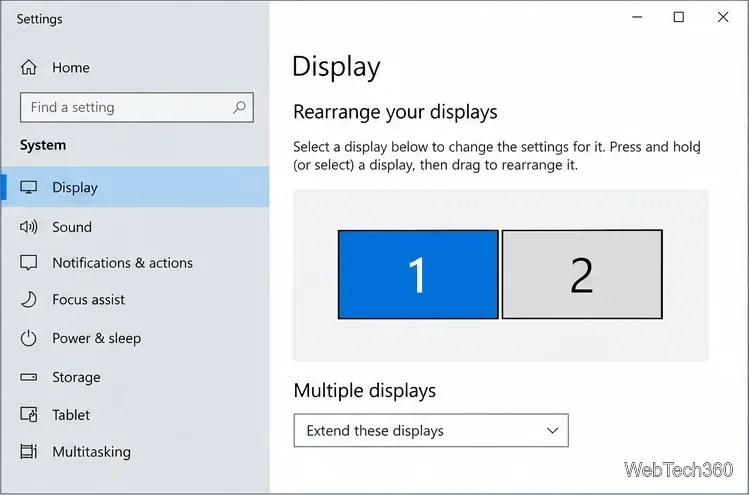
Press Windows key + P and choose Extend, or open Start > Settings > System > Display. Select Identify to match numbered tiles to the physical monitors. Drag the tiles to reflect their real positions, then select Apply.
Windows 10 must use an extended desktop before you configure a pointer loop.
This sets Windows’ normal screen boundaries; it does not create wraparound. See Microsoft’s multiple-monitor guide for the Extend and arrange controls.
2. Install and open Little Big Mouse
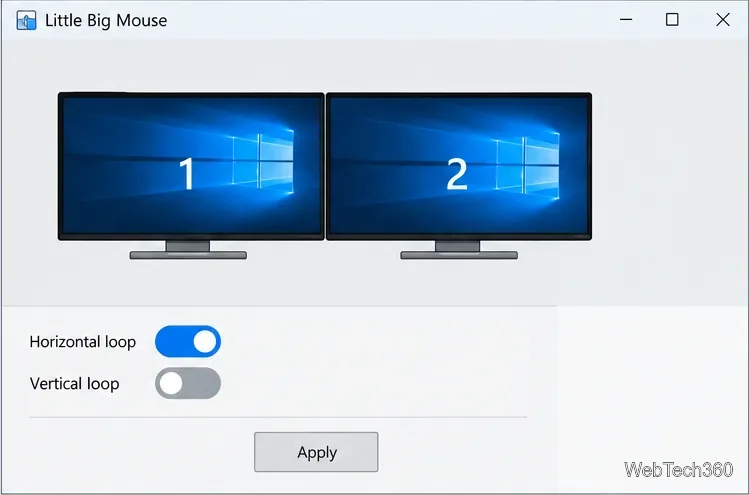
Run the installer, finish setup, and open Little Big Mouse from Start. Its getting-started guide covers installation; the app places your displays in a central layout area and controls in a bottom panel.
3. Match LBM’s layout to the monitors on your desk
Drag the displays in the center panel to match their order, relative size, and vertical offsets on your desk. LBM uses this physical layout to route the pointer where screens meet. If a monitor reports the wrong size, correct it in the app’s size view, then apply the layout.
The current interface places loop controls and layout actions in the lower panel.
Keep LBM’s display positions close to the Windows arrangement as well. LBM handles cursor movement; it does not reposition application windows. If the pointer crosses according to LBM but dragging a window follows an unexpected route, adjust the Windows display tiles so window movement follows the same physical arrangement.
4. Turn on the loop that matches your setup
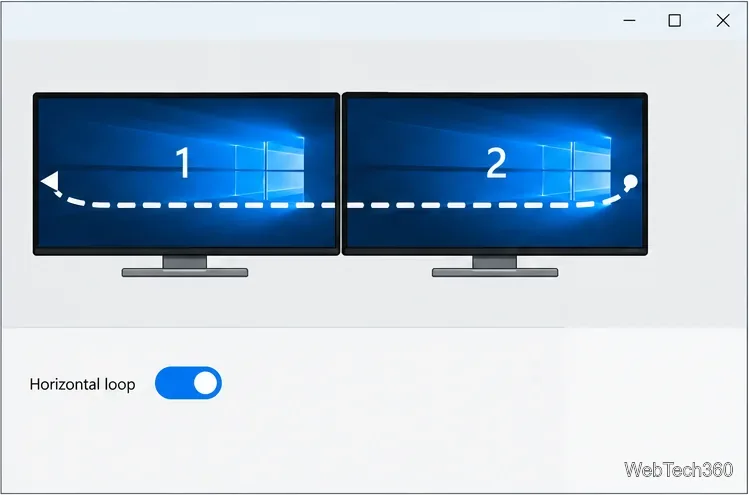
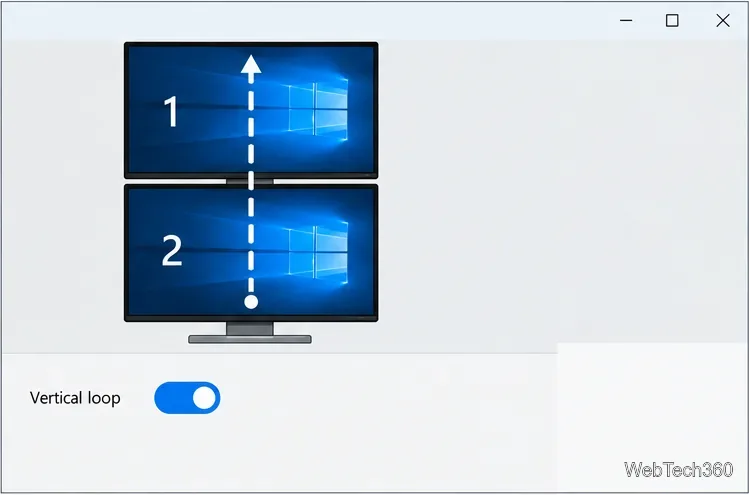
In the bottom panel, enable Horizontal loop for side-by-side displays or Vertical loop for a stack. Turn on both for a mixed or L-shaped layout that should wrap in both directions. Current versions use switches, not the red play button shown in some old instructions; see the current interface guide.
Use Horizontal loop when you want the cursor to wrap between the leftmost and rightmost edges.Use Vertical loop for a monitor stack; enable both loop switches for a layout that needs both directions.
Select Apply to save, then enable LBM from its bottom panel or tray icon. Test an outside edge: horizontal looping returns the pointer at the opposite left/right edge; vertical looping returns it at the opposite top/bottom edge. Adjust and apply again if needed.
Troubleshooting mouse wrapping
The pointer still stops at the edge: Confirm Windows is set to Extend, LBM is enabled, the right loop switch is on, and the applied layout matches your monitors.
Pointer and window movement differ: Windows and LBM use separate layouts. Align them; LBM routes the mouse but does not change Windows’ window-drag behavior.
A full-screen game has mouse problems: Some games conflict with global mouse hooks. Exclude that game in LBM or turn LBM off while playing, as described in the official troubleshooting guide.
The cursor gets trapped: Hold Ctrl + Alt + Shift + M for about a second to recover it. This Windows shortcut is configurable in Options; see the project README.
Little Big Mouse still lists Windows 10 as supported, but Microsoft ended free Windows 10 software updates, technical assistance, and security fixes on October 14, 2025. See Microsoft’s current Windows display support page for the OS notice and display instructions.