How to Fix Lines on a Monitor Screen in Windows 10

Use a screenshot test, cable and port checks, monitor diagnostics, display settings, and driver rollback to pinpoint lines on a Windows 10 monitor.
If your joystick or game controller is connected but Windows 10 does not recognize it, start by finding out whether Windows can see the device at all. The fastest built-in check is the Game Controllers panel opened with joy.cpl. If the sticks move correctly there, the hardware and Windows driver are probably working and the remaining problem is usually game-specific mapping or configuration.
Note: Microsoft ended standard support for Windows 10 on October 14, 2025. Windows 10 PCs still run, but Microsoft recommends moving to a supported version of Windows or using an eligible Extended Security Updates option. See Microsoft's Windows 10 end-of-support guidance.
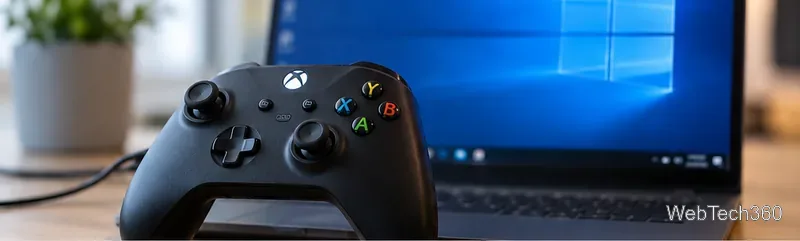
For a wired controller, connect it directly to the PC instead of through a hub or dock. Try another USB port and, if the cable is detachable, another cable that supports data as well as charging. Restart the controller and the PC.
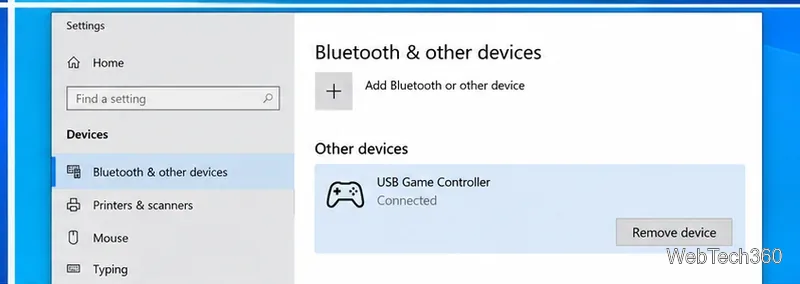
For Bluetooth, make sure the controller is charged, in pairing mode, and close to the computer. In Windows 10, open Settings > Devices > Bluetooth & other devices. If the controller is listed but will not connect, remove it and pair it again. Microsoft documents these Windows 10 steps in its Bluetooth connection troubleshooting guide.
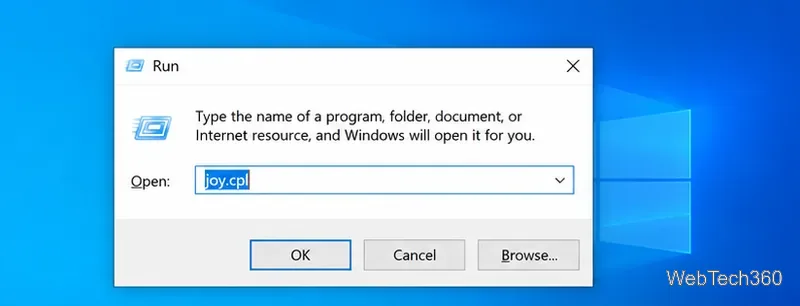
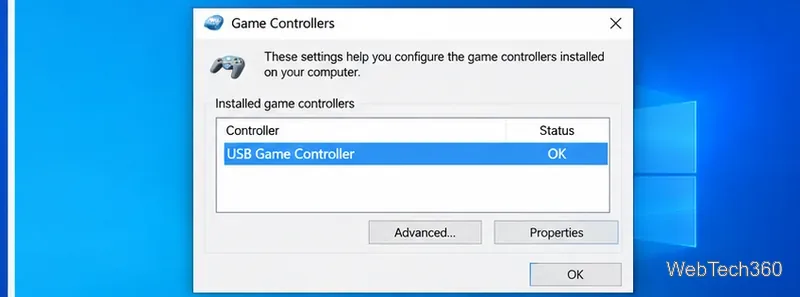
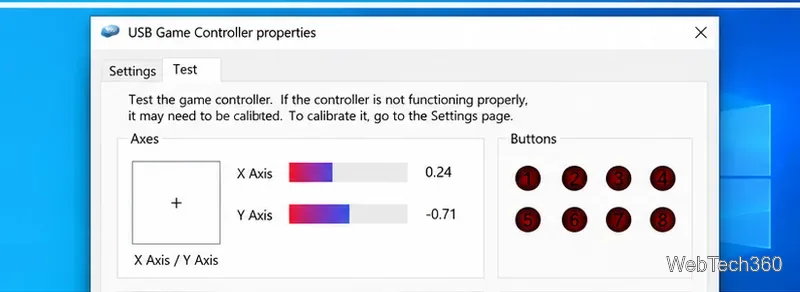
If the controller is missing from this panel, focus on the connection and driver steps below. If the controller appears and the axis indicators move, skip to the game-mapping section because Windows is already receiving joystick input. Logitech also documents joy.cpl as the Windows 10 route to the controller test page in its game-controller test instructions.
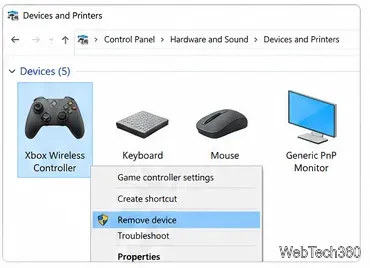
A stale device entry can leave a controller visible but unusable. Open Control Panel > Hardware and Sound > Devices and Printers, right-click the controller, and choose Remove device. Disconnect it, restart the PC, then reconnect or pair it again.
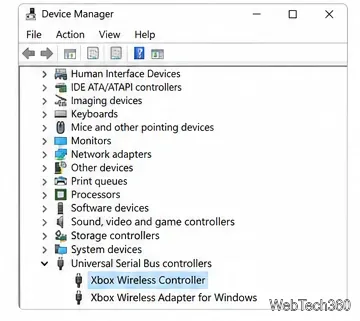
Open Device Manager and look under categories such as Human Interface Devices, Sound, video and game controllers, Xbox Peripherals, or Universal Serial Bus controllers. The exact location depends on the controller.
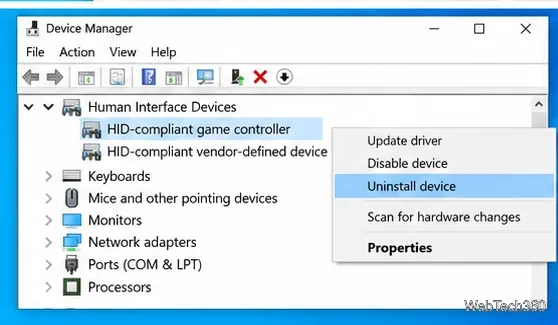
Right-click the controller and select Uninstall device, then restart Windows. Microsoft says Windows will attempt to reinstall the driver after restart. You can also use Update driver, or install the latest Windows-compatible driver or firmware from the controller manufacturer's official support site. Microsoft specifically advises against downloading drivers from unofficial websites; see its Device Manager driver guide.
If the device appears in joy.cpl but the center point or axis range is wrong, select the controller, open Properties, and check for a Settings tab with a calibration option. Follow the wizard only if your controller's manufacturer supports Windows calibration.
This matters because some modern wheels, flight sticks, and specialty controllers use their own firmware or calibration utility. Thrustmaster, for example, warns that Windows calibration can conflict with the product's own calibration on some models. When in doubt, use the manufacturer's current setup or calibration instructions rather than forcing a generic Windows calibration.
When joy.cpl shows correct stick movement but one game ignores it, check that game's controller settings first. For games launched through Steam, Steam Input can translate and remap many supported controllers. Valve describes Steam Input as a layer between the physical controller and the game, including legacy mappings for titles that do not natively understand a particular device. See the official Steam Input documentation.
For racing wheels, flight sticks, or other DirectInput hardware, prefer the game's native device support and the manufacturer's configuration software. Valve notes that generic DirectInput remapping is not the right path for every wheel or flight-stick title.
Test the controller on another PC or console it officially supports. If it is missing from joy.cpl on multiple systems, fails on more than one known-good cable or port, or shows a hardware error in Device Manager after a clean driver reinstall, the controller, cable, receiver, or USB interface may be faulty. At that point, use the manufacturer's support channel for model-specific diagnostics or replacement options.
Use a screenshot test, cable and port checks, monitor diagnostics, display settings, and driver rollback to pinpoint lines on a Windows 10 monitor.
Show two other time zones beside your Windows 10 clock. Set up each additional clock, give it a clear label, and find it in the taskbar calendar.
Find the File Explorer extension that delays right-click menus in Windows 10, test it safely with ShellExView, and restore any menu features you still need.
Stop Windows 10 from powering down a specific network adapter or USB device with plan-level settings and Device Manager controls, plus tips to avoid excess battery drain.
Check whether Windows 10 uses a digital license or product key, find a firmware-stored OEM key, and save license details securely for a reinstall.
Identify a Windows 10 Task Manager process by checking its executable path, file properties, publisher, linked services, and a Microsoft Defender scan.
Create a searchable Windows 10 folder inventory with PowerShell. Save every file and subfolder path as plain text or export details to a sortable CSV.
Add a custom reminder, quote, or label to your Windows 10 desktop with a Rainmeter text skin. Create the INI file, load it, then adjust its font and position.
Use Bluetooth Swift Pair on Windows 10 to pair a compatible accessory from a notification, with setup steps and fixes when the prompt does not appear.
Learn what common laptop function key symbols mean, how Fn and Fn Lock affect them, and how to confirm the right shortcut for your Windows 10 laptop model.








