How to Move Minecraft to Another Drive in Windows 10

Move Minecraft for Windows to another drive with the built-in Settings option, protect your worlds, and see what to do if Move is unavailable.
If pressing letter keys suddenly produces numbers in Windows 10, Num Lock is the first thing to check. Many compact laptop keyboards use letter keys as an embedded numeric keypad, so turning Num Lock off often restores normal typing immediately.
Some laptops do not have a separate number pad. Instead, keys such as U, I, O, J, K, L, and M may have small secondary number labels. When Num Lock is enabled, those keys can act like a numeric keypad.
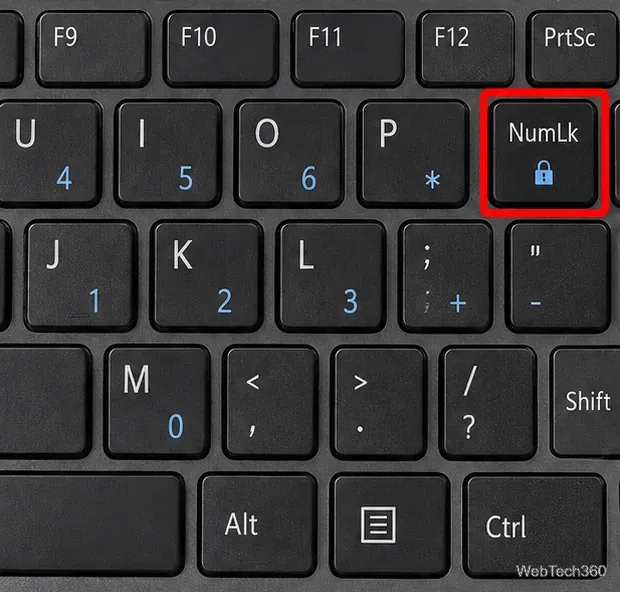
Do not assume that Fn+F11 is the correct shortcut. Some laptops use that combination, but others use Fn with a different function key or a dedicated Num Lock key.
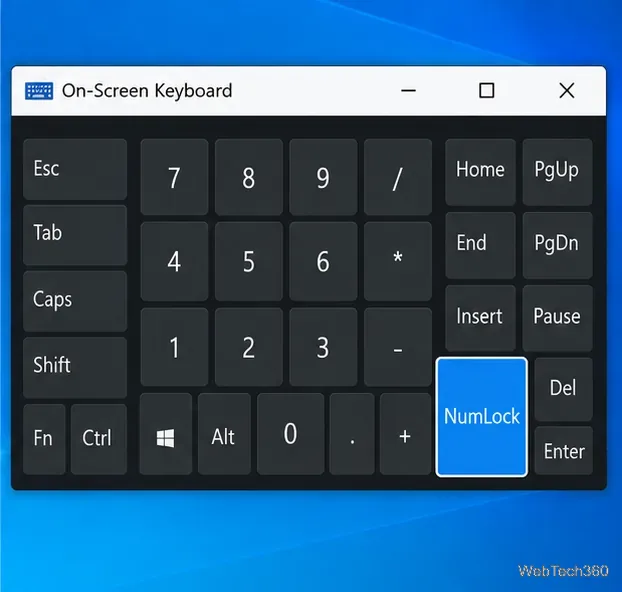
Windows 10 includes an On-Screen Keyboard. Open Start > Settings > Ease of Access > Keyboard, then enable Use the On-Screen Keyboard. In the OSK, select Options and enable the numeric keypad if it is hidden. You can then use the NumLock key shown on screen. Microsoft documents these Windows 10 OSK controls in its On-Screen Keyboard guide.
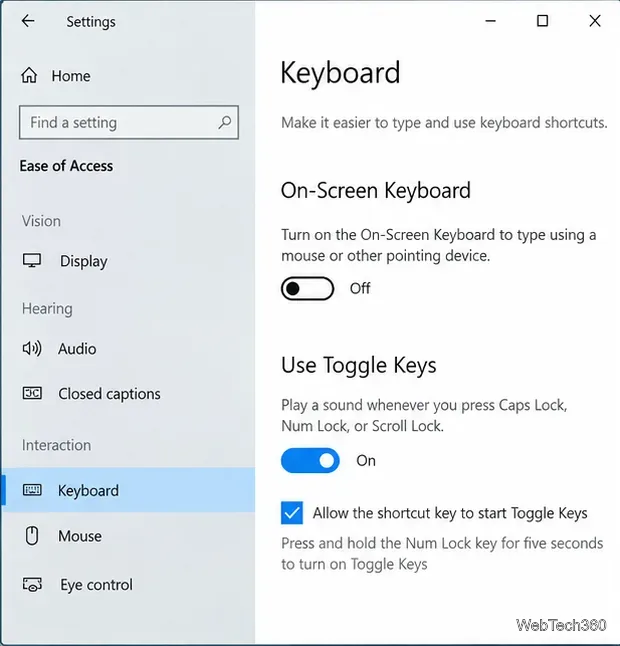
If Num Lock keeps getting switched on by mistake, enable Toggle Keys. In Windows 10, go to Settings > Ease of Access > Keyboard and turn on Toggle Keys. Windows will play a sound when Num Lock changes state.
If Num Lock is already off, check for software that changes keyboard input. This includes remapping utilities, macro tools, gaming keyboard software, and scripts. For example, Microsoft PowerToys Keyboard Manager can remap one key to another or to text, and its mappings apply while PowerToys is running in the background.
If you use PowerToys, open PowerToys Settings > Keyboard Manager and temporarily disable Keyboard Manager or remove suspicious mappings. Microsoft explains the behavior in its Keyboard Manager documentation. Also pause any AutoHotkey scripts or vendor macro profiles, then test again.
A wrong Windows keyboard layout usually changes letters, punctuation, or symbol positions rather than turning J/K/L into 1/2/3, but it is still worth checking when the output does not match the keycaps. Press Windows+Space to cycle through installed layouts, or use the input-language indicator on the taskbar. Microsoft documents these controls in its keyboard layout guide.
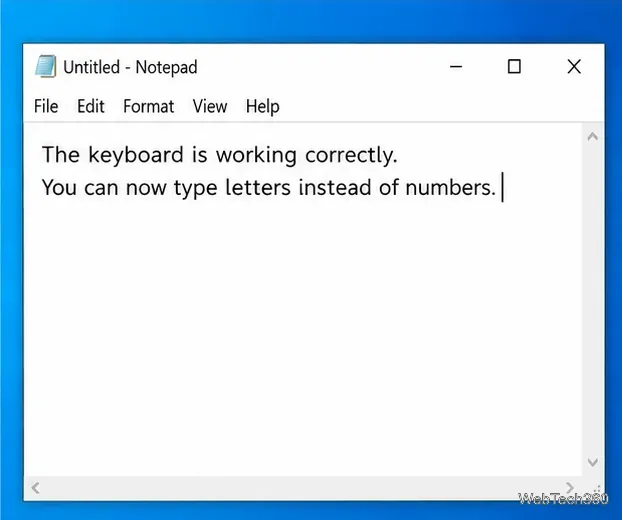
After each change, open Notepad and type a short line using the affected keys. This helps separate a Windows-wide problem from an app-specific one.
If typing is correct immediately after you close a utility but breaks again after restarting Windows, check startup apps. Open Task Manager > Startup in Windows 10 and temporarily disable nonessential keyboard, macro, accessibility, or gaming utilities. Restart, test, and re-enable items one at a time.
For a broader software-conflict test, Microsoft recommends a clean boot, which starts Windows with essential services and startup programs so you can narrow down background conflicts.
If the cause is still unclear, Safe Mode is a useful diagnostic step because it starts Windows with a limited set of files, drivers, and services.
If the keyboard works normally in Safe Mode, a third-party program, service, or nonessential driver is a strong suspect. Microsoft's Startup Settings guide also notes that encrypted PCs may require the BitLocker recovery key when entering recovery options.
At that point, check the hardware connection. Microsoft recommends reconnecting USB keyboards, trying another USB port, bypassing an unpowered hub, checking batteries on wireless keyboards, and testing the keyboard on another PC. You can also install available Windows Update driver updates or update the keyboard device through Device Manager. See Microsoft's mouse and keyboard troubleshooting guide.
If the same letter keys consistently become numbers only when Num Lock is on, the keyboard is probably behaving as designed. If random characters appear even with Num Lock off, no remaps running, and the same problem occurs on another PC, replacement may be the more practical fix.
Move Minecraft for Windows to another drive with the built-in Settings option, protect your worlds, and see what to do if Move is unavailable.
Find out why Windows 10 hides SmartScreen’s Run anyway button, how to review the warning, and how to allow a bypass while keeping SmartScreen on.
Combine left and right channels so you can hear the full mix through one earbud. Follow the Windows 10 Settings path and learn how to restore stereo when you want it.
Learn how to build a custom grid for your display in Windows 10 with PowerToys FancyZones, adjust zones, choose each monitor, and snap apps into place.
Set Windows 10 to sign in automatically at startup with Microsoft Sysinternals Autologon, then learn how to disable it and understand the security tradeoffs.
Add the Ultimate Performance power plan in Windows 10 with an elevated command, select it in Power Options, and check compatibility and power-use limits.
Refresh missing or incorrect bookmark icons in Edge by reopening the saved page, clearing cached images, or rebuilding the favicon cache safely.
Turn the number row into virtual numpad keys on Windows 10 with AutoHotkey v2. Set up a Caps Lock toggle, test it in your app, and see what the script cannot remap.
Turn off a wired Ethernet adapter in Windows 10, confirm you selected the right device, restore it later, or use PowerShell.
Pair Bluetooth headphones with Windows 10, choose them as your audio output, and fix common discovery or sound problems.








