How to Move Minecraft to Another Drive in Windows 10

Move Minecraft for Windows to another drive with the built-in Settings option, protect your worlds, and see what to do if Move is unavailable.
If your keyboard is typing the wrong letters or characters in Windows 10, check the keyboard layout first. An accidental switch from US to UK, Dvorak, or another input layout can make perfectly good keys produce unexpected symbols. If the layout is correct, move on to Num Lock, key-remapping software, app-specific problems, the Windows keyboard troubleshooter, and the keyboard driver.
Note: Microsoft ended free support for most Windows 10 editions on October 14, 2025. Your PC can still run Windows 10, but Microsoft recommends moving to a supported version of Windows. See the Windows 10 lifecycle notice.
Windows can keep several keyboard layouts installed at once. Press Windows key + Spacebar to cycle through them, or click the input indicator on the taskbar and choose the layout that matches your physical keyboard. For example, choose English (United States) – US for a standard US keyboard.
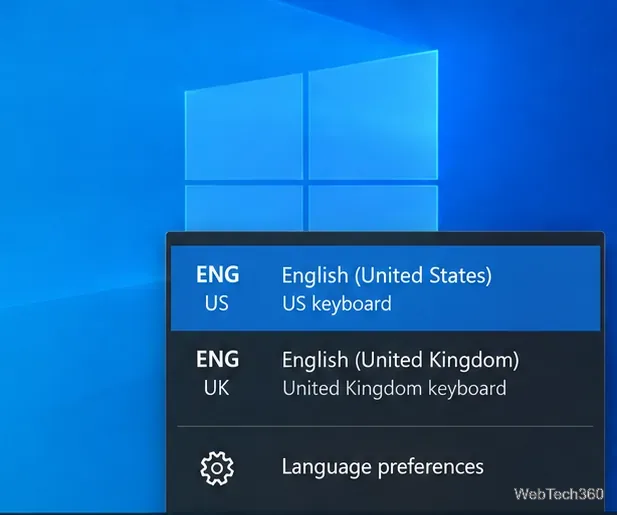
Microsoft confirms that changing the keyboard layout changes how key presses are interpreted without changing the Windows display language. See Microsoft's keyboard layout settings guide.
If the wrong layout keeps coming back, remove it so you cannot switch to it accidentally.
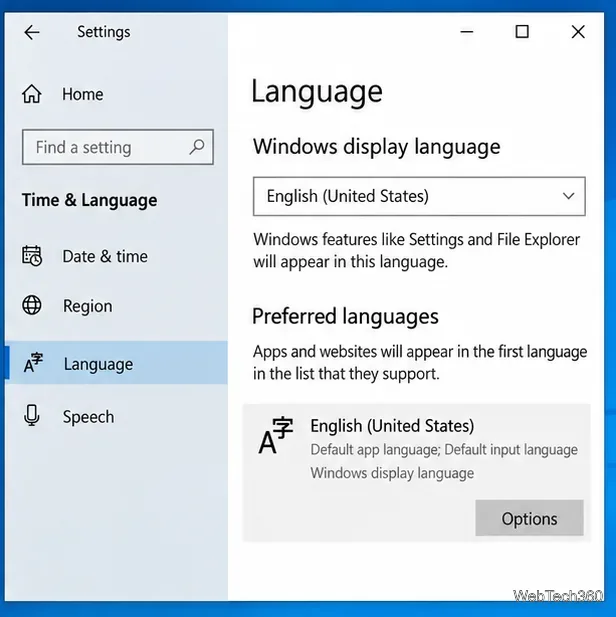
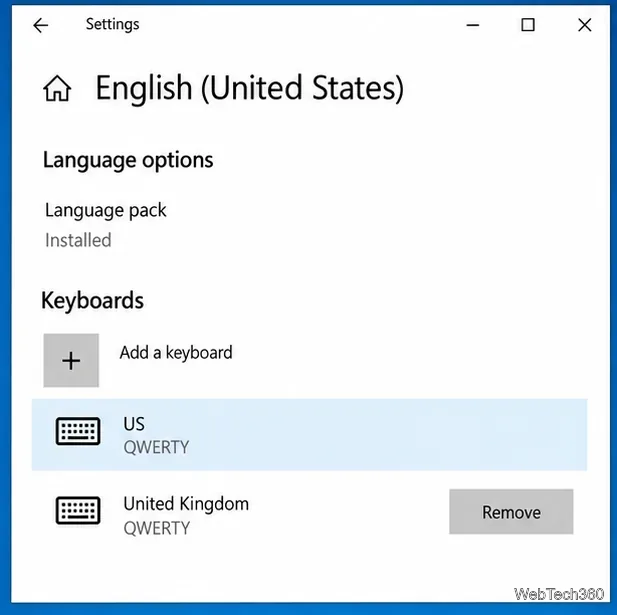
If you type in only one language, also remove any language entries you do not need. Do not remove a language you rely on for typing, speech, or display features.
If letters suddenly become numbers on a compact laptop keyboard, toggle Num Lock. Some laptops use letter keys as an embedded numeric keypad when Num Lock is enabled; a full-size external keyboard normally limits Num Lock to its dedicated number pad.
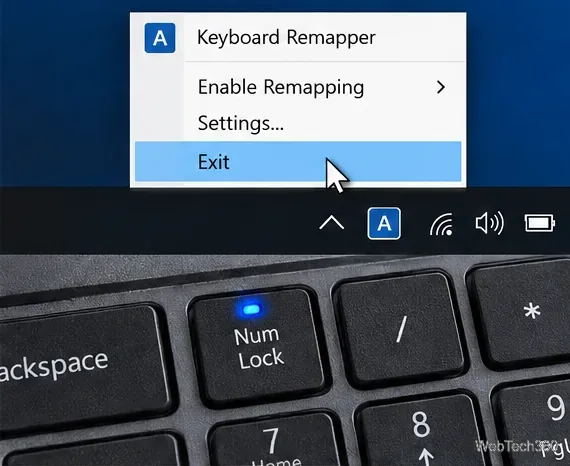
Also close any software that remaps keys, including macro utilities, keyboard-management apps, or scripts. If the problem disappears after you exit the remapper, review or delete the conflicting mapping before turning it back on.
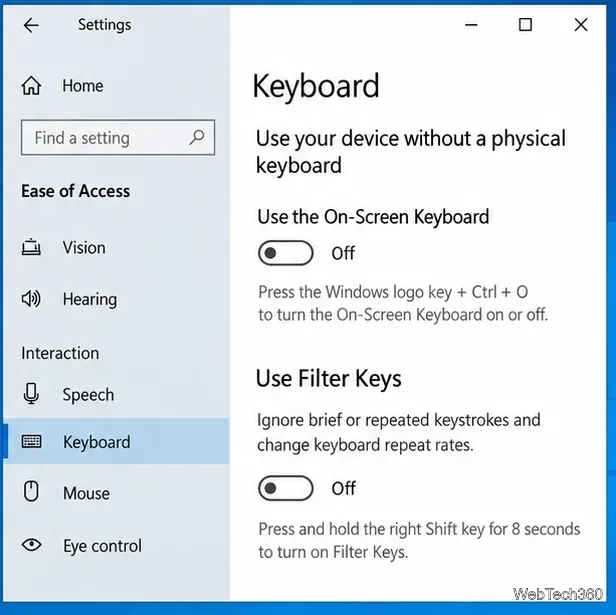
If your real symptom is missed or repeated keystrokes rather than different characters, open Settings > Ease of Access > Keyboard and check Filter Keys. Microsoft explains that Filter Keys changes keyboard sensitivity and can ignore brief or repeated keystrokes. See Microsoft's Windows keyboard accessibility settings.
Open Notepad and type letters, numbers, and punctuation that normally fail. Then open the On-Screen Keyboard with Windows key + Ctrl + O and click the same characters with your mouse.
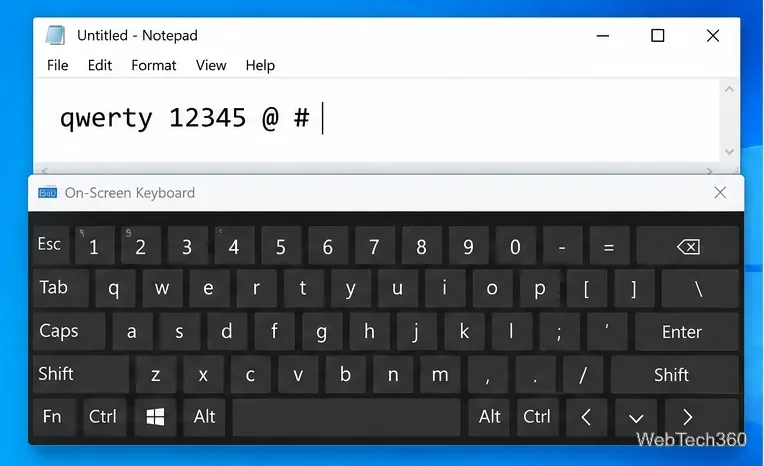
Microsoft documents the built-in On-Screen Keyboard in its On-Screen Keyboard guide.
On Windows 10 builds where it is available, open Settings > Update & Security > Troubleshoot > Additional troubleshooters, select Keyboard, and run the troubleshooter. Apply any recommended fix, then test the keyboard again.
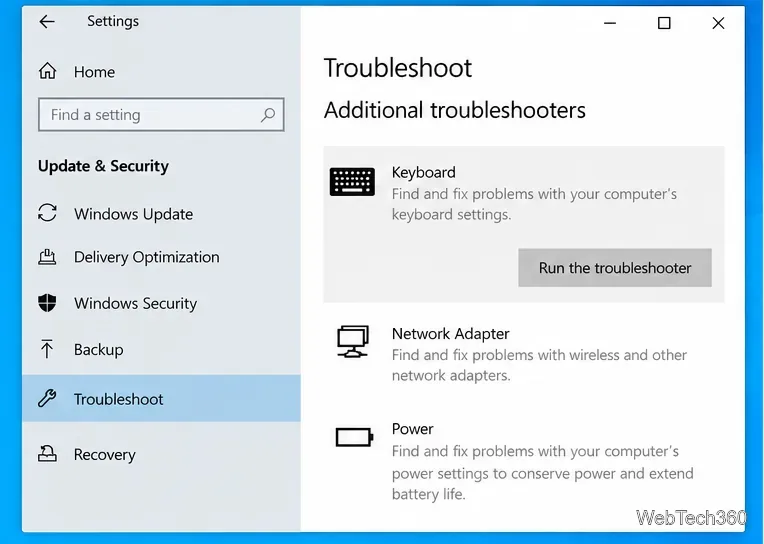
Microsoft is retiring the old MSDT troubleshooting platform on newer Windows releases, but its MSDT deprecation notice says Windows 10 is not affected by that retirement path.
If the layout is correct and the problem affects the physical keyboard across multiple apps, reinstall the device driver:
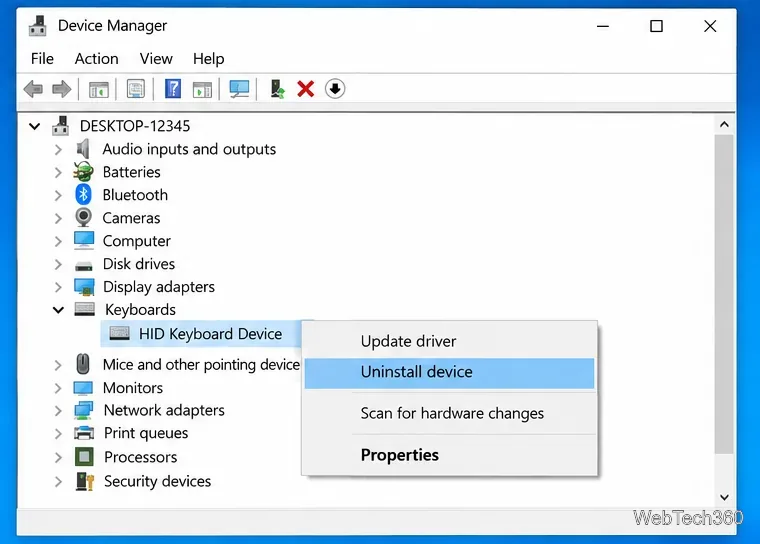
This matches Microsoft's Device Manager driver reinstall procedure.
Connect a different keyboard, or test the suspect keyboard on another computer if possible. If one keyboard consistently sends the wrong keys while another works correctly with the same Windows layout, the problem is probably hardware, firmware, or a keyboard-specific configuration rather than Windows language settings. For a wireless keyboard, also reconnect it or replace/charge the battery before assuming the device has failed.
In most cases, wrong letters on Windows 10 are fixed by selecting the correct layout and removing layouts you never use. Driver reinstall and hardware replacement should come later, after the software and input-language checks above.
Move Minecraft for Windows to another drive with the built-in Settings option, protect your worlds, and see what to do if Move is unavailable.
Find out why Windows 10 hides SmartScreen’s Run anyway button, how to review the warning, and how to allow a bypass while keeping SmartScreen on.
Combine left and right channels so you can hear the full mix through one earbud. Follow the Windows 10 Settings path and learn how to restore stereo when you want it.
Learn how to build a custom grid for your display in Windows 10 with PowerToys FancyZones, adjust zones, choose each monitor, and snap apps into place.
Set Windows 10 to sign in automatically at startup with Microsoft Sysinternals Autologon, then learn how to disable it and understand the security tradeoffs.
Add the Ultimate Performance power plan in Windows 10 with an elevated command, select it in Power Options, and check compatibility and power-use limits.
Refresh missing or incorrect bookmark icons in Edge by reopening the saved page, clearing cached images, or rebuilding the favicon cache safely.
Turn the number row into virtual numpad keys on Windows 10 with AutoHotkey v2. Set up a Caps Lock toggle, test it in your app, and see what the script cannot remap.
Turn off a wired Ethernet adapter in Windows 10, confirm you selected the right device, restore it later, or use PowerShell.
Pair Bluetooth headphones with Windows 10, choose them as your audio output, and fix common discovery or sound problems.








