How to Create a List of All Items in a Folder on Windows 10

Create a searchable Windows 10 folder inventory with PowerShell. Save every file and subfolder path as plain text or export details to a sortable CSV.
If your laptop keyboard is not working, first restart the PC and confirm whether the problem affects every key or only a few. If you cannot type at all, connect a USB or Bluetooth keyboard, or use Windows’ built-in On-Screen Keyboard so you can work through the fixes below.
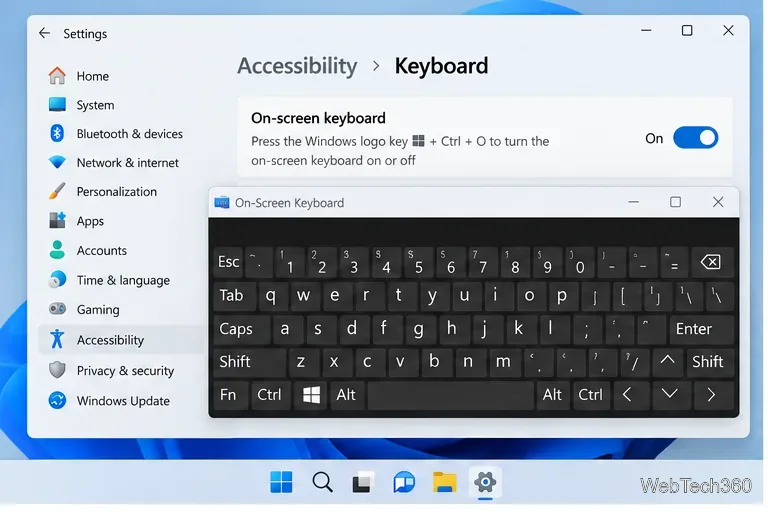
Try typing in more than one app and on the Windows sign-in screen. If an external keyboard works but the built-in keyboard does not, the fault is more likely to involve the laptop keyboard, its driver, firmware, or internal connection. If only the characters are wrong, skip to the keyboard-layout check below.
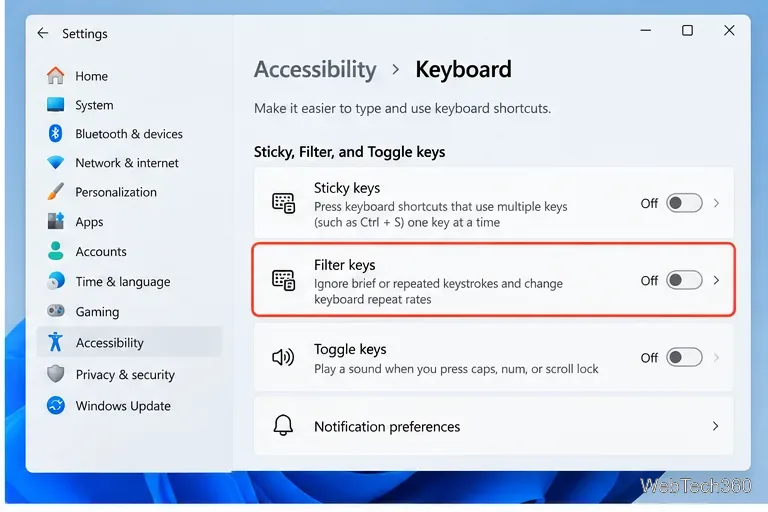
Filter Keys can ignore brief or repeated keystrokes. If it was enabled accidentally, the keyboard may feel unresponsive even though the hardware is working.
Microsoft documents these options in its keyboard accessibility guide.
A layout problem does not normally make the entire keyboard dead, but it can make keys type unexpected letters or symbols. Select the input-language icon on the taskbar and choose the correct layout, or press Windows key + Spacebar to cycle through installed layouts.
To add or remove layouts in Windows 11, go to Settings > Time & language > Language & region, open the language options, and review the Keyboards section. Microsoft’s keyboard layout instructions cover both Windows 11 and Windows 10.
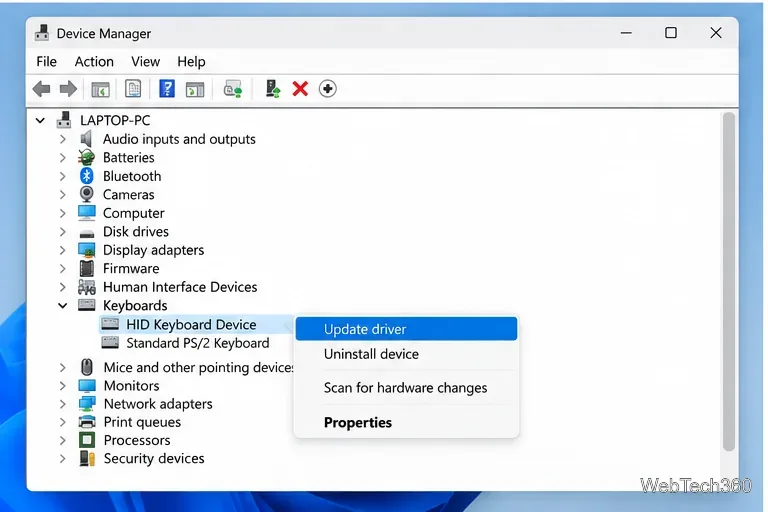
A damaged or mismatched driver can stop Windows from handling keyboard input correctly. Do not uninstall random Synaptics, ELAN, or other Human Interface Devices just because they appear related; those entries may control the touchpad, hotkeys, or other laptop hardware.
Microsoft also explains driver update, reinstall, and rollback options in its Device Manager driver guide.
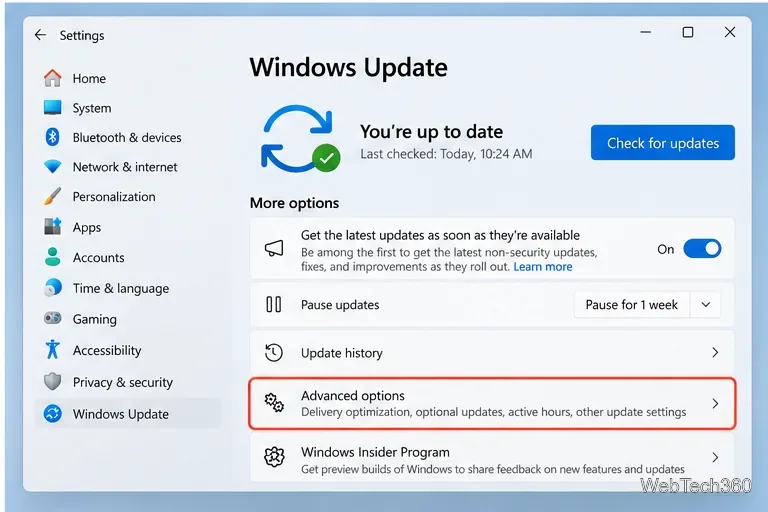
Windows Update can deliver fixes and hardware drivers. In Windows 11, open Settings > Windows Update and select Check for updates. Then look under Advanced options > Optional updates for driver updates when they are offered. Microsoft recommends Windows Update as the normal source for recommended drivers; its driver update documentation explains the optional-driver path.
If your laptop maker provides a newer BIOS/UEFI, chipset, hotkey, or keyboard-related package for your exact model, download it only from the manufacturer’s official support site. Avoid third-party driver-download utilities.
Windows 10 note: its Windows Update page is under Settings > Update & Security > Windows Update. Microsoft ended standard Windows 10 support on October 14, 2025, as noted on its Windows Update support page.
If the keyboard works in Safe Mode but fails during a normal Windows session, third-party software, a service, or a nonessential driver is a stronger suspect. Microsoft’s Windows Startup Settings guide explains how to enter Safe Mode through Windows Recovery Environment.
Also test the keyboard in your laptop manufacturer’s firmware or built-in diagnostics, if available. If the built-in keyboard fails before Windows starts as well as inside Windows, while an external keyboard works, a hardware problem becomes more likely. Common possibilities include a failed keyboard assembly, a loose internal cable, contamination, or liquid damage.
At that point, use the manufacturer’s service procedure or a qualified repair shop. Avoid prying off laptop keycaps unless the service manual for your exact model says they are user-removable.
If none of these steps restores input, keep using an external keyboard temporarily and arrange hardware diagnostics. Microsoft’s general mouse and keyboard troubleshooting guidance also recommends checking drivers and testing the device when hardware failure is suspected.
Create a searchable Windows 10 folder inventory with PowerShell. Save every file and subfolder path as plain text or export details to a sortable CSV.
Add a custom reminder, quote, or label to your Windows 10 desktop with a Rainmeter text skin. Create the INI file, load it, then adjust its font and position.
Use Bluetooth Swift Pair on Windows 10 to pair a compatible accessory from a notification, with setup steps and fixes when the prompt does not appear.
Learn what common laptop function key symbols mean, how Fn and Fn Lock affect them, and how to confirm the right shortcut for your Windows 10 laptop model.
Turn off your Windows 10 display instantly with ScreenSleep, set a keyboard shortcut, and see when to use the built-in screen timeout instead.
Fix the “running scripts is disabled on this system” PowerShell error on Windows 10 with a current-user policy, a temporary session option, and safe steps for downloaded scripts.
Change the Windows 10 drag-selection color with a backup-first registry walkthrough, RGB examples, troubleshooting tips, and steps to restore your original values.
Check your router’s connected-device list or scan a local network with Fing Desktop on a supported PC. Learn what each method can show and how to verify unfamiliar entries.
Messenger does not offer a documented per-friend online alert. Learn how Active Status works, where to check the green dot, and which notifications you can enable instead.
Use 7-Zip to find an exact filename or wildcard match inside a ZIP or other supported archive on Windows 10 without unpacking its files.








