How to Create a List of All Items in a Folder on Windows 10

Create a searchable Windows 10 folder inventory with PowerShell. Save every file and subfolder path as plain text or export details to a sortable CSV.
Yes, you can still use the classic Microsoft Money desktop program on Windows 10, but only as unsupported legacy software. The version most people want is Microsoft Money Plus Sunset Deluxe, the free final release Microsoft created after ending the retail product. It works as a local personal-finance program, but its old online services are gone.
There is another important caveat in 2026: Windows 10 reached end of support on October 14, 2025. A Windows 10 PC can still run, but Microsoft recommends moving to a supported Windows version unless the device is covered by an applicable Extended Security Updates program.
Microsoft Money was a desktop personal-finance app for tracking checking and savings accounts, transactions, recurring bills, budgets, investments, and reports. Microsoft stopped selling Money in 2009, and its online services and assisted support ended in 2011. The Sunset release removed the activation requirement so existing users could continue opening and maintaining Money data locally.
Do not confuse Sunset Deluxe with later Microsoft or MSN finance products. Microsoft Money Plus Sunset Deluxe is the old desktop application. Microsoft also no longer hosts the original installer; a 2026 Microsoft Q&A answer confirms that the official download was removed.
If you already have a known-good copy of your original Sunset Deluxe installer, use that rather than downloading another copy. If you do not, Microsoft community guidance points users to an archived copy of Microsoft's former Download Center page. Because the file is now obtained through an archive instead of Microsoft's current download service, treat it as legacy software and verify it before running it.
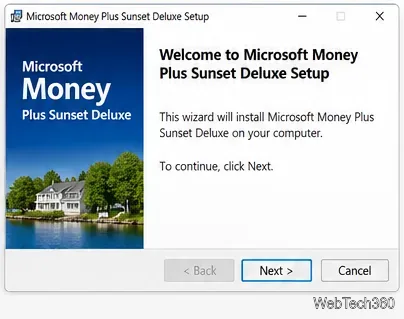
Sunset Deluxe does not need online activation. Its purpose was to let people keep using Money after Microsoft's servers and online services were retired. Before opening an old finance file on a new PC, make a separate copy of that file and any backup files so you have an untouched original if conversion or corruption occurs.
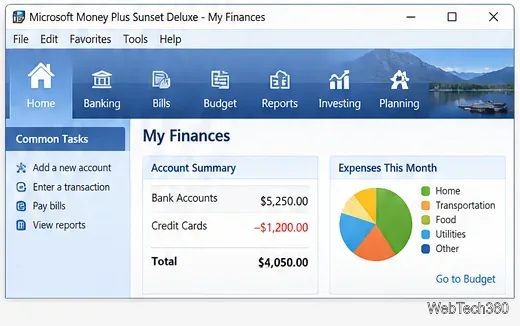
Microsoft's original Sunset notes, reproduced in Microsoft Q&A, explain that Sunset comes without online quotes, online bill payment, statement downloads initiated by Money, MSN Money synchronization, or assisted support.
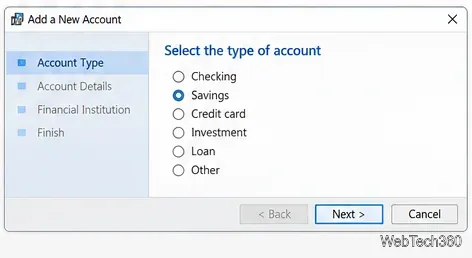
Money can still maintain account registers locally. Because bank connections are no longer supported, expect to enter and reconcile transactions manually.
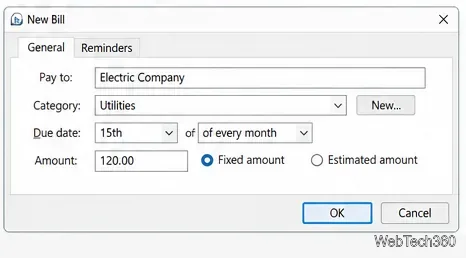
The Bills area is still useful for remembering upcoming expenses, but Sunset Deluxe cannot send a payment to your bank or biller. Treat entries as reminders and records, not as payment instructions.
Open the Budget section and add your income and expense categories. Enter target amounts for categories such as housing, utilities, food, transportation, and entertainment. Money can compare the figures you enter against recorded transactions, but it cannot automatically pull fresh transactions from your bank.
| Still useful | No longer available |
|---|---|
| Local account registers and manual transactions | Automatic bank statement downloads |
| Recurring bill reminders | Online bill payment |
| Budgets and many local reports | Online investment quotes and MSN Money sync |
| Opening and maintaining compatible Money data files | Microsoft product support or feature updates |
Microsoft Money Plus Sunset Deluxe is best treated as an offline archive and manual finance tracker. If your main goal is to keep years of existing Money records accessible, it can still be useful. If you need live bank synchronization, mobile access, security updates, or supported online payments, a currently maintained personal-finance app is the safer long-term choice.
Create a searchable Windows 10 folder inventory with PowerShell. Save every file and subfolder path as plain text or export details to a sortable CSV.
Add a custom reminder, quote, or label to your Windows 10 desktop with a Rainmeter text skin. Create the INI file, load it, then adjust its font and position.
Use Bluetooth Swift Pair on Windows 10 to pair a compatible accessory from a notification, with setup steps and fixes when the prompt does not appear.
Learn what common laptop function key symbols mean, how Fn and Fn Lock affect them, and how to confirm the right shortcut for your Windows 10 laptop model.
Turn off your Windows 10 display instantly with ScreenSleep, set a keyboard shortcut, and see when to use the built-in screen timeout instead.
Fix the “running scripts is disabled on this system” PowerShell error on Windows 10 with a current-user policy, a temporary session option, and safe steps for downloaded scripts.
Change the Windows 10 drag-selection color with a backup-first registry walkthrough, RGB examples, troubleshooting tips, and steps to restore your original values.
Check your router’s connected-device list or scan a local network with Fing Desktop on a supported PC. Learn what each method can show and how to verify unfamiliar entries.
Messenger does not offer a documented per-friend online alert. Learn how Active Status works, where to check the green dot, and which notifications you can enable instead.
Use 7-Zip to find an exact filename or wildcard match inside a ZIP or other supported archive on Windows 10 without unpacking its files.








