How to Access a Network Location in Command Prompt on Windows 10

Use pushd to open a UNC network path in Windows 10 Command Prompt, run commands in the shared folder, and return with popd.
If Minecraft shows “Failed to authenticate your connection” when you join a server, the server could not verify your current game session. The fastest fixes are usually to restart Minecraft and the Launcher, refresh your Microsoft account sign-in, and then check whether the problem affects one server or every server.
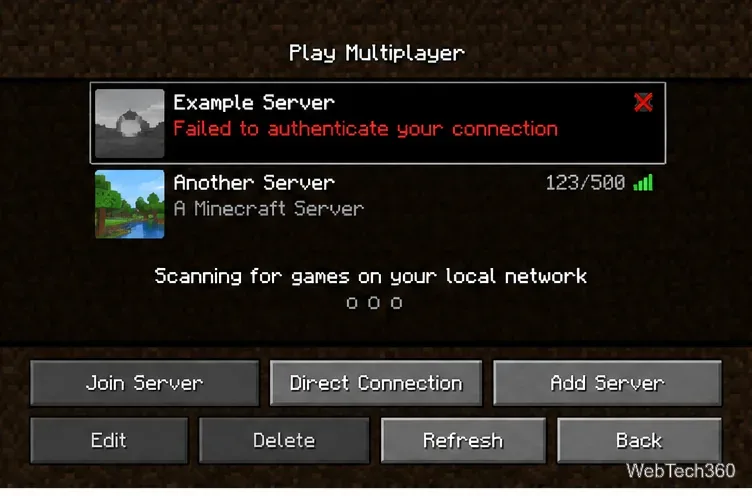
Try a second known-working server and confirm that your internet connection works normally. Minecraft also requires compatible editions for multiplayer: Java Edition connects to Java servers, while Bedrock Edition connects to Bedrock servers. The current Minecraft multiplayer requirements explain the edition, version, account, and network basics.
If only one server fails while other servers work, skip to the server-specific section below. If several servers fail, work through these fixes in order.
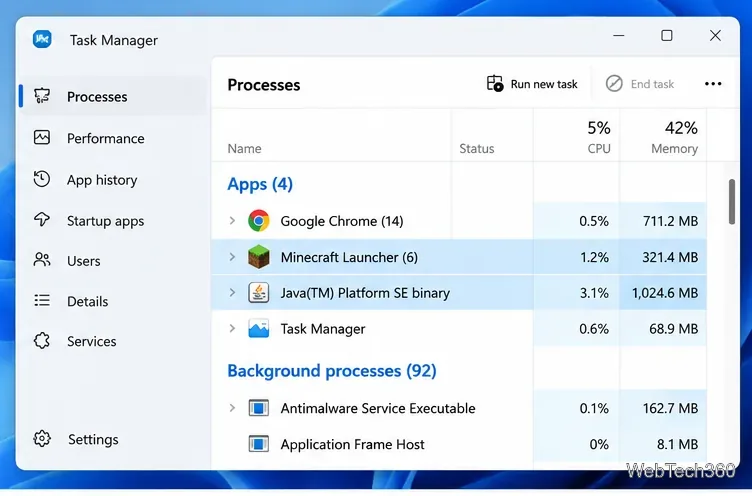
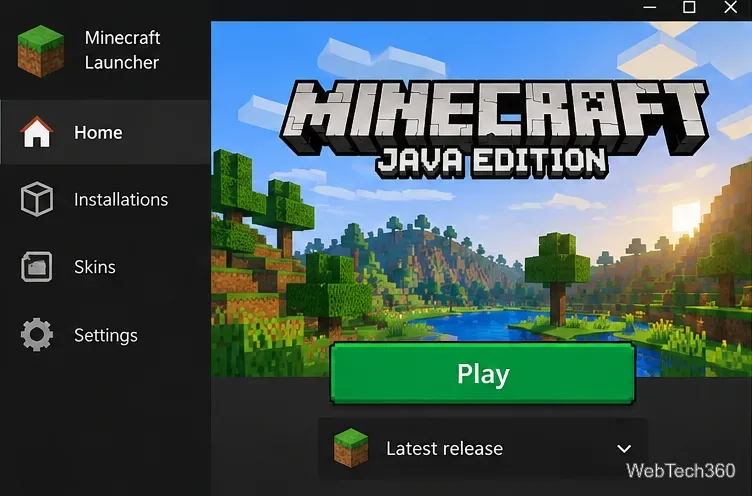
A stale game session can remain active after the game window closes. Exit Minecraft and the Minecraft Launcher completely. On Windows, open Task Manager and end any remaining Minecraft Launcher or Java game processes, then reopen the official Launcher and start the game again.
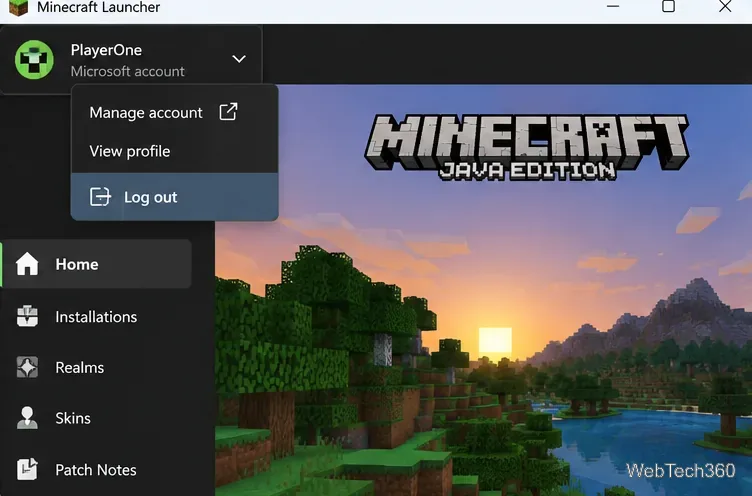
Minecraft’s current support documentation specifically recommends signing out and back in when you need to reset the connection to authentication services. In the Launcher, open the account menu in the upper-left area, choose Log out, then use Microsoft Login to sign back into the account that owns Minecraft. See the official Microsoft account sign-in reset instructions.
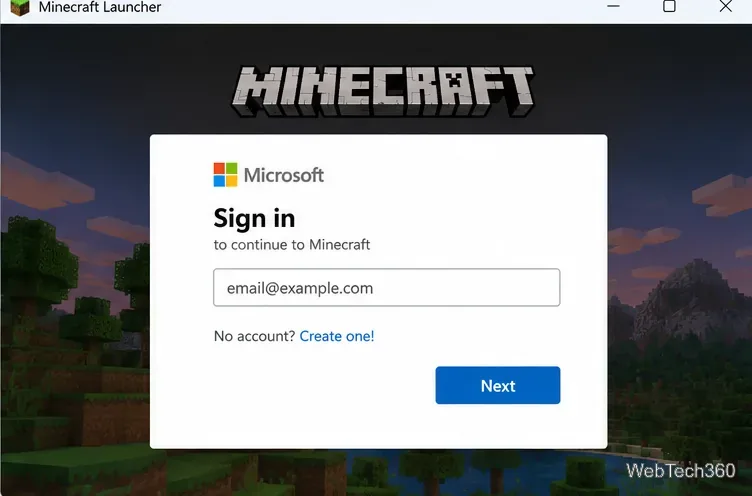
The Launcher works with Microsoft and Xbox services to validate ownership and online features. Minecraft Help recommends checking that the Launcher, Microsoft Store, and Xbox app are using the correct Microsoft account. If one app is signed into a different account, sign out there and sign back in with the account that owns Minecraft. The official Launcher troubleshooting guide covers this account check.
For a normal, up-to-date server, select Latest release in the Launcher and update the game before trying again. If the server explicitly requires an older release or a particular modpack, use the version specified by that server instead. A version mismatch usually produces a different message, but confirming the version removes one common multiplayer failure from the equation.
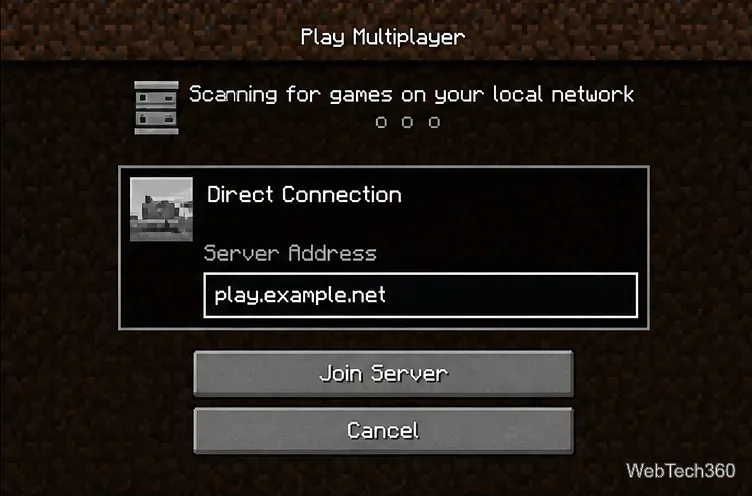
In Java Edition, open Multiplayer and choose Direct Connection, then enter the server address provided by the operator. Minecraft officially supports both Direct Connection and saved server entries. This does not repair an authentication outage, but it can rule out a stale or mistyped saved entry. See Minecraft’s Java Edition server-joining instructions.
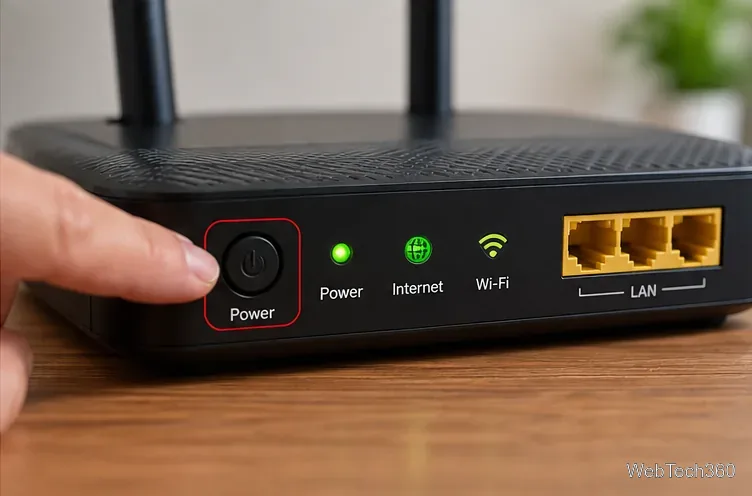
If websites or other online games are also behaving oddly, restart your router normally with its power switch or by unplugging power briefly and reconnecting it. Do not press a recessed Reset button; that can restore factory settings on many routers.
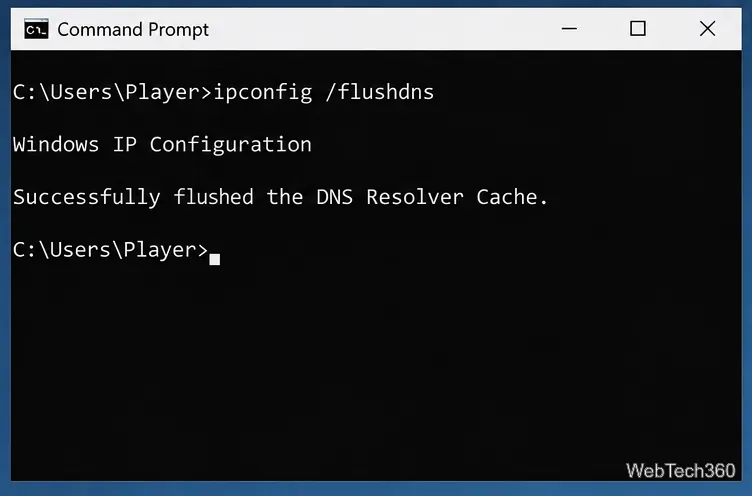
On Windows, you can also open Command Prompt as administrator and run:
ipconfig /flushdns
Microsoft includes this command in its official Windows network troubleshooting steps. Flushing DNS is most relevant when name resolution or recent network changes are involved; it is not a substitute for refreshing an invalid Minecraft account session.
When other servers work, the failing server is the likely source of the problem. Confirm its current address, required Minecraft version, maintenance status, and whether other players can connect. If the server was recently restarted or changed authentication settings, contact its administrator and provide the exact error message and the time it occurred.
A server-side authentication or configuration problem cannot be repaired by repeatedly reinstalling Minecraft on your PC. Likewise, if several unrelated players suddenly report the same issue, check Minecraft/Xbox service information through the official Minecraft multiplayer troubleshooting page before changing more local settings.
Use pushd to open a UNC network path in Windows 10 Command Prompt, run commands in the shared folder, and return with popd.
Learn how to install a Rainmeter skin from an INI file by placing it in the right Skins folder, preserving its resources, refreshing Rainmeter, and loading it in Manage.
Open one folder in its own File Explorer window with Shift or the context menu, or change Folder Options to make every folder open separately.
Pin a frequently used Control Panel applet, such as Power Options or Sound, to the Windows 10 Start menu for one-click access.
Choose a supported Windows 10 hotkey for switching input languages, assign shortcuts to individual layouts, or disable an accidental shortcut.
Move a Windows 10 app to the display you want, use its game monitor setting, and handle full-screen apps with a practical primary-monitor workaround.
Use a transparent PNG and a Rainmeter skin to keep an image watermark above windows, adjust its transparency, and make it click-through on Windows 10.
Convert stereo audio to mono on Windows 10 with Audacity. Mix both channels into one mono track, export a new file, and verify the channel count.
Use Windows 10 Clipboard history to save recent text and images, paste an earlier clip with Windows key + V, and manage sync, pinned items, and privacy.
Learn how to zoom in on a video in Windows 10 with VLC’s Interactive Zoom, or use Windows Magnifier when the clip is playing in another app.








