How to Create a List of All Items in a Folder on Windows 10

Create a searchable Windows 10 folder inventory with PowerShell. Save every file and subfolder path as plain text or export details to a sortable CSV.
You do not need to download Miracast for Windows 10. Windows 10 includes Microsoft’s Miracast wireless-projection stack, so a compatible PC can cast directly to a Miracast TV, projector, or adapter. The separate Wireless Display optional feature is only needed when you want the Windows 10 PC itself to receive a projection from another device.
Microsoft’s current guidance is simple: turn on the Miracast display, press Windows key + K, and choose the display. The important caveat is hardware support. Miracast depends on compatible Wi-Fi and graphics hardware plus working drivers; installing an app cannot add Miracast to unsupported hardware.
No. For sending your Windows 10 screen to a wireless display, Miracast is part of Windows. Microsoft documents the built-in stack in its Miracast wireless display documentation. Microsoft also states that the Wireless Display Feature on Demand is for receiving wireless projections and is not required to project to another device.
Avoid third-party sites offering a “Miracast driver” or “Miracast download.” If projection support is missing, update the PC’s graphics and Wi-Fi drivers through Windows Update or the PC/component manufacturer. Windows 10’s Miracast implementation relies on compatible display and wireless drivers; Microsoft’s current hardware guidance uses WDDM 2.0 or later for the graphics side.
The quickest Microsoft-supported check is to open Start, search for Connect, and open the Connect app if it is installed. Windows reports whether the device can receive or use wireless projection. If the app is missing, that may simply mean the optional Wireless Display feature is not installed.
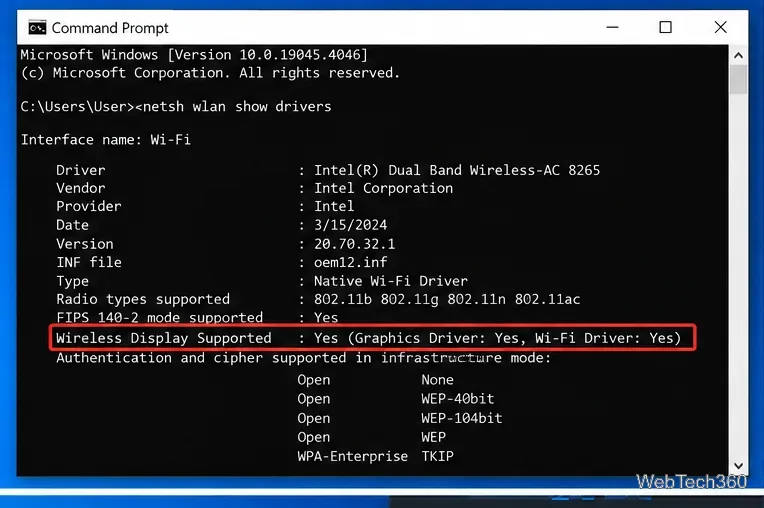
For an additional driver-level check, open Command Prompt and run netsh wlan show drivers. If your system reports Wireless Display Supported: Yes, the installed graphics and Wi-Fi drivers are reporting wireless-display support. This output can vary by driver and PC model, so treat it as a diagnostic clue rather than a replacement for the connection test.
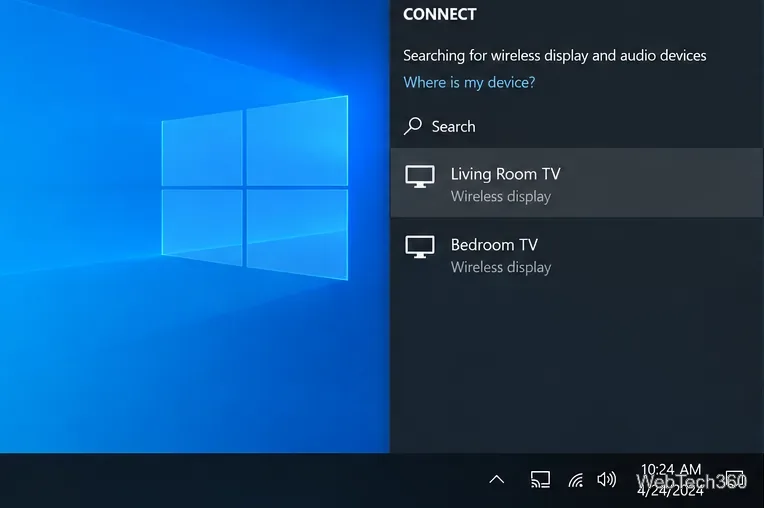
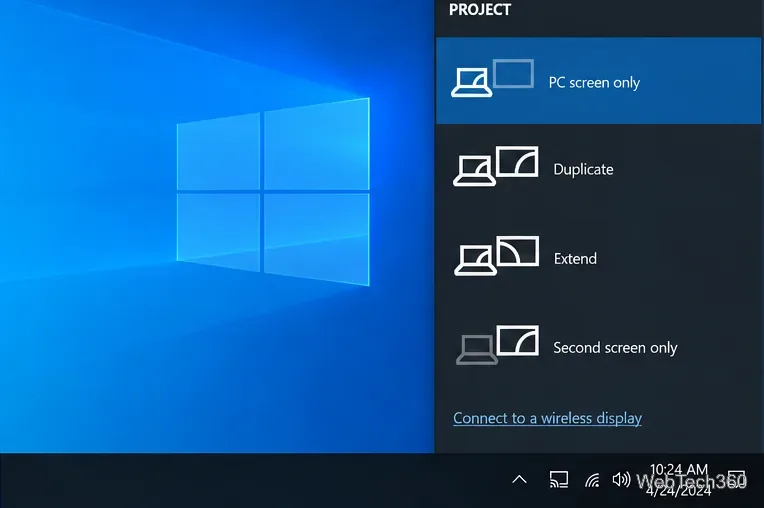
These steps match Microsoft’s current screen mirroring and wireless projection instructions for Windows 10.
If you want another PC or supported device to project to your Windows 10 computer, open Settings > System > Projecting to this PC. Use the Optional features link, choose Add a feature, search for Wireless Display, and install it. Microsoft identifies this package as App.WirelessDisplay.Connect~~~~0.0.1.0 on Windows 10 version 2004 and later.
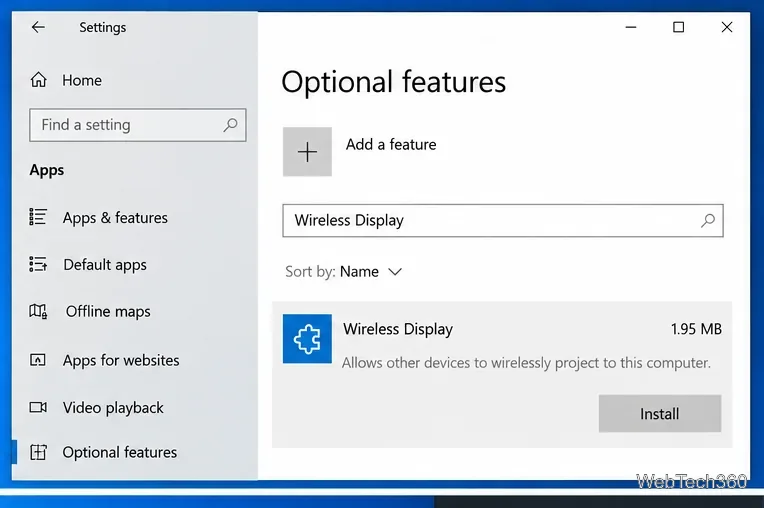
After installation, return to Projecting to this PC, choose your discovery and pairing preferences, and launch the Connect app on the receiving Windows 10 PC. The sending device can then find that PC through its cast or screen-mirroring controls.
Start with the checks Microsoft recommends in its wireless display troubleshooting guide:
If Windows reports that the PC does not support Miracast even after appropriate driver updates, the limitation is usually hardware-related. In that case, use HDMI or another supported wired connection, or add a compatible wireless display solution designed for your hardware.
Microsoft ended standard support for Windows 10 on October 14, 2025. Windows 10 PCs still run, but Microsoft recommends moving to a supported Windows version or using an eligible Extended Security Updates option where applicable. See Microsoft’s Windows 10 end-of-support guidance for current security options.
Create a searchable Windows 10 folder inventory with PowerShell. Save every file and subfolder path as plain text or export details to a sortable CSV.
Add a custom reminder, quote, or label to your Windows 10 desktop with a Rainmeter text skin. Create the INI file, load it, then adjust its font and position.
Use Bluetooth Swift Pair on Windows 10 to pair a compatible accessory from a notification, with setup steps and fixes when the prompt does not appear.
Learn what common laptop function key symbols mean, how Fn and Fn Lock affect them, and how to confirm the right shortcut for your Windows 10 laptop model.
Turn off your Windows 10 display instantly with ScreenSleep, set a keyboard shortcut, and see when to use the built-in screen timeout instead.
Fix the “running scripts is disabled on this system” PowerShell error on Windows 10 with a current-user policy, a temporary session option, and safe steps for downloaded scripts.
Change the Windows 10 drag-selection color with a backup-first registry walkthrough, RGB examples, troubleshooting tips, and steps to restore your original values.
Check your router’s connected-device list or scan a local network with Fing Desktop on a supported PC. Learn what each method can show and how to verify unfamiliar entries.
Messenger does not offer a documented per-friend online alert. Learn how Active Status works, where to check the green dot, and which notifications you can enable instead.
Use 7-Zip to find an exact filename or wildcard match inside a ZIP or other supported archive on Windows 10 without unpacking its files.








