How to Set Different Scaling Levels for Multiple Monitors in Windows 10

Adjust each Windows 10 monitor independently with per-display scaling, keep text readable, and troubleshoot custom scaling or blurry apps.
If one press of the mouse button produces two actions, first find out whether it happens everywhere or only in one place. Windows can group two close clicks as a double-click, and File Explorer can be set to open items with one click. If duplicate clicks follow the same mouse across apps and computers, its physical button may be failing. A settings change can help diagnose the issue, but it cannot repair a worn switch.
Try a few clicks in File Explorer and another app. If possible, compare with a second mouse or another computer.
| What you notice | Check first |
|---|---|
| One click opens items only in File Explorer | Single-click to open setting |
| It happens in one game or app | That app’s button mapping or profile |
| The same mouse double-clicks on another PC | Mouse button or connection |
| Another mouse has the issue on this PC | Windows, software, USB port, or driver |
Unplug a wired mouse, wait briefly, and connect it directly to another USB port. Bypass any hub. For a wireless mouse, reconnect its receiver or Bluetooth connection and charge or replace the battery. Check the cable and receiver for damage.
Test the mouse on another computer, and try a different mouse on this PC if one is available. If the fault follows one mouse across computers and ports, hardware is more likely. If it stays with one app or PC, continue with the checks below. Microsoft also recommends checking the connection, battery, USB port, and blocked sensors in its mouse troubleshooting guide.
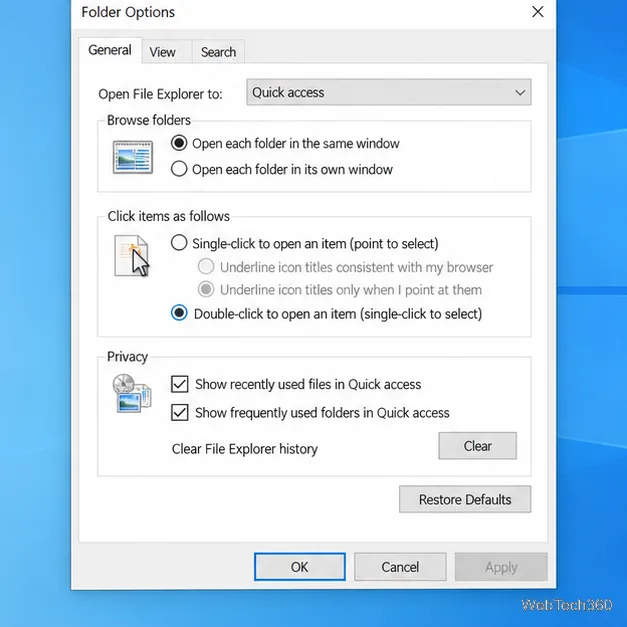
If one click opens a file or folder only in File Explorer, Windows may be set to open items with a single click. Search the taskbar for single-click and open Specify single- or double-click to open. On the General tab, select Double-click to open an item (single-click to select), then choose Apply and OK.
The setting applies to File Explorer, not every program. Logitech documents the same Windows 10 single-click option.
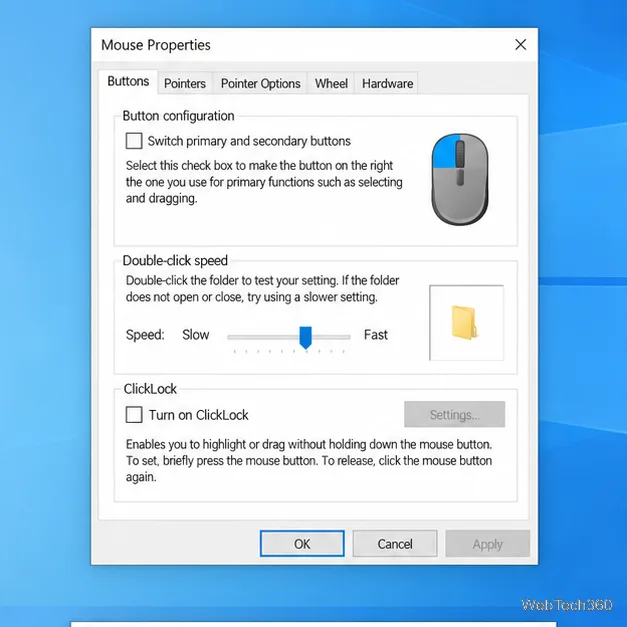
Windows decides whether two presses count as a double-click based on the time between them. If two separate clicks are grouped together too easily, move the slider toward Fast to shorten that window. If an intentional double-click is not recognized, move it toward Slow. Make small changes and test the folder icon beside the slider.
In Windows 10, go to Start > Settings > Devices > Mouse, then select Additional mouse options. In Mouse Properties, open the Buttons tab and adjust Double-click speed.
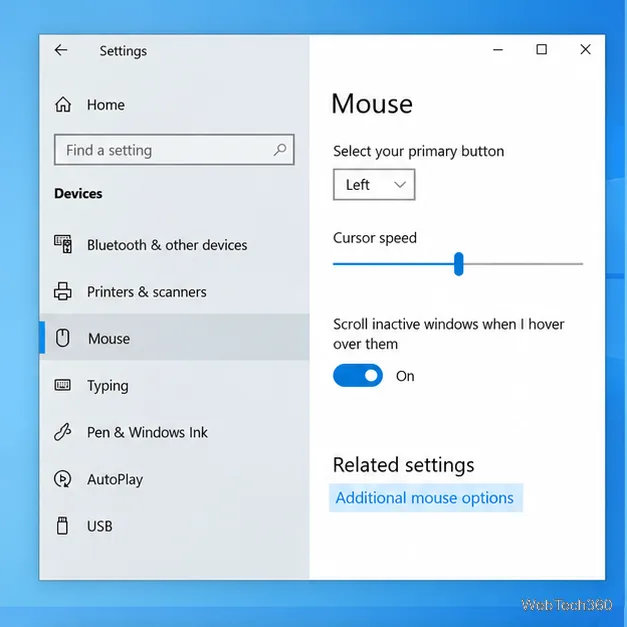
See Microsoft’s mouse settings instructions. ClickLock lets you drag without holding the button; it does not create double-clicks. The timing slider also cannot fix a switch that registers one press twice.
Temporarily close mouse utilities, remapping tools, and click-related scripts. In your mouse maker’s current software, check the active profile for a Double Click assignment, macro, or remapped button; restore a standard single-click action to test. If the problem occurs in only one game or app, check its input settings and compare with another app before changing Windows-wide settings. Logitech lists both system settings and app-specific behavior among possible causes in its button troubleshooting guide.
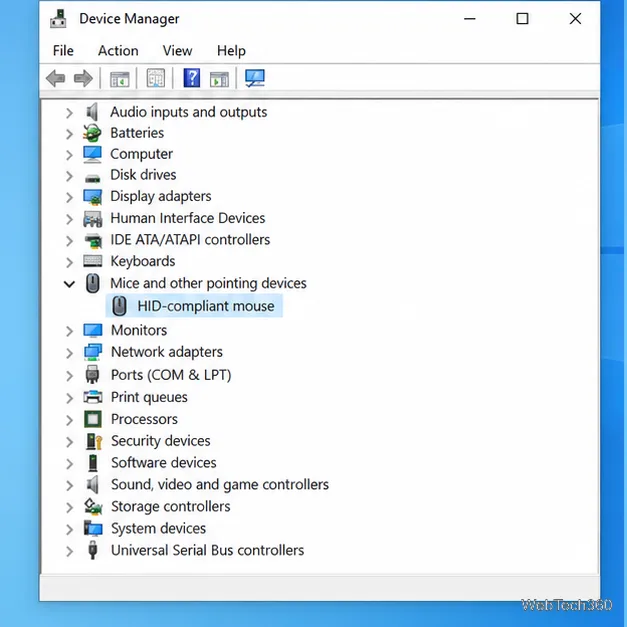
If the issue began after a Windows or device update, search for Device Manager, expand Mice and other pointing devices, and open your mouse’s entry. On the Driver tab, choose Update Driver. You can also check Windows Update or the manufacturer’s official support page for your exact model. Avoid third-party driver-updater downloads.
Driver updates may help with a device or connection issue, but they are not a guaranteed fix for a worn button. Microsoft’s Windows device guidance covers driver updates and connection checks.
If one physical button keeps sending extra clicks in different apps, on different ports, and on another computer, the switch is the strongest suspect. Check the manufacturer’s warranty or repair options before replacing the mouse. Avoid liquids or opening a device that is still under warranty. If another mouse works normally on the same PC, that further points to the original mouse.
Adjust each Windows 10 monitor independently with per-display scaling, keep text readable, and troubleshoot custom scaling or blurry apps.
Use AirType’s browser pairing setup to type on an iPhone from a Windows 10 PC, with current setup steps, troubleshooting, and privacy limits.
Hide the mouse pointer in Windows 10 videos, games, and other apps with built-in typing controls or PowerToys CursorHide’s adjustable inactivity timer.
Find Control Panel Power Options on a Windows 10 desktop, open the page with a Run command, and adjust power plans, display timeouts, sleep, and button behavior.
Learn what Windows 10 deletion leaves behind, how to use SDelete on an HDD, and why SSDs and cloud backups need separate treatment.
Use FFmpeg’s DirectShow tools to open an integrated webcam’s driver properties in Windows 10, find the correct device, and troubleshoot missing controls.
Identify a keypress in Windows 10 with a browser event tester or SharpKeys, then separate layout, software, and keyboard hardware issues.
Use double quotes around each complete path with spaces in Command Prompt. Learn how to list, change to, copy, and troubleshoot Windows 10 files and folders.
Turn off the Windows 10 Start menu’s hover-to-expand behavior with a legacy Mach2 command, check build limits, and see the built-in app-list alternative.
Fix the iTunes Library.itl read error on Windows 10 by updating iTunes, restoring a compatible backup, or safely creating a new library without deleting media files.








