How to Move Minecraft to Another Drive in Windows 10

Move Minecraft for Windows to another drive with the built-in Settings option, protect your worlds, and see what to do if Move is unavailable.
If your Windows 10 PC has no sound after waking from sleep or hibernation, a full restart should not be the only way to get audio back. The most common causes are a changed output device, a Windows audio service that did not resume correctly, or an audio driver that failed to recover from the power-state change.
Start with the quick checks below, then work through the four fixes in order. Microsoft distinguishes sleep from hibernation, but either power state can expose the same audio-resume problem. You can review Microsoft's explanation of both modes in its sleep and hibernation guidance.
After sleep or hibernation, Windows can occasionally resume with the wrong playback device selected, especially on PCs connected to monitors, docks, USB headsets, or Bluetooth speakers.
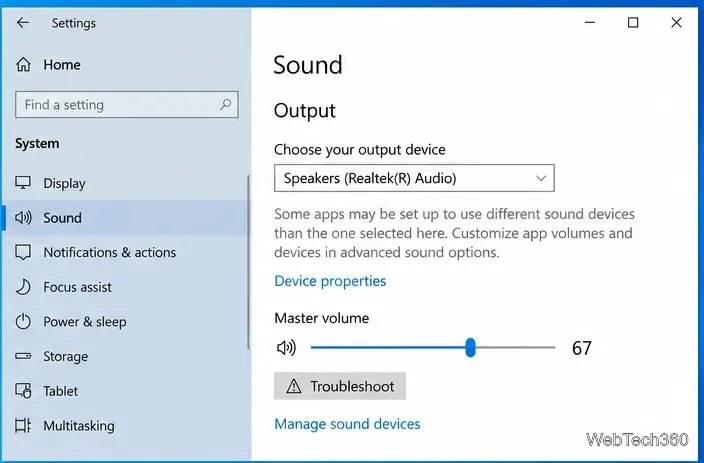
Microsoft lists checking the selected output and default playback device among the first steps for Windows sound problems.
If the correct device is selected but nothing plays, the audio services may not have resumed cleanly.
services.msc, and press Enter.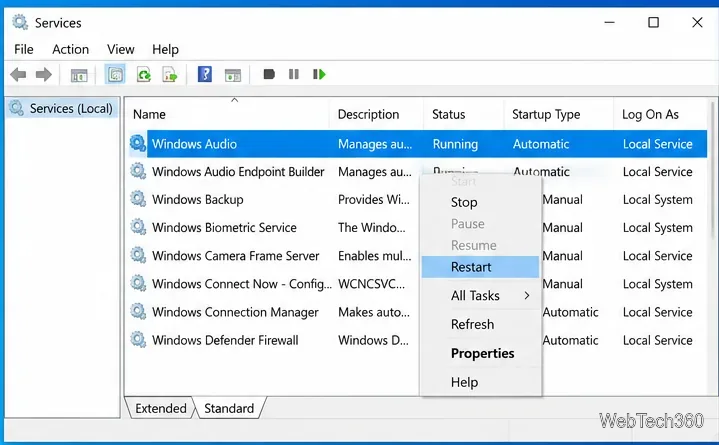
Microsoft specifically recommends restarting these services for temporary audio failures, including cases where the driver or audio stack has stopped responding.
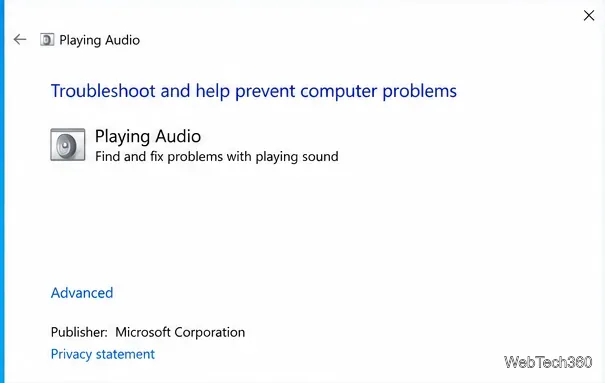
Microsoft currently directs Windows 10 users to the automated Audio troubleshooter in the Get Help app. On Windows 10 installations that still expose the older troubleshooter, you may also find Playing Audio under Settings > Update & Security > Troubleshoot > Additional troubleshooters.
If sound consistently dies only after sleep or hibernation, the audio driver is a strong suspect. Microsoft recommends updating the driver, rolling it back if the problem began after an update, or reinstalling it when the installation may be damaged.
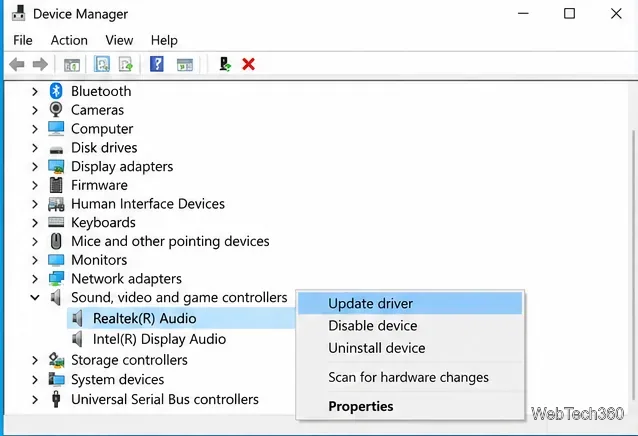
For Microsoft's driver-specific steps, see Fix audio stops working after a Windows update.
Avoid old advice that tells you to set a fixed Maximum memory value in msconfig. That boot option limits how much memory Windows can use and is not a documented audio repair. It can create a new performance problem without addressing the sleep-resume failure.
Likewise, do not delete a working power plan just because audio failed once. If the problem appears only with a vendor power-management utility, temporarily disable that utility and test sleep/wake behavior before making permanent power changes.
Check whether the failure began after a specific driver, firmware, dock, monitor, or Windows update. If it did, use the PC manufacturer's support page for the exact model and install its recommended audio, chipset, and firmware packages. A recurring failure across different apps and output devices is more likely to be a driver or hardware-resume issue than an app volume setting.
Windows 10 reached the end of standard support on October 14, 2025. The operating system still runs, but Microsoft recommends moving to a supported Windows version or an applicable extended-support option for continued security coverage. See Microsoft's Windows 10 end-of-support guidance.
Move Minecraft for Windows to another drive with the built-in Settings option, protect your worlds, and see what to do if Move is unavailable.
Find out why Windows 10 hides SmartScreen’s Run anyway button, how to review the warning, and how to allow a bypass while keeping SmartScreen on.
Combine left and right channels so you can hear the full mix through one earbud. Follow the Windows 10 Settings path and learn how to restore stereo when you want it.
Learn how to build a custom grid for your display in Windows 10 with PowerToys FancyZones, adjust zones, choose each monitor, and snap apps into place.
Set Windows 10 to sign in automatically at startup with Microsoft Sysinternals Autologon, then learn how to disable it and understand the security tradeoffs.
Add the Ultimate Performance power plan in Windows 10 with an elevated command, select it in Power Options, and check compatibility and power-use limits.
Refresh missing or incorrect bookmark icons in Edge by reopening the saved page, clearing cached images, or rebuilding the favicon cache safely.
Turn the number row into virtual numpad keys on Windows 10 with AutoHotkey v2. Set up a Caps Lock toggle, test it in your app, and see what the script cannot remap.
Turn off a wired Ethernet adapter in Windows 10, confirm you selected the right device, restore it later, or use PowerShell.
Pair Bluetooth headphones with Windows 10, choose them as your audio output, and fix common discovery or sound problems.








