How to Fix Lines on a Monitor Screen in Windows 10

Use a screenshot test, cable and port checks, monitor diagnostics, display settings, and driver rollback to pinpoint lines on a Windows 10 monitor.
If NVIDIA Control Panel crashes, freezes, opens and immediately closes, or will not launch, the most common causes are a damaged Control Panel app, a broken or mismatched NVIDIA display driver, or a DCH installation issue. Restart Windows once first. If the problem returns, work through the fixes below in order.
On systems using NVIDIA DCH drivers, NVIDIA distributes the Control Panel through the Microsoft Store rather than bundling it inside the display-driver package. Start by repairing the app in Windows:
Microsoft documents the Repair and Reset options for malfunctioning apps in its Windows app repair guide.
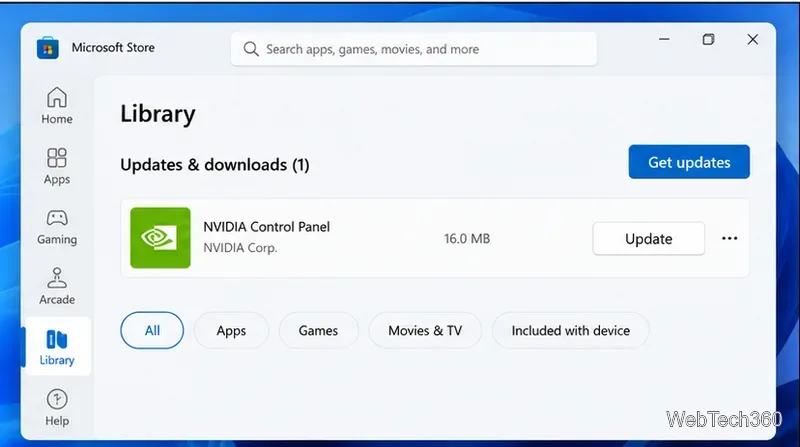
Next, open Microsoft Store > Library and choose Get updates. If NVIDIA Control Panel still crashes, uninstall it and reinstall it from the Microsoft Store. NVIDIA's Control Panel Store-app support page recommends reinstalling the Store version when it will not launch correctly.
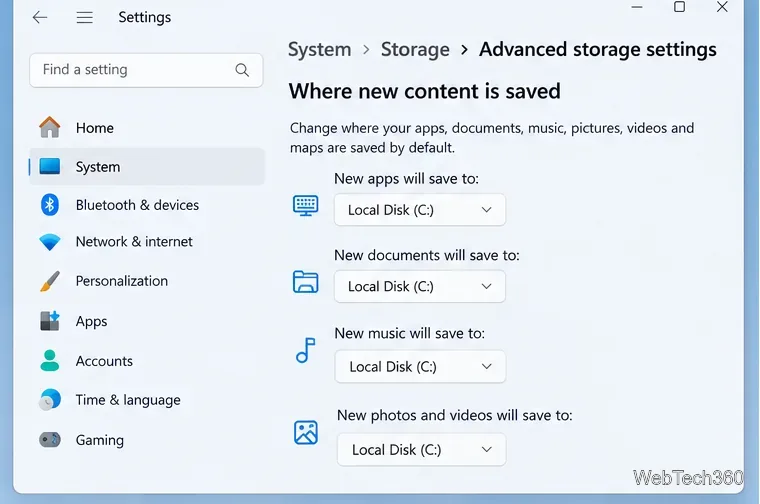
NVIDIA states that the Microsoft Store version of NVIDIA Control Panel must be installed on the C: drive for DCH driver installations. If Windows is configured to install new apps on another drive, the Control Panel may fail to open.
This requirement is documented in NVIDIA's DCH and Standard driver FAQ.
NVIDIA Control Panel depends on the installed NVIDIA display driver, so a damaged or incomplete driver update can break the app even when the Control Panel package itself is fine. Use the NVIDIA app to check for a newer Game Ready or Studio driver, or download the correct driver directly from NVIDIA's official GeForce driver page. Install the update, then restart the PC before testing NVIDIA Control Panel again.
For this problem, prefer NVIDIA's own driver package over relying only on Device Manager, because Windows Update may not offer the same current NVIDIA release.
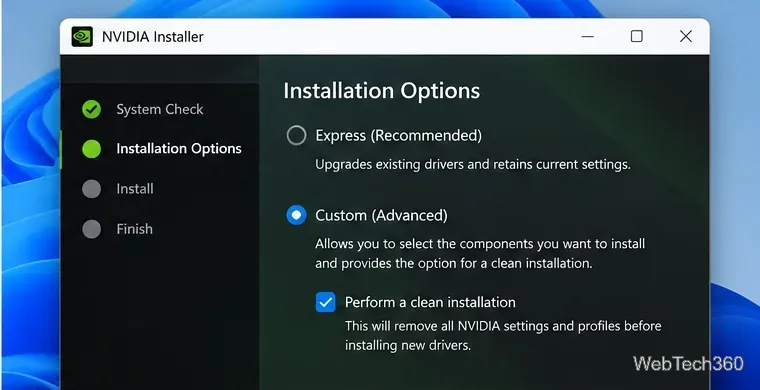
If the Control Panel started failing after a driver update, or updating normally did not help, reinstall the NVIDIA driver cleanly. NVIDIA's current manual-install procedure says to close open applications first, including GPU monitoring or tuning tools that can interfere with driver registration.
A clean install resets NVIDIA settings and profiles, so you may need to reapply custom 3D or display settings afterward. See NVIDIA's clean driver installation instructions for the official sequence.
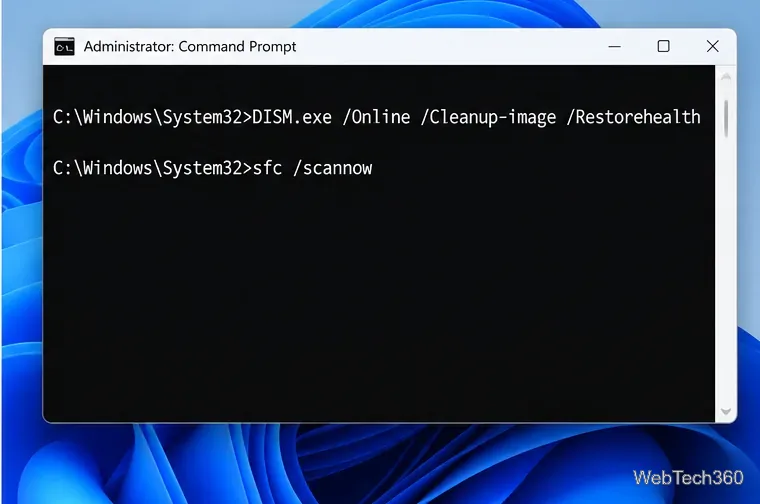
If NVIDIA Control Panel is not the only Windows app freezing or refusing to open, repair Windows components before doing more NVIDIA-specific troubleshooting. Open Command Prompt as administrator, run these commands in this order, and let each one finish:
DISM.exe /Online /Cleanup-image /Restorehealth
sfc /scannow
Microsoft recommends DISM before System File Checker when Windows components may be damaged. Its DISM and SFC support article explains what each command repairs. Restart Windows after both scans complete.
Older troubleshooting guides often recommend launching nvcplui.exe directly as administrator or tracing long file paths with Process Monitor. Those approaches can still be useful for a technician investigating a specific failure, but they are not the best first-line fixes for modern DCH installations. Repairing the Store app, confirming the C: drive requirement, and reinstalling the display driver address the supported components directly and are easier to reverse.
If NVIDIA Control Panel still crashes after all of the steps above, collect the exact error message or Windows crash details and contact NVIDIA support with your GPU model and installed driver version.
Use a screenshot test, cable and port checks, monitor diagnostics, display settings, and driver rollback to pinpoint lines on a Windows 10 monitor.
Show two other time zones beside your Windows 10 clock. Set up each additional clock, give it a clear label, and find it in the taskbar calendar.
Find the File Explorer extension that delays right-click menus in Windows 10, test it safely with ShellExView, and restore any menu features you still need.
Stop Windows 10 from powering down a specific network adapter or USB device with plan-level settings and Device Manager controls, plus tips to avoid excess battery drain.
Check whether Windows 10 uses a digital license or product key, find a firmware-stored OEM key, and save license details securely for a reinstall.
Identify a Windows 10 Task Manager process by checking its executable path, file properties, publisher, linked services, and a Microsoft Defender scan.
Create a searchable Windows 10 folder inventory with PowerShell. Save every file and subfolder path as plain text or export details to a sortable CSV.
Add a custom reminder, quote, or label to your Windows 10 desktop with a Rainmeter text skin. Create the INI file, load it, then adjust its font and position.
Use Bluetooth Swift Pair on Windows 10 to pair a compatible accessory from a notification, with setup steps and fixes when the prompt does not appear.
Learn what common laptop function key symbols mean, how Fn and Fn Lock affect them, and how to confirm the right shortcut for your Windows 10 laptop model.








