How to Fix Lines on a Monitor Screen in Windows 10

Use a screenshot test, cable and port checks, monitor diagnostics, display settings, and driver rollback to pinpoint lines on a Windows 10 monitor.
If Windows 10 is not detecting your NVIDIA graphics card, start with Device Manager. If the GPU appears there, the problem is usually a disabled device or a driver issue. If it is missing entirely, scan for hardware changes, then check firmware settings and the physical connection on desktop PCs.
Important: Windows 10 reached end of standard support on October 14, 2025. Microsoft recommends moving to Windows 11 on compatible hardware. NVIDIA also says full GeForce Game Ready and Studio Driver support for Windows 10 runs through October 2026, followed by quarterly security updates through October 2029. See the Microsoft Windows 10 lifecycle notice and NVIDIA's Windows 10 support plan.
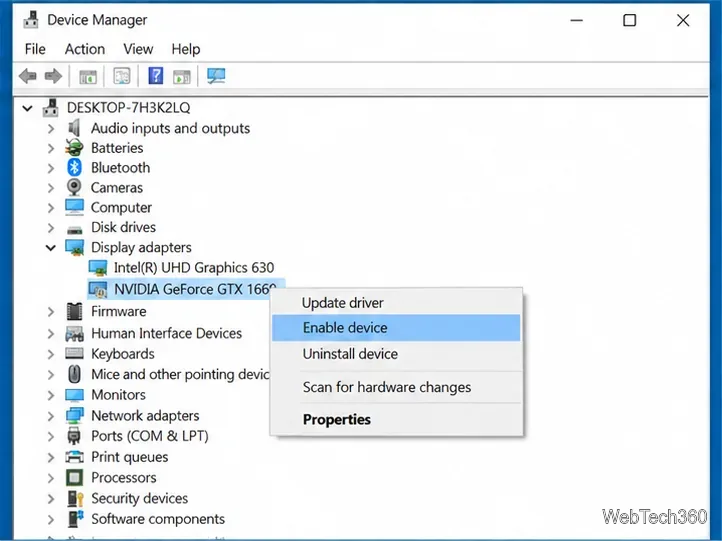
Right-click Start and select Device Manager, then expand Display adapters. If your NVIDIA card is listed, right-click it. If the menu shows Enable device, select it and restart the PC. If the menu shows Disable device, the card is already enabled.
If a yellow warning icon appears, open Properties and read the Device status message. Microsoft maintains a reference for common Device Manager error codes.
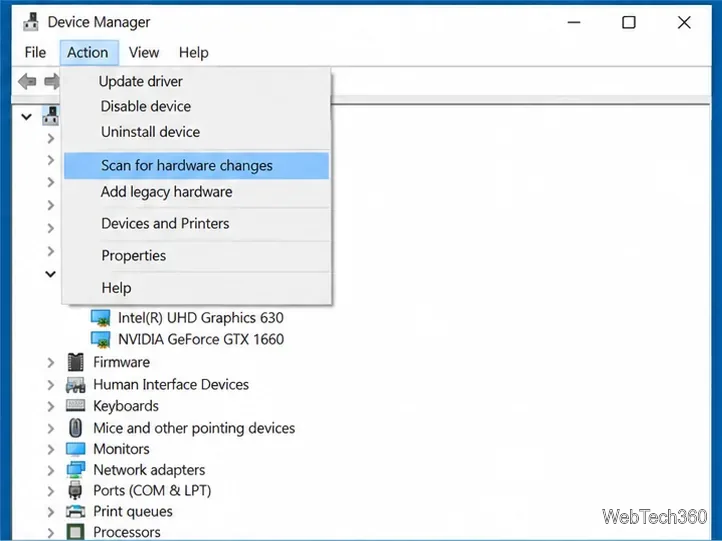
If the NVIDIA card is not listed, choose View > Show hidden devices, then select your computer at the top of Device Manager and use Action > Scan for hardware changes. This asks Windows to rescan connected hardware instead of relying only on the current device list.
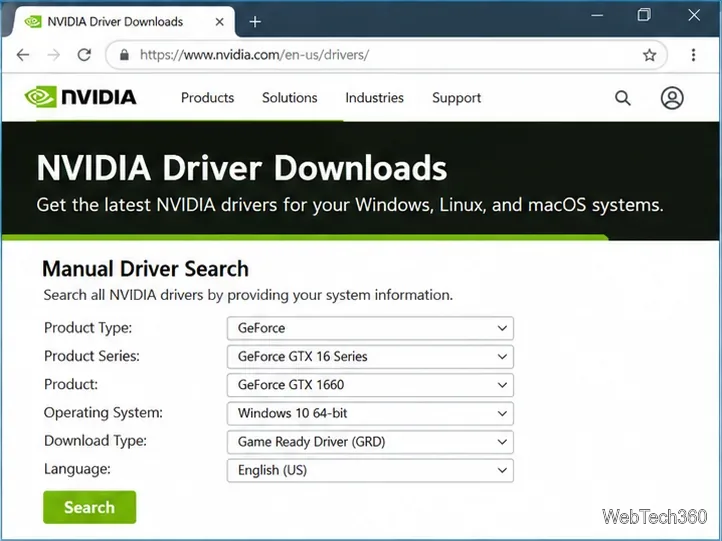
Download the driver only from NVIDIA's official driver page. Select the exact GPU family and Windows 10 64-bit, then install the offered driver and restart. NVIDIA recommends checking the laptop manufacturer's support page for an OEM-certified driver when troubleshooting a notebook, because some systems use manufacturer-specific graphics configurations.
Avoid third-party driver-download sites. Microsoft likewise recommends using Windows Update or the hardware manufacturer's official website for drivers.
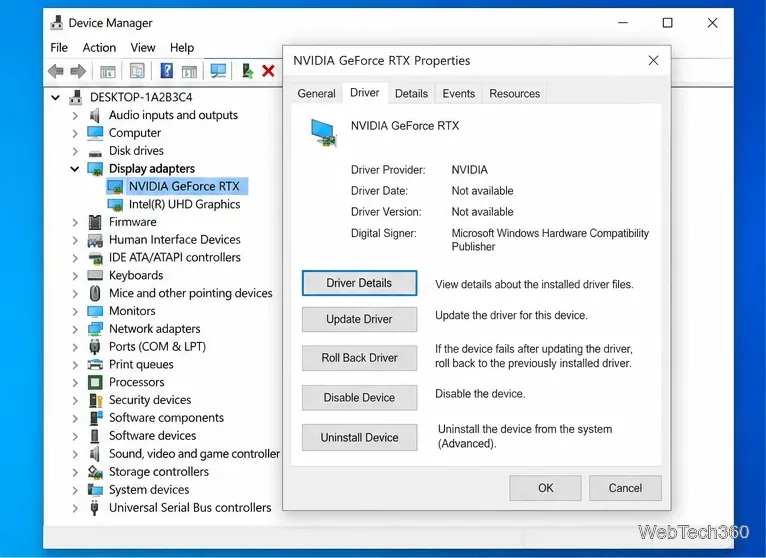
If the card appears in Device Manager but stopped working after a driver change, right-click it and choose Properties > Driver. Use Roll Back Driver when the problem began immediately after an update. If rollback is unavailable or the installation seems damaged, choose Uninstall device, restart Windows, and then install the correct NVIDIA driver again.
Microsoft documents both rollback and reinstall procedures in its Device Manager driver guide.
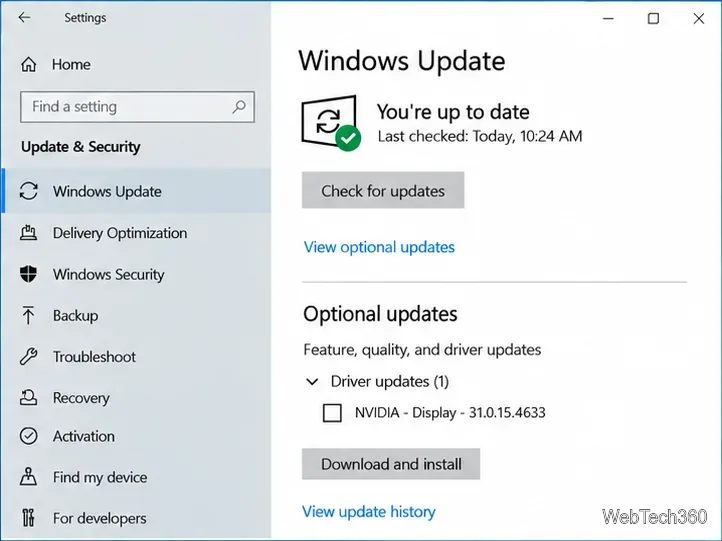
Open Settings > Update & Security > Windows Update and select Check for updates. If View optional updates appears, open it and review Driver updates. Optional drivers are not always installed automatically. Microsoft explains the Windows 10 path in its hardware driver update instructions.
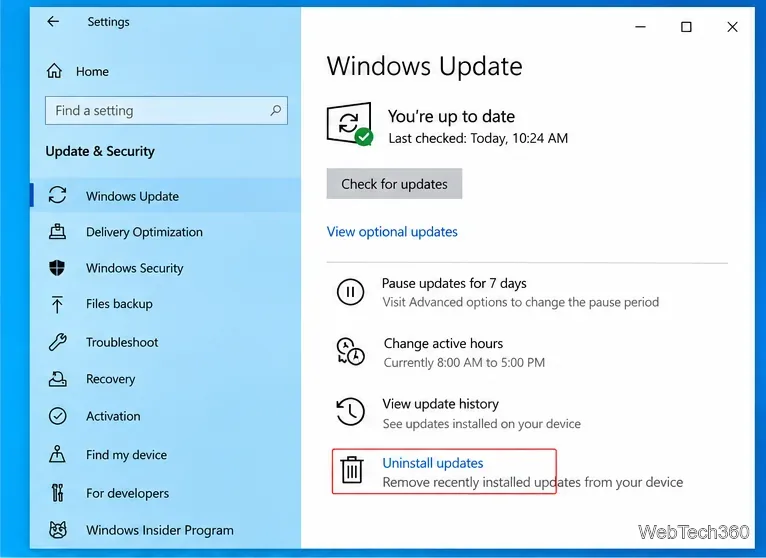
Do this only when the GPU worked immediately before a specific Windows update. Go to Settings > Update & Security > Windows Update > View update history > Uninstall updates, then select the recent update that matches the timing of the problem. Some updates cannot be removed, and uninstalling security updates can reduce protection, so this should be a targeted troubleshooting step rather than routine maintenance.
Microsoft provides the current procedure in How to uninstall a Windows Update.
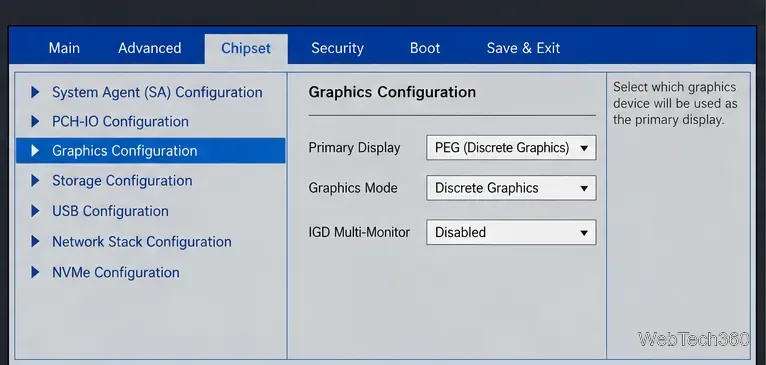
If Windows never sees the dedicated GPU, check the PC firmware. In Windows 10, open Settings > Update & Security > Recovery, choose Restart now under Advanced startup, then go to Troubleshoot > Advanced options > UEFI Firmware Settings > Restart.
Firmware menus vary by manufacturer. Look only for settings documented for your PC or motherboard, such as graphics mode, switchable graphics, PEG/PCIe graphics, or discrete GPU. Do not assume every computer has a toggle. Microsoft notes that UEFI layouts differ by manufacturer and advises changing only settings you understand in its UEFI access guidance.
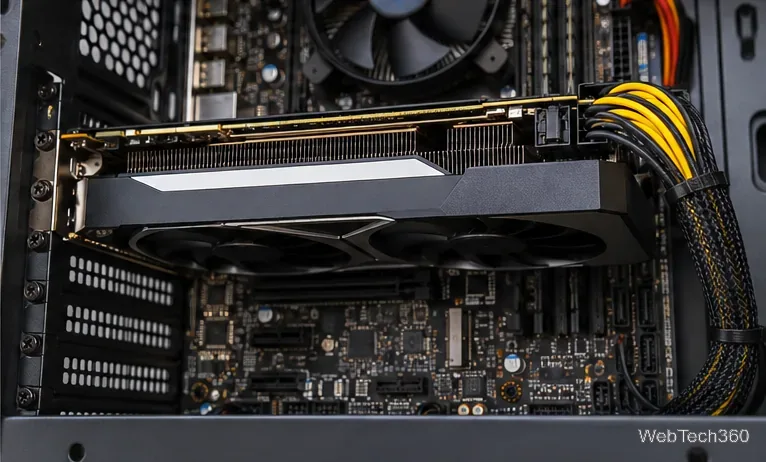
On a desktop, shut the PC down, disconnect power, and check that the graphics card is fully seated in its PCIe slot and that every required PCIe power connector is firmly attached. Also make sure the monitor cable is connected to the NVIDIA card's video output rather than the motherboard output when you intend to use the discrete GPU.
If the GPU is missing from both Windows and the firmware, or another known-good GPU works in the same slot, the problem may be the card, power supply, motherboard slot, or another hardware component. For laptops, avoid opening the chassis unless the model is designed for user service; use the manufacturer's diagnostics or support process instead.
Do not use random BCDEdit or PCI Express boot-configuration commands to “force” Windows to detect the GPU. They are not part of Microsoft's documented graphics-card detection workflow and can change boot settings without fixing a hardware or driver problem. Work through Device Manager, official drivers, Windows Update, firmware, and hardware checks in that order.
Use a screenshot test, cable and port checks, monitor diagnostics, display settings, and driver rollback to pinpoint lines on a Windows 10 monitor.
Show two other time zones beside your Windows 10 clock. Set up each additional clock, give it a clear label, and find it in the taskbar calendar.
Find the File Explorer extension that delays right-click menus in Windows 10, test it safely with ShellExView, and restore any menu features you still need.
Stop Windows 10 from powering down a specific network adapter or USB device with plan-level settings and Device Manager controls, plus tips to avoid excess battery drain.
Check whether Windows 10 uses a digital license or product key, find a firmware-stored OEM key, and save license details securely for a reinstall.
Identify a Windows 10 Task Manager process by checking its executable path, file properties, publisher, linked services, and a Microsoft Defender scan.
Create a searchable Windows 10 folder inventory with PowerShell. Save every file and subfolder path as plain text or export details to a sortable CSV.
Add a custom reminder, quote, or label to your Windows 10 desktop with a Rainmeter text skin. Create the INI file, load it, then adjust its font and position.
Use Bluetooth Swift Pair on Windows 10 to pair a compatible accessory from a notification, with setup steps and fixes when the prompt does not appear.
Learn what common laptop function key symbols mean, how Fn and Fn Lock affect them, and how to confirm the right shortcut for your Windows 10 laptop model.








