How to Fix Lines on a Monitor Screen in Windows 10

Use a screenshot test, cable and port checks, monitor diagnostics, display settings, and driver rollback to pinpoint lines on a Windows 10 monitor.
If an old HDD is not showing up in Windows 10, start by checking whether Windows can detect the physical disk at all. A missing drive letter, an Offline status, a loose cable, or an uninitialized empty disk can all keep a drive out of File Explorer. The most important rule is simple: if the drive contains files you care about, do not initialize, format, delete, or create a new volume just to make it appear.
Microsoft's current Disk Management documentation applies to both Windows 10 and Windows 11, so the steps below remain valid for Windows 10.
For an external HDD, reconnect the drive directly to the PC instead of through a USB hub, try another USB port, and test a known-good cable. If the enclosure has its own power adapter, confirm that it is powered on. For an internal desktop HDD, shut down the computer before checking the SATA data and power connections.
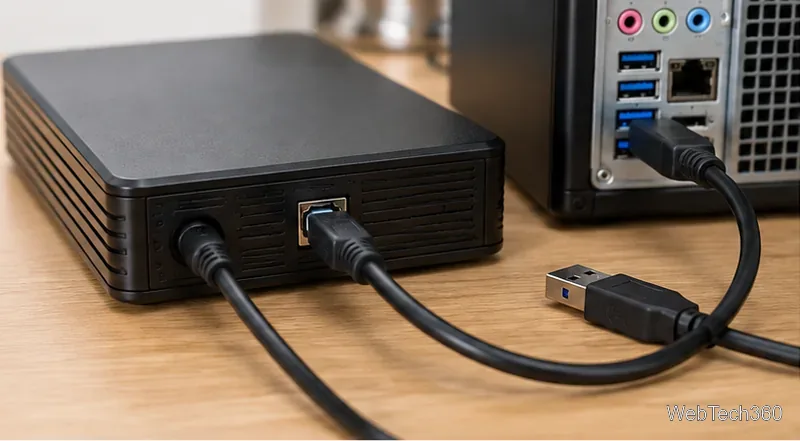
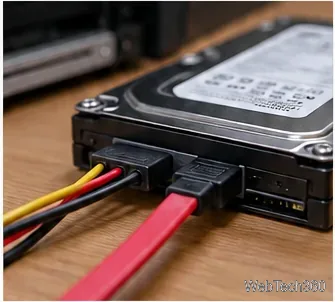
If possible, test the HDD on another computer. A disk that fails to appear on multiple PCs, or is also absent from BIOS/UEFI on an internal connection, is more likely to have a hardware, enclosure, cable, controller, or power problem.
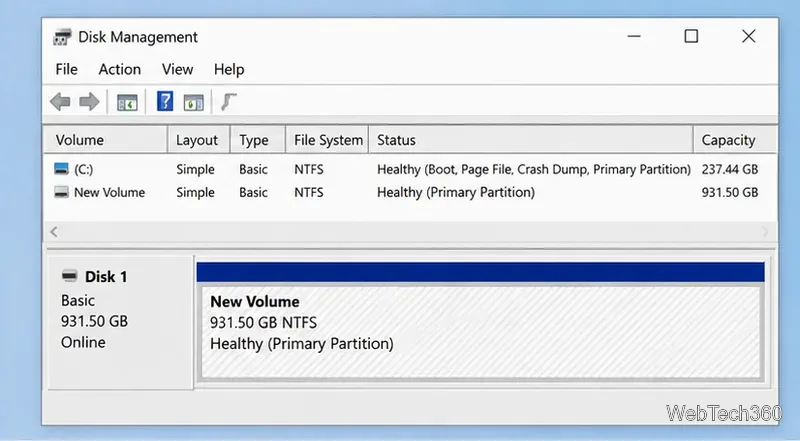
Press Windows + R, type diskmgmt.msc, and press Enter. Disk Management can show a disk even when File Explorer cannot. Look for the old HDD by its approximate capacity, then note whether it is Healthy, Offline, Not Initialized, RAW, or Unallocated.
You can also open Command Prompt as administrator, run diskpart, then run list disk. This is only a detection check; type exit when finished. Avoid destructive DiskPart commands such as clean.
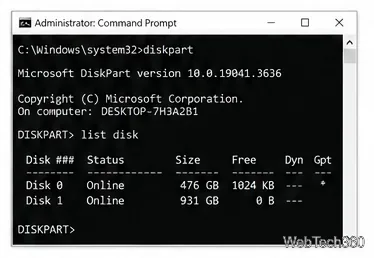
list disk command can confirm whether Windows detects the physical drive.If Disk Management shows the correct HDD as Offline, right-click the disk label on the left and choose Online. Microsoft's Disk Management troubleshooting guidance recommends this as an early step for an offline disk.
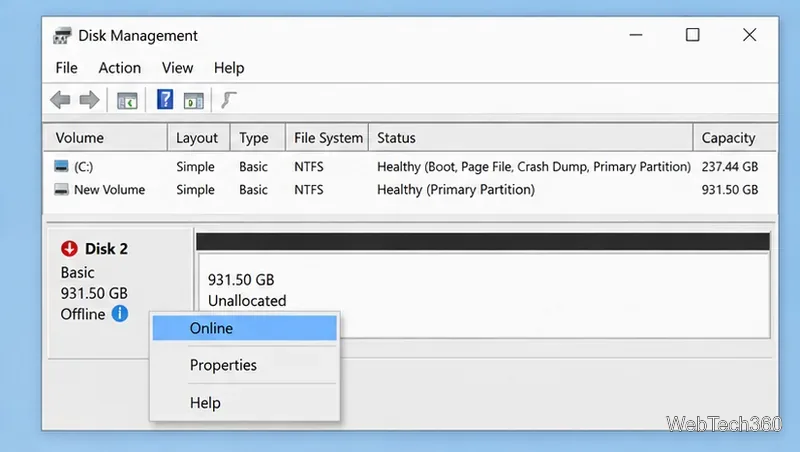
If the disk immediately goes Offline again or reports I/O errors, stop making storage-layout changes and recheck the cable, enclosure, controller, and the drive itself.
A healthy volume without a drive letter will not appear as a normal drive in File Explorer. In Disk Management:
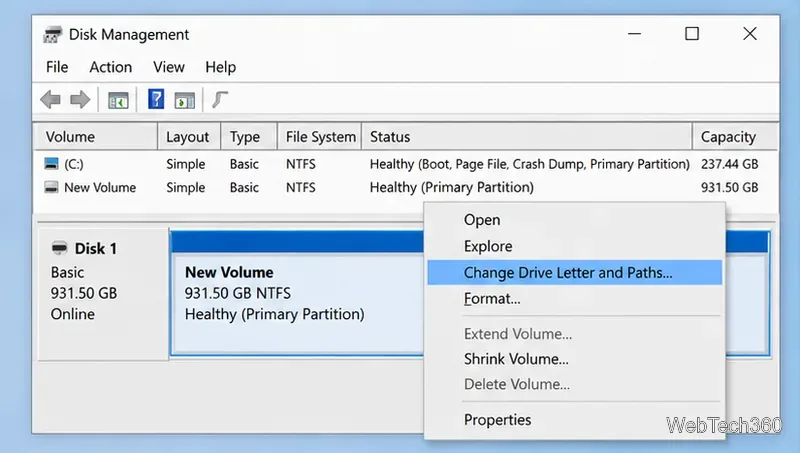
Microsoft notes in its drive-letter documentation that you should not casually change the letter of a volume that contains Windows or installed apps, because programs may stop finding their files.
This is where the old article's advice needs an important correction. Initializing a disk that already contains data can erase the existing data. Microsoft's Initialize new disks guide explicitly says the procedure is for a new, uninitialized disk with no existing data.
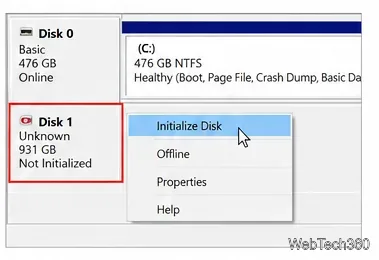
If an old HDD that previously stored files suddenly appears as Not Initialized, RAW, or unexpectedly Unallocated, do not initialize or format it if you want those files back. Treat that as a recovery situation instead.
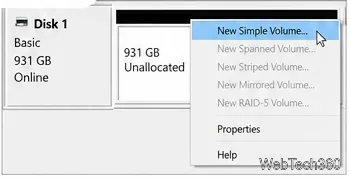
If the disk is genuinely empty, you can initialize it and normally choose GPT on modern systems. If its space is then shown as Unallocated, right-click that space and choose New Simple Volume. Follow the wizard to choose a size, drive letter, and file system. Formatting creates a new file system and destroys data on the formatted volume, so use this path only for empty or disposable storage.
Reconnect the drive, then in Disk Management use Action > Rescan Disks. Check Windows Update for storage or chipset driver updates; Microsoft says Windows Update is the preferred source for most hardware drivers. You can also use Device Manager to update or reinstall a storage-device driver using Microsoft's Device Manager driver instructions.
If the HDD is absent from Disk Management, DiskPart, BIOS/UEFI where applicable, and another computer, software fixes are unlikely to solve the problem. If the files are important, avoid repeated formatting or initialization attempts and consider professional data-recovery help before the drive deteriorates further.
Use a screenshot test, cable and port checks, monitor diagnostics, display settings, and driver rollback to pinpoint lines on a Windows 10 monitor.
Show two other time zones beside your Windows 10 clock. Set up each additional clock, give it a clear label, and find it in the taskbar calendar.
Find the File Explorer extension that delays right-click menus in Windows 10, test it safely with ShellExView, and restore any menu features you still need.
Stop Windows 10 from powering down a specific network adapter or USB device with plan-level settings and Device Manager controls, plus tips to avoid excess battery drain.
Check whether Windows 10 uses a digital license or product key, find a firmware-stored OEM key, and save license details securely for a reinstall.
Identify a Windows 10 Task Manager process by checking its executable path, file properties, publisher, linked services, and a Microsoft Defender scan.
Create a searchable Windows 10 folder inventory with PowerShell. Save every file and subfolder path as plain text or export details to a sortable CSV.
Add a custom reminder, quote, or label to your Windows 10 desktop with a Rainmeter text skin. Create the INI file, load it, then adjust its font and position.
Use Bluetooth Swift Pair on Windows 10 to pair a compatible accessory from a notification, with setup steps and fixes when the prompt does not appear.
Learn what common laptop function key symbols mean, how Fn and Fn Lock affect them, and how to confirm the right shortcut for your Windows 10 laptop model.








