How to Open a Linux Shell in a Folder on Windows 10

Open a Linux shell in any Windows 10 folder with File Explorer, PowerShell, and WSL. Check the Linux path and fix common setup issues.
If a Paint.NET download or install is failing, start by using the official installer and checking that your PC meets the current requirements. The most important update to older troubleshooting advice is that current Paint.NET releases already include the required Microsoft .NET runtime, so you should not install .NET Framework 4.8 separately just to fix Paint.NET setup.
The official Paint.NET download page currently lists Paint.NET 5.1.12, released March 8, 2026. It offers two normal choices: the paid Microsoft Store release and the free Classic Desktop release. The Store edition is convenient because updates are handled through Microsoft Store, while the Classic edition is the free download from Paint.NET's website.
Avoid third-party download sites. If you choose the Classic Desktop release, download the package, open the downloaded ZIP, and launch the Paint.NET installer inside it. If the installer will not start from the compressed folder, extract the ZIP to a normal folder first and run the installer from there.
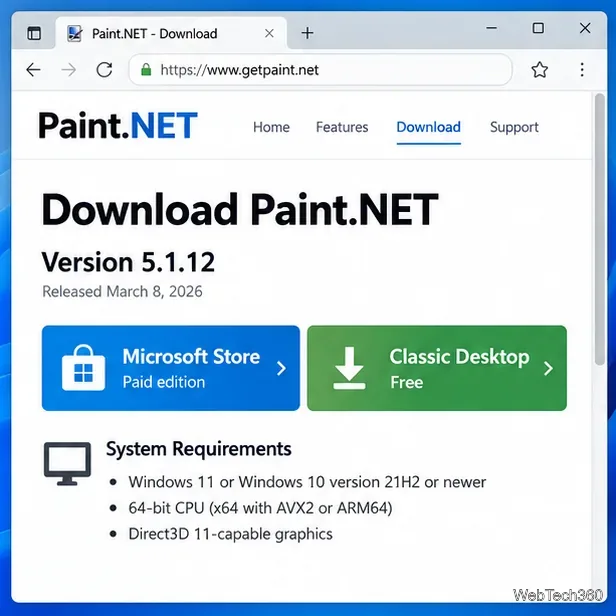
Paint.NET's current system requirements are stricter than many older versions. Confirm these basics before spending time on installer fixes:
| Requirement | What to check |
|---|---|
| Windows | Windows 11, Windows 10 version 21H2 or newer, or Windows Server 2022. |
| CPU | 64-bit x64 or ARM64. The official download page targets AVX2-capable x64 CPUs and at least four cores. |
| Graphics | A GPU with Direct3D 11 support is recommended for normal performance. |
| .NET | Paint.NET 5.1.12 uses Microsoft .NET 9, which is included with the app. No separate .NET installation is required. |
If the PC is much older than these requirements, running the installer as administrator or reinstalling frameworks will not solve the underlying compatibility problem.
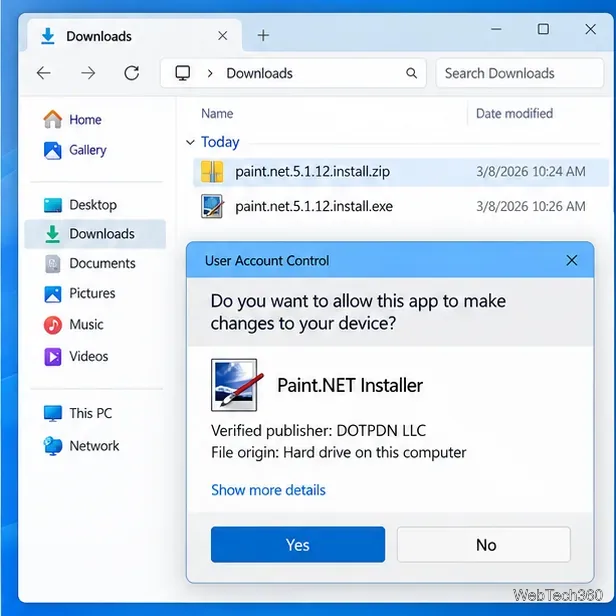
Open the Classic installer normally. Windows may display a User Account Control prompt before setup begins. The official installation guide says the verified publisher should be DOTPDN LLC. If that name appears and you downloaded the file from Paint.NET's official site, choose Yes to continue.
If setup immediately fails because it cannot write files or make system changes, right-click the installer and choose Run as administrator, then approve the UAC prompt with an administrator account.
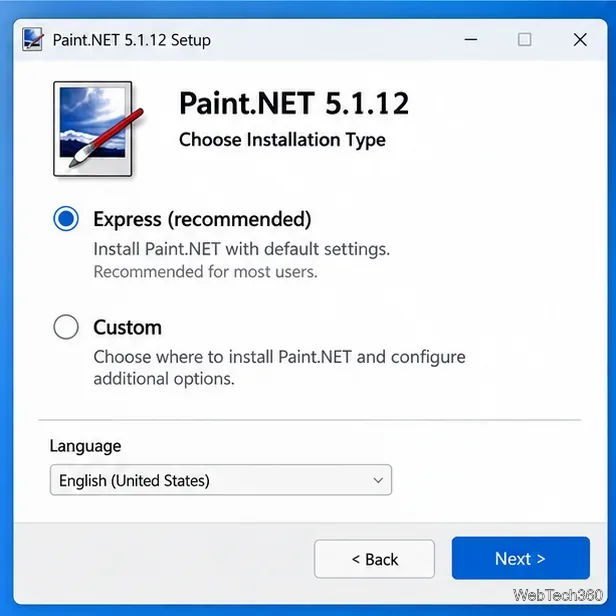
Paint.NET offers Express and Custom installation modes. The official documentation recommends Express for most people. If a custom path or unusual installation option is causing trouble, rerun setup, choose Express, and let Paint.NET use its default installation location.
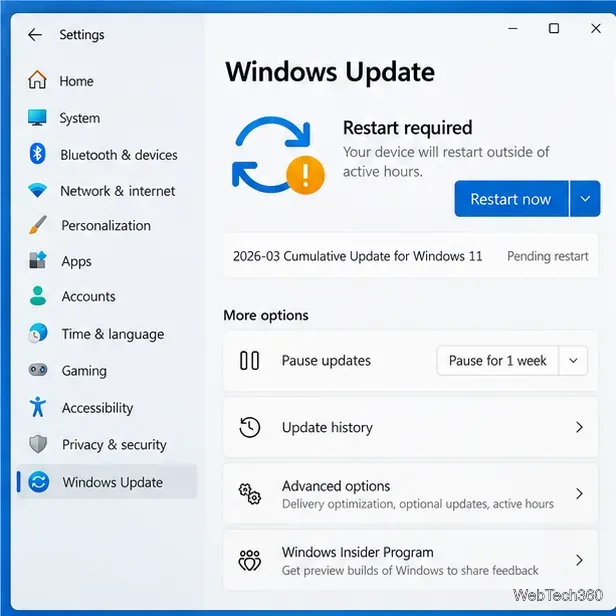
Paint.NET's documentation strongly recommends installing the latest system updates before installing the app. In Windows 11, open Settings > Windows Update, install available updates, and restart if requested. Microsoft also documents the current update flow on its Windows Update support page. After the restart, try the Paint.NET installer again.
If the installer opens and then closes, or Windows says the app was blocked, check Windows Security > Protection history. Microsoft explains that SmartScreen or potentially unwanted app protection can block a download before installation. Review the event instead of disabling antivirus protection globally. Only allow or re-download the installer when you obtained it from the official Paint.NET site and the publisher information matches. See Microsoft's Protection History guidance for the safe process.
If setup fails while downloading components, a proxy, firewall, unstable connection, or security product may be interrupting the web installer. Paint.NET publishes official offline installers, portable ZIPs, and deployment MSIs in the Paint.NET release repository on GitHub. For a normal home installation, use the standard installer or the appropriate offline installer; MSI packages are mainly intended for managed deployment.
For most installation failures, the safest sequence is simple: verify compatibility, download the current installer from Paint.NET, confirm DOTPDN LLC in UAC, use Express setup, finish Windows updates, and then check security blocking or switch to the official offline installer if necessary.
Open a Linux shell in any Windows 10 folder with File Explorer, PowerShell, and WSL. Check the Linux path and fix common setup issues.
Use a screenshot test, cable and port checks, monitor diagnostics, display settings, and driver rollback to pinpoint lines on a Windows 10 monitor.
Show two other time zones beside your Windows 10 clock. Set up each additional clock, give it a clear label, and find it in the taskbar calendar.
Find the File Explorer extension that delays right-click menus in Windows 10, test it safely with ShellExView, and restore any menu features you still need.
Stop Windows 10 from powering down a specific network adapter or USB device with plan-level settings and Device Manager controls, plus tips to avoid excess battery drain.
Check whether Windows 10 uses a digital license or product key, find a firmware-stored OEM key, and save license details securely for a reinstall.
Identify a Windows 10 Task Manager process by checking its executable path, file properties, publisher, linked services, and a Microsoft Defender scan.
Create a searchable Windows 10 folder inventory with PowerShell. Save every file and subfolder path as plain text or export details to a sortable CSV.
Add a custom reminder, quote, or label to your Windows 10 desktop with a Rainmeter text skin. Create the INI file, load it, then adjust its font and position.
Use Bluetooth Swift Pair on Windows 10 to pair a compatible accessory from a notification, with setup steps and fixes when the prompt does not appear.








