How to Move Minecraft to Another Drive in Windows 10

Move Minecraft for Windows to another drive with the built-in Settings option, protect your worlds, and see what to do if Move is unavailable.
If your PC won’t connect to your TV over HDMI, check the cable and TV input first, then review Windows’ projection settings. Common causes include a loose cable, the wrong input, an adapter or dock, or a graphics-driver problem. Try these fixes in order.
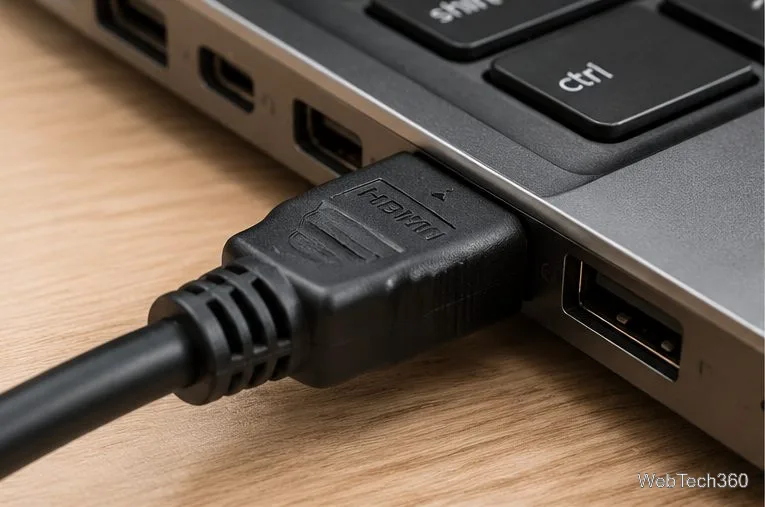
Turn on both devices and push the HDMI plugs firmly into the PC and TV. Inspect the connectors and ports for damage, and replace a crushed or loose cable.
Use the remote’s Input, Source, or Home button. Select the port the cable uses, such as HDMI 1 or HDMI 2; the TV may not switch automatically when a computer is connected.
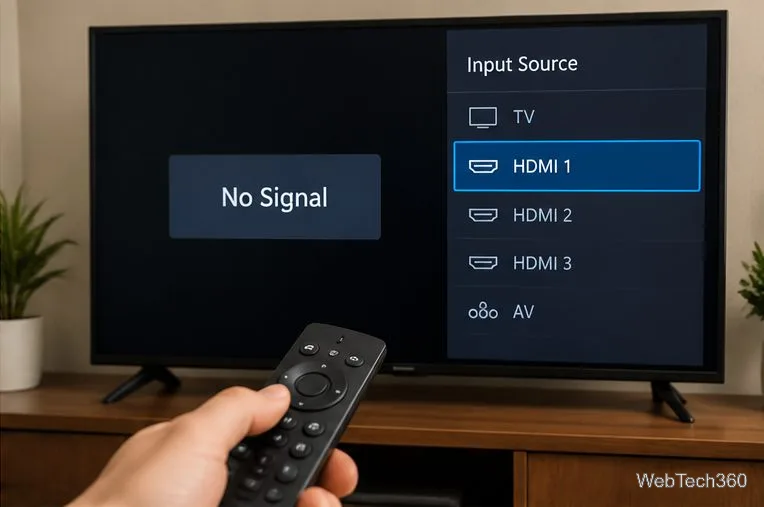
If you are unsure which port is in use, test each HDMI input and wait a few seconds after switching.
Press Windows + P to open the Project panel. Choose Duplicate to show the same image on both screens or Extend to use the TV as extra desktop space. If you want the TV to be the only screen, try Second screen only.
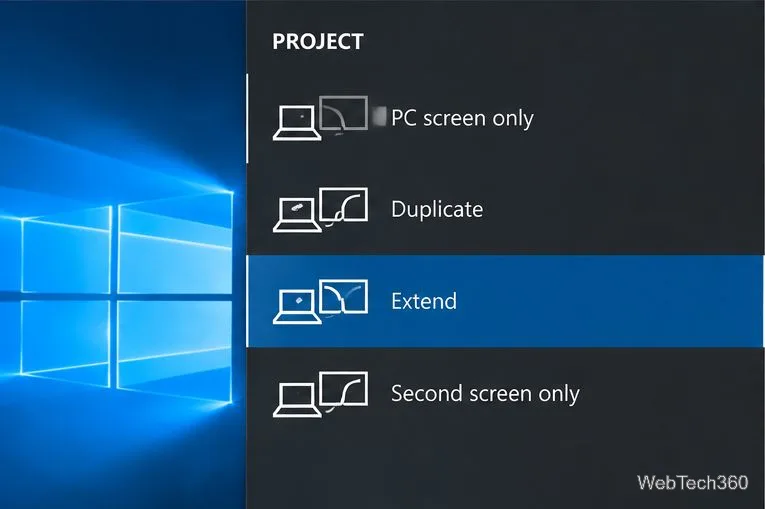
Wait a few seconds after selecting a mode. If the TV stays blank, try a different mode and continue to the detection step.
Temporarily remove HDMI switches, splitters, docking stations, AV receivers, and USB-C adapters. Connect the PC directly to the TV with one HDMI cable. An accessory may block detection, lack video support, or be connected in the wrong direction.
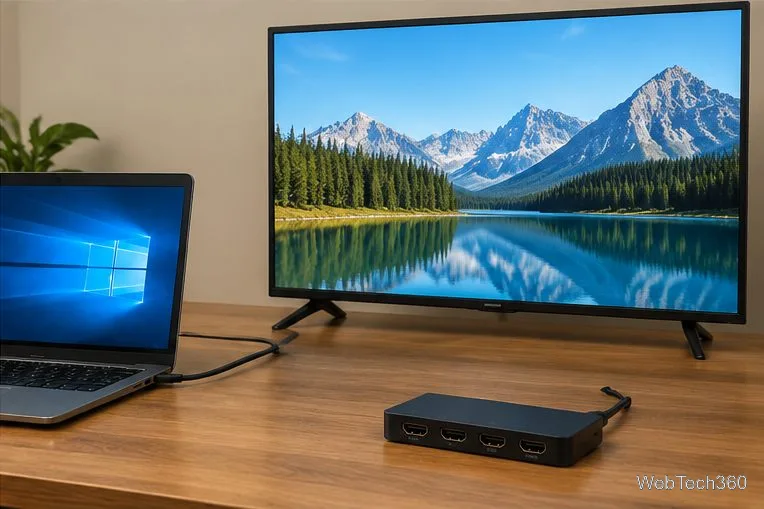
If the direct connection works, reconnect accessories one at a time to find the cause.
Try a different HDMI input on the TV and select that input in the Source menu. If possible, use a known-good cable. You can also test the TV with another HDMI device or connect the PC to another display to identify which device is causing the problem.
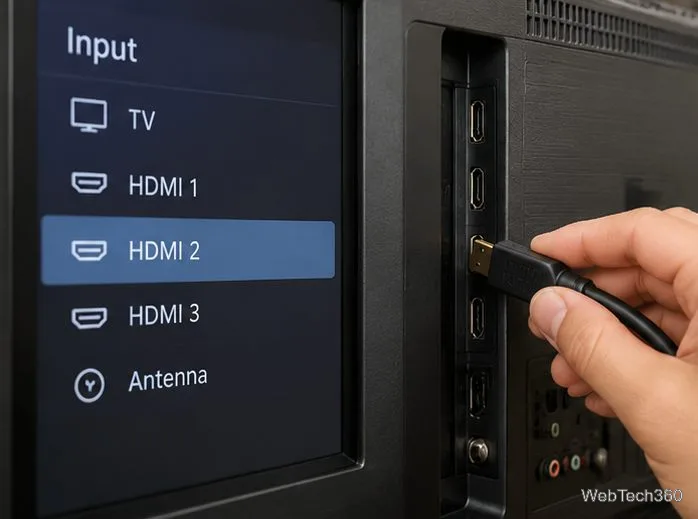
If several devices fail on one TV port, the input may be faulty. If the PC fails with multiple known-good cables and displays, focus on its video output and drivers.
In Windows 10, right-click the desktop and choose Display settings, or open Settings > System > Display. Under Multiple displays, select Detect. Keep the TV on the correct HDMI input while checking.
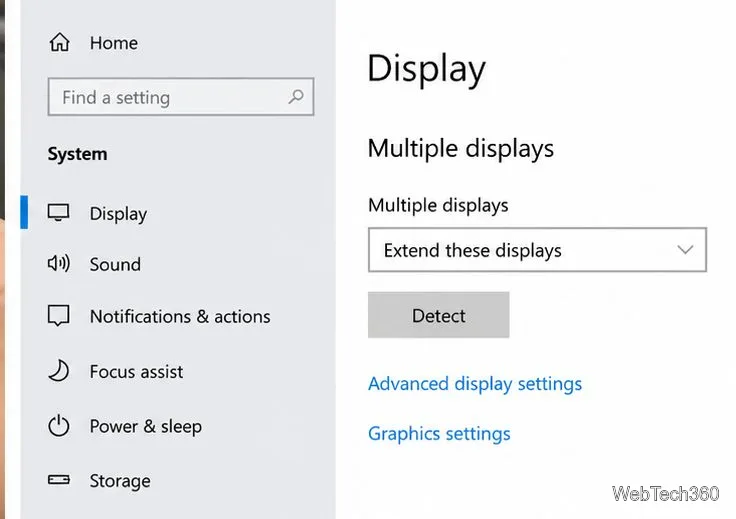
If the TV appears, select it and choose a supported resolution. If a connection that previously worked suddenly goes blank, press Windows + Ctrl + Shift + B to reset the graphics driver, then restart the PC if needed. See Microsoft’s external-display troubleshooting guide.
Search for Device Manager, open it, and expand Display adapters. Right-click the graphics adapter, choose Update driver, and select the automatic search option. Also check Windows Update for available driver updates.
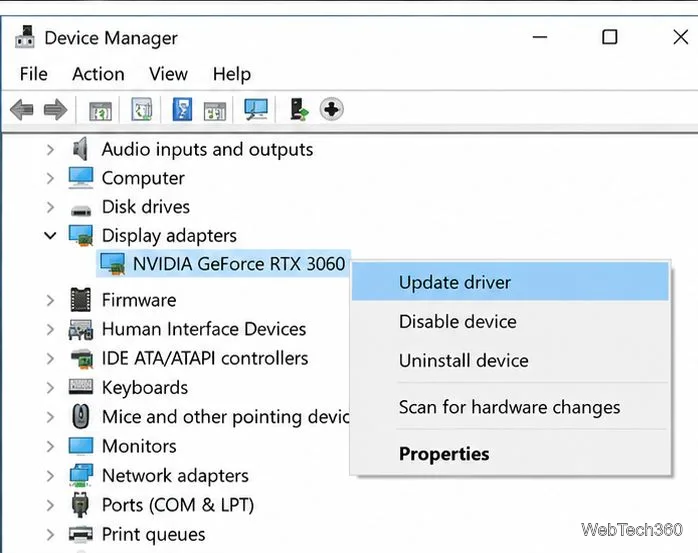
If Windows finds nothing, download the correct driver from your PC or GPU manufacturer—not a third-party driver site. If the problem started after a driver update, open the adapter’s Properties > Driver tab and choose Roll Back Driver if available. Microsoft’s Device Manager driver instructions explain both options.
On a desktop with a dedicated graphics card, plug the TV into an HDMI output on that card—usually lower on the back of the tower—not the motherboard port beside the USB and audio connectors. The motherboard output may not be active when the PC uses a separate graphics card. Laptops and PCs without a dedicated GPU should use their supported built-in video output.
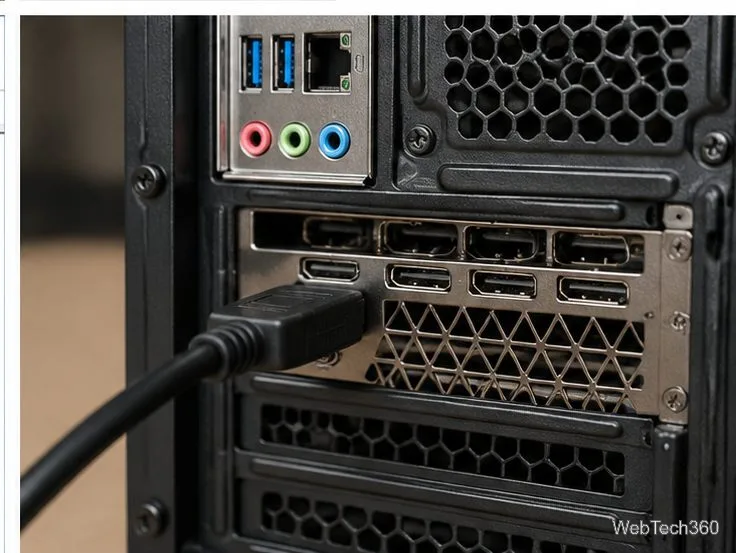
Bottom line: confirm the TV input, try Windows + P, bypass adapters, and test another cable or port. If Windows still cannot detect the TV, use Display settings and update or roll back the graphics driver. For more help, see Microsoft’s official guide to troubleshooting external displays.
Move Minecraft for Windows to another drive with the built-in Settings option, protect your worlds, and see what to do if Move is unavailable.
Find out why Windows 10 hides SmartScreen’s Run anyway button, how to review the warning, and how to allow a bypass while keeping SmartScreen on.
Combine left and right channels so you can hear the full mix through one earbud. Follow the Windows 10 Settings path and learn how to restore stereo when you want it.
Learn how to build a custom grid for your display in Windows 10 with PowerToys FancyZones, adjust zones, choose each monitor, and snap apps into place.
Set Windows 10 to sign in automatically at startup with Microsoft Sysinternals Autologon, then learn how to disable it and understand the security tradeoffs.
Add the Ultimate Performance power plan in Windows 10 with an elevated command, select it in Power Options, and check compatibility and power-use limits.
Refresh missing or incorrect bookmark icons in Edge by reopening the saved page, clearing cached images, or rebuilding the favicon cache safely.
Turn the number row into virtual numpad keys on Windows 10 with AutoHotkey v2. Set up a Caps Lock toggle, test it in your app, and see what the script cannot remap.
Turn off a wired Ethernet adapter in Windows 10, confirm you selected the right device, restore it later, or use PowerShell.
Pair Bluetooth headphones with Windows 10, choose them as your audio output, and fix common discovery or sound problems.








