Home
» WINDOWS
»
Photoshop Crashes When Printing on Windows 10? Try These Fixes
Photoshop Crashes When Printing on Windows 10? Try These Fixes
If Photoshop closes or freezes when you choose Print, first find out whether the failure is in Windows, the printer driver, or Photoshop’s print path. Test the printer outside Photoshop, clear any stuck jobs, and then work through the fixes below. Save a copy of your PSD before changing preferences or flattening anything.
Check Windows and the printer first
Restart the computer and printer. Print a Windows test page, then print a simple text document from Notepad. If either test fails, fix the Windows printer connection or hardware first; Photoshop cannot repair a printer that Windows itself cannot use. Microsoft’s Windows printer troubleshooting guide covers test pages and reinstalling a printer.
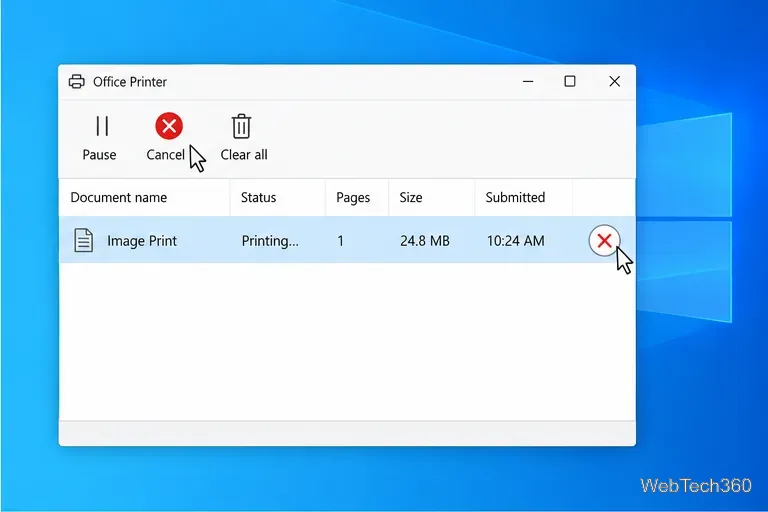
Next, open Settings > Devices > Printers & scanners, select the printer, and open its queue. Cancel stuck jobs, then try Photoshop again. A blocked spooler can make print requests from multiple apps hang; follow Microsoft’s stuck print job steps if jobs will not clear normally.
The Windows queue lets you cancel a job that may be blocking later print requests.
Fix Photoshop crashing when printing
1. Remove stale printer entries
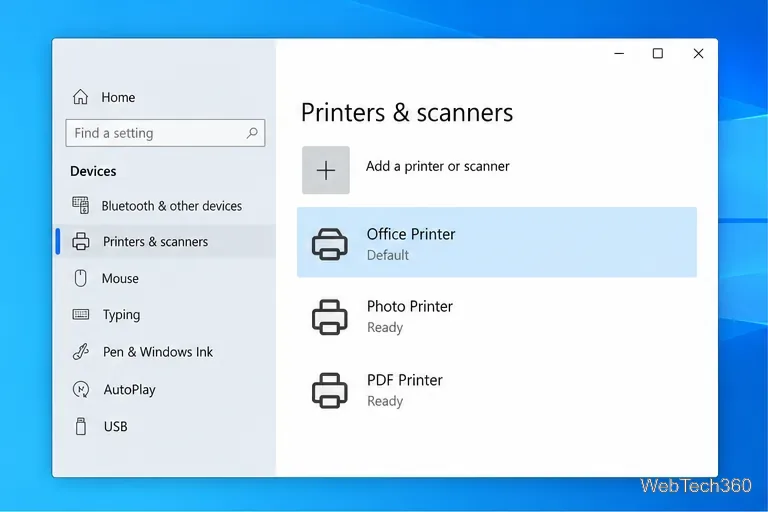
Check Printers & scanners for duplicate or obsolete entries. Remove only a printer you no longer use or a clear duplicate; keep active and shared printers. Restart Photoshop and choose the right device under File > Print.
Confirm which printer is active before removing an unused or duplicate entry.
2. Install the printer maker’s current driver
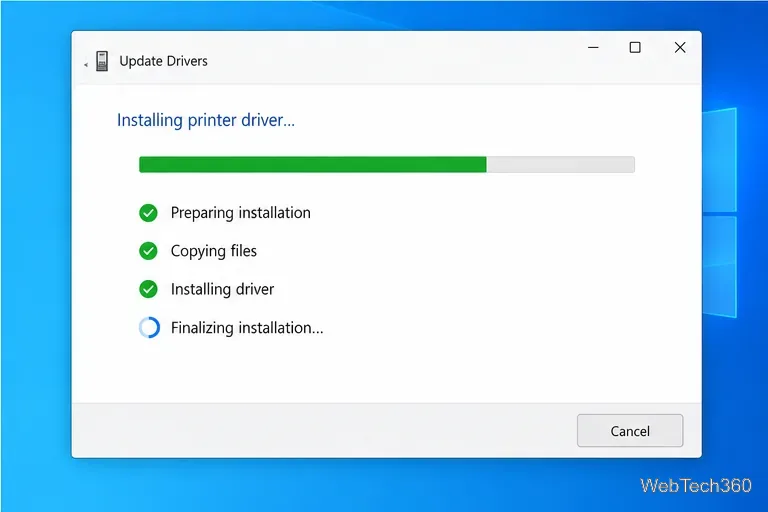
Close Photoshop. Download and install the driver for the exact printer model and Windows version from the manufacturer’s support site, then restart Windows. Avoid third-party driver sites. Reinstalling can replace damaged driver settings. Adobe notes that older or damaged drivers can disrupt print settings; see its print settings troubleshooting.
Install a driver package that matches the printer model and Windows version.
3. Test with another default printer
Adobe documents cases where a problematic default printer affects Photoshop’s Windows print dialog. Close Photoshop, make another available printer the temporary Windows default (a PDF printer is fine), reopen Photoshop, and test File > Print. If the dialog works, repair the original driver and restore your preferred default.
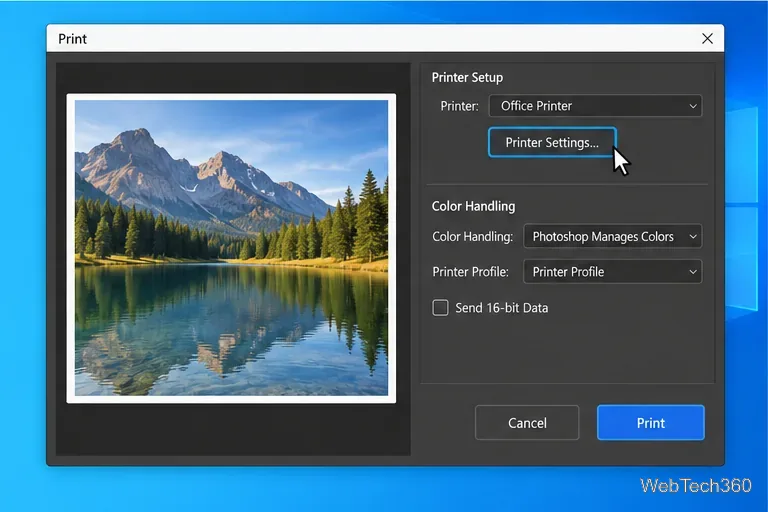
If the Print Settings button is unresponsive or stalls, toggle Color Handling between Printer Manages Colors and Photoshop Manages Colors, then retry. Adobe suggests this workaround; restore your usual color workflow afterward because the choice can affect output.
Use the Color Handling control only as a diagnostic, then restore your intended color workflow.
4. Check available scratch disk space
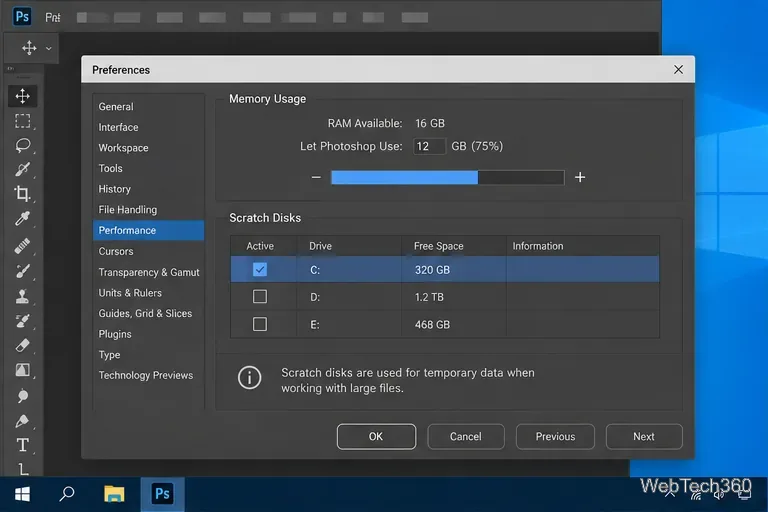
Photoshop uses scratch disks as temporary storage when RAM is insufficient, and large files increase demand. Open Edit > Preferences > Scratch Disks (the location varies by version), select a fast internal drive with free space, set its priority, choose OK, and restart. See Adobe’s scratch disk guide. Don’t delete Photoshop temporary files while it is open.
Select a suitable drive with free space for Photoshop’s temporary working data.
5. Reset Photoshop preferences
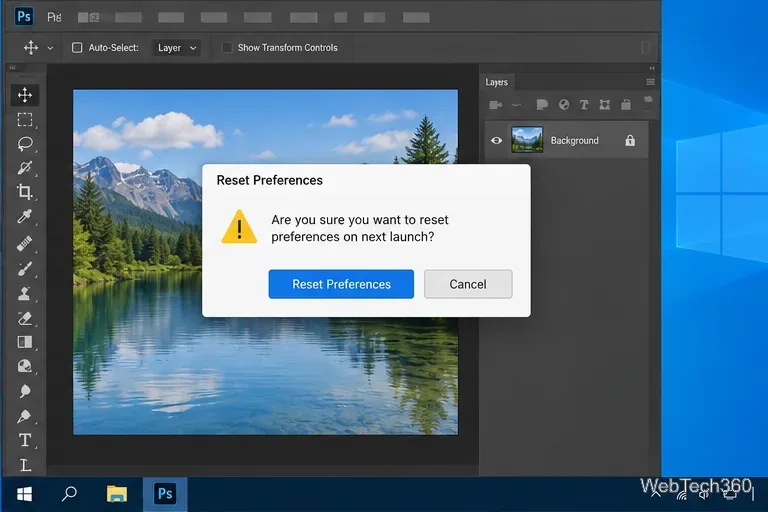
Corrupted preferences can break printing. Quit Photoshop, then hold Ctrl + Alt + Shift while launching it and confirm deletion of the Settings file. This restores defaults, so back up custom settings first. Adobe lists the reset in its crash guide.
Confirm the reset only after noting any custom Photoshop settings you want to restore.
6. Find out whether one PSD is the trigger
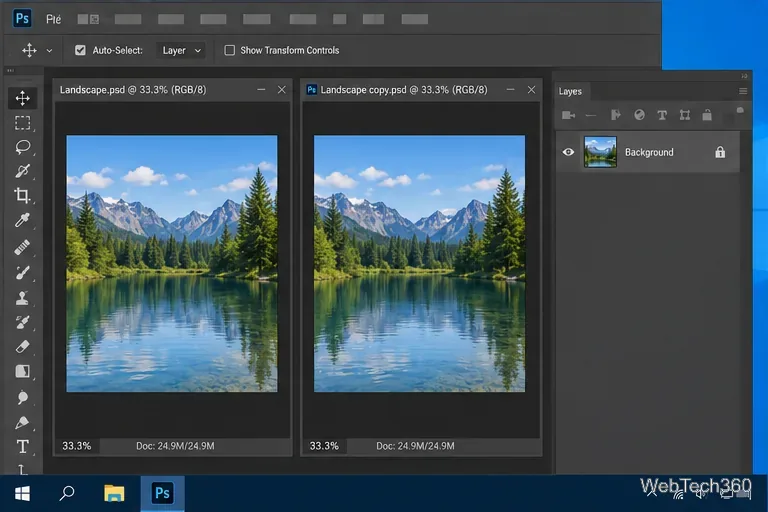
Create a small document with one filled layer and print it. If it works, test a duplicate of the problem PSD: choose File > Save a Copy, then flatten only the duplicate. If it prints, inspect the original for a large canvas, complex effects, damaged layers, or missing linked content. Keep the layered original untouched.
Test a duplicate so experiments do not alter the editable source document.
7. Print a separate JPEG or PNG copy
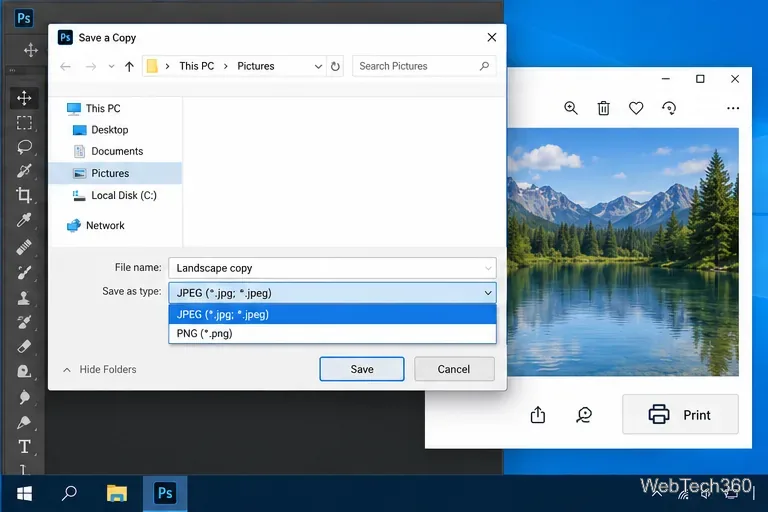
Save a print-only raster copy with File > Save a Copy (or your version’s export command): JPEG for opaque photos, PNG for lossless data. Adobe explains how Save a Copy creates a flattened version without changing the original. Open the copy in Photos or another viewer and print it. This sends the rendered image rather than the PSD’s layer structure and can bypass a complex-file problem. It does not preserve layers; keep the PSD and use your usual color-managed process for color-critical work.
Save and print a separate raster copy; leave the layered PSD as your editable original.
If Photoshop still closes
Record your Photoshop and driver versions, printer model, and the exact action that triggers the crash. If other Photoshop features also fail, update Photoshop and your graphics driver, then contact Adobe Support with those details. Microsoft ended Windows 10 support on October 14, 2025; check whether the printer maker still offers a compatible driver.