How to Open a Linux Shell in a Folder on Windows 10

Open a Linux shell in any Windows 10 folder with File Explorer, PowerShell, and WSL. Check the Linux path and fix common setup issues.
If your printer is only printing half a page on Windows 10, the most common cause is a mismatch between the paper loaded in the printer and the page size or scaling selected in Windows or the app. A stuck print queue, damaged printer setup, or driver problem can also cut output short.
Start with a Windows test page. If the test page prints completely, the printer hardware and basic Windows print path are probably working, so focus on the document and app settings. If the test page is also cut off, focus on the spooler, printer installation, driver, and the printer itself.
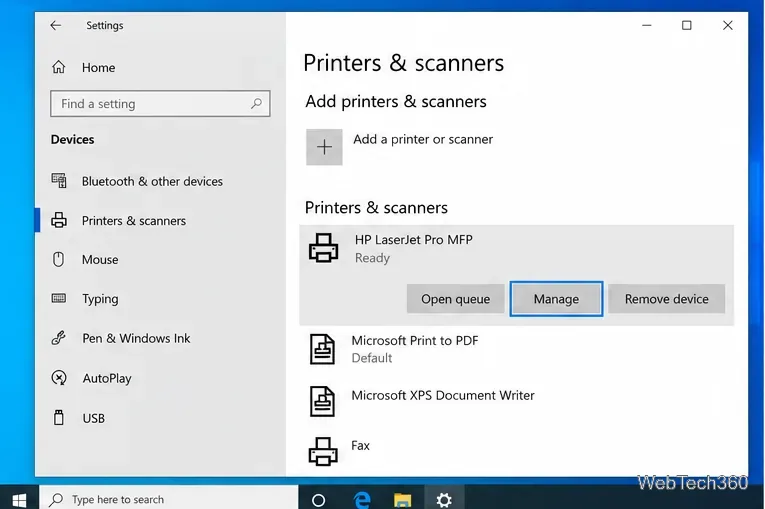
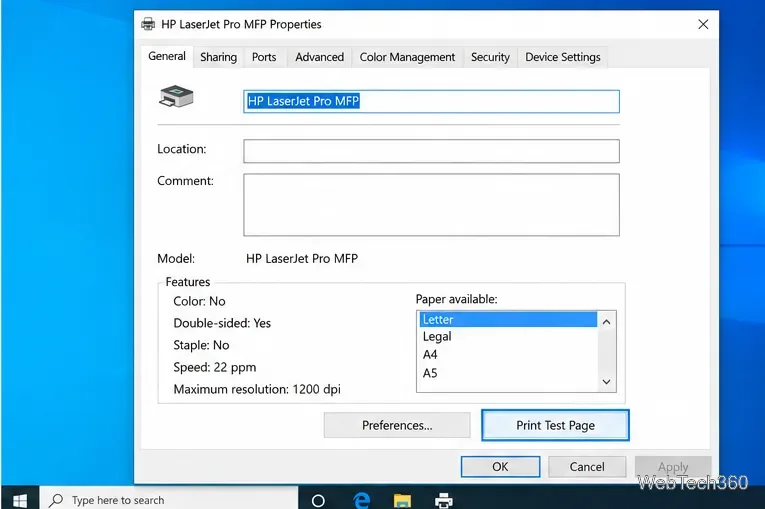
Microsoft uses the same test-page check in its official printing troubleshooting guidance.
Go back to Printers & scanners > your printer > Manage and open Printing preferences. Set the paper or document size to the paper that is physically in the tray, such as Letter or A4. Also confirm Portrait or Landscape orientation. Driver wording varies by printer, so you may see labels such as Paper Size, Document Size, or Output Size.
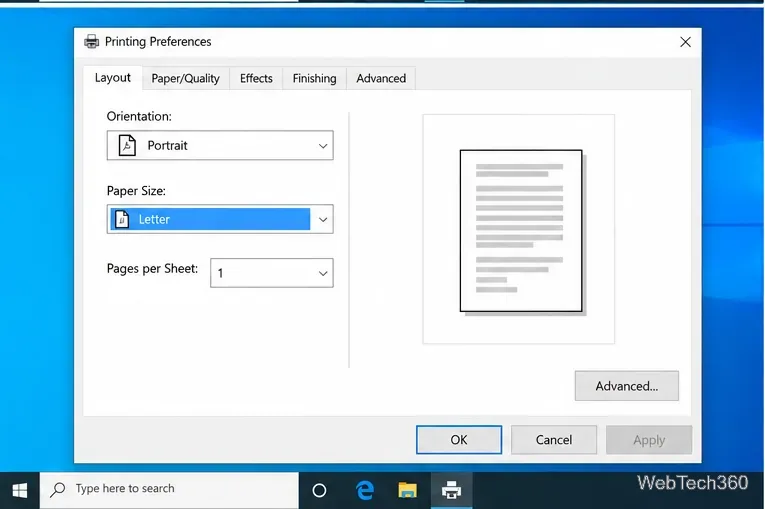
If the printer has multiple trays, check that the selected tray contains the same paper size. A Letter-versus-A4 mismatch can produce clipping, unexpected scaling, or content outside the printable area.
The document must use the same page size as the printer. In Microsoft Word, open Layout > Size and select the intended paper size. Check Orientation and margins at the same time. For browsers and PDF viewers, review their print dialog for paper size and layout before printing.
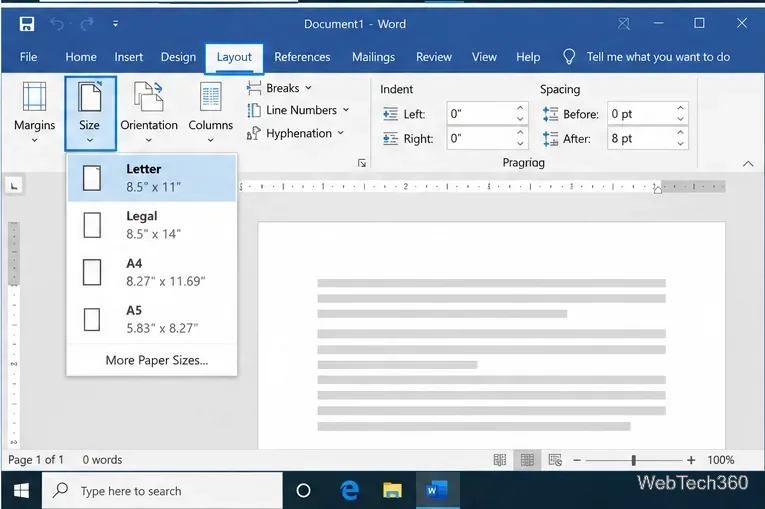
Microsoft also recommends confirming page size, orientation, and layout when an app prints incorrectly. In Microsoft Edge, paper size appears under the print dialog's More settings options.
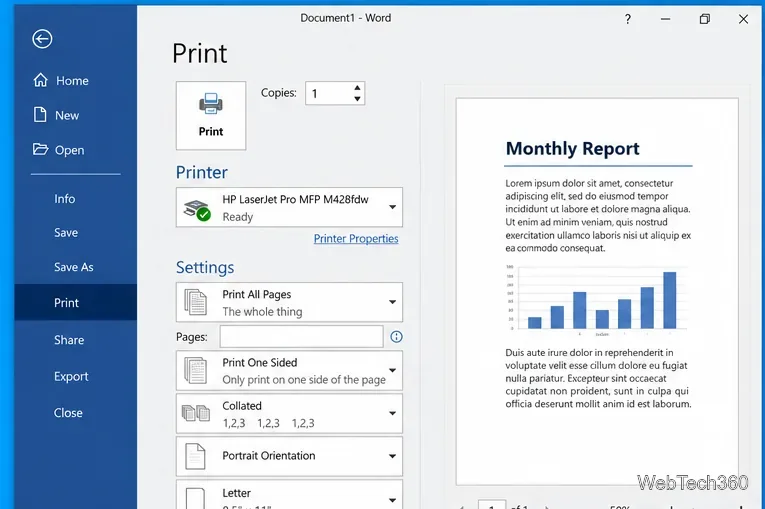
Open File > Print in the app and inspect the preview. Confirm that the correct printer is selected, the whole page is visible, and the job is set to print all required pages. Disable unusual options such as booklet, poster, multiple pages per sheet, or custom scaling unless you intentionally need them. If the preview itself shows only half the content, fix the document or app settings before troubleshooting the printer.
A corrupted or stalled print job can cause inconsistent output. First open the printer queue and cancel old jobs. Then press Windows+R, enter services.msc, and press Enter. Find Print Spooler, right-click it, and select Restart.
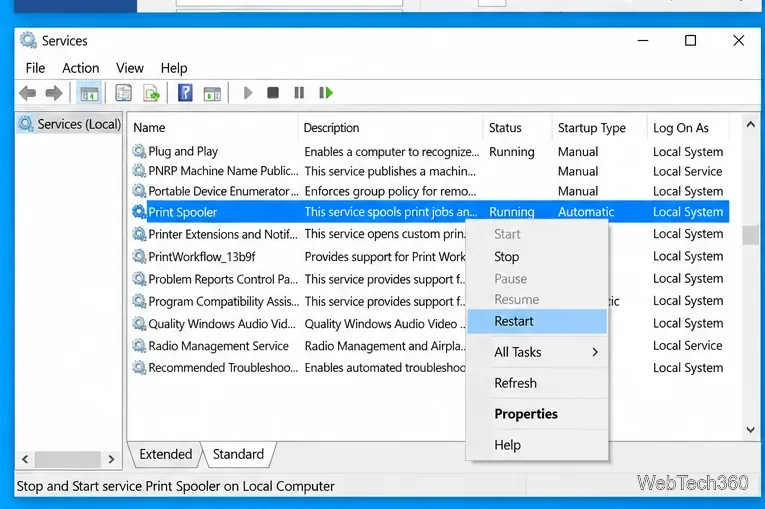
This is one of Microsoft's documented steps for printer problems; see its Windows printer troubleshooting page.
If the test page is still wrong, reinstall the printer. In Settings > Devices > Printers & scanners, select the printer and choose Remove device. Restart the printer and PC, then return to the same page and choose Add a printer or scanner. For a wireless printer, make sure the PC and printer are on the same network.
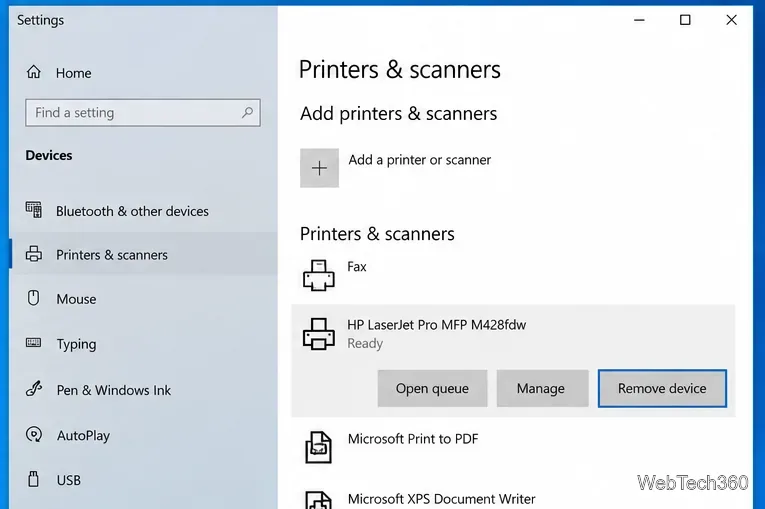
Microsoft's printer installation instructions cover both local and network printers.
Use Windows Update or the support page for your exact printer model to get a current driver. You can also open Device Manager, expand Printers, right-click the printer, and choose Update driver. If updating does not help, reinstalling the printer can force Windows to obtain a fresh driver. Avoid third-party driver download sites.
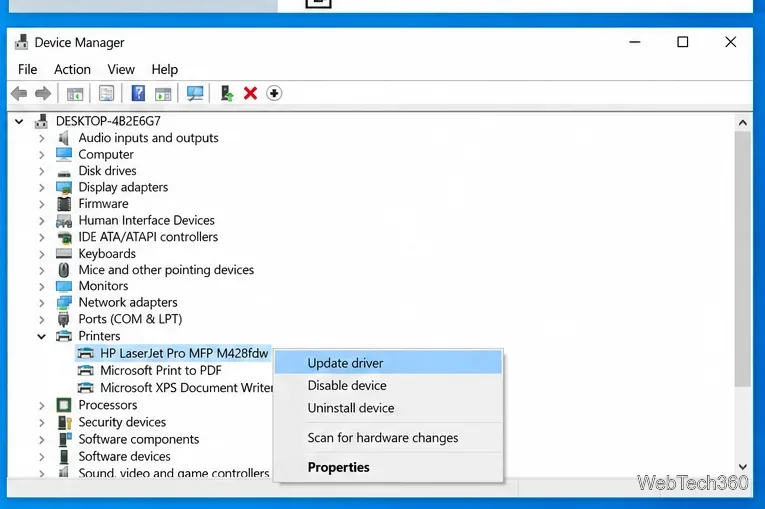
Microsoft documents driver update and reinstall options in its printer driver support guide.
Windows 10 reached end of support on October 14, 2025. Microsoft no longer provides free security updates or technical support for standard Windows 10 installations, although these troubleshooting steps remain useful on existing Windows 10 PCs.
Open a Linux shell in any Windows 10 folder with File Explorer, PowerShell, and WSL. Check the Linux path and fix common setup issues.
Use a screenshot test, cable and port checks, monitor diagnostics, display settings, and driver rollback to pinpoint lines on a Windows 10 monitor.
Show two other time zones beside your Windows 10 clock. Set up each additional clock, give it a clear label, and find it in the taskbar calendar.
Find the File Explorer extension that delays right-click menus in Windows 10, test it safely with ShellExView, and restore any menu features you still need.
Stop Windows 10 from powering down a specific network adapter or USB device with plan-level settings and Device Manager controls, plus tips to avoid excess battery drain.
Check whether Windows 10 uses a digital license or product key, find a firmware-stored OEM key, and save license details securely for a reinstall.
Identify a Windows 10 Task Manager process by checking its executable path, file properties, publisher, linked services, and a Microsoft Defender scan.
Create a searchable Windows 10 folder inventory with PowerShell. Save every file and subfolder path as plain text or export details to a sortable CSV.
Add a custom reminder, quote, or label to your Windows 10 desktop with a Rainmeter text skin. Create the INI file, load it, then adjust its font and position.
Use Bluetooth Swift Pair on Windows 10 to pair a compatible accessory from a notification, with setup steps and fixes when the prompt does not appear.








