How to Create a List of All Items in a Folder on Windows 10

Create a searchable Windows 10 folder inventory with PowerShell. Save every file and subfolder path as plain text or export details to a sortable CSV.
Process Explorer is Microsoft Sysinternals’ advanced process-inspection utility. On a Windows 10 PC, it is most useful when Task Manager can tell you that something is running but cannot explain what that process has open, which DLLs it loaded, which account owns it, or which process is holding a file or window.
It does not make Task Manager obsolete. Task Manager remains faster for everyday checks and ending an unresponsive app. Process Explorer is the better choice for deeper troubleshooting.
Compatibility note: Microsoft’s current Process Explorer page lists v17.14 and currently names Windows 11 and later as supported client versions. Microsoft’s Sysinternals Suite Store documentation still describes Windows 10 behavior. If you manage Windows 10 systems, check the current Microsoft support notes before standardizing a new build.
Process Explorer is a portable Sysinternals tool that shows running processes in a parent-and-child tree. The upper pane lists active processes and useful columns such as PID, CPU use, private bytes, working set, description, company name, and other optional data. That tree view makes it easier to see which processes were launched by another program.
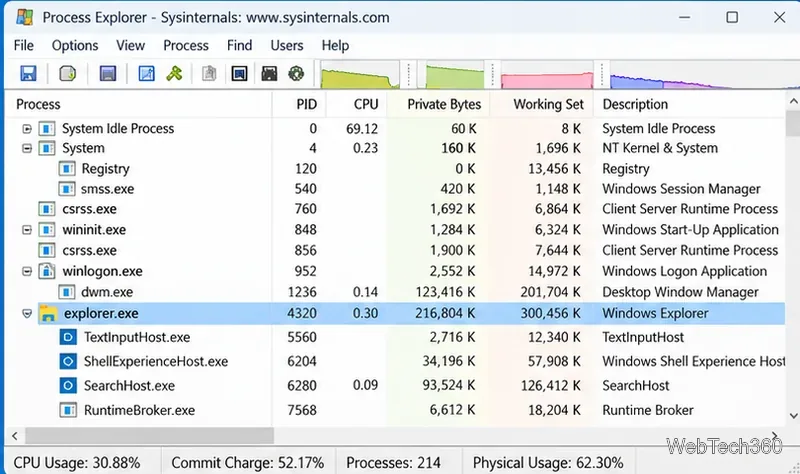
Where Process Explorer goes beyond Task Manager is its ability to inspect the objects a process is using. Microsoft specifically documents its two-pane design: the lower pane can display open handles or loaded DLLs and memory-mapped files for the process selected above.
| Task | Task Manager | Process Explorer |
|---|---|---|
| Quick CPU and memory check | Excellent | Excellent, with more columns |
| End an app or process | Yes | Yes, including process-tree actions |
| See parent/child process relationships | Limited | Detailed tree view |
| Find which process has a file open | Not its main purpose | Built-in handle search |
| Inspect loaded DLLs and open handles | Limited | Core feature |
| Identify the process behind a visible window | No direct target tool | Find Window’s Process target |
Get Process Explorer only from the official Microsoft Sysinternals page linked above. The standalone download is portable, so there is no traditional installer: extract the archive and run the Process Explorer executable. For the fullest view of system-owned processes, launch it with administrative rights when appropriate.
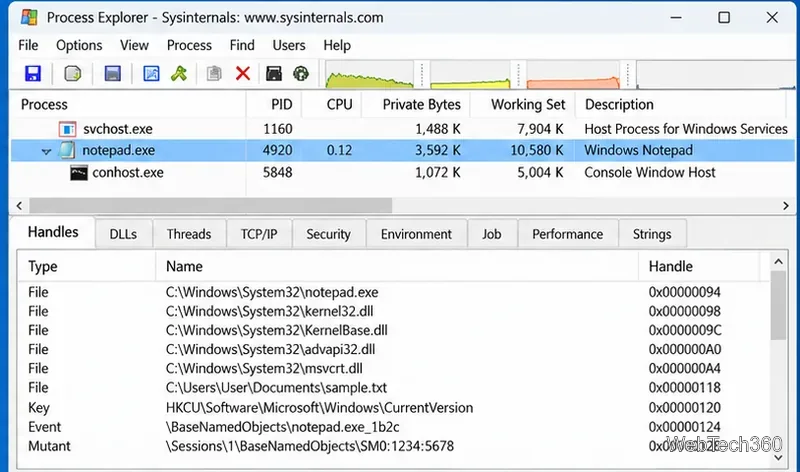
Select a process, enable the lower pane, and switch between handle and DLL views. Handles can include files, Registry keys, events, and other Windows objects. DLL mode shows modules and memory-mapped files loaded by that process. This is far more precise than assuming that every Registry entry or file with an app’s name belongs exclusively to that app.
If Windows says a file is in use, use Process Explorer’s Find Handle or DLL search and enter part of the file or folder name. The results identify processes with matching open handles or loaded modules. This is one of Process Explorer’s most valuable troubleshooting features and is specifically highlighted in Microsoft’s documentation.
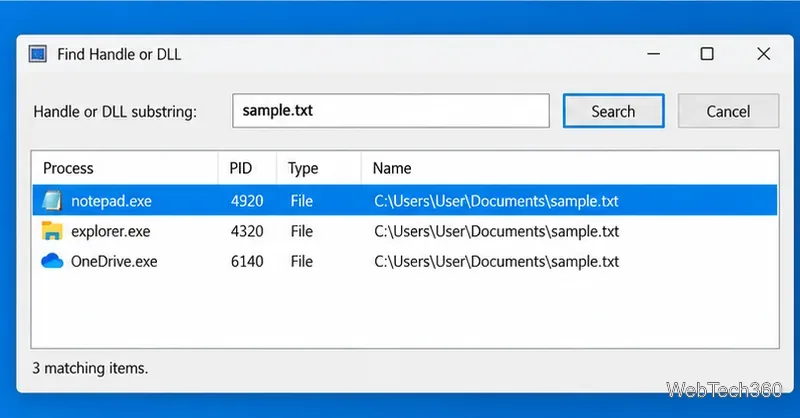
Do not immediately kill every process returned by a search. First confirm what it is, save open work, and close the owning application normally when possible.
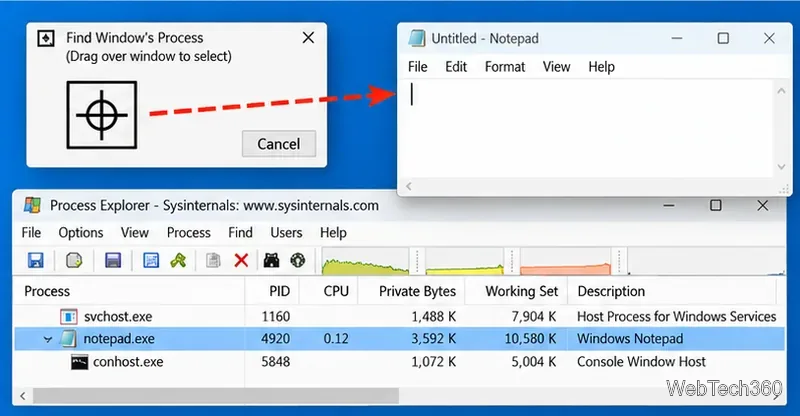
For a mystery popup, error box, or application window, use the Find Window’s Process target tool. Drag the target onto the window and Process Explorer highlights the owning process. This is especially useful when a generic dialog does not reveal which application created it.
Yes. Process Explorer includes a Replace Task Manager option that can register it to open when Windows would normally launch Task Manager. Administrator rights are typically required because the setting is machine-wide. This can be convenient for power users, but it is optional; many people are better served by keeping Task Manager for routine work and opening Process Explorer only when they need deeper diagnostics.
Use Process Explorer when you need to answer a specific question that Task Manager cannot: Which process owns this window? Which program has this file open? What DLLs did this process load? What child processes did it launch? For ordinary resource monitoring, Task Manager is simpler. For process forensics and difficult Windows troubleshooting, Process Explorer is one of the most capable tools Microsoft provides.
Create a searchable Windows 10 folder inventory with PowerShell. Save every file and subfolder path as plain text or export details to a sortable CSV.
Add a custom reminder, quote, or label to your Windows 10 desktop with a Rainmeter text skin. Create the INI file, load it, then adjust its font and position.
Use Bluetooth Swift Pair on Windows 10 to pair a compatible accessory from a notification, with setup steps and fixes when the prompt does not appear.
Learn what common laptop function key symbols mean, how Fn and Fn Lock affect them, and how to confirm the right shortcut for your Windows 10 laptop model.
Turn off your Windows 10 display instantly with ScreenSleep, set a keyboard shortcut, and see when to use the built-in screen timeout instead.
Fix the “running scripts is disabled on this system” PowerShell error on Windows 10 with a current-user policy, a temporary session option, and safe steps for downloaded scripts.
Change the Windows 10 drag-selection color with a backup-first registry walkthrough, RGB examples, troubleshooting tips, and steps to restore your original values.
Check your router’s connected-device list or scan a local network with Fing Desktop on a supported PC. Learn what each method can show and how to verify unfamiliar entries.
Messenger does not offer a documented per-friend online alert. Learn how Active Status works, where to check the green dot, and which notifications you can enable instead.
Use 7-Zip to find an exact filename or wildcard match inside a ZIP or other supported archive on Windows 10 without unpacking its files.








