How to Fix Lines on a Monitor Screen in Windows 10

Use a screenshot test, cable and port checks, monitor diagnostics, display settings, and driver rollback to pinpoint lines on a Windows 10 monitor.
If the Safely Remove Hardware and Eject Media icon is missing in Windows 10, start with the small Show hidden icons arrow (^) at the right side of the taskbar. If the USB icon is not there, open Settings > Personalization > Taskbar, choose Select which icons appear on the taskbar, and turn on Windows Explorer: Safely Remove Hardware and Eject Media. Microsoft still documents these Windows 10 steps on its Safely Remove Hardware support page.
One important detail: the icon normally appears only when Windows detects removable hardware that can be ejected. If your drive is missing from File Explorer as well, troubleshoot the device connection rather than the tray icon first.
The icon may not be gone at all; Windows 10 can place it in the notification-area overflow menu.
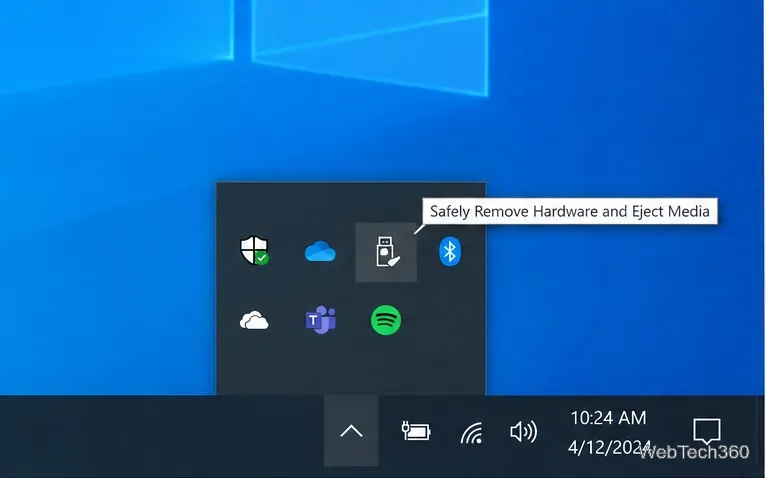
If you want the icon to remain visible, drag it from the hidden-icons panel onto the visible notification area. Windows 10 supports rearranging notification-area icons by drag and drop.

If the icon does not appear in the hidden area, check its taskbar setting:
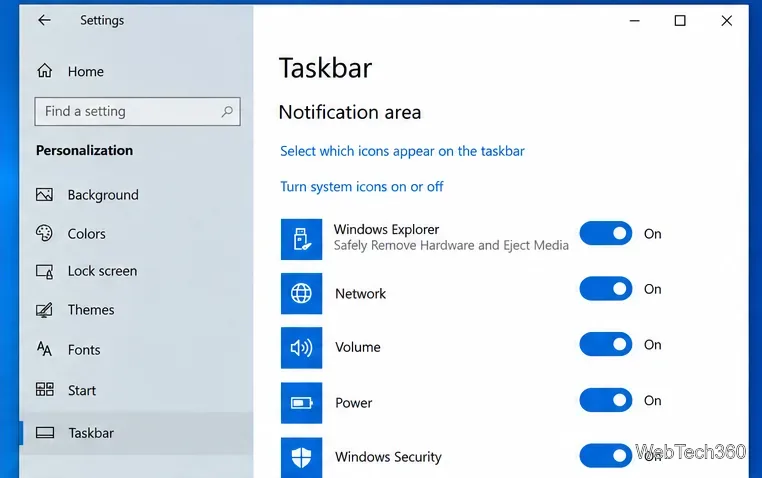
Microsoft notes that there can be more than one Windows Explorer entry, so use the one specifically labeled for safely removing hardware.
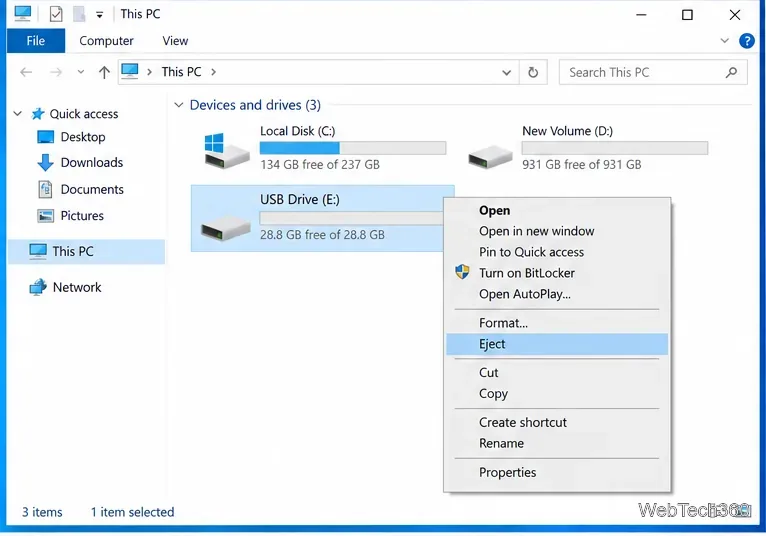
You do not have to wait for the tray icon to return before ejecting a removable drive. Open File Explorer > This PC, right-click the removable drive, and select Eject when that command is available. Wait for any file copy, backup, or save operation to finish before removing the device.
The notification area is part of the Windows shell, so restarting Windows Explorer can refresh a tray that failed to load correctly.
The taskbar may briefly disappear and reload. Microsoft also uses restarting Windows Explorer as a troubleshooting step in its Windows troubleshooting guidance.
If the removable drive does not appear in File Explorer, the missing eject icon is probably a symptom rather than the main problem. Try another USB port, reconnect the device, and check Device Manager for an error. If a device driver is malfunctioning, Microsoft documents reinstalling it by right-clicking the affected device in Device Manager, choosing Uninstall device, and then restarting Windows so the driver can be reinstalled. See Microsoft's Device Manager driver guidance.
For external storage, it depends on the device's removal policy. Microsoft says Quick removal has been the default policy since Windows 10 version 1809. With Quick removal, Windows avoids disk write caching and the device can be disconnected without using the Safely Remove Hardware process. With Better performance, write caching can be enabled and you must use safe removal to protect pending writes. The policies are explained in Microsoft's external-storage removal policy documentation.
Even with Quick removal, do not unplug a drive while files are being written or while an app is actively using it. If you are unsure which policy is configured, ejecting the device first remains the safest habit.
Windows 10 support note: Microsoft ended regular Windows 10 support on October 14, 2025. Existing PCs still run, but standard free security updates and technical support ended unless a device is covered by an applicable Extended Security Updates option. See Microsoft's Windows 10 end-of-support notice.
Use a screenshot test, cable and port checks, monitor diagnostics, display settings, and driver rollback to pinpoint lines on a Windows 10 monitor.
Show two other time zones beside your Windows 10 clock. Set up each additional clock, give it a clear label, and find it in the taskbar calendar.
Find the File Explorer extension that delays right-click menus in Windows 10, test it safely with ShellExView, and restore any menu features you still need.
Stop Windows 10 from powering down a specific network adapter or USB device with plan-level settings and Device Manager controls, plus tips to avoid excess battery drain.
Check whether Windows 10 uses a digital license or product key, find a firmware-stored OEM key, and save license details securely for a reinstall.
Identify a Windows 10 Task Manager process by checking its executable path, file properties, publisher, linked services, and a Microsoft Defender scan.
Create a searchable Windows 10 folder inventory with PowerShell. Save every file and subfolder path as plain text or export details to a sortable CSV.
Add a custom reminder, quote, or label to your Windows 10 desktop with a Rainmeter text skin. Create the INI file, load it, then adjust its font and position.
Use Bluetooth Swift Pair on Windows 10 to pair a compatible accessory from a notification, with setup steps and fixes when the prompt does not appear.
Learn what common laptop function key symbols mean, how Fn and Fn Lock affect them, and how to confirm the right shortcut for your Windows 10 laptop model.








