How to Open a Linux Shell in a Folder on Windows 10

Open a Linux shell in any Windows 10 folder with File Explorer, PowerShell, and WSL. Check the Linux path and fix common setup issues.
If your Windows 10 laptop screen keeps flickering, start by checking whether Task Manager flickers too. Microsoft says this is the quickest way to separate a likely display-driver problem from an incompatible app. In many cases, you can fix the flashing without replacing the screen.
Note: Microsoft ended standard Windows 10 support on October 14, 2025. Windows 10 still runs, but Microsoft recommends moving to Windows 11 when possible; eligible devices can also use Extended Security Updates. See Microsoft's Windows 10 support notice.
Press Ctrl + Shift + Esc to open Task Manager and watch it for a few seconds.
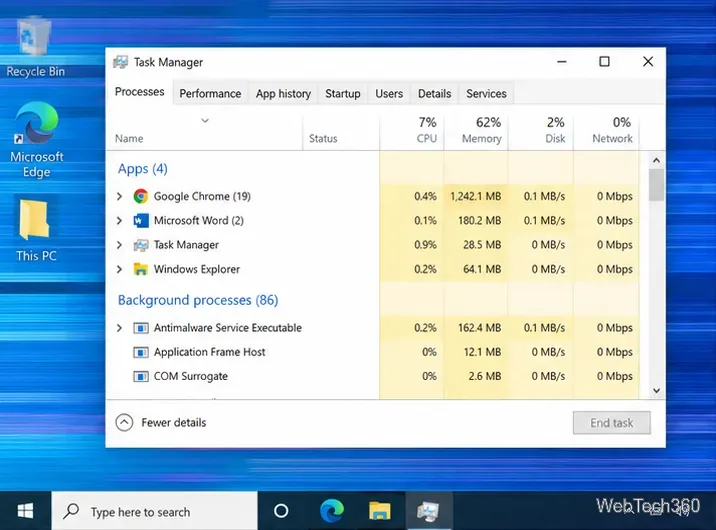
This diagnostic is part of Microsoft's current screen-flickering guidance.
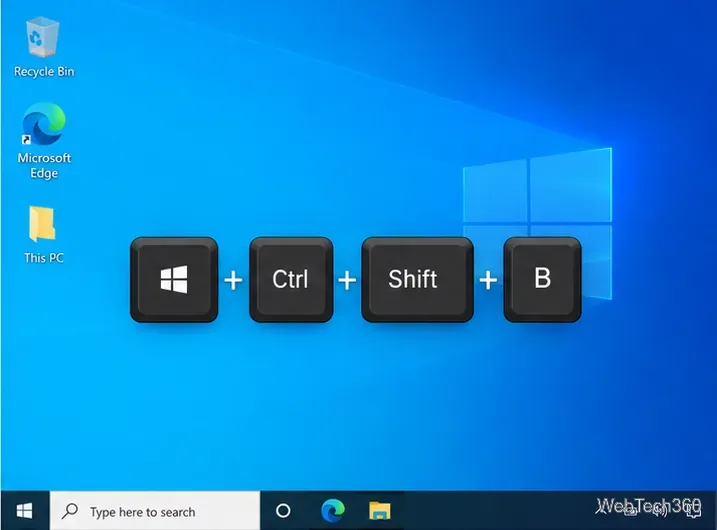
Before changing drivers, press Windows + Ctrl + Shift + B. Windows resets the graphics driver; the screen may briefly blink or you may hear a beep. Then restart the PC and check again. Microsoft specifically recommends this shortcut as a quick fix for display problems.
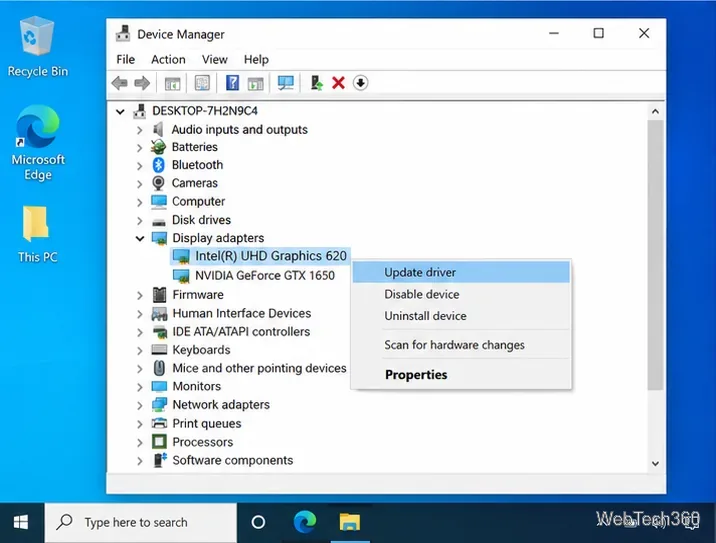
If Task Manager flickers, open Device Manager, expand Display adapters, right-click your graphics device, and choose Update driver. If Windows does not find a newer driver, check your PC maker or GPU manufacturer's official support site for the correct model-specific driver.
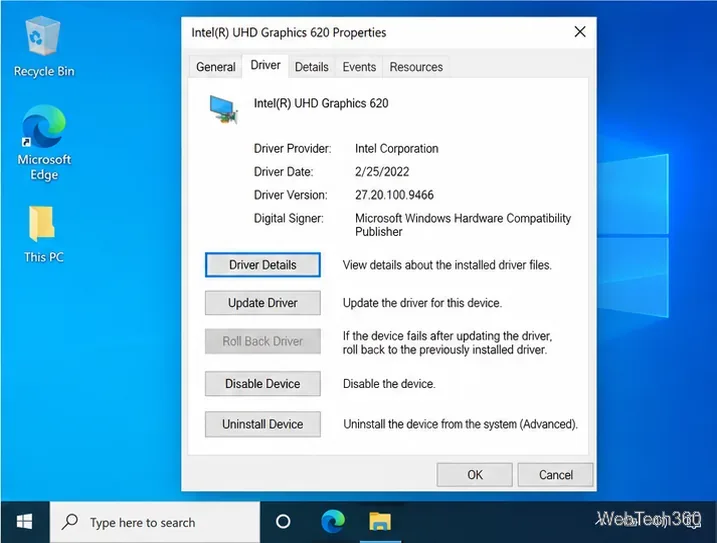
If the flashing began immediately after a driver update, open the adapter's Properties > Driver tab and select Roll Back Driver. If rollback is unavailable, Windows has no previous driver stored. Another Microsoft-supported option is Uninstall Device, restart the PC, and let Windows attempt to reinstall the driver.
If Task Manager does not flicker, update apps that were recently installed or changed. For Microsoft Store apps, install available Store updates. For desktop software, use the publisher's official updater or website.
If the problem started after installing a specific app, uninstall it from Settings > Apps > Apps & features, restart Windows, and test again. Avoid third-party “driver updater” or “PC repair” utilities; they add another variable while you are trying to isolate the cause.
When the offending app is unclear, perform a clean boot: open System Configuration, hide all Microsoft services, disable the remaining services, then disable startup apps in Task Manager. If the flicker stops, re-enable items gradually until you identify the conflict.
For a monitor or laptop panel that flickers only at certain display settings, go to Settings > System > Display > Advanced display (shown as Advanced display settings on some Windows 10 builds) and choose a refresh rate supported by the display. Microsoft's refresh-rate guide uses this same settings area.
For an external monitor, power it off and reseat the HDMI, DisplayPort, USB-C, or other video cable at both ends. Try another known-good cable or port if available. If only one external display flickers while the laptop's built-in panel is stable, the monitor, cable, dock, or port deserves more attention than Windows itself.
If flickering makes normal troubleshooting difficult, enter Windows Recovery Environment and choose Troubleshoot > Advanced options > Startup Settings > Restart, then start Safe Mode. Microsoft's Startup Settings guide explains the process.
If the screen is stable in Safe Mode, return to the driver and app steps above. If the flicker started after a recent system change and nothing else works, System Restore can roll back system files and settings without deleting personal files. Resetting Windows should be a last resort, after backing up important data.
If the display also flickers before Windows loads, or an external monitor works perfectly while the built-in laptop panel continues to flash, software fixes may not be enough. At that point, contact the PC manufacturer or a qualified repair provider for hardware diagnosis.
Open a Linux shell in any Windows 10 folder with File Explorer, PowerShell, and WSL. Check the Linux path and fix common setup issues.
Use a screenshot test, cable and port checks, monitor diagnostics, display settings, and driver rollback to pinpoint lines on a Windows 10 monitor.
Show two other time zones beside your Windows 10 clock. Set up each additional clock, give it a clear label, and find it in the taskbar calendar.
Find the File Explorer extension that delays right-click menus in Windows 10, test it safely with ShellExView, and restore any menu features you still need.
Stop Windows 10 from powering down a specific network adapter or USB device with plan-level settings and Device Manager controls, plus tips to avoid excess battery drain.
Check whether Windows 10 uses a digital license or product key, find a firmware-stored OEM key, and save license details securely for a reinstall.
Identify a Windows 10 Task Manager process by checking its executable path, file properties, publisher, linked services, and a Microsoft Defender scan.
Create a searchable Windows 10 folder inventory with PowerShell. Save every file and subfolder path as plain text or export details to a sortable CSV.
Add a custom reminder, quote, or label to your Windows 10 desktop with a Rainmeter text skin. Create the INI file, load it, then adjust its font and position.
Use Bluetooth Swift Pair on Windows 10 to pair a compatible accessory from a notification, with setup steps and fixes when the prompt does not appear.








