How to Open a Linux Shell in a Folder on Windows 10

Open a Linux shell in any Windows 10 folder with File Explorer, PowerShell, and WSL. Check the Linux path and fix common setup issues.
To show all CPU cores in Task Manager on Windows 10, open Task Manager, choose Performance > CPU, right-click the CPU graph, and select Change graph to > Logical processors. Task Manager will then draw one graph for each logical processor that Windows can use.
You normally do not need to “activate” CPU cores. Windows uses the processors exposed by your hardware and firmware automatically. One important correction to older advice: the Number of processors option in msconfig is a troubleshooting limit, not a performance switch. If you want Windows to use all detected processors, that box should normally be unchecked.
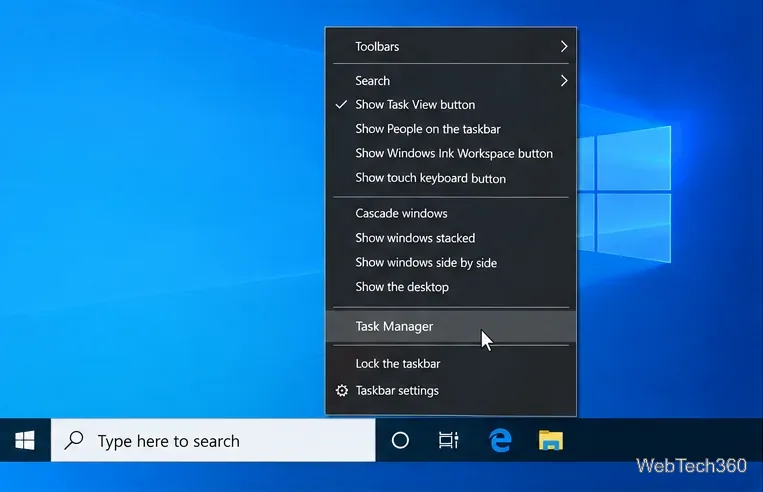
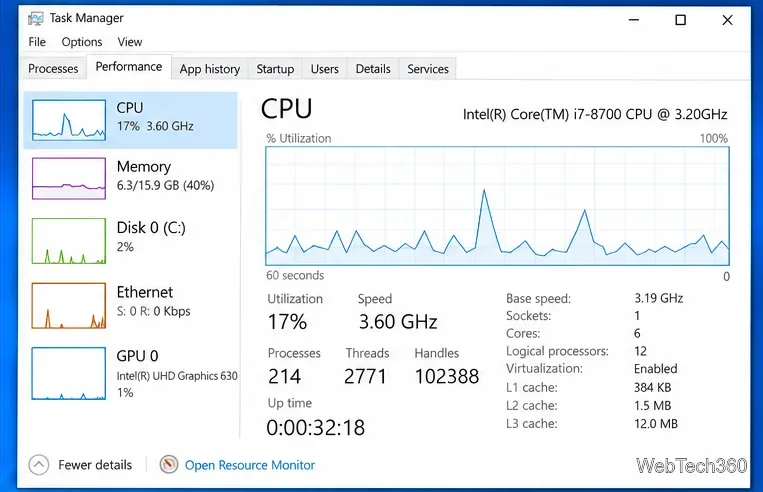
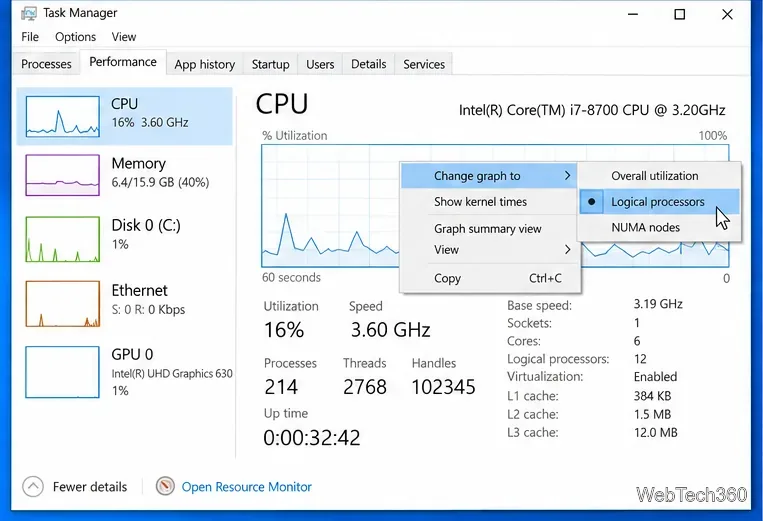
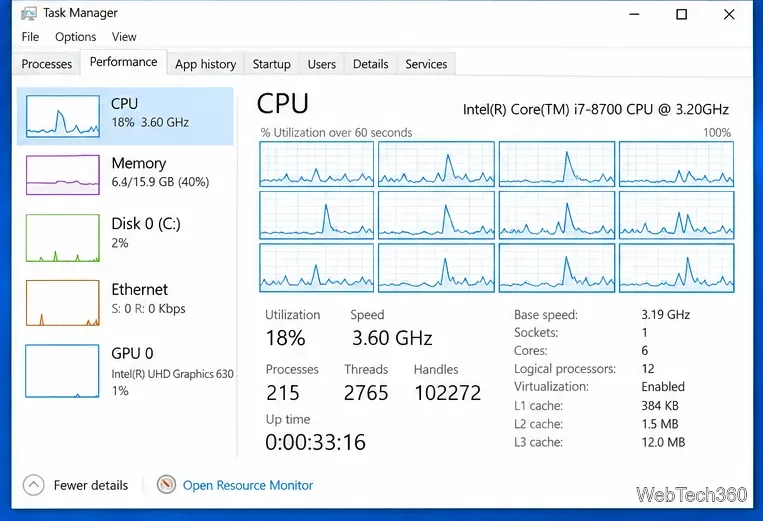
This behavior matches Microsoft’s Task Manager documentation, which distinguishes the overall CPU graph from per-logical-processor activity.
A physical core is an execution core on the CPU. A logical processor is a hardware thread that Windows can schedule work on. Technologies such as Intel Hyper-Threading and AMD SMT can expose more logical processors than physical cores. For example, a 6-core CPU with two hardware threads per core can appear as 6 cores and 12 logical processors.
Task Manager lists both numbers on the CPU page. Microsoft’s Win32_Processor documentation also defines separate NumberOfCores and NumberOfLogicalProcessors values, so do not expect “cores” and “logical processors” to be identical on every PC.
If someone previously changed Windows boot settings, clear the processor limit rather than setting it to the largest number.
msconfig, and press Enter.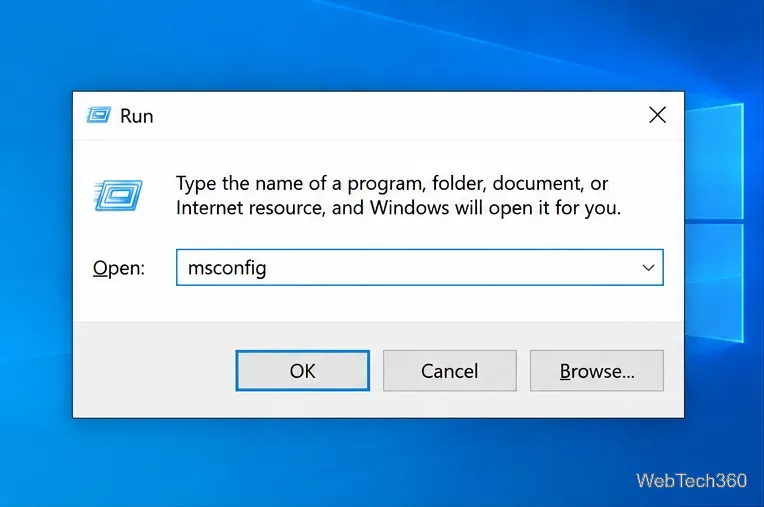
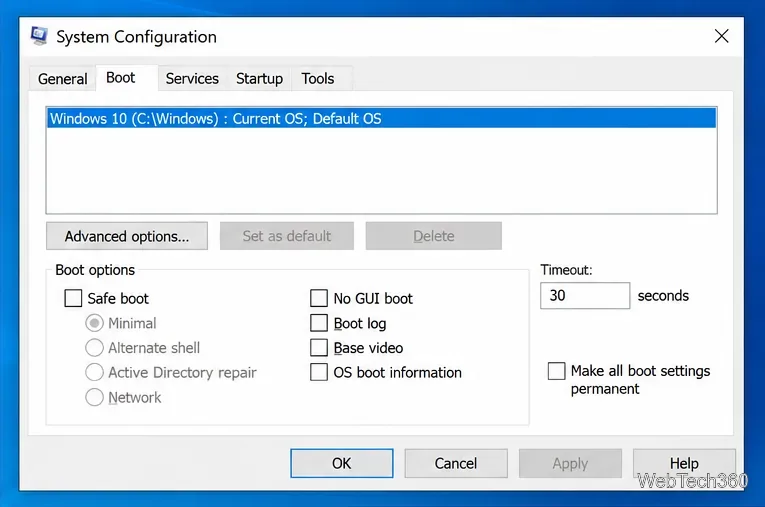
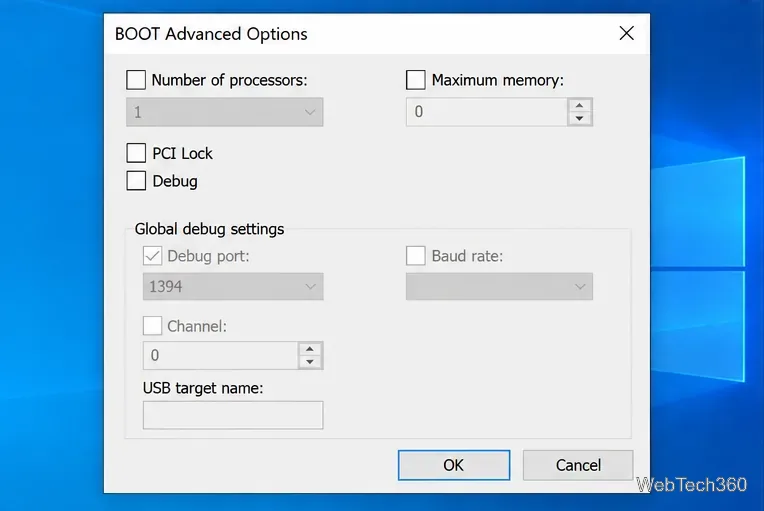
Microsoft’s BCDEdit processor-settings reference documents numproc as an option that makes Windows use only the specified number of processors. Checking the box and selecting a high value does not unlock extra cores or make the CPU faster.
Open PowerShell and run:
Get-CimInstance -ClassName Win32_Processor | Select-Object Name, NumberOfCores, NumberOfLogicalProcessors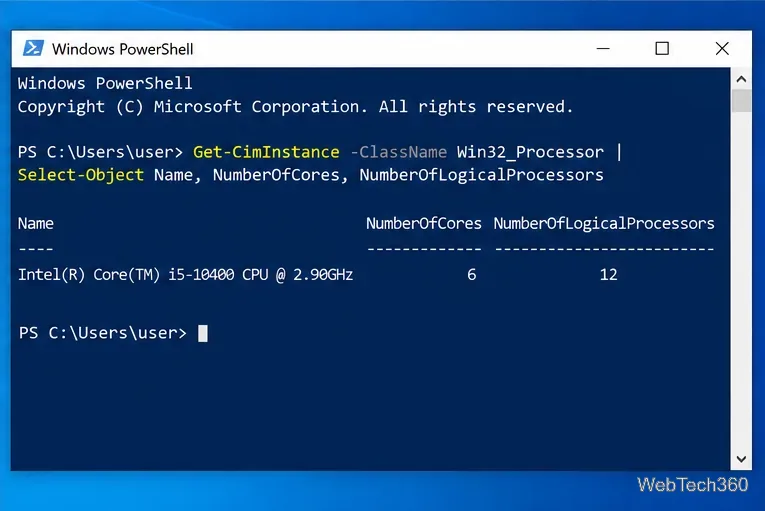
If PowerShell and Task Manager report the same counts, Windows is seeing the same CPU topology through two different interfaces. For a deeper topology check, Microsoft also provides the free Sysinternals Coreinfo utility.
If your CPU manufacturer’s specification lists more cores or threads than Windows detects, check whether the PC’s UEFI/BIOS has options that disable CPU cores, SMT, or Hyper-Threading. Menu names vary by motherboard and PC maker, so use the manufacturer’s manual instead of copying settings from another system. If you are working inside a virtual machine, remember that Windows sees only the virtual CPUs assigned by the hypervisor.
Do not assume a missing count means the CPU is physically damaged. A boot limit, firmware setting, virtual-machine configuration, or an incorrect assumption about the exact CPU model is far more useful to rule out first. If the discrepancy remains on a physical PC after restoring normal boot and firmware settings, have the system or motherboard vendor diagnose it before replacing hardware.
Windows 10 reached end of support on October 14, 2025. The operating system can still run, but standard security support has ended; Microsoft directs eligible PCs toward Windows 11 and offers Extended Security Updates for supported scenarios. See Microsoft’s Windows 10 lifecycle notice for current options.
Open a Linux shell in any Windows 10 folder with File Explorer, PowerShell, and WSL. Check the Linux path and fix common setup issues.
Use a screenshot test, cable and port checks, monitor diagnostics, display settings, and driver rollback to pinpoint lines on a Windows 10 monitor.
Show two other time zones beside your Windows 10 clock. Set up each additional clock, give it a clear label, and find it in the taskbar calendar.
Find the File Explorer extension that delays right-click menus in Windows 10, test it safely with ShellExView, and restore any menu features you still need.
Stop Windows 10 from powering down a specific network adapter or USB device with plan-level settings and Device Manager controls, plus tips to avoid excess battery drain.
Check whether Windows 10 uses a digital license or product key, find a firmware-stored OEM key, and save license details securely for a reinstall.
Identify a Windows 10 Task Manager process by checking its executable path, file properties, publisher, linked services, and a Microsoft Defender scan.
Create a searchable Windows 10 folder inventory with PowerShell. Save every file and subfolder path as plain text or export details to a sortable CSV.
Add a custom reminder, quote, or label to your Windows 10 desktop with a Rainmeter text skin. Create the INI file, load it, then adjust its font and position.
Use Bluetooth Swift Pair on Windows 10 to pair a compatible accessory from a notification, with setup steps and fixes when the prompt does not appear.








