How to Open a Linux Shell in a Folder on Windows 10

Open a Linux shell in any Windows 10 folder with File Explorer, PowerShell, and WSL. Check the Linux path and fix common setup issues.
If a new SSD is not showing up in File Explorer, do not assume the drive is dead. First find out where detection stops: hardware/BIOS, Windows Disk Management, or only File Explorer. A brand-new drive often simply needs to be initialized and given a volume and drive letter.
Important: The initialization and formatting steps below are intended for a new, empty SSD. If the drive already contains files you need, do not initialize, format, or run destructive DiskPart commands. Stop and focus on connection, compatibility, or data-recovery options instead.
The most common causes are straightforward: the SSD is not fully connected, the M.2 slot does not support that drive type, firmware does not detect it, the disk is still uninitialized, or Windows has no formatted volume with a drive letter. Microsoft says Disk Management in Windows 10 and Windows 11 can initialize disks, create and format volumes, and change drive letters.
| What you see | Best next step |
|---|---|
| SSD missing in BIOS/UEFI | Check installation, cables, slot compatibility, and firmware settings. |
| SSD visible in BIOS but not File Explorer | Open Disk Management and check whether it is offline, uninitialized, or unallocated. |
| Volume exists but has no letter | Assign a drive letter in Disk Management. |
Shut the PC down completely before touching an internal drive. For a 2.5-inch SATA SSD, confirm both the SATA data cable and SATA power connector are firmly seated. Try another motherboard SATA port or known-good cable if available.
For an M.2 SSD, reseat the module and verify that the slot supports the same interface as the drive. An M.2 connector can physically look correct while the system supports only certain SATA or PCIe/NVMe combinations. Check the laptop or motherboard manual before changing firmware settings.
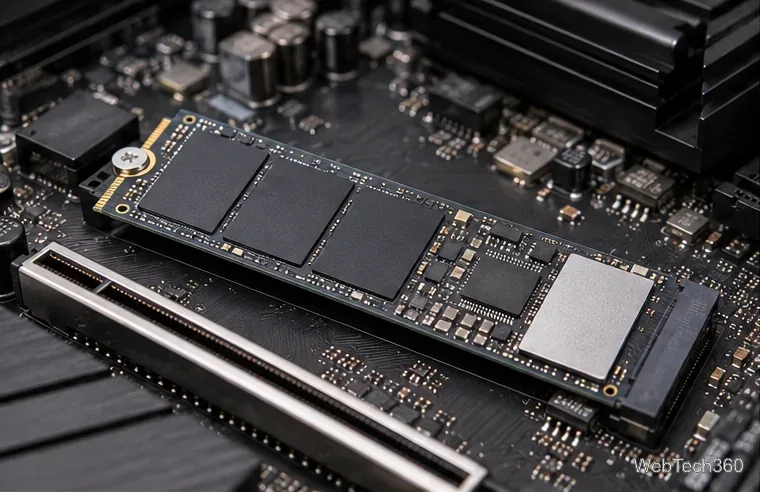
For an external SSD or enclosure, try a different USB port and a known-good data cable. Some USB-C cables provide power but are not suitable for the required data mode. Testing the SSD on another compatible computer can also separate a PC configuration problem from a drive or enclosure problem. SanDisk's current support guidance likewise starts with physical detection and safe handling of internal drives.
Restart the computer and enter its BIOS/UEFI setup using the key specified by the PC or motherboard manufacturer. Look under storage, NVMe, PCIe, SATA, or boot information. Menu names vary by manufacturer.
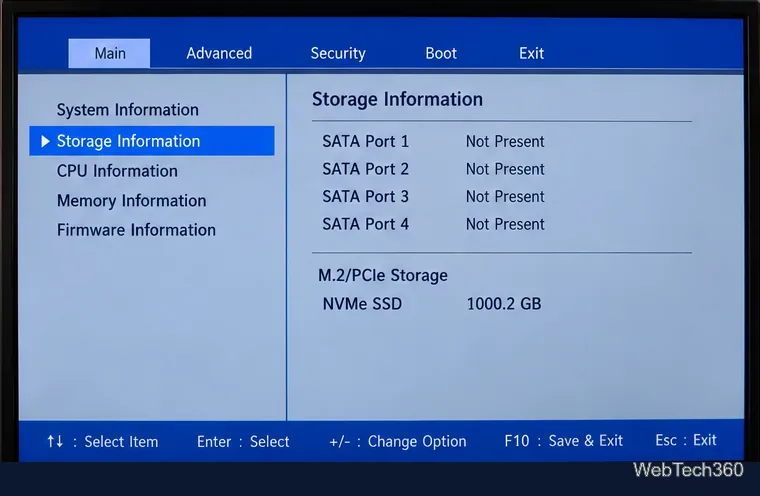
If the drive is absent here, Windows usually cannot fix the problem. Recheck the physical installation and slot support first. If the manufacturer documents a BIOS/UEFI update that addresses storage compatibility, follow that vendor's exact update procedure; do not flash firmware from an unrelated model. Kingston's SSD support guidance also recommends confirming BIOS detection before moving on to operating-system initialization.
If BIOS/UEFI sees the drive, right-click Start and choose Disk Management. You can also press Windows + R, type diskmgmt.msc, and press Enter.
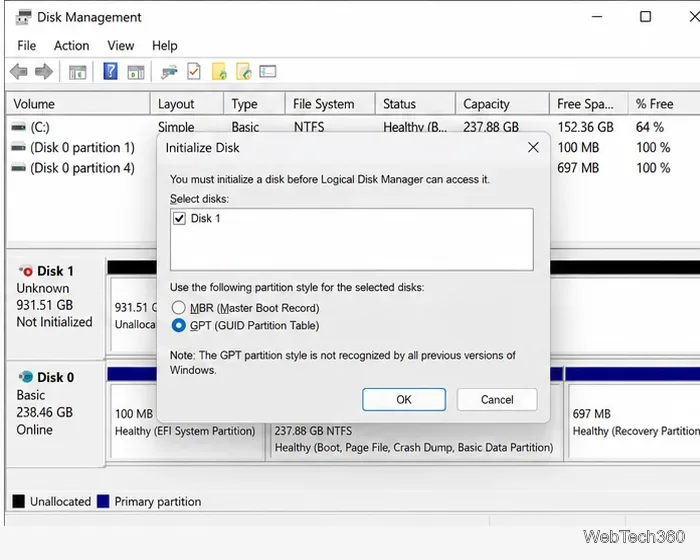
Microsoft's current Disk Management documentation recommends GPT for modern UEFI systems and notes that formatting destroys existing data.
After initialization, the SSD normally appears as Unallocated. Right-click that unallocated space, choose New Simple Volume, and follow the wizard. For a typical Windows data drive, accept the available size, assign a free drive letter, and format the volume as NTFS with the default allocation unit size.
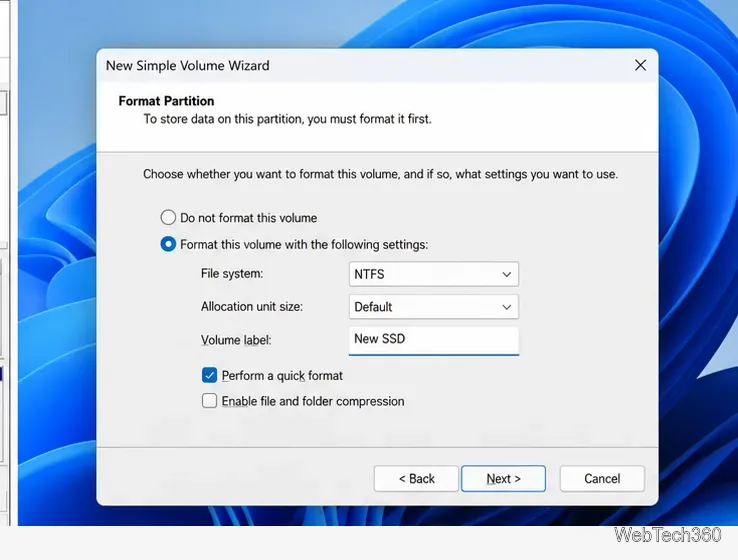
If the SSD already has a valid volume but no letter, right-click the volume and choose Change Drive Letter and Paths > Add. Microsoft's drive-letter guidance warns against changing the letter of a volume that contains Windows or installed applications.
If the SSD appears in BIOS/UEFI but not in Disk Management, restart Windows and check Device Manager for storage-controller errors. Install chipset or storage-controller drivers only from your PC, motherboard, or controller manufacturer's official support page. Systems using RAID, Intel RST/VMD, or other vendor storage modes can require model-specific configuration, so avoid changing those settings blindly.
If an external SSD works only with another cable, port, enclosure, or computer, the accessory or port is the likely cause. If an internal SSD is absent from BIOS/UEFI on more than one known-compatible system after reseating it, contact the SSD manufacturer for diagnostics or warranty service. For a structured hardware-detection checklist, see SanDisk's internal-drive detection guide.
Open a Linux shell in any Windows 10 folder with File Explorer, PowerShell, and WSL. Check the Linux path and fix common setup issues.
Use a screenshot test, cable and port checks, monitor diagnostics, display settings, and driver rollback to pinpoint lines on a Windows 10 monitor.
Show two other time zones beside your Windows 10 clock. Set up each additional clock, give it a clear label, and find it in the taskbar calendar.
Find the File Explorer extension that delays right-click menus in Windows 10, test it safely with ShellExView, and restore any menu features you still need.
Stop Windows 10 from powering down a specific network adapter or USB device with plan-level settings and Device Manager controls, plus tips to avoid excess battery drain.
Check whether Windows 10 uses a digital license or product key, find a firmware-stored OEM key, and save license details securely for a reinstall.
Identify a Windows 10 Task Manager process by checking its executable path, file properties, publisher, linked services, and a Microsoft Defender scan.
Create a searchable Windows 10 folder inventory with PowerShell. Save every file and subfolder path as plain text or export details to a sortable CSV.
Add a custom reminder, quote, or label to your Windows 10 desktop with a Rainmeter text skin. Create the INI file, load it, then adjust its font and position.
Use Bluetooth Swift Pair on Windows 10 to pair a compatible accessory from a notification, with setup steps and fixes when the prompt does not appear.








