How to Create a List of All Items in a Folder on Windows 10

Create a searchable Windows 10 folder inventory with PowerShell. Save every file and subfolder path as plain text or export details to a sortable CSV.
Steam Cloud saves can follow you between computers, but the exact files that sync are chosen by each game developer. If you want a backup, Steam provides an account page where you can manually download uploaded files. If you want to delete a save, the safest method is usually to delete it inside the game or reset the local save while Cloud sync is temporarily disabled—not to force-delete Steam cache files.
Before downloading or changing anything, confirm that the game actually supports Steam Cloud. Valve says supported games show Steam Cloud support on their store page, although developers decide which saves, settings, or other files are included. See Valve's Steam Cloud support guide.
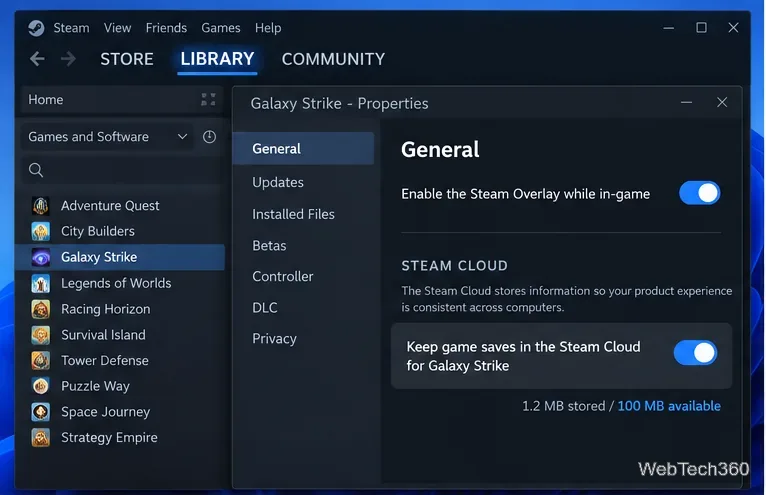
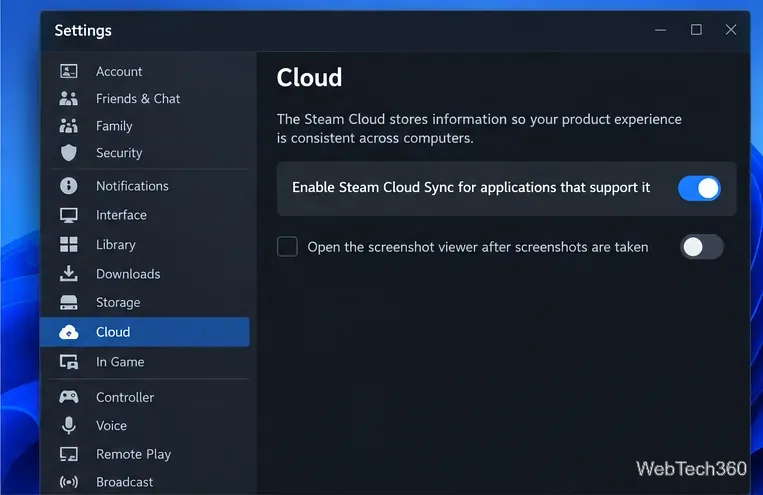
You can also check the global setting under Steam > Settings > Cloud. The option to enable Steam Cloud sync for supported applications must be on if you want normal automatic syncing.
If Steam reports that it cannot sync, fix that problem before launching the game. Valve warns that playing through a sync error can create a conflict between local and cloud data and may lead to lost progress.
For a manual backup, use Steam's official Remote Storage page in a web browser.
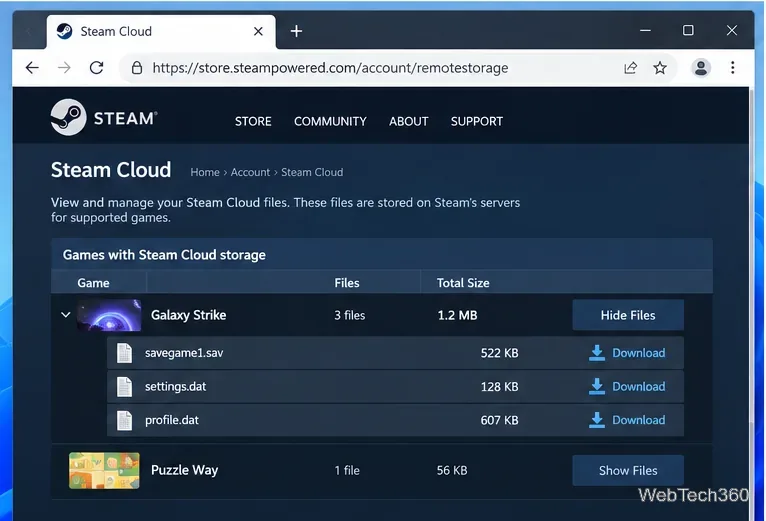
Do not assume every downloaded file is a save slot. Steam Cloud can hold configuration files, profile data, statistics, and other game-specific data. Cross-platform use is also game-dependent: Valve supports cross-platform Cloud storage, but a developer can configure Windows, macOS, and Linux files differently. A file downloaded from one operating system is not automatically guaranteed to work on another.
Valve lists these default locations for Steam's local Cloud data:
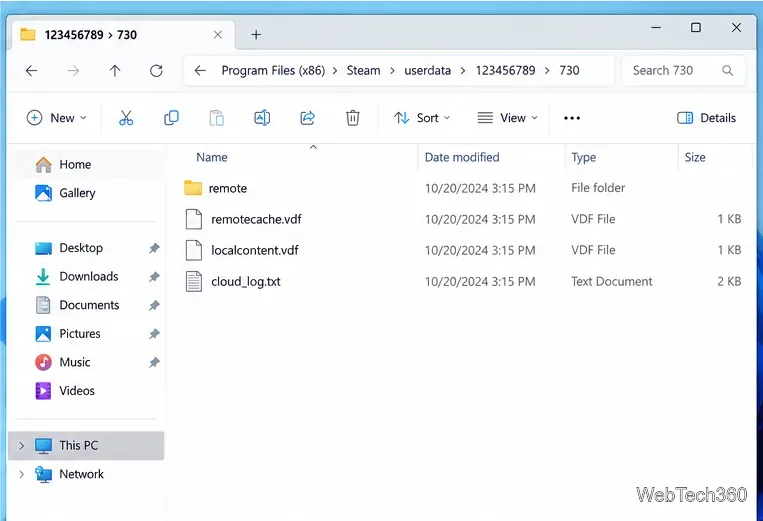
C:\Program Files (x86)\Steam\userdata~/Library/Application Support/Steam/userdata~/.local/share/Steam/userdataInside userdata, folders are organized by Steam account ID and then by a game's app ID. However, this is not a universal save-game directory. Valve's Steamworks Cloud documentation shows that Auto-Cloud can sync files from locations such as Documents, AppData, Saved Games, macOS Application Support, or a Linux home directory. Check the game's official support documentation when you need its actual save path.
There is no single end-user procedure that reliably deletes every game's Cloud saves because games can use Steam Cloud in different ways. Steamworks exposes deletion functions to developers, and Valve documents that a game can propagate a file deletion to the cloud. For players, the most reliable choice is therefore the game's own Delete Save, New Game, or reset function when it provides one.
If the game has no built-in delete option, use this cautious reset workflow:
userdata tree unless the developer specifically tells you to.Whether this removes old remote files completely depends on the game's Cloud implementation. If unwanted saves keep returning, use the game's own save-management tools or contact the developer for the correct deletion method.
Older guides often recommend editing or deleting remotecache.vdf, emptying an app-ID folder, or running commands that clear Cloud-managed files. Valve's current player documentation does not recommend that process. Steam synchronizes supported files before and after game sessions, so forcing cache changes can create conflicts rather than a clean reset.
If you are troubleshooting sync behavior, Steam records Cloud activity in cloud_log.txt inside the Steam logs folder. That log can help confirm whether files were uploaded or downloaded without modifying Cloud data itself.
Create a searchable Windows 10 folder inventory with PowerShell. Save every file and subfolder path as plain text or export details to a sortable CSV.
Add a custom reminder, quote, or label to your Windows 10 desktop with a Rainmeter text skin. Create the INI file, load it, then adjust its font and position.
Use Bluetooth Swift Pair on Windows 10 to pair a compatible accessory from a notification, with setup steps and fixes when the prompt does not appear.
Learn what common laptop function key symbols mean, how Fn and Fn Lock affect them, and how to confirm the right shortcut for your Windows 10 laptop model.
Turn off your Windows 10 display instantly with ScreenSleep, set a keyboard shortcut, and see when to use the built-in screen timeout instead.
Fix the “running scripts is disabled on this system” PowerShell error on Windows 10 with a current-user policy, a temporary session option, and safe steps for downloaded scripts.
Change the Windows 10 drag-selection color with a backup-first registry walkthrough, RGB examples, troubleshooting tips, and steps to restore your original values.
Check your router’s connected-device list or scan a local network with Fing Desktop on a supported PC. Learn what each method can show and how to verify unfamiliar entries.
Messenger does not offer a documented per-friend online alert. Learn how Active Status works, where to check the green dot, and which notifications you can enable instead.
Use 7-Zip to find an exact filename or wildcard match inside a ZIP or other supported archive on Windows 10 without unpacking its files.








