How to Open a Linux Shell in a Folder on Windows 10

Open a Linux shell in any Windows 10 folder with File Explorer, PowerShell, and WSL. Check the Linux path and fix common setup issues.
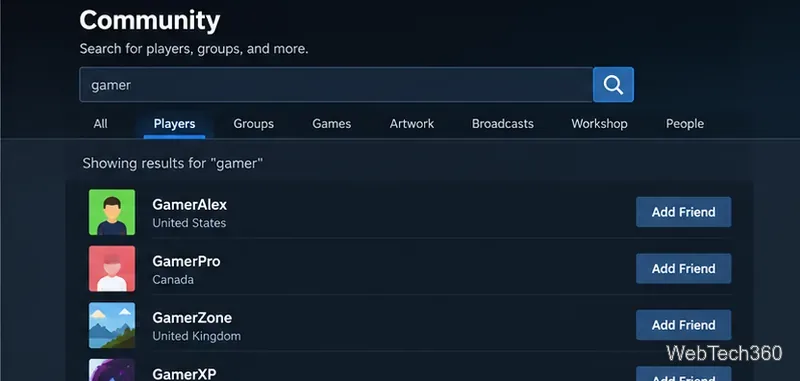
Steam user search is easiest when you have a Friend Code or a direct profile link, but you can also search the Steam Community by a player's display name. If you are trying to reconnect with someone you already know, Steam also lets you filter your existing friends and check players you recently played with.
Steam calls the public name shown on a profile an alias or display name. To search it, open the official Steam Community user search, or open the Steam client and go to Friends & Chat > Add a Friend. Steam's support documentation says the Add a Friend page can search the community, create invite links, and open a profile so you can send a request.
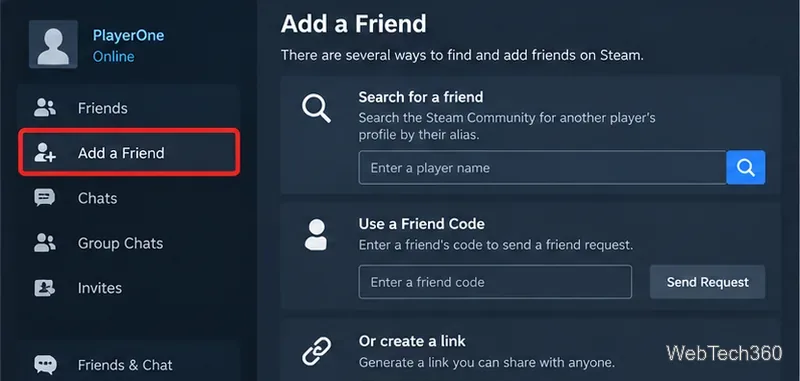
Display names are not unique, so a common name can produce many matches. A person's Steam account name used for signing in is different from the public display name and should not be treated as a searchable public username.
If you can contact the person outside Steam, ask for their Friend Code. This is much more precise than searching a display name. On the Add a Friend page, enter the code in the Friend Code field and send the request.
Valve notes that every Steam account can receive friend invitations, but a limited account cannot send ordinary friend invitations. Limited accounts can still accept requests and can use Quick Invite links. Valve's Steam Friends & Chat guide also confirms community search, invite links, and direct profile invitations as supported methods.
A profile URL is another reliable option because it points to one account instead of a list of similar names. Steam profile links commonly use either steamcommunity.com/profiles/... or a custom steamcommunity.com/id/... address. Open the link, verify the profile, and choose Add Friend.
You can also generate a Quick Invite from the Add a Friend page and send that link to the other person. This is especially useful when search results are crowded or one account is limited.
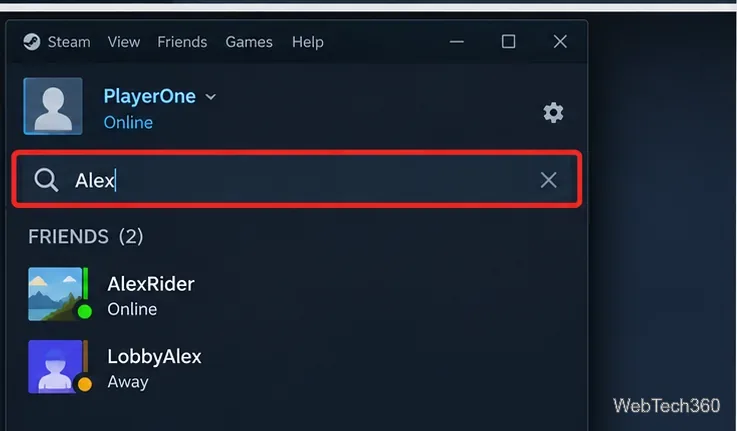
If the person is already on your friends list, do not use community search. Open Friends & Chat and type their current display name into the search field. This filters your own friends list rather than searching every Steam account.
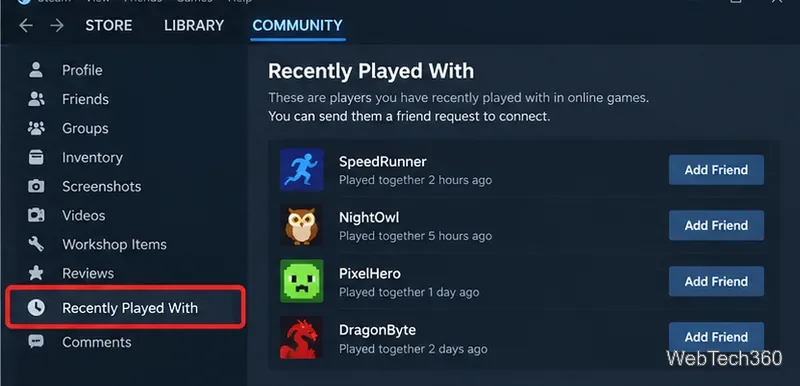
If you met a player in an online match, open your Steam profile, select Friends, and look for Recently Played With. You can also try Steam's signed-in Recently Played With page.
This list is not guaranteed to contain every player from every game. Whether a session appears can depend on how the game integrates with Steam's multiplayer and matchmaking features. If the list is empty, check the game's own recent-player, match-history, lobby, or social tools.
For most searches, start with the player's display name. If several profiles look alike, switch to a Friend Code, direct Steam profile URL, or Quick Invite link to identify the correct account without guessing.
Open a Linux shell in any Windows 10 folder with File Explorer, PowerShell, and WSL. Check the Linux path and fix common setup issues.
Use a screenshot test, cable and port checks, monitor diagnostics, display settings, and driver rollback to pinpoint lines on a Windows 10 monitor.
Show two other time zones beside your Windows 10 clock. Set up each additional clock, give it a clear label, and find it in the taskbar calendar.
Find the File Explorer extension that delays right-click menus in Windows 10, test it safely with ShellExView, and restore any menu features you still need.
Stop Windows 10 from powering down a specific network adapter or USB device with plan-level settings and Device Manager controls, plus tips to avoid excess battery drain.
Check whether Windows 10 uses a digital license or product key, find a firmware-stored OEM key, and save license details securely for a reinstall.
Identify a Windows 10 Task Manager process by checking its executable path, file properties, publisher, linked services, and a Microsoft Defender scan.
Create a searchable Windows 10 folder inventory with PowerShell. Save every file and subfolder path as plain text or export details to a sortable CSV.
Add a custom reminder, quote, or label to your Windows 10 desktop with a Rainmeter text skin. Create the INI file, load it, then adjust its font and position.
Use Bluetooth Swift Pair on Windows 10 to pair a compatible accessory from a notification, with setup steps and fixes when the prompt does not appear.








