How to Set Different Scaling Levels for Multiple Monitors in Windows 10

Adjust each Windows 10 monitor independently with per-display scaling, keep text readable, and troubleshoot custom scaling or blurry apps.
If Steam won’t open, first close any stuck Steam processes and restart Windows. Then check the client service and files before changing network or security settings. Work through these fixes in order and stop when Steam launches normally. Steam’s Steam’s client troubleshooting guide recommends restarting the client and PC as an initial check.
Restart Steam and Windows. Exit Steam from its notification-area icon, restart the PC, and launch Steam from Start.
End stuck Steam processes. Press Ctrl+Shift+Esc, open Task Manager, and end each Steam process under Processes. Try again.
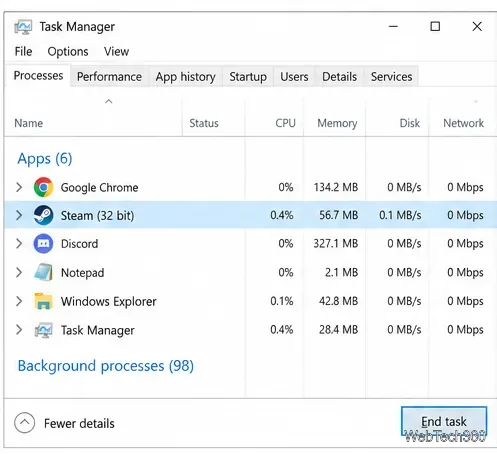
Run Steam as administrator once. Search for Steam, right-click it, and choose Run as administrator. If this works, check permissions or security software; don’t make elevated launch permanent without a reason.
Repair the Steam service. Press Win+R, enter "C:\Program Files (x86)\Steam\bin\SteamService.exe" /repair, and press Enter. Change the path if Steam is installed elsewhere; approve the administrator prompt if shown. See Steam’s service-repair instructions.
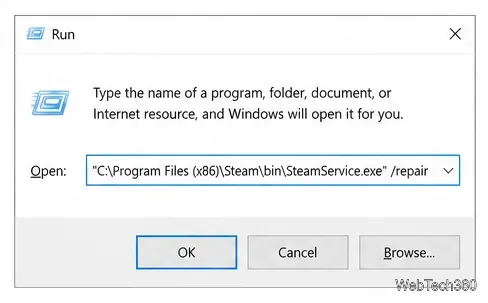
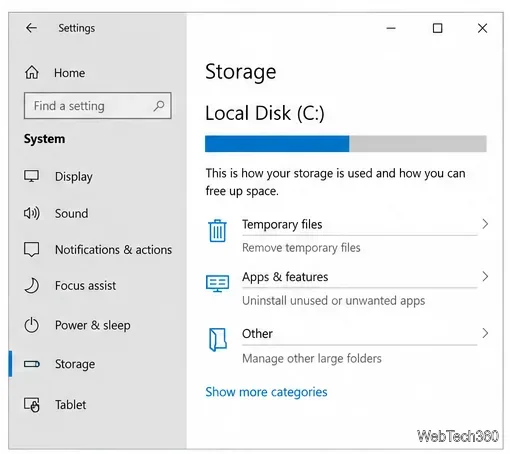
Free disk space. Check Settings > System > Storage on the drive that holds Steam. Review temporary files before removing them; don’t delete game folders or personal files at random.
Refresh the app cache. Exit Steam, open its installation folder (usually C:\Program Files (x86)\Steam), and rename appcache to appcache.old. Start Steam to rebuild it. If that fails, restore the original folder name.
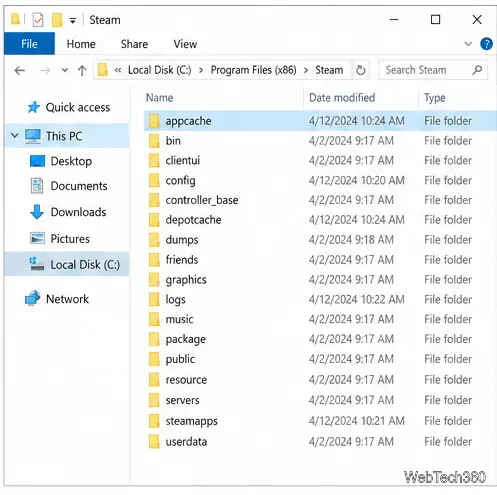
Reinstall client files without uninstalling first. Back up steamapps and userdata, then run a fresh installer from Steam’s official installer page into the existing Steam folder. Review Steam’s instructions for reinstalling client files and Steam’s uninstall warning: a full uninstall can remove games, and not every game’s local saves are covered by Steam Cloud.
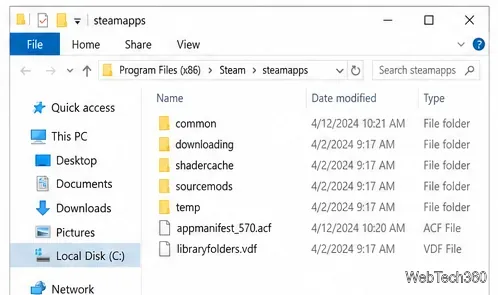
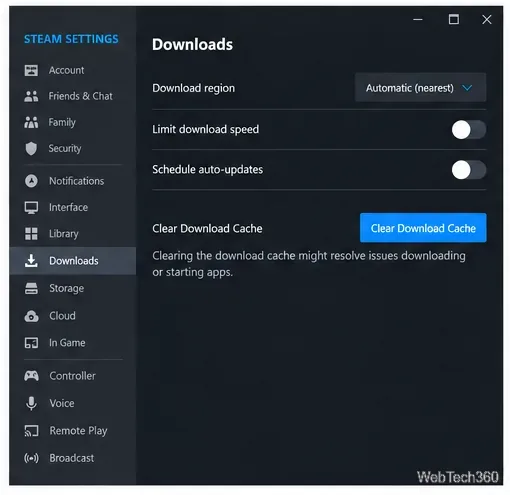
Clear the download cache if Steam opens but downloads or games fail. Go to Steam > Settings > Downloads > Clear Download Cache. Steam restarts and asks you to sign in again. This won’t fix a client that never starts; follow Steam’s download-cache instructions.
Test without new peripherals. If the failure began after adding a USB drive, hub, or accessory, disconnect nonessential devices, restart, and retry. Reconnect them one at a time if Steam opens.
Test the network for blank pages or sign-in failures. Confirm other sites load and run Windows’ Internet Connections troubleshooter. If name lookup seems stuck, run ipconfig /flushdns in an administrator Command Prompt, then restart Steam. A connection outage alone doesn’t always prevent the client from opening.
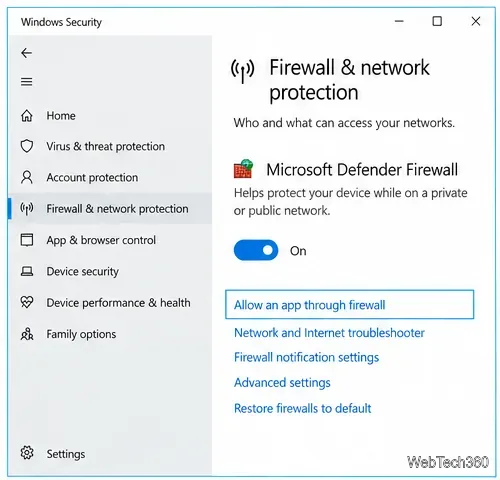
Allow Steam through the firewall; leave the firewall on. Open Windows Security > Firewall & network protection > Allow an app through firewall. Allow Steam for the network profile you use, or add its official executable if it’s missing. See Microsoft’s firewall guidance.
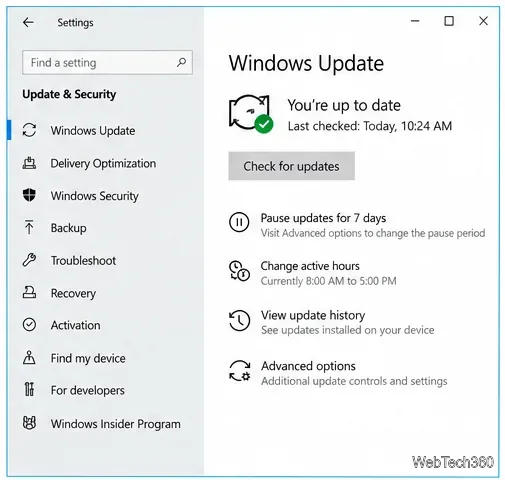
Check available Windows updates. Open Settings > Update & Security > Windows Update and check for updates offered to your device. Windows 10 support ended October 14, 2025; updates may depend on Extended Security Updates. See Microsoft’s Windows 10 support notice.
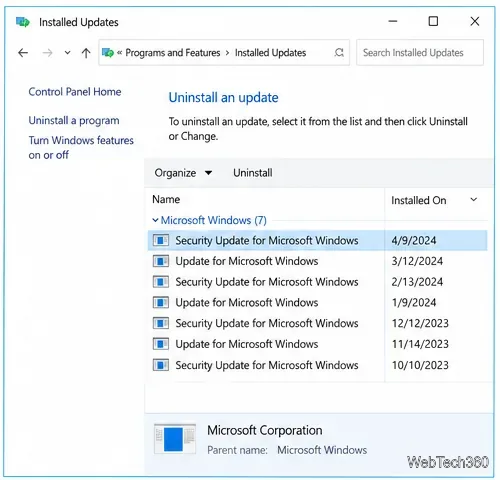
Uninstall a recent update only if timing fits. If Steam failed immediately after an update, open View update history > Uninstall updates and remove only the relevant recent update if available. Restart and test; don’t remove unrelated security updates.
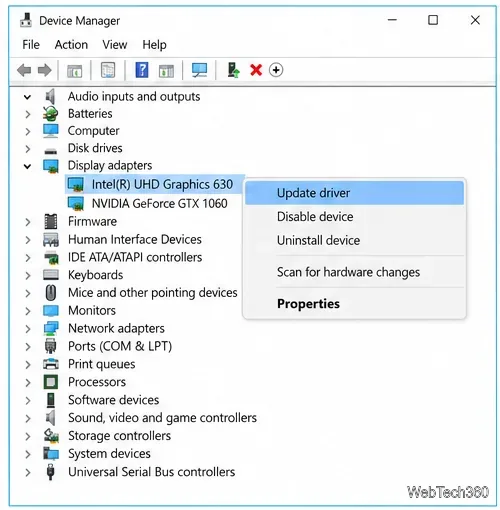
Update a relevant driver from its manufacturer. If Steam’s window crashes or renders incorrectly, check the graphics driver; for sign-in or download trouble, check the network driver. Use Windows Update or your PC/GPU maker’s support page, not a third-party updater.
Check for a conflicting app. If the timing fits, quit overlays, VPNs, or system-tuning utilities and retry Steam. Uninstall only software you recognize and no longer need; don’t leave antivirus or firewall protection disabled.
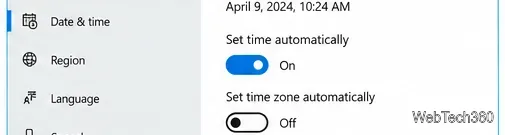
Correct the system clock. In Settings > Time & Language > Date & time, turn on Set time automatically and select Sync now if available. Incorrect time can disrupt secure connections and sign-in.
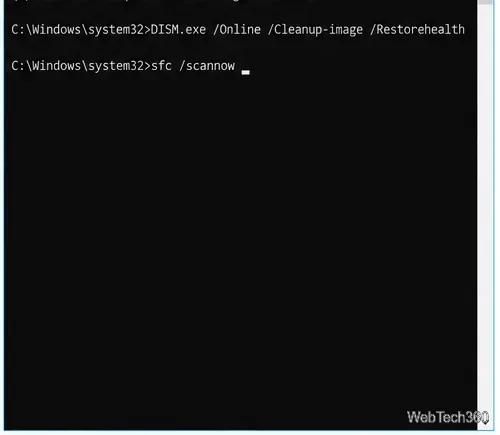
Repair Windows system files. Open Command Prompt as administrator; run DISM.exe /Online /Cleanup-image /Restorehealth and wait, then run sfc /scannow. Restart after both scans. Microsoft documents the steps in its Microsoft’s DISM and System File Checker steps.
Check beta and startup conflicts. If you joined Steam’s beta, opt out in Steam Settings and restart. If Steam still fails, try a Windows clean boot: in msconfig, hide Microsoft services before disabling the rest, then temporarily disable startup apps in Task Manager. If Steam works, re-enable items in groups to find the conflict and restore normal startup. Follow Microsoft’s clean-boot procedure carefully.
If Steam still won’t open, note any error and when it began, then contact Steam Support through its Steam’s client troubleshooting guide. These steps apply to the Steam desktop client on Windows 10; a game that fails after Steam opens needs game-specific troubleshooting.
Adjust each Windows 10 monitor independently with per-display scaling, keep text readable, and troubleshoot custom scaling or blurry apps.
Use AirType’s browser pairing setup to type on an iPhone from a Windows 10 PC, with current setup steps, troubleshooting, and privacy limits.
Hide the mouse pointer in Windows 10 videos, games, and other apps with built-in typing controls or PowerToys CursorHide’s adjustable inactivity timer.
Find Control Panel Power Options on a Windows 10 desktop, open the page with a Run command, and adjust power plans, display timeouts, sleep, and button behavior.
Learn what Windows 10 deletion leaves behind, how to use SDelete on an HDD, and why SSDs and cloud backups need separate treatment.
Use FFmpeg’s DirectShow tools to open an integrated webcam’s driver properties in Windows 10, find the correct device, and troubleshoot missing controls.
Identify a keypress in Windows 10 with a browser event tester or SharpKeys, then separate layout, software, and keyboard hardware issues.
Use double quotes around each complete path with spaces in Command Prompt. Learn how to list, change to, copy, and troubleshoot Windows 10 files and folders.
Turn off the Windows 10 Start menu’s hover-to-expand behavior with a legacy Mach2 command, check build limits, and see the built-in app-list alternative.
Fix the iTunes Library.itl read error on Windows 10 by updating iTunes, restoring a compatible backup, or safely creating a new library without deleting media files.








