How to Create a List of All Items in a Folder on Windows 10

Create a searchable Windows 10 folder inventory with PowerShell. Save every file and subfolder path as plain text or export details to a sortable CSV.
Steam Workshop is Steam's built-in hub for community-created content such as mods, maps, scenarios, skins, items, and other add-ons for games that support it. You can browse Workshop pages in a web browser or through Steam, then subscribe to compatible items so the Steam client can download and keep them updated.
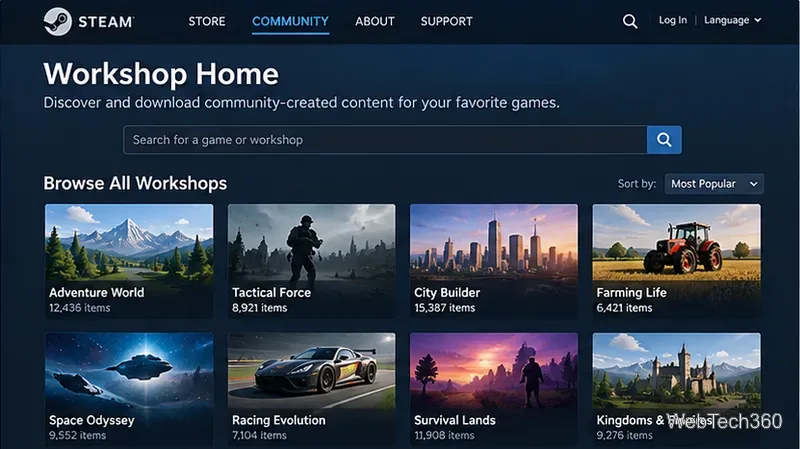
Valve describes the Workshop as a place where a game's community can create and share content. The exact experience depends on the game. In a ready-to-use Workshop, players can usually subscribe to items directly. In a curated Workshop, submissions may instead be reviewed or voted on before a developer chooses what becomes available in the game. Valve explains these models in its Steamworks Workshop documentation.
That means there is no single list of features that applies to every game. One title may offer maps and gameplay mods, while another may use Workshop mainly for cosmetic items or community voting.
The fastest route is the official Steam Workshop home page. Sign in to your Steam account if you want to subscribe, favorite, rate, or manage items.
If a game has no Workshop page or Workshop link, it may not support Steam Workshop. It could still support mods through another system, so check the developer's own documentation before assuming the game cannot be modded.
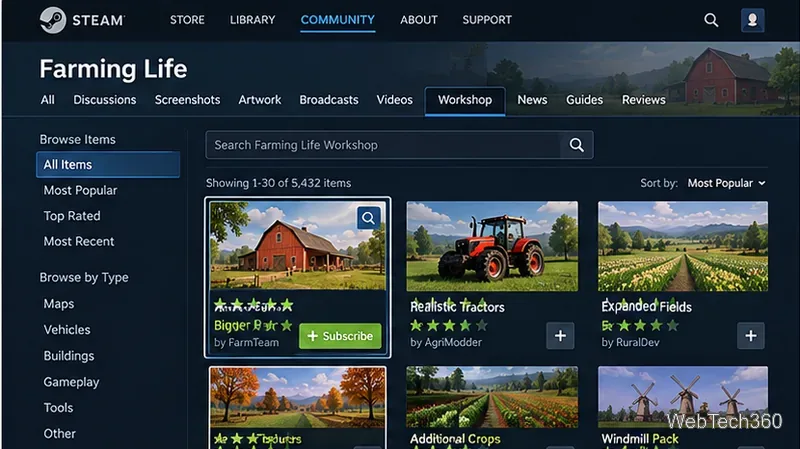
Valve's Workshop implementation guide says the Steam client handles Workshop downloads and updates for integrated titles. Newly subscribed items can download in the background, while existing subscribed items are updated as needed. The exact point at which an item becomes usable is controlled by the game.
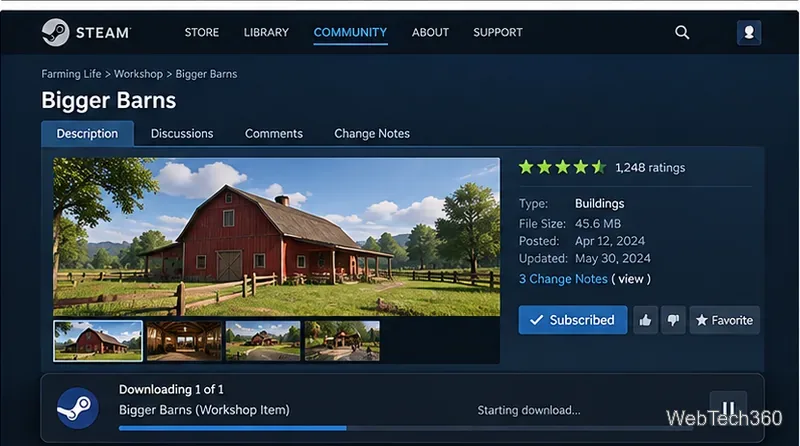
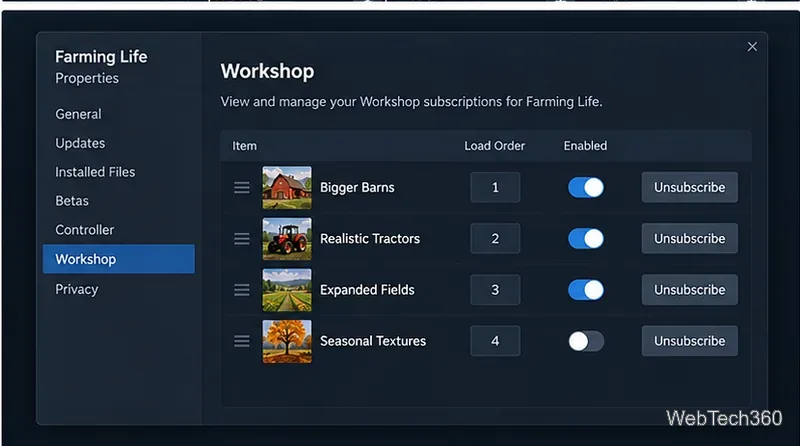
For supported games, Steam includes a Workshop subscription manager in the game's properties. Valve's official Steam Client update notes describe a redesigned list that can sort subscriptions and, when supported, change load order, resolve dependencies, or disable items locally.
You can also manage subscriptions from the game's Workshop page on the web. Unsubscribing tells Steam that you no longer want that Workshop subscription; how quickly local files disappear can depend on the game and its integration. Avoid manually deleting random Workshop folders first, because subscribed content can be downloaded again by Steam.
Not automatically. A game or application must be Workshop-enabled, and creators have to use the publishing tools and rules provided for that title. Uploaders must also have the rights needed for what they submit. The Steam Subscriber Agreement explains that Workshop contributions can be subject to app-specific terms and that Valve or a developer may restrict or remove submissions.
Browsing the Workshop does not require a separate Workshop fee. Most Workshop contributions are made available for free, but Valve's current Subscriber Agreement allows certain app-specific Workshop content to be offered for a fee. Because pricing, revenue sharing, and related terms can vary by app, do not assume that every Workshop uses the same purchasing or refund rules.
For most users, the key idea is simple: find the Workshop for a supported game, review an item carefully, click Subscribe, let Steam download it, and manage it later from the game's Workshop or Properties page.
Create a searchable Windows 10 folder inventory with PowerShell. Save every file and subfolder path as plain text or export details to a sortable CSV.
Add a custom reminder, quote, or label to your Windows 10 desktop with a Rainmeter text skin. Create the INI file, load it, then adjust its font and position.
Use Bluetooth Swift Pair on Windows 10 to pair a compatible accessory from a notification, with setup steps and fixes when the prompt does not appear.
Learn what common laptop function key symbols mean, how Fn and Fn Lock affect them, and how to confirm the right shortcut for your Windows 10 laptop model.
Turn off your Windows 10 display instantly with ScreenSleep, set a keyboard shortcut, and see when to use the built-in screen timeout instead.
Fix the “running scripts is disabled on this system” PowerShell error on Windows 10 with a current-user policy, a temporary session option, and safe steps for downloaded scripts.
Change the Windows 10 drag-selection color with a backup-first registry walkthrough, RGB examples, troubleshooting tips, and steps to restore your original values.
Check your router’s connected-device list or scan a local network with Fing Desktop on a supported PC. Learn what each method can show and how to verify unfamiliar entries.
Messenger does not offer a documented per-friend online alert. Learn how Active Status works, where to check the green dot, and which notifications you can enable instead.
Use 7-Zip to find an exact filename or wildcard match inside a ZIP or other supported archive on Windows 10 without unpacking its files.








