How to Open a Linux Shell in a Folder on Windows 10

Open a Linux shell in any Windows 10 folder with File Explorer, PowerShell, and WSL. Check the Linux path and fix common setup issues.
If you are stuck on the CTRL+ALT+DEL screen and Lock, Sign out, Task Manager, or Cancel will not respond, start with a full restart. If the problem comes back, use Windows Recovery Environment (WinRE) to repair startup, test Safe Mode, repair system files, and check recent drivers or updates. On modern Windows, this is the Windows Security secure screen; the old GINA terminology used by much older versions of Windows no longer applies.
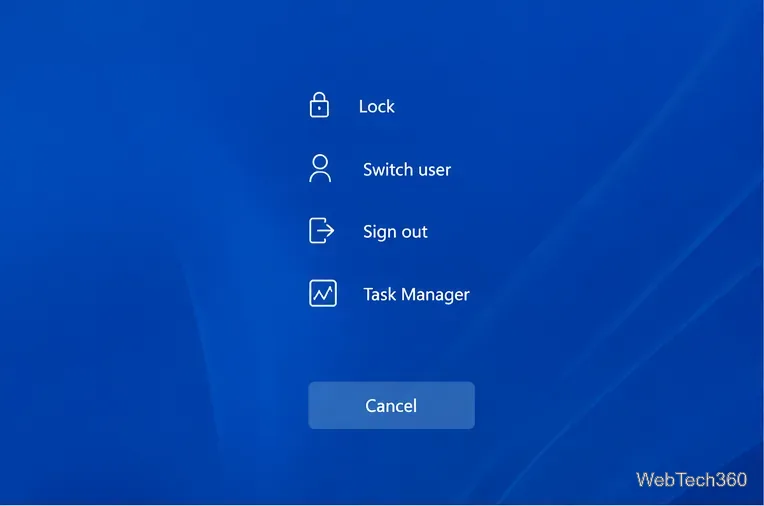
These steps apply to Windows 11 and Windows 10. Microsoft ended free Windows 10 support on October 14, 2025, so a Windows 10 PC that can upgrade should move to a supported Windows release.
If the screen is completely frozen, press and hold the physical power button until the PC turns off, then turn it on again. A forced shutdown can lose unsaved work, so use it only when the keyboard and on-screen controls are not responding.
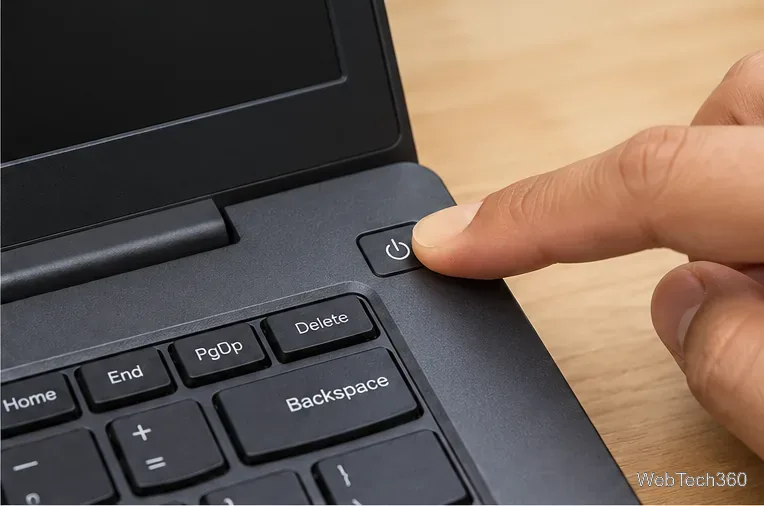
If CTRL+ALT+DEL works normally after the restart and the issue does not return, no further repair may be needed. A Restart is especially useful because Windows performs a full boot cycle; Fast Startup does not apply to Restart.
If the freeze happens repeatedly, open Windows Recovery Environment. If Windows still reaches the desktop, go to Settings > System > Recovery > Advanced startup > Restart now. On Windows 10, the path is Settings > Update & Security > Recovery.
If Windows cannot start normally, Microsoft says you can interrupt boot twice by powering off when the Windows or manufacturer logo appears. On the third start, Windows should enter Automatic Repair. Choose Advanced options.
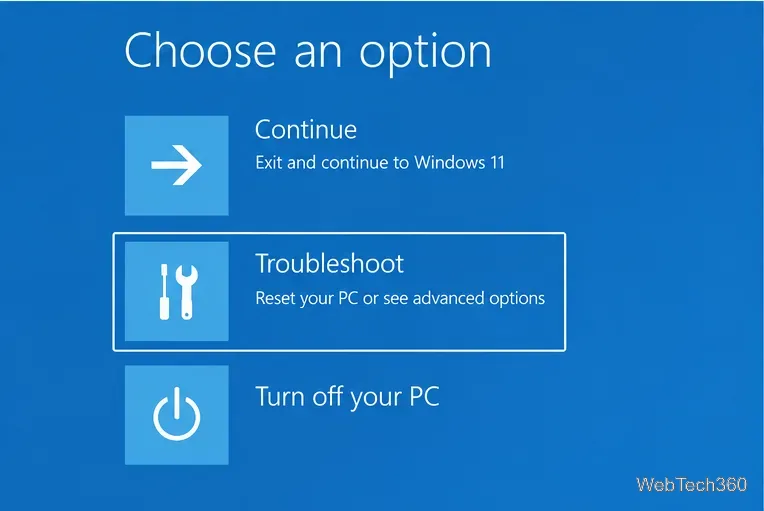
Then select Troubleshoot > Advanced options > Startup Repair > Restart. Microsoft documents Startup Repair as a tool for problems involving damaged system files, boot configuration, incompatible drivers, and some registry errors. If BitLocker is enabled, you may be asked for the recovery key.
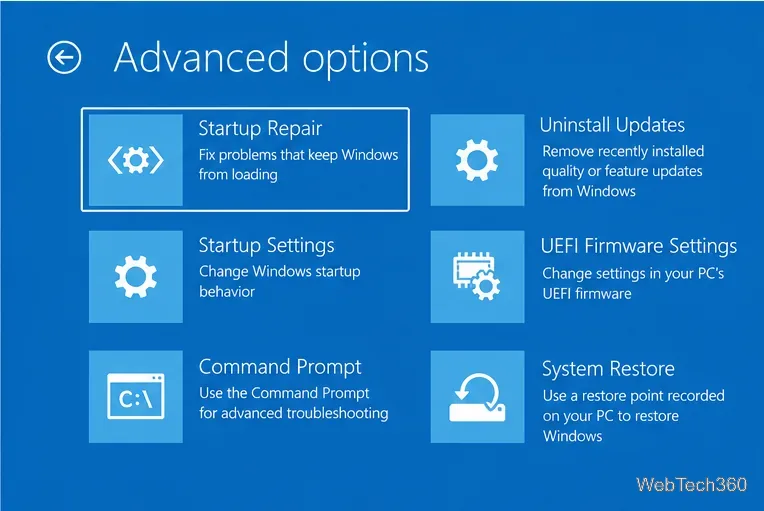
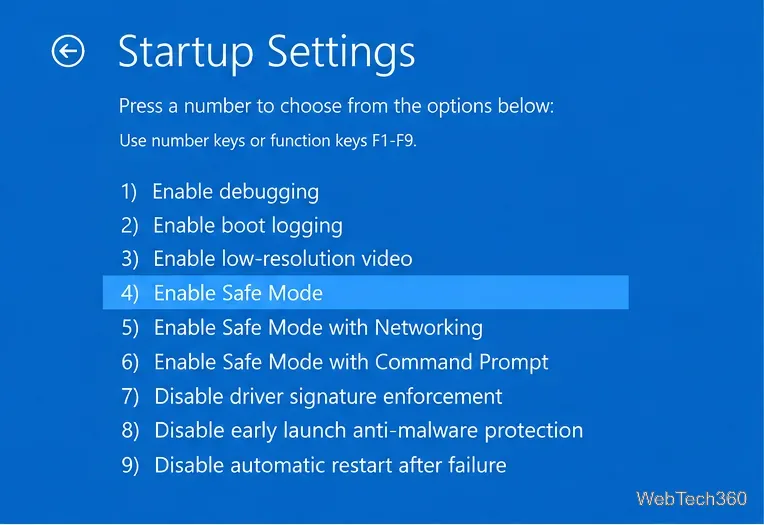
From WinRE, go to Troubleshoot > Advanced options > Startup Settings > Restart, then press 4 or F4 for Safe Mode. Microsoft explains that Safe Mode starts Windows with only essential drivers and services. If CTRL+ALT+DEL works there, a recently added driver, service, or application is a stronger suspect.
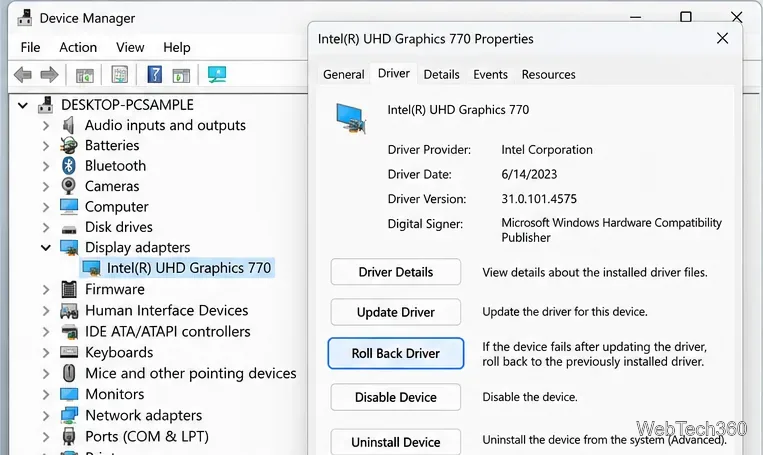
If the problem began immediately after a display-driver update, open Device Manager > Display adapters, open the graphics adapter, choose the Driver tab, and use Roll Back Driver if the button is available. Do not roll back a working driver just because the option exists.
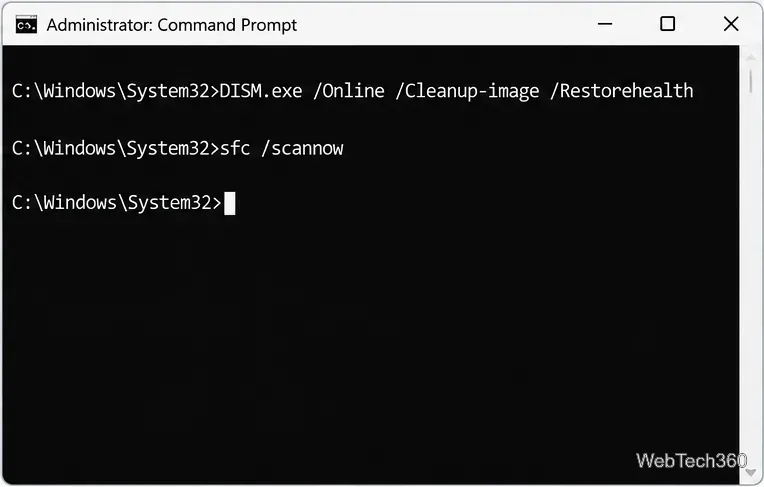
If Windows starts normally or in Safe Mode, open Command Prompt as administrator. Microsoft recommends running DISM before System File Checker. Run these commands one at a time and let each finish:
DISM.exe /Online /Cleanup-image /Restorehealth
sfc /scannow
Restart Windows after both scans complete. See Microsoft’s DISM and System File Checker instructions for the official procedure.
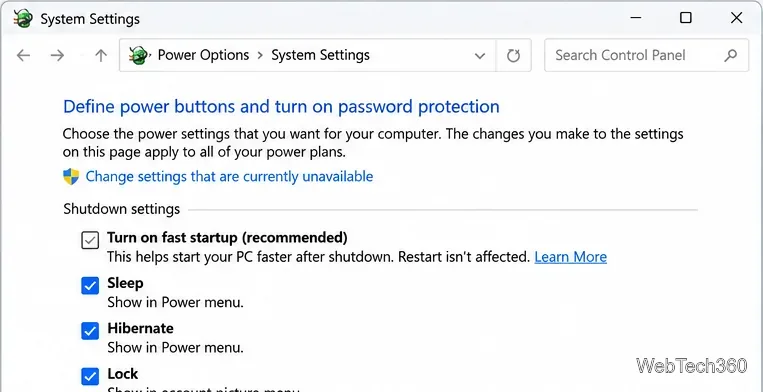
Fast Startup is not a universal cause of a frozen CTRL+ALT+DEL screen, and Microsoft does not recommend disabling it by default. However, it is worth testing if the problem appears after a shutdown and power-on but not after a Restart. Fast Startup preserves part of the kernel session during shutdown, while Restart performs a full boot.
Open Control Panel > Hardware and Sound > Power Options > Choose what the power buttons do. Select Change settings that are currently unavailable, clear Turn on fast startup (recommended), save, and test one normal shutdown and power-on. If nothing changes, turn Fast Startup back on. Microsoft explains the behavior in its Fast Startup documentation.
Go back to WinRE and choose Troubleshoot > Advanced options > Uninstall Updates if the issue started immediately after a Windows update. If you have a restore point from before the problem, System Restore is another option. Back up important files before using recovery features, and avoid Reset this PC or a clean reinstall until the less disruptive repairs above have failed.
If CTRL+ALT+DEL still freezes even in Safe Mode after Startup Repair and system-file repair, the problem is more likely to involve a deeper driver, hardware, or Windows installation fault. At that point, use Microsoft’s Windows recovery options or your PC manufacturer’s support channel before reinstalling Windows.
Open a Linux shell in any Windows 10 folder with File Explorer, PowerShell, and WSL. Check the Linux path and fix common setup issues.
Use a screenshot test, cable and port checks, monitor diagnostics, display settings, and driver rollback to pinpoint lines on a Windows 10 monitor.
Show two other time zones beside your Windows 10 clock. Set up each additional clock, give it a clear label, and find it in the taskbar calendar.
Find the File Explorer extension that delays right-click menus in Windows 10, test it safely with ShellExView, and restore any menu features you still need.
Stop Windows 10 from powering down a specific network adapter or USB device with plan-level settings and Device Manager controls, plus tips to avoid excess battery drain.
Check whether Windows 10 uses a digital license or product key, find a firmware-stored OEM key, and save license details securely for a reinstall.
Identify a Windows 10 Task Manager process by checking its executable path, file properties, publisher, linked services, and a Microsoft Defender scan.
Create a searchable Windows 10 folder inventory with PowerShell. Save every file and subfolder path as plain text or export details to a sortable CSV.
Add a custom reminder, quote, or label to your Windows 10 desktop with a Rainmeter text skin. Create the INI file, load it, then adjust its font and position.
Use Bluetooth Swift Pair on Windows 10 to pair a compatible accessory from a notification, with setup steps and fixes when the prompt does not appear.








