How to Access a Network Location in Command Prompt on Windows 10

Use pushd to open a UNC network path in Windows 10 Command Prompt, run commands in the shared folder, and return with popd.
If Windows 10 shows “The wizard could not start” when you try to set up a microphone, first confirm that Windows can see the correct input and that microphone access is allowed. If the input meter never moves, work through the permissions, recording-device, audio-service, and driver fixes below before retrying the microphone setup wizard.
Note: Microsoft ended free Windows 10 support on October 14, 2025. Windows 10 PCs still run, but Microsoft recommends moving to a supported Windows version when possible. See Microsoft’s Windows 10 end-of-support guidance.
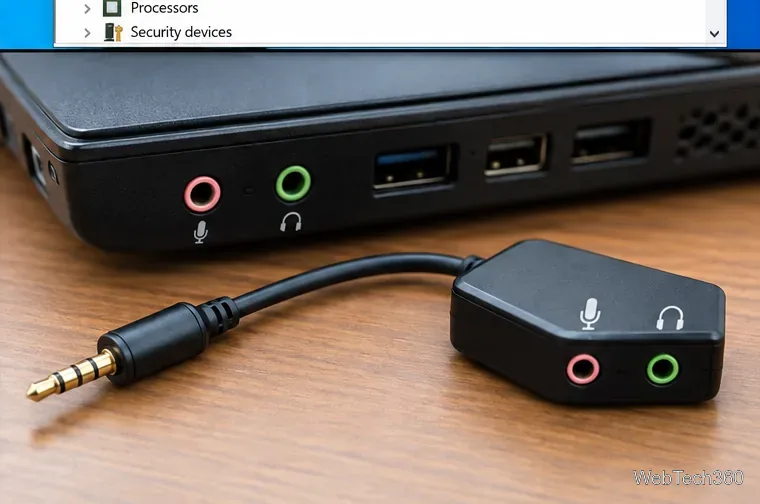
Reconnect the microphone first. For a USB mic, try another USB port. For a 3.5 mm mic, make sure you are using the microphone input or a compatible headset-combo jack; a headset plug may need the correct splitter or adapter on a PC with separate headphone and microphone ports.
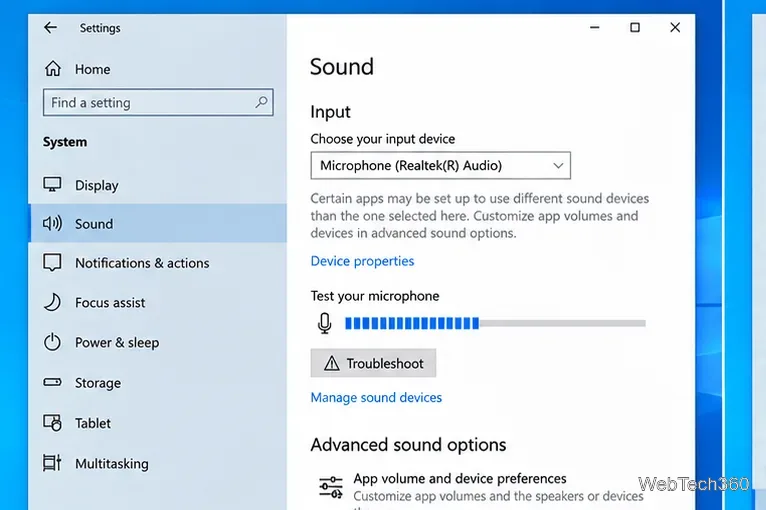
A microphone can be installed correctly but blocked by Windows privacy settings. Go to Start > Settings > Privacy > Microphone. Turn on Microphone access for this device and Allow apps to access your microphone. If the program using the mic is a traditional desktop app, also enable Allow desktop apps to access your microphone.
Microsoft documents these Windows 10 controls in Turn on app permissions for your microphone in Windows.
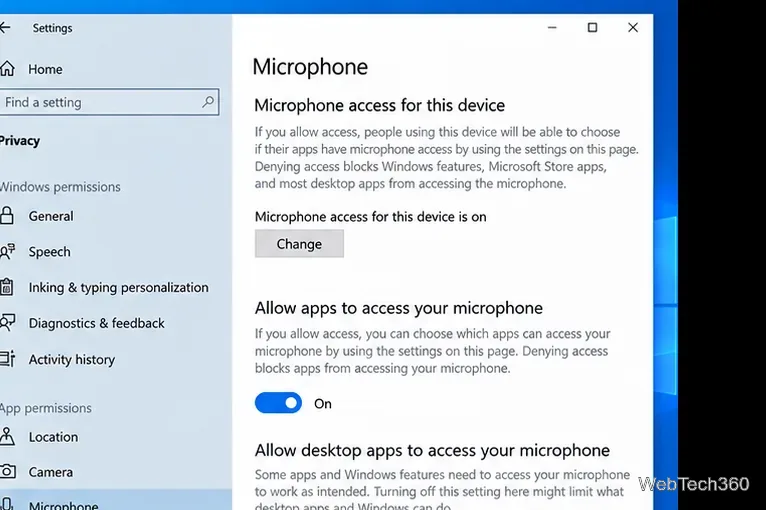
Open Control Panel > Hardware and Sound > Sound, then select the Recording tab. If your microphone is missing, right-click an empty area and enable Show Disabled Devices and Show Disconnected Devices. Right-click the microphone, choose Enable if necessary, and set it as the default recording device when appropriate.
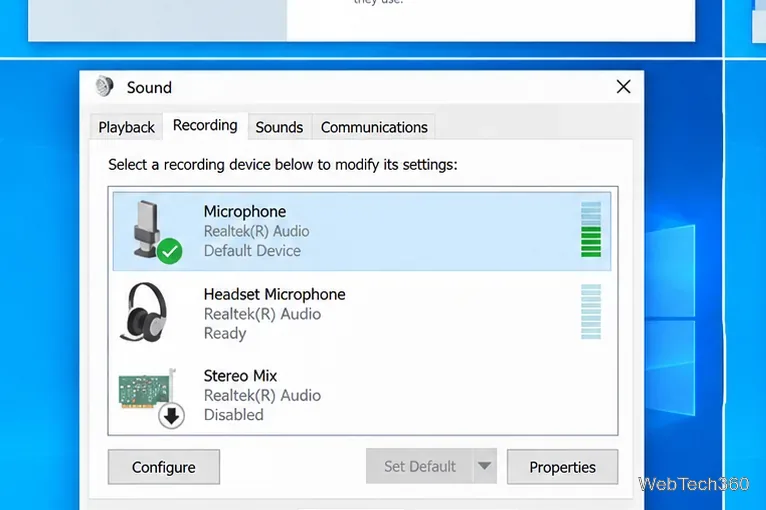
In the Recording tab, double-click the microphone and open Levels. Make sure the microphone is not muted and its level is not near zero. Increase Microphone Boost only if that control is available and the normal level is still too low; excessive boost can add noise.
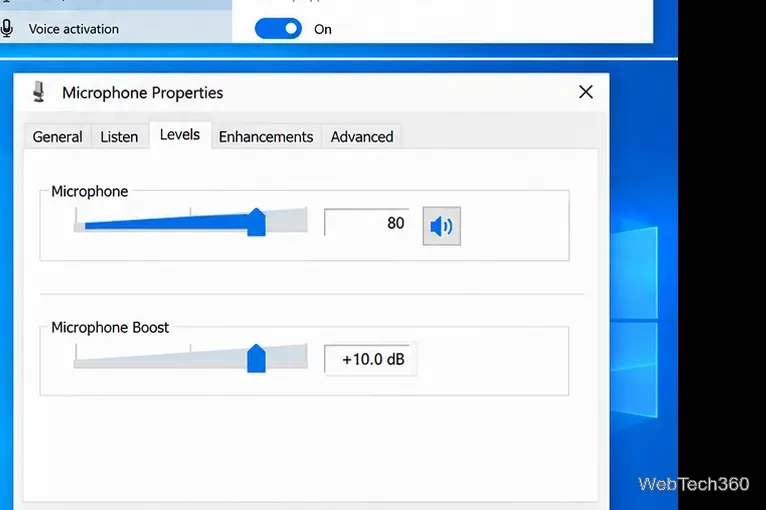
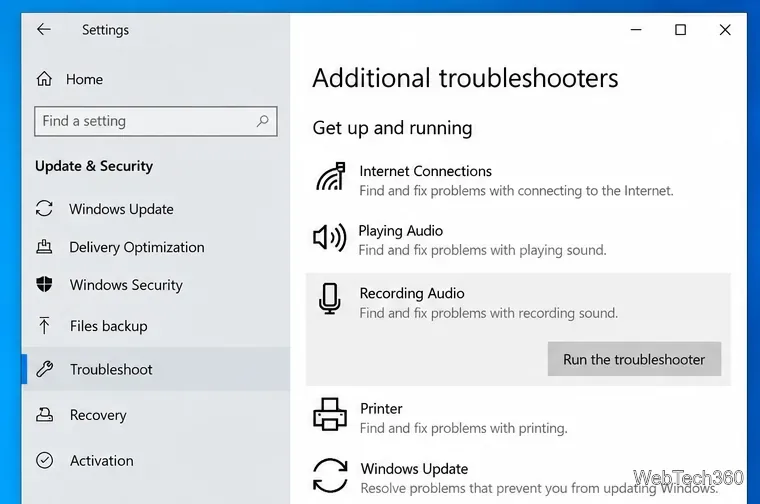
On Windows 10, open Settings > Update & Security > Troubleshoot > Additional troubleshooters. If Recording Audio is listed, run it and apply any recommended fix. Restart the PC if Windows asks you to do so.
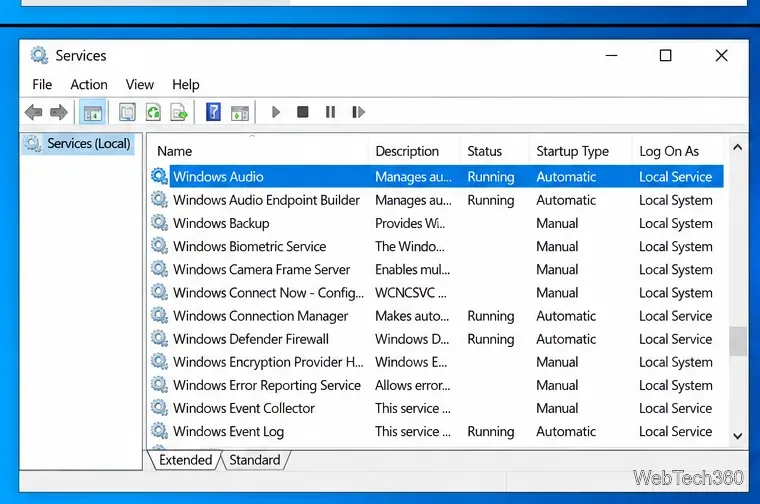
If the microphone worked earlier but the wizard suddenly fails, restart the audio services. Press Windows+R, enter services.msc, and press Enter. Restart Windows Audio and Windows Audio Endpoint Builder, then test the microphone again. Microsoft includes restarting these services among its audio-recovery steps after update-related failures.
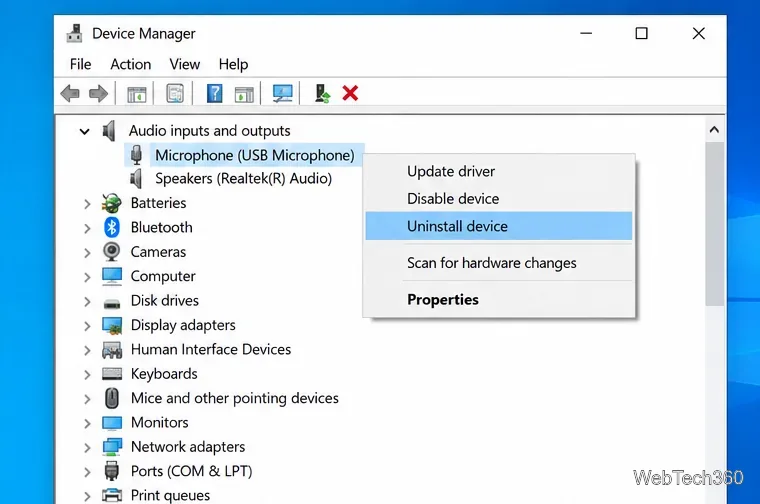
Open Device Manager. Check both Audio inputs and outputs and Sound, video and game controllers. Right-click the relevant microphone or audio device and choose Update driver. If updating does not help, choose Uninstall device, restart Windows, and let Windows detect the hardware again.
Microsoft recommends Windows Update first for audio drivers, with Device Manager as another option. See Update audio drivers in Windows and Fix microphone problems.
Analog microphones are more sensitive to connector mismatches than USB microphones. A desktop may have separate pink microphone and green headphone jacks, while many laptops use one combined headset jack. If the plug and port do not match, use the correct splitter or a USB audio adapter rather than forcing the connection.
If your PC includes a manufacturer audio console, open it and check that the jack is assigned as a microphone input. For branded USB microphones, install only the configuration software or driver provided by the microphone manufacturer when the model requires it.
Close voice-chat, recording, and browser apps, restart the PC, and test the microphone again in Settings > System > Sound. If Windows still shows no input activity and the device is absent from Device Manager, the problem is more likely to be the microphone, cable, port, adapter, or audio hardware than the setup wizard itself. Testing the microphone on another compatible device can help separate a PC problem from a faulty mic.
Use pushd to open a UNC network path in Windows 10 Command Prompt, run commands in the shared folder, and return with popd.
Learn how to install a Rainmeter skin from an INI file by placing it in the right Skins folder, preserving its resources, refreshing Rainmeter, and loading it in Manage.
Open one folder in its own File Explorer window with Shift or the context menu, or change Folder Options to make every folder open separately.
Pin a frequently used Control Panel applet, such as Power Options or Sound, to the Windows 10 Start menu for one-click access.
Choose a supported Windows 10 hotkey for switching input languages, assign shortcuts to individual layouts, or disable an accidental shortcut.
Move a Windows 10 app to the display you want, use its game monitor setting, and handle full-screen apps with a practical primary-monitor workaround.
Use a transparent PNG and a Rainmeter skin to keep an image watermark above windows, adjust its transparency, and make it click-through on Windows 10.
Convert stereo audio to mono on Windows 10 with Audacity. Mix both channels into one mono track, export a new file, and verify the channel count.
Use Windows 10 Clipboard history to save recent text and images, paste an earlier clip with Windows key + V, and manage sync, pinned items, and privacy.
Learn how to zoom in on a video in Windows 10 with VLC’s Interactive Zoom, or use Windows Magnifier when the clip is playing in another app.








