How to Open a Linux Shell in a Folder on Windows 10

Open a Linux shell in any Windows 10 folder with File Explorer, PowerShell, and WSL. Check the Linux path and fix common setup issues.
If screenshots on Windows 10 look yellow, orange, blue, washed out, or otherwise different from what you see on the display, first determine whether the screenshot file itself is tinted or only looks tinted on your monitor. That distinction quickly narrows the cause to a capture/color-management problem or a display-side filter such as Night light, a color filter, or a vendor eye-care mode.
Take a fresh screenshot, then view the same file somewhere that is not using the same display settings—for example, on another device or on a second monitor with different color settings. If the image looks normal elsewhere, the screenshot is probably fine and the tint is being added by your display configuration. If the file is tinted everywhere, continue with the capture, HDR, and driver checks below.
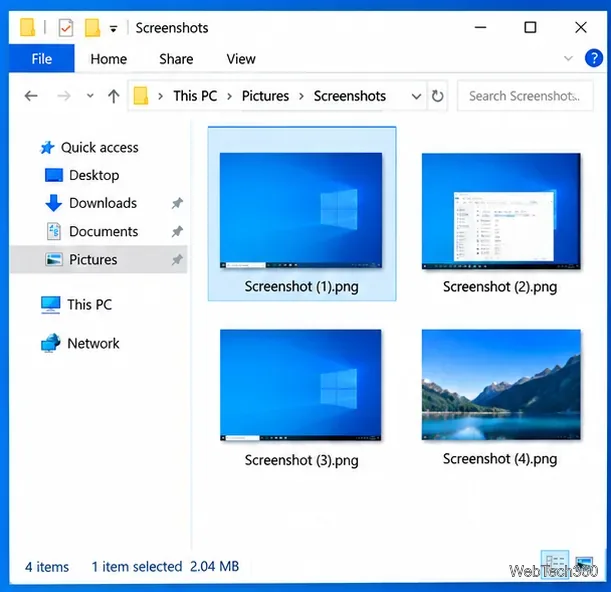
Use a built-in capture method to rule out filters, effects, or color processing added by a third-party screenshot app. Microsoft documents Windows logo key + PrtScn as a shortcut that saves captures to Pictures > Screenshots. You can also press Windows logo key + Shift + S to capture with Snipping Tool.
If the Windows capture has normal colors but your usual app does not, reset or disable that app's color, enhancement, HDR, or filter options. See Microsoft's Print Screen shortcut documentation.
If the screenshot file is normal on another device but looks tinted on your PC, turn off anything that intentionally changes the colors shown on screen.
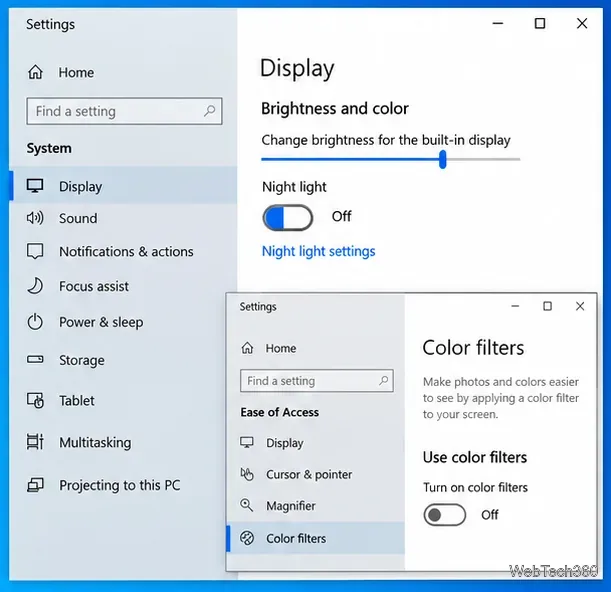
Microsoft explains Night light and display color settings, while Windows accessibility color filters can also alter what you see. Lenovo documents that Eye Care Mode adjusts LCD color tone.
HDR is a more likely cause when the saved screenshot itself looks washed out, overexposed, or incorrectly saturated. Windows capture APIs can preserve HDR data, but converting HDR or wide-color content to a normal SDR image requires additional tone mapping. That conversion can produce visibly wrong colors when the capture path or viewing app does not handle it correctly.
Open Settings > System > Display, select the affected display, open Windows HD Color settings if present, and temporarily turn off the HDR option. The wording can vary by Windows 10 build, such as Use HDR or Play HDR games and apps. Capture the same content again. If colors return to normal, HDR/color conversion is the key clue.
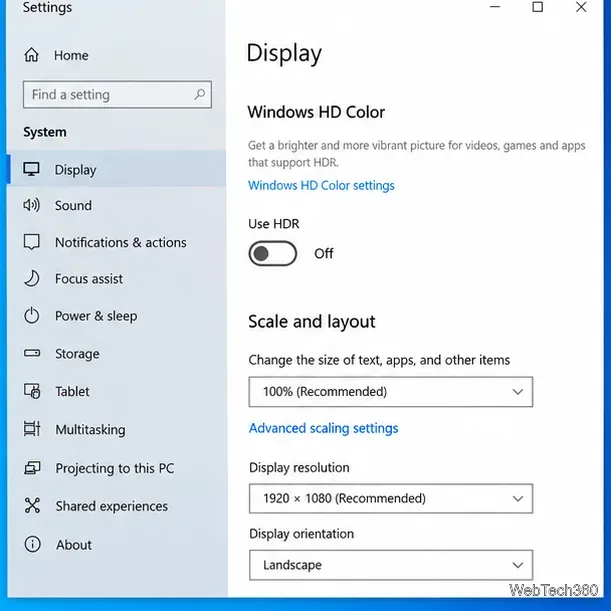
Microsoft's Advanced Color documentation explains why HDR capture needs tone mapping for SDR output. Intel also documents washed-out or less-saturated color when HDR is enabled on some Windows 10 systems.
If every screenshot tool produces the same bad colors and the issue began immediately after a display-driver or Windows update, check the graphics driver next. Do not roll back a working driver just because screenshots are tinted.
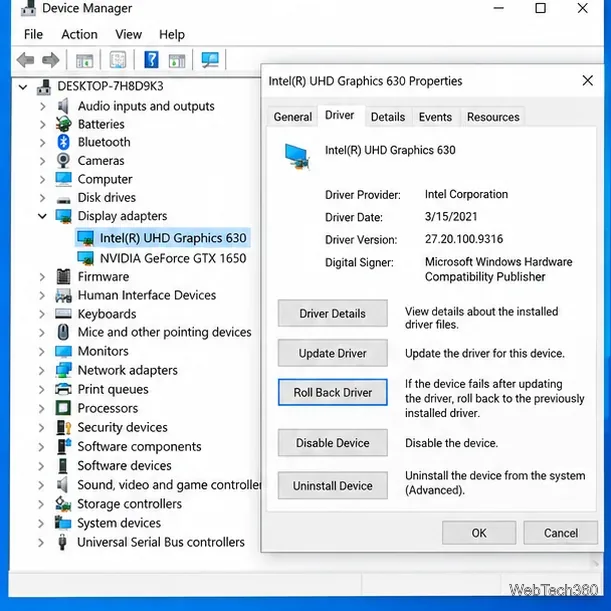
Microsoft's Device Manager driver guide notes that rollback requires administrator permissions and is available only when Windows still has a previous driver version.
If the image is normal on another device, disable Night light, color filters, eye-care modes, or other screen-tinting software. If the file itself is wrong, compare a Windows-built-in capture with your normal screenshot tool, test HDR off, and then investigate the display driver if the problem started after an update. Testing in that order avoids changing drivers for what is really just a display filter.
Open a Linux shell in any Windows 10 folder with File Explorer, PowerShell, and WSL. Check the Linux path and fix common setup issues.
Use a screenshot test, cable and port checks, monitor diagnostics, display settings, and driver rollback to pinpoint lines on a Windows 10 monitor.
Show two other time zones beside your Windows 10 clock. Set up each additional clock, give it a clear label, and find it in the taskbar calendar.
Find the File Explorer extension that delays right-click menus in Windows 10, test it safely with ShellExView, and restore any menu features you still need.
Stop Windows 10 from powering down a specific network adapter or USB device with plan-level settings and Device Manager controls, plus tips to avoid excess battery drain.
Check whether Windows 10 uses a digital license or product key, find a firmware-stored OEM key, and save license details securely for a reinstall.
Identify a Windows 10 Task Manager process by checking its executable path, file properties, publisher, linked services, and a Microsoft Defender scan.
Create a searchable Windows 10 folder inventory with PowerShell. Save every file and subfolder path as plain text or export details to a sortable CSV.
Add a custom reminder, quote, or label to your Windows 10 desktop with a Rainmeter text skin. Create the INI file, load it, then adjust its font and position.
Use Bluetooth Swift Pair on Windows 10 to pair a compatible accessory from a notification, with setup steps and fixes when the prompt does not appear.








