How to Create a List of All Items in a Folder on Windows 10

Create a searchable Windows 10 folder inventory with PowerShell. Save every file and subfolder path as plain text or export details to a sortable CSV.
If Windows 10 reports a USB Mass Storage Device driver problem, start with the connection, then reinstall the device from Device Manager. USB storage normally uses Microsoft drivers built into Windows, so you usually do not need a third-party “USB driver” download.
Before changing anything, safely disconnect other external drives so you do not select the wrong device. Also note that Windows 10 reached end of support on October 14, 2025. These troubleshooting steps still apply to Windows 10 PCs, but moving to a supported Windows version is recommended when your hardware allows it.
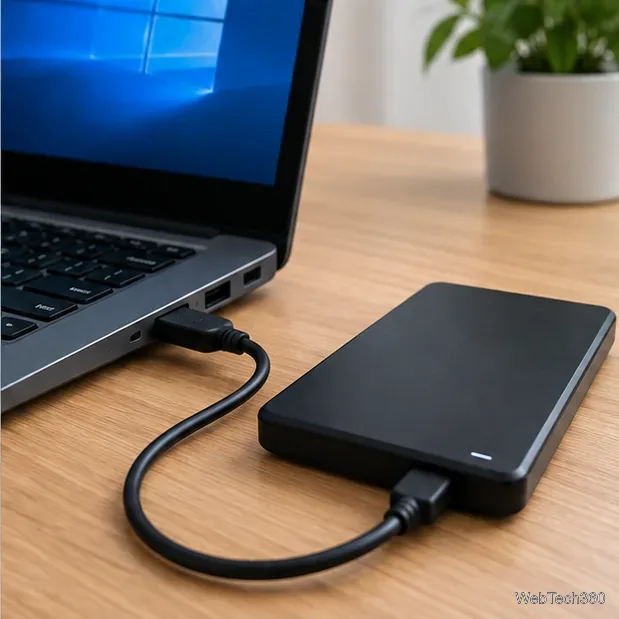
A driver warning can be caused by a connection that is unstable before Windows finishes identifying the device. Disconnect the drive, wait a few seconds, and connect it to a different USB port. If you are using a hub or dock, connect the drive directly to the PC for the test.
For an external hard drive or SSD, try the manufacturer-supplied cable or another known-good compatible cable. If the enclosure has its own power adapter, connect it. Microsoft also notes that some USB devices can malfunction when the PC or port cannot provide enough power.
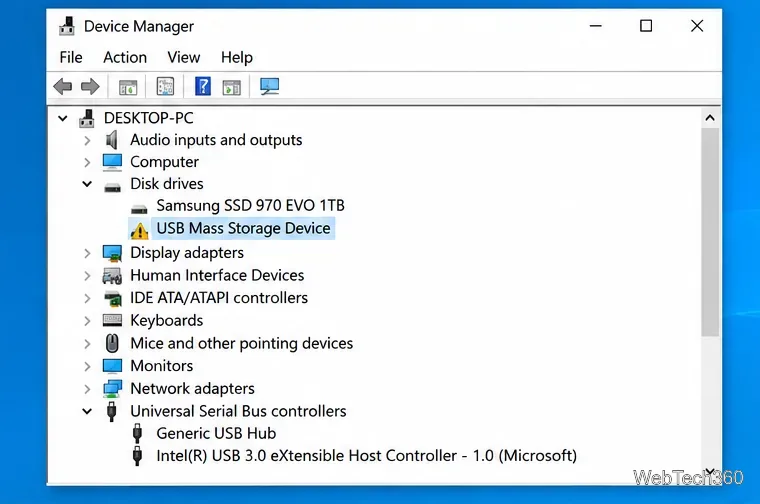
Right-click Start and choose Device Manager. Look under Disk drives and Universal Serial Bus controllers; a failed device can also appear under Other devices. A yellow warning icon indicates that Windows detected a problem.
Open the device’s Properties and read the message under Device status. If an error code is shown, compare it with Microsoft’s Device Manager error-code guidance. Code 28, for example, means the drivers are not installed.
Microsoft provides the USB mass-storage class drivers used by Windows 10, including Usbstor.sys and, for supported UAS devices, Uaspstor.sys. Microsoft documents these as in-box USB class drivers.
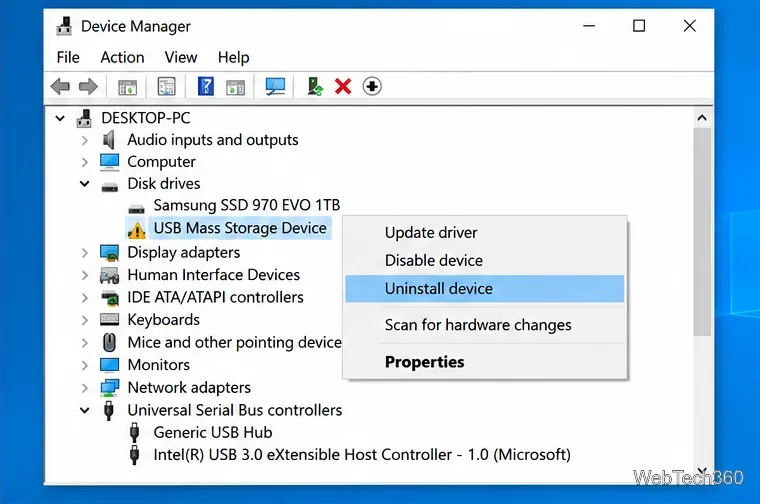
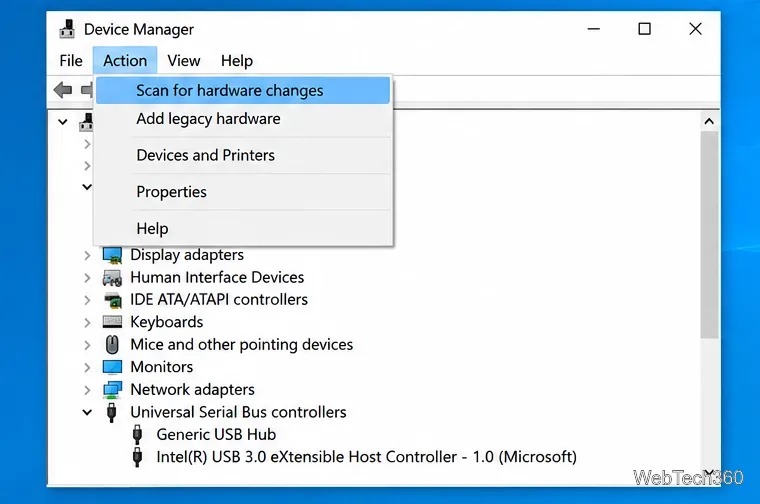
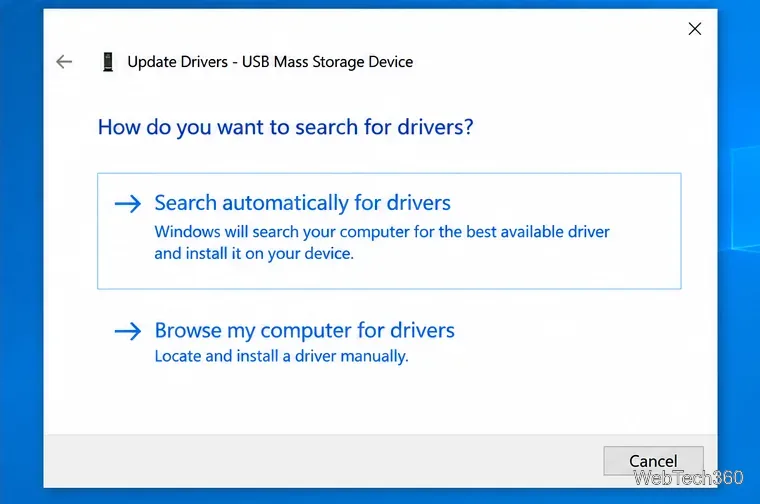
In Device Manager, right-click the device, choose Update driver, and select Search automatically for drivers. Microsoft recommends Windows Update as the primary source for most hardware-driver updates; see its driver update and reinstall instructions.
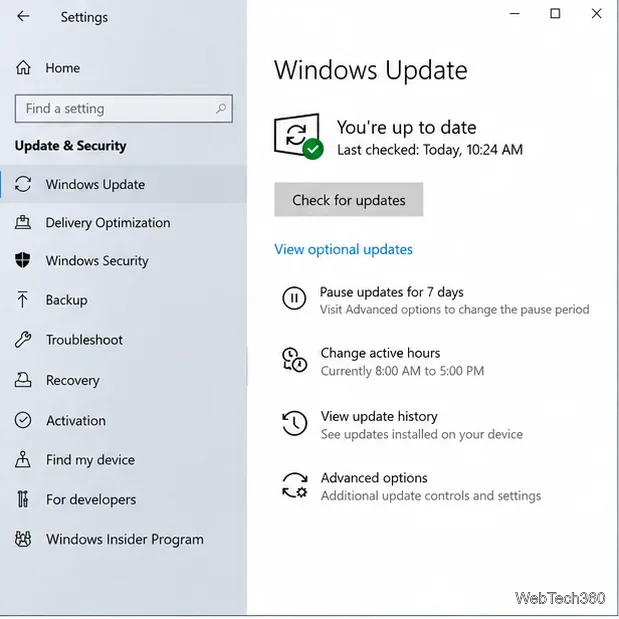
Next, open Settings > Update & Security > Windows Update and check for available updates. If your PC maker offers a current chipset, USB controller, or storage-controller driver for your exact model and Windows 10 version, use the manufacturer’s official support site rather than a third-party driver site.
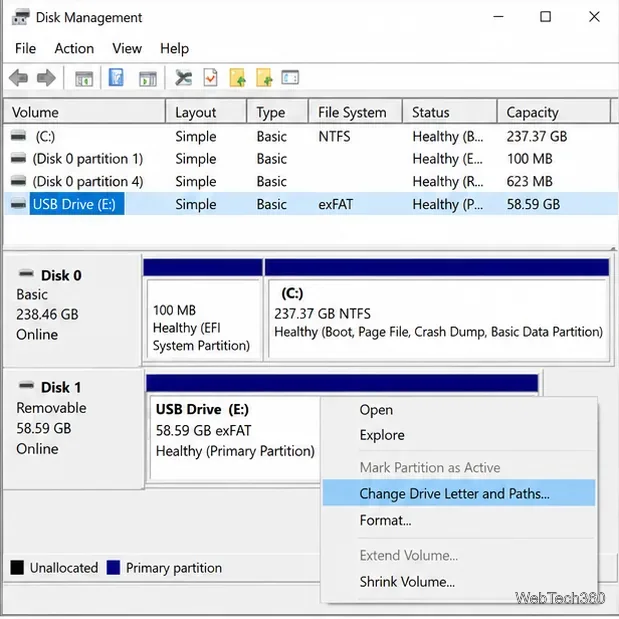
This may be a volume or drive-letter problem rather than a USB driver problem. Press Windows + R, enter diskmgmt.msc, and press Enter. In Disk Management, identify the USB drive by its capacity.
If the existing volume is healthy but has no drive letter, right-click it and choose Change Drive Letter and Paths, then assign an unused letter. Microsoft confirms that Disk Management can change drive letters and manage volumes.
Do not initialize, format, or create a new volume on a drive that contains files you need. If it appears as RAW, Unallocated, or Not Initialized unexpectedly, stop and treat that as a storage/data-recovery issue rather than a driver reinstall.
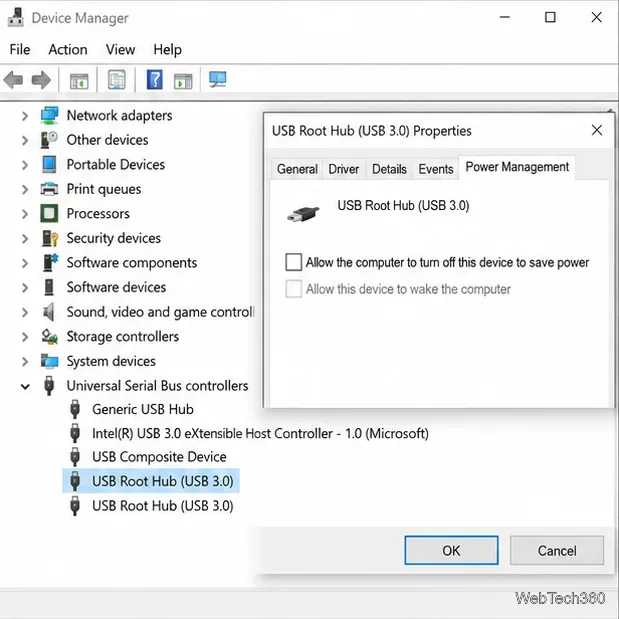
The old workaround of disabling power management on every USB Root Hub is not a good default. Microsoft states that USB selective suspend is enabled by default and strongly recommends not disabling it. If the drive disconnects specifically after sleep or idle time, first update the PC maker’s chipset/USB drivers, try another port, and test without a hub.
Test the same drive on another computer, then test a different known-good USB drive in the original port. If one storage device fails on multiple computers, the drive, enclosure, or cable is the likely problem. If several devices fail only on one PC, focus on that PC’s USB ports, chipset drivers, firmware, or hardware.
There is normally no reason to edit the USBSTOR registry service values for this error. The safer sequence is: verify the connection, check the Device Manager status, reinstall the device, update through supported sources, and use Disk Management only when Windows detects the disk but does not mount it in File Explorer.
Create a searchable Windows 10 folder inventory with PowerShell. Save every file and subfolder path as plain text or export details to a sortable CSV.
Add a custom reminder, quote, or label to your Windows 10 desktop with a Rainmeter text skin. Create the INI file, load it, then adjust its font and position.
Use Bluetooth Swift Pair on Windows 10 to pair a compatible accessory from a notification, with setup steps and fixes when the prompt does not appear.
Learn what common laptop function key symbols mean, how Fn and Fn Lock affect them, and how to confirm the right shortcut for your Windows 10 laptop model.
Turn off your Windows 10 display instantly with ScreenSleep, set a keyboard shortcut, and see when to use the built-in screen timeout instead.
Fix the “running scripts is disabled on this system” PowerShell error on Windows 10 with a current-user policy, a temporary session option, and safe steps for downloaded scripts.
Change the Windows 10 drag-selection color with a backup-first registry walkthrough, RGB examples, troubleshooting tips, and steps to restore your original values.
Check your router’s connected-device list or scan a local network with Fing Desktop on a supported PC. Learn what each method can show and how to verify unfamiliar entries.
Messenger does not offer a documented per-friend online alert. Learn how Active Status works, where to check the green dot, and which notifications you can enable instead.
Use 7-Zip to find an exact filename or wildcard match inside a ZIP or other supported archive on Windows 10 without unpacking its files.








