How to Open a Linux Shell in a Folder on Windows 10

Open a Linux shell in any Windows 10 folder with File Explorer, PowerShell, and WSL. Check the Linux path and fix common setup issues.
If your USB microphone is not working in Windows 10, start with two quick checks: plug it directly into a different USB port, then open Settings > System > Sound and select the microphone under Input. Speak into it and watch the input meter. If Windows does not list the mic at all, focus on the USB connection, power, and driver. If Windows lists it but an app cannot hear you, the input selection or microphone privacy settings are more likely to be the problem.
Note: Microsoft ended free support for Windows 10 on October 14, 2025. These Windows 10 troubleshooting steps still apply to PCs that continue to run the OS, but Microsoft recommends moving to a supported Windows version. See Microsoft's Windows 10 end-of-support guidance.
Disconnect the microphone, wait a few seconds, and reconnect it. Try another USB port on the PC. If the mic is connected through a hub or dock, bypass it and connect the microphone directly to the computer. A damaged cable, an unpowered hub, or insufficient USB power can prevent Windows from detecting the device.
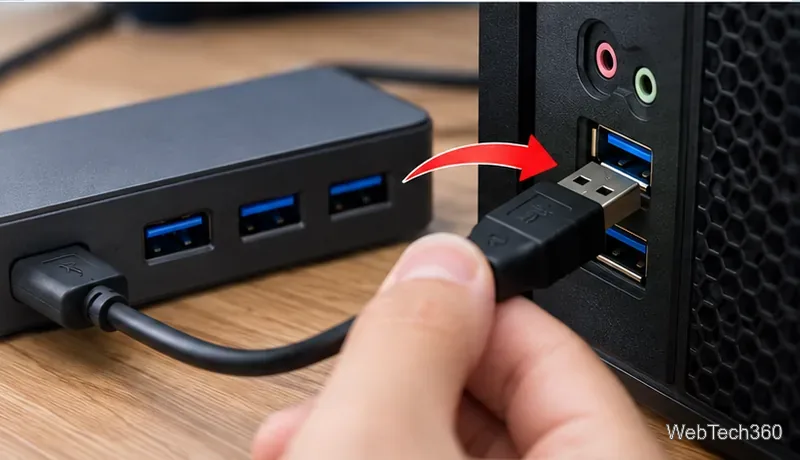
If the microphone has a separate power input, gain interface, or powered USB hub requirement, follow the manufacturer's connection instructions. Microsoft also recommends trying another port and removing an intermediate hub when troubleshooting USB hardware.
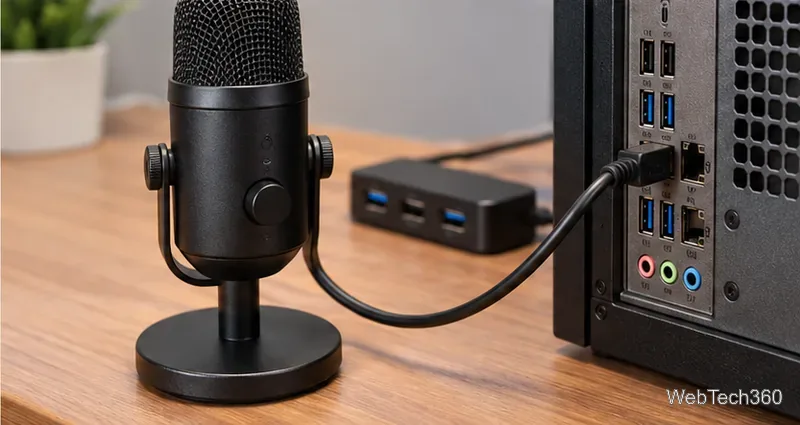
Open Start > Settings > System > Sound. Under Input, choose your USB microphone from Choose your input device. Speak normally and watch Test your microphone. If the level bar moves, Windows is receiving audio from the microphone.
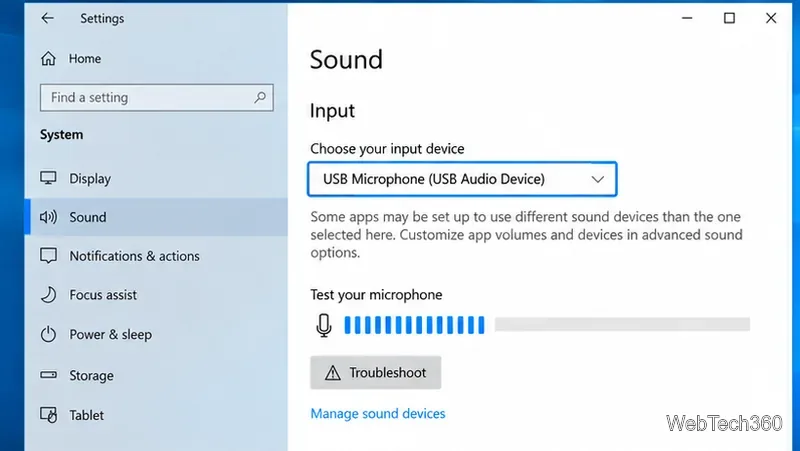
If the device appears but the signal is very low, open Device properties and adjust the microphone level. Microsoft's current microphone troubleshooting guide also recommends confirming that the intended mic is selected and testing the input level.
A microphone can work in Sound settings but remain unavailable to apps if privacy access is disabled. Go to Settings > Privacy > Microphone. Turn on Microphone access for this device and Allow apps to access your microphone. For traditional desktop programs, also enable Allow desktop apps to access your microphone.
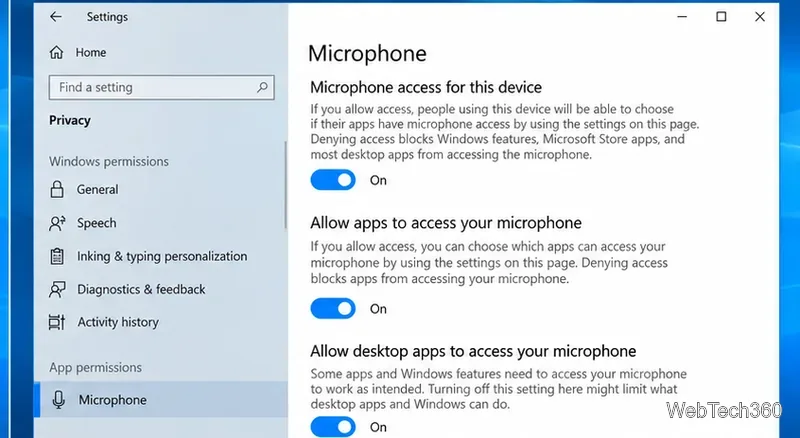
Microsoft documents these controls on its microphone permissions support page.
Some older desktop apps still follow the classic default recording device. Type Control Panel in Start, open it, choose Hardware and Sound > Sound, and open the Recording tab. Select the USB microphone and set it as the default device if needed.
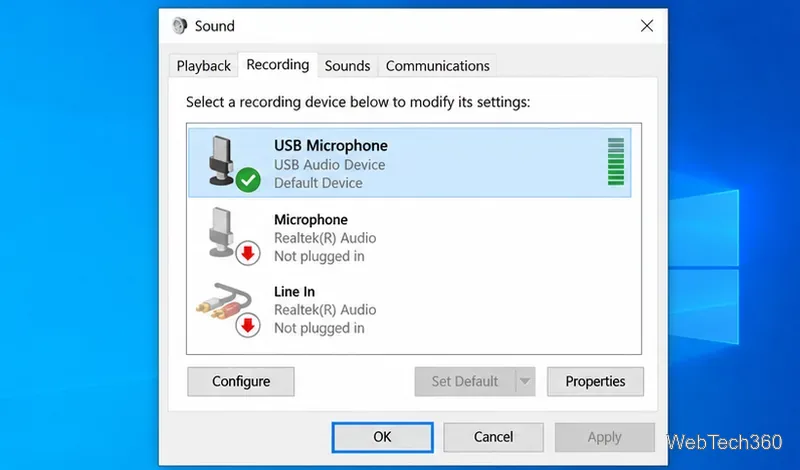
Also open the audio settings inside the app you are using—such as a meeting, recording, or streaming program—and select the same USB microphone there. An app can use a different input from the Windows default.
In Windows 10, open Settings > Update & Security > Troubleshoot > Additional troubleshooters, select Recording Audio, and run the troubleshooter. Apply any recommended fix, then test the microphone again.
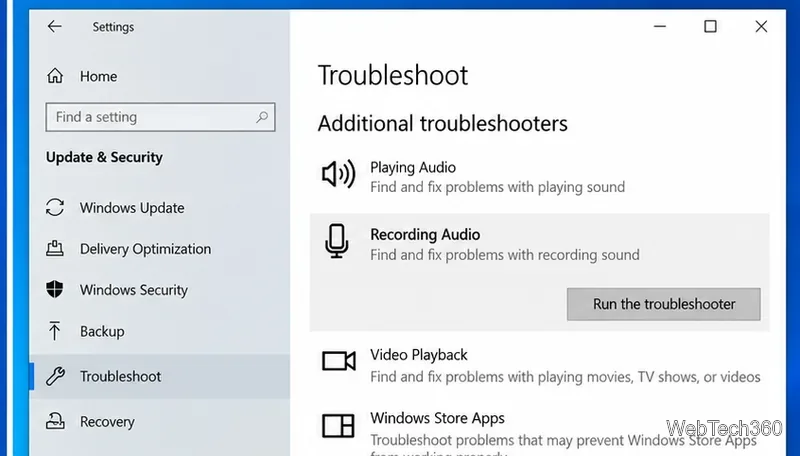
The old command-line Hardware and Devices shortcut found in many legacy guides is not necessary for this microphone problem; use Windows' audio troubleshooting path and Device Manager instead.
Right-click Start and open Device Manager. Check both Audio inputs and outputs and Sound, video and game controllers. If you see the USB microphone or a USB Audio Device entry, right-click it and try Update driver.
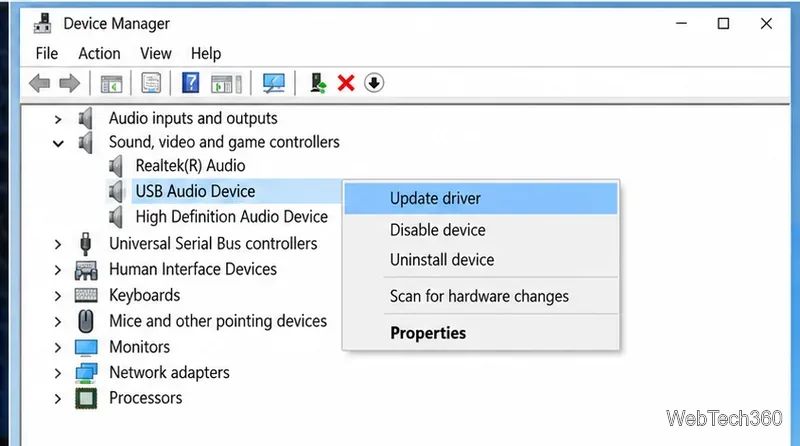
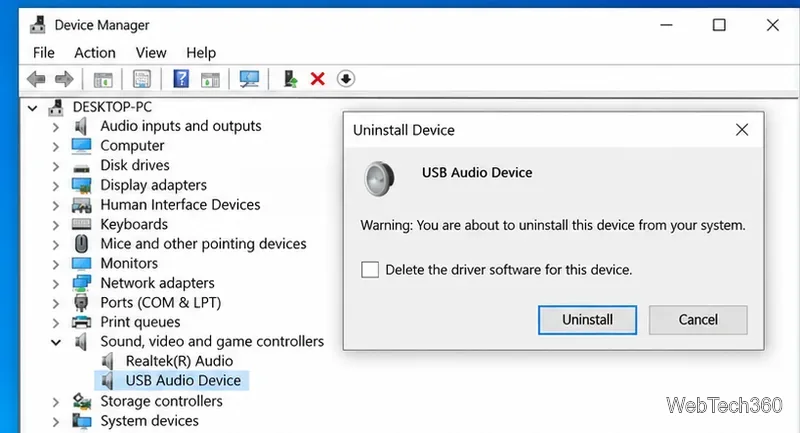
If the microphone stopped being detected after a driver problem, right-click the device and choose Uninstall device. Then restart Windows or reconnect the microphone so Windows can detect the hardware again. If the manufacturer provides a dedicated Windows 10 driver or firmware tool for your exact model, use the official manufacturer support page rather than a third-party driver download site.
Close the app that needs the microphone, reconnect the mic, and reopen the app. If that fails, restart the PC with the microphone connected. Also check the microphone for a hardware mute button, gain knob, or monitoring control. A muted mic can still appear normally in Windows while sending no usable signal.
Test the microphone on another computer if possible. If it fails on multiple PCs and with a known-good cable, the microphone or its USB interface may be faulty. If it works elsewhere, return to the original PC and concentrate on that computer's USB ports, audio drivers, privacy settings, and app-specific input selection.
Open a Linux shell in any Windows 10 folder with File Explorer, PowerShell, and WSL. Check the Linux path and fix common setup issues.
Use a screenshot test, cable and port checks, monitor diagnostics, display settings, and driver rollback to pinpoint lines on a Windows 10 monitor.
Show two other time zones beside your Windows 10 clock. Set up each additional clock, give it a clear label, and find it in the taskbar calendar.
Find the File Explorer extension that delays right-click menus in Windows 10, test it safely with ShellExView, and restore any menu features you still need.
Stop Windows 10 from powering down a specific network adapter or USB device with plan-level settings and Device Manager controls, plus tips to avoid excess battery drain.
Check whether Windows 10 uses a digital license or product key, find a firmware-stored OEM key, and save license details securely for a reinstall.
Identify a Windows 10 Task Manager process by checking its executable path, file properties, publisher, linked services, and a Microsoft Defender scan.
Create a searchable Windows 10 folder inventory with PowerShell. Save every file and subfolder path as plain text or export details to a sortable CSV.
Add a custom reminder, quote, or label to your Windows 10 desktop with a Rainmeter text skin. Create the INI file, load it, then adjust its font and position.
Use Bluetooth Swift Pair on Windows 10 to pair a compatible accessory from a notification, with setup steps and fixes when the prompt does not appear.








