How to Create a List of All Items in a Folder on Windows 10

Create a searchable Windows 10 folder inventory with PowerShell. Save every file and subfolder path as plain text or export details to a sortable CSV.
If uTorrent Classic is stuck on Connecting to peers, first determine whether the problem is the torrent itself or your connection. A torrent cannot start until the client finds reachable peers that have the data you need. If one healthy torrent works while another does not, the stalled swarm—not uTorrent—is usually the issue.
The steps below apply to µTorrent Classic on Windows. Download and share only material you are authorized to use.
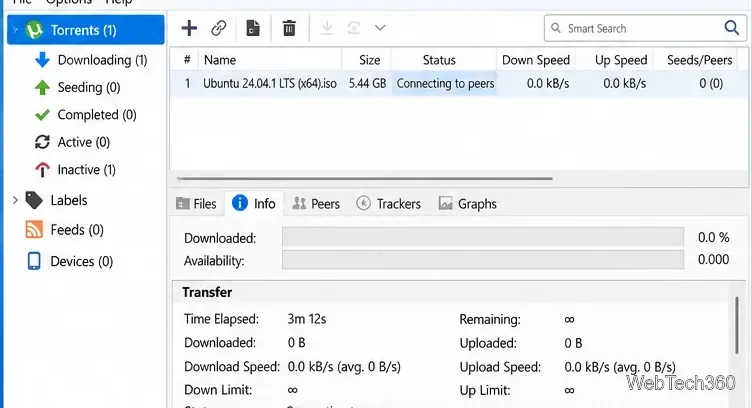
Before changing settings, try a legal, well-seeded torrent from a trusted source. Ubuntu provides official BitTorrent downloads on its Alternative downloads page, and Debian publishes official installation torrents.
Use the current installer from the official µTorrent site. On September 23, 2026, BitTorrent specifically advised users of older µTorrent Classic builds to update after reports of crashes associated with a cyberattack. After updating, fully exit µTorrent Classic and reopen it. A Windows restart can also clear a stale network stack or firewall state.
Open Windows Security > Firewall & network protection > Allow an app through firewall, select Change settings, and make sure µTorrent is allowed on the network profile you actually use. For a home network, that is usually Private. Avoid enabling Public unless you need it on an untrusted/public network.
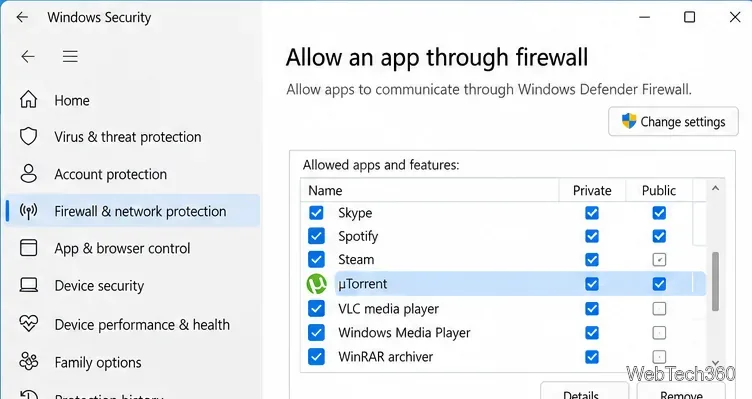
Microsoft notes that allowing an app is generally safer than opening a port. If you use a third-party firewall or security suite, check its rules too.
In µTorrent Classic, open Options > Preferences > Connection. Note the incoming listening port, then enable UPnP port mapping and NAT-PMP port mapping if your router supports them. The official µTorrent connection guide recommends these automatic mapping methods before manual forwarding.
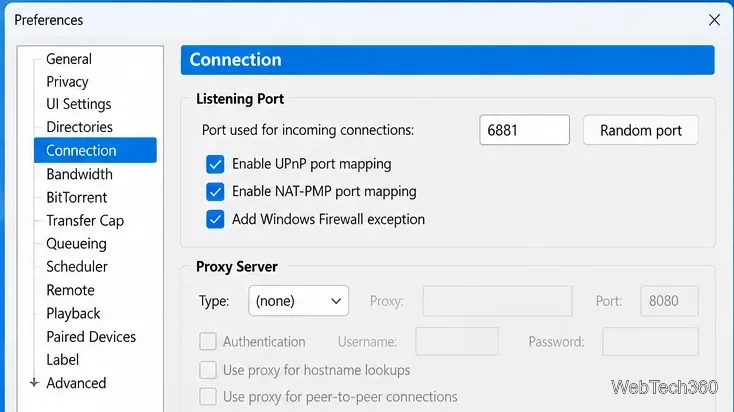
If automatic mapping does not work, consult your router documentation before forwarding a port manually. Do not open extra ports at random. If you manually forward one port, keep the listening port fixed instead of randomizing it at every start.
Open Options > Preferences > BitTorrent. For normal public torrents, keep DHT Network and Peer Exchange enabled unless the torrent or tracker specifically requires otherwise. Under Protocol Encryption, start with Outgoing: Enabled and allow incoming legacy connections.
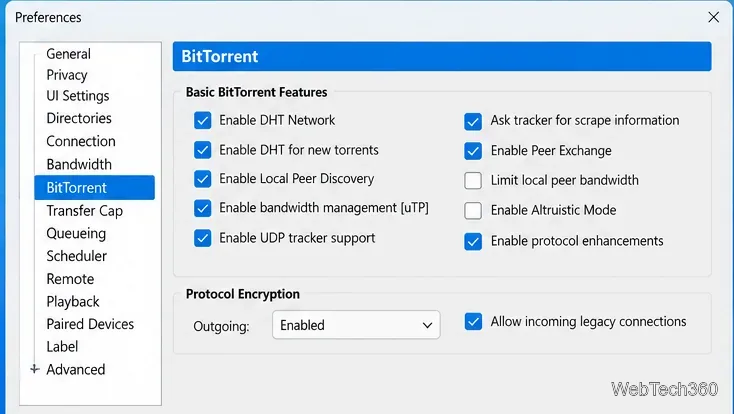
Do not jump straight to Forced. µTorrent's documentation warns that forcing encryption can greatly reduce the number of peers you can connect to. It is better treated as a diagnostic option only when you have good reason to suspect P2P traffic shaping.
If you are using a VPN or proxy, disconnect it briefly and retry a known-good torrent. Some VPN endpoints do not accept incoming P2P connections, and proxy settings can prevent peer traffic from reaching the client. If torrents work on another permitted network but not on your current Wi-Fi, the router, ISP, workplace, school, or hotspot may be restricting BitTorrent traffic. Do not bypass network policies you are not authorized to change.
Older troubleshooting guides often recommend deleting resume.dat. That can remove the client’s record of currently loaded torrent jobs. µTorrent's settings documentation confirms that resume.dat stores information about loaded torrents, while other .dat files store client configuration.
If you suspect corrupted application state, first exit µTorrent and back up %AppData%\uTorrent. Reinstalling or resetting those files should be a last resort after the network checks above, because you may need to re-add torrent jobs afterward.
| What you see | Most likely next step |
|---|---|
| Only one torrent is stuck | Try another source or wait for seeds to return. |
| All torrents are stuck | Check the firewall, incoming port, router mapping, VPN/proxy, and network restrictions. |
| A known-good torrent works with VPN off | Review the VPN's P2P and port-forwarding support. |
| DHT is active but the torrent still has zero reachable peers | The swarm, tracker, or torrent-specific rules may be the problem. |
In most cases, the fastest path is simple: test a healthy legal torrent, update µTorrent Classic, verify the Windows Firewall exception, then check UPnP/NAT-PMP and peer-discovery settings. Resetting app data should come only after those checks fail.
Create a searchable Windows 10 folder inventory with PowerShell. Save every file and subfolder path as plain text or export details to a sortable CSV.
Add a custom reminder, quote, or label to your Windows 10 desktop with a Rainmeter text skin. Create the INI file, load it, then adjust its font and position.
Use Bluetooth Swift Pair on Windows 10 to pair a compatible accessory from a notification, with setup steps and fixes when the prompt does not appear.
Learn what common laptop function key symbols mean, how Fn and Fn Lock affect them, and how to confirm the right shortcut for your Windows 10 laptop model.
Turn off your Windows 10 display instantly with ScreenSleep, set a keyboard shortcut, and see when to use the built-in screen timeout instead.
Fix the “running scripts is disabled on this system” PowerShell error on Windows 10 with a current-user policy, a temporary session option, and safe steps for downloaded scripts.
Change the Windows 10 drag-selection color with a backup-first registry walkthrough, RGB examples, troubleshooting tips, and steps to restore your original values.
Check your router’s connected-device list or scan a local network with Fing Desktop on a supported PC. Learn what each method can show and how to verify unfamiliar entries.
Messenger does not offer a documented per-friend online alert. Learn how Active Status works, where to check the green dot, and which notifications you can enable instead.
Use 7-Zip to find an exact filename or wildcard match inside a ZIP or other supported archive on Windows 10 without unpacking its files.








