How to Create a List of All Items in a Folder on Windows 10

Create a searchable Windows 10 folder inventory with PowerShell. Save every file and subfolder path as plain text or export details to a sortable CSV.
If VLC finishes a conversion but the new video has no sound, the most common cause is that the conversion profile did not include an audio stream. The problem can also come from an incompatible audio codec and container, unusual audio settings, or a damaged VLC preference. On VLC 3.x for Windows, you can usually fix the issue without touching advanced FFmpeg settings.
VideoLAN's current Windows release is VLC 3.0.24, and its official documentation still uses Media > Convert/Save for file conversion. If your copy is much older, update it from the official VLC download page before troubleshooting.
Open the source video in VLC and confirm that it plays with sound. Then choose Tools > Codec Information. VLC should list an audio stream along with the video stream. If the source contains no audio stream, conversion cannot create one automatically.
If the original plays normally and Codec Information shows an audio track, continue with the profile checks below. VideoLAN also recommends Codec Information when you need to identify which codecs a file uses.
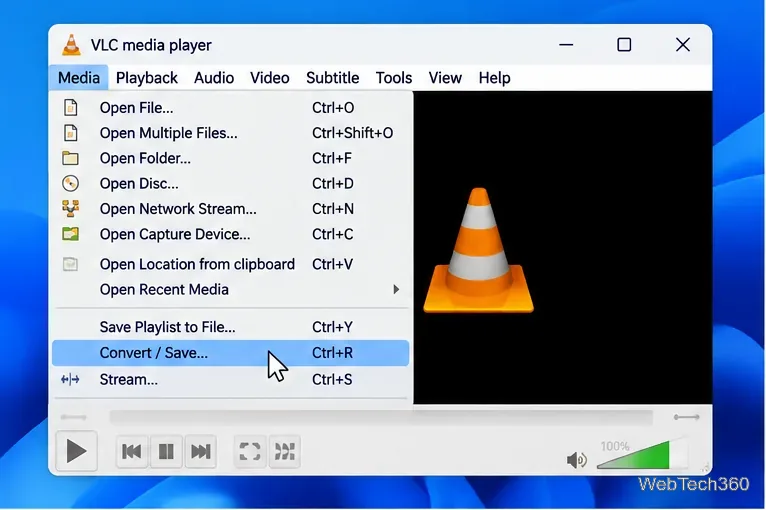
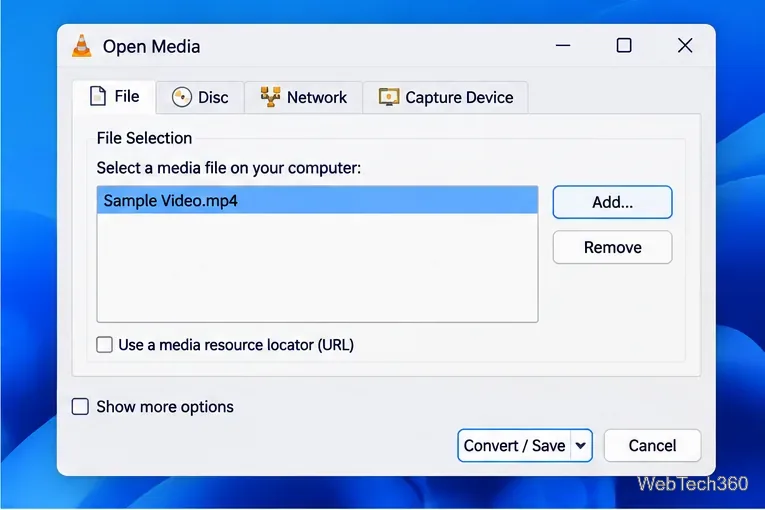
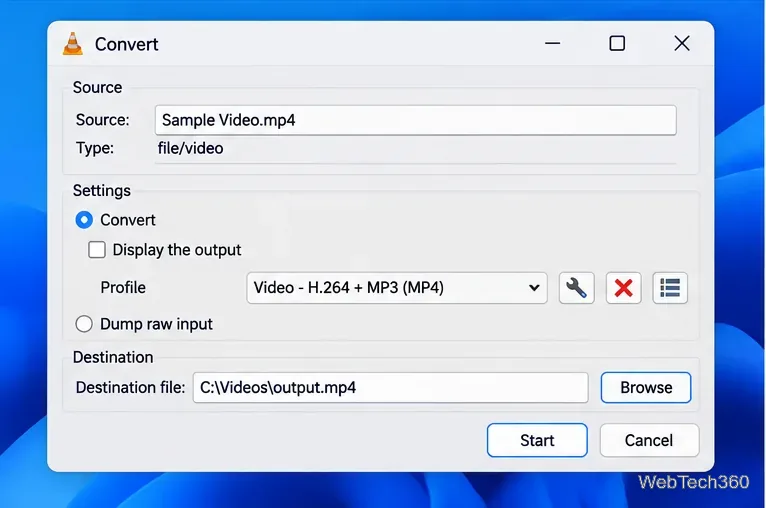
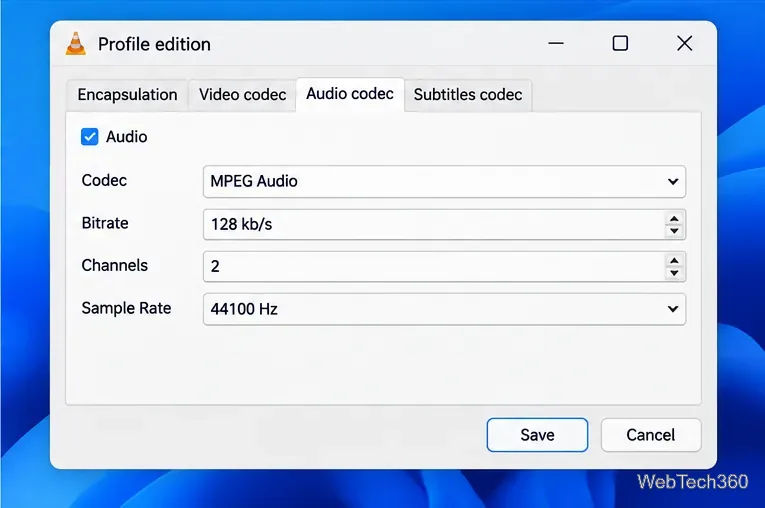
VideoLAN documents that VLC's transcoder handles audio and video as separate streams. Its transcoding documentation also shows that audio codec, bitrate, channel count, and sample rate can be set independently.
An output file can be silent when the selected audio codec does not work well with the chosen container or playback device. VLC's documentation notes that codecs and muxers must be compatible. If a customized profile fails, try a built-in profile that explicitly includes audio, or create a fresh profile instead of reusing one you previously modified.
Be careful with Keep original audio track. Audio passthrough can be useful when the source codec is already compatible with the destination container, but it can also preserve a codec that the target player does not support. If you are troubleshooting a silent MP4, re-encoding the audio with a compatible codec is often the cleaner test.
If audio is enabled but the result is still silent, inspect the source again under Tools > Codec Information. Note the audio codec, channel count, and sample rate. Then edit the VLC profile and either keep ordinary defaults or match the source sample rate. Do not assume that 44.1 kHz is always correct; video sources commonly use other rates, including 48 kHz.
The old workaround of changing FFmpeg > Strict standard compliance to -2 is not a necessary first-line fix for this problem and can hide the actual profile or compatibility issue. Current VideoLAN documentation focuses on choosing the transcode codecs and muxer correctly.
If several known-good source files all convert without audio, a saved VLC setting may be interfering. Go to Tools > Preferences, click Reset Preferences, save, and restart VLC. This is the reset procedure described in VideoLAN's Windows FAQ.
VLC can convert media reliably when its audio stream is included and the codec/container combination is valid. For the standard conversion workflow, see VideoLAN's official Convert/Save instructions.
Create a searchable Windows 10 folder inventory with PowerShell. Save every file and subfolder path as plain text or export details to a sortable CSV.
Add a custom reminder, quote, or label to your Windows 10 desktop with a Rainmeter text skin. Create the INI file, load it, then adjust its font and position.
Use Bluetooth Swift Pair on Windows 10 to pair a compatible accessory from a notification, with setup steps and fixes when the prompt does not appear.
Learn what common laptop function key symbols mean, how Fn and Fn Lock affect them, and how to confirm the right shortcut for your Windows 10 laptop model.
Turn off your Windows 10 display instantly with ScreenSleep, set a keyboard shortcut, and see when to use the built-in screen timeout instead.
Fix the “running scripts is disabled on this system” PowerShell error on Windows 10 with a current-user policy, a temporary session option, and safe steps for downloaded scripts.
Change the Windows 10 drag-selection color with a backup-first registry walkthrough, RGB examples, troubleshooting tips, and steps to restore your original values.
Check your router’s connected-device list or scan a local network with Fing Desktop on a supported PC. Learn what each method can show and how to verify unfamiliar entries.
Messenger does not offer a documented per-friend online alert. Learn how Active Status works, where to check the green dot, and which notifications you can enable instead.
Use 7-Zip to find an exact filename or wildcard match inside a ZIP or other supported archive on Windows 10 without unpacking its files.








