How to Create a List of All Items in a Folder on Windows 10

Create a searchable Windows 10 folder inventory with PowerShell. Save every file and subfolder path as plain text or export details to a sortable CSV.
If your Windows 10 default browser keeps resetting, start by setting the browser again in Windows rather than only using the browser’s own “Make default” button. Then verify the web link associations, reset corrupted defaults if needed, and repair Windows components if the setting still will not stick.
Important: Microsoft ended standard support for Windows 10 on October 14, 2025. Windows 10 PCs still run, and eligible devices can use Extended Security Updates for additional security coverage, but Microsoft recommends moving to a supported version of Windows when possible. See Microsoft’s Windows 10 end-of-support guidance.
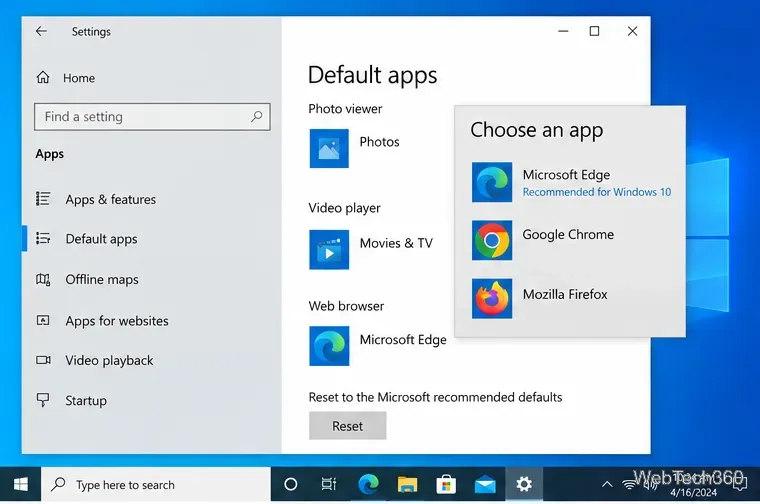
Windows 10 controls the system browser through its Default apps page. Make sure the browser you want is already installed, then:
This is the Windows-supported method described in Microsoft’s default apps documentation. Google and Mozilla also direct Windows 10 users to this same Default apps page when Chrome or Firefox cannot become the default on their own.
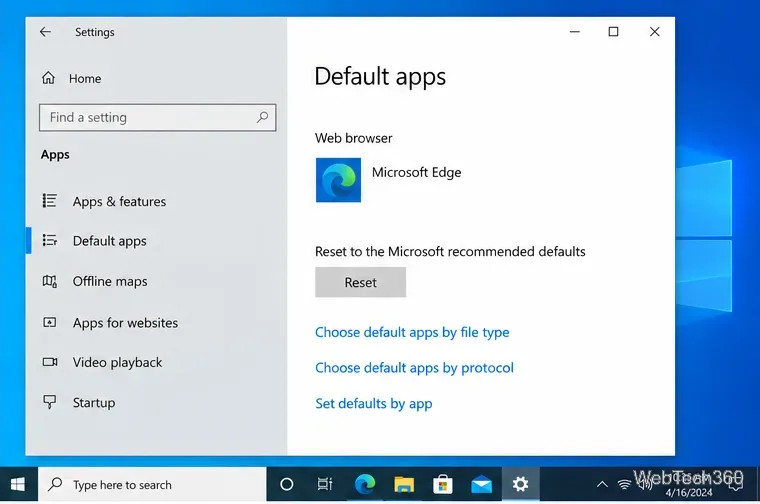
If most links use your preferred browser but some still open elsewhere, the main browser setting may not be the only association involved. On the same Default apps page, use the links near the bottom to review defaults by file type, protocol, or app.
If the associations look inconsistent or refuse to change, click Reset under “Reset to the Microsoft recommended defaults,” then set your preferred browser again. Resetting changes other default apps too, so review any media, mail, or PDF defaults you customized afterward.
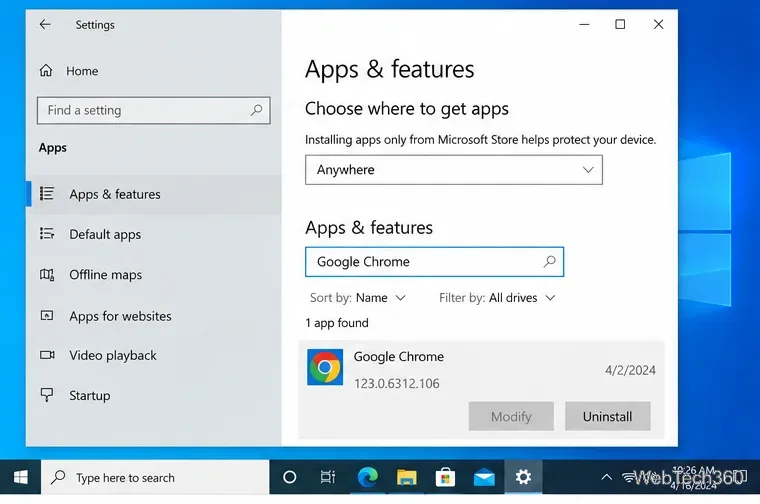
If your browser disappears from the chooser, reports that it is not the default immediately after you set it, or its registration looks damaged, repair or reinstall the browser before changing defaults again.
Microsoft notes that repair options vary by program; when no repair option is available, reinstalling the application is the practical next step. See Repair apps and programs in Windows.
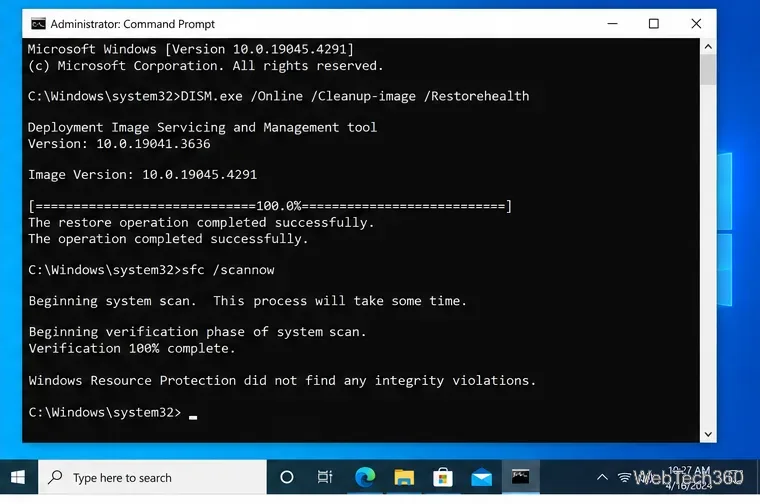
When several default apps behave strangely, the problem may be broader than the browser itself. Microsoft recommends running DISM first and then System File Checker to repair damaged Windows components.
DISM.exe /Online /Cleanup-image /Restorehealth and wait for it to finish.sfc /scannow.Do not close the command window while SFC is scanning. Microsoft documents the same order in its System File Checker repair guide.
A setting that consistently reverts after you sign out, restart, or connect to a work account can be policy-driven. Windows supports administrator policies that assign default file and protocol associations and can reapply them at sign-in. On a work- or school-managed PC, contact your IT administrator instead of repeatedly changing the browser; Microsoft documents this behavior in its ApplicationDefaults policy reference.
On a personal PC, test with another Windows user account if the problem survives the fixes above. If the new account keeps the browser setting but the old account does not, the issue is likely limited to the original user profile. That is a better reason to migrate to a clean profile than simply creating a new account as the first fix.
Older guides sometimes recommended EdgeDeflector, removing Internet Explorer, or restarting explorer.exe with administrator rights. Those steps are not necessary for fixing a Windows 10 browser association that keeps resetting. Use Windows’ supported Default apps controls first, then repair the browser or Windows components if the setting will not persist.
Create a searchable Windows 10 folder inventory with PowerShell. Save every file and subfolder path as plain text or export details to a sortable CSV.
Add a custom reminder, quote, or label to your Windows 10 desktop with a Rainmeter text skin. Create the INI file, load it, then adjust its font and position.
Use Bluetooth Swift Pair on Windows 10 to pair a compatible accessory from a notification, with setup steps and fixes when the prompt does not appear.
Learn what common laptop function key symbols mean, how Fn and Fn Lock affect them, and how to confirm the right shortcut for your Windows 10 laptop model.
Turn off your Windows 10 display instantly with ScreenSleep, set a keyboard shortcut, and see when to use the built-in screen timeout instead.
Fix the “running scripts is disabled on this system” PowerShell error on Windows 10 with a current-user policy, a temporary session option, and safe steps for downloaded scripts.
Change the Windows 10 drag-selection color with a backup-first registry walkthrough, RGB examples, troubleshooting tips, and steps to restore your original values.
Check your router’s connected-device list or scan a local network with Fing Desktop on a supported PC. Learn what each method can show and how to verify unfamiliar entries.
Messenger does not offer a documented per-friend online alert. Learn how Active Status works, where to check the green dot, and which notifications you can enable instead.
Use 7-Zip to find an exact filename or wildcard match inside a ZIP or other supported archive on Windows 10 without unpacking its files.








