How to Fix Lines on a Monitor Screen in Windows 10

Use a screenshot test, cable and port checks, monitor diagnostics, display settings, and driver rollback to pinpoint lines on a Windows 10 monitor.
If your Windows 10 desktop icons are missing, start with the simplest fix: right-click an empty area of the desktop, choose View, and make sure Show desktop icons is checked. If that does not solve it, the missing items may be system icons, files redirected to OneDrive, an Explorer problem, or a display mode issue.
Windows 10 support note: Microsoft ended standard support for Windows 10 on October 14, 2025. The operating system still runs, but Microsoft recommends moving to a supported version of Windows or using an eligible Extended Security Updates option. See Microsoft's Windows 10 end-of-support guidance.
Windows can hide every desktop icon without deleting the underlying files or shortcuts.
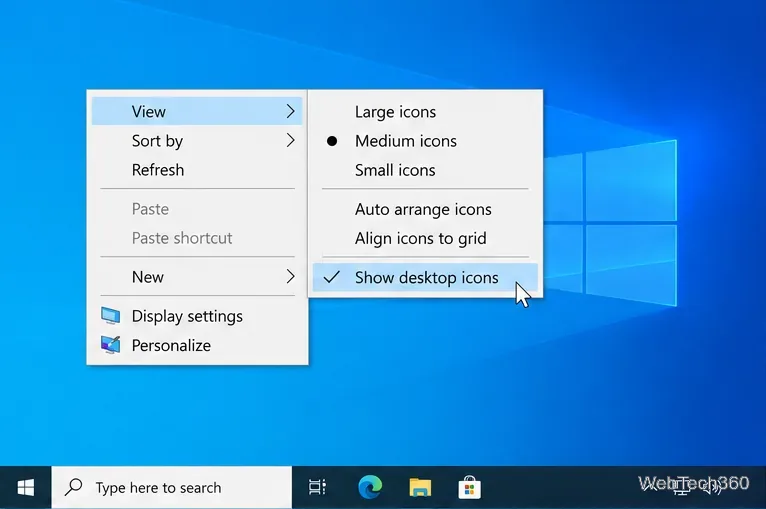
This is also the first step Microsoft recommends when the desktop shows no icons. See the official desktop icon customization guide.
If normal shortcuts are visible but a built-in icon is missing, restore it from Desktop Icon Settings:
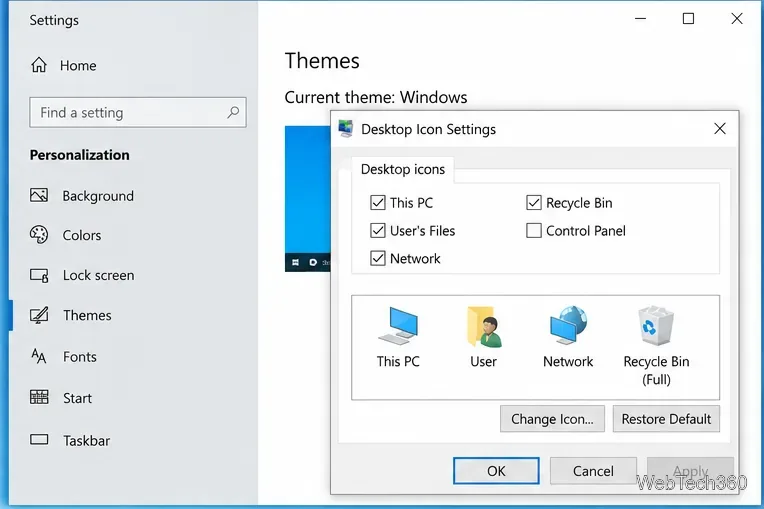
This setting controls built-in desktop icons separately from the general Show desktop icons option.
If the icons represented real files or folders and disappeared after changing OneDrive backup or signing into a different account, check the Desktop folders in File Explorer. Look under both your normal user profile and OneDrive > Desktop.
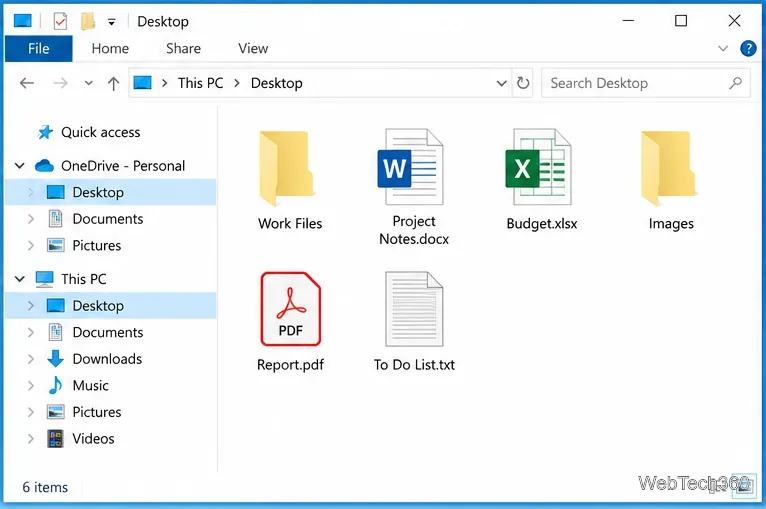
Microsoft notes that OneDrive folder backup can make Windows point to a different Desktop location. Its missing Desktop icons guide explains how to identify the correct Desktop folder and repair the folder location if needed. Do not delete either Desktop folder until you have confirmed where your files are stored.
The Windows Explorer process draws the desktop, taskbar, and File Explorer windows. If it is stuck, restarting it can reload a blank or partially rendered desktop without rebooting the PC.
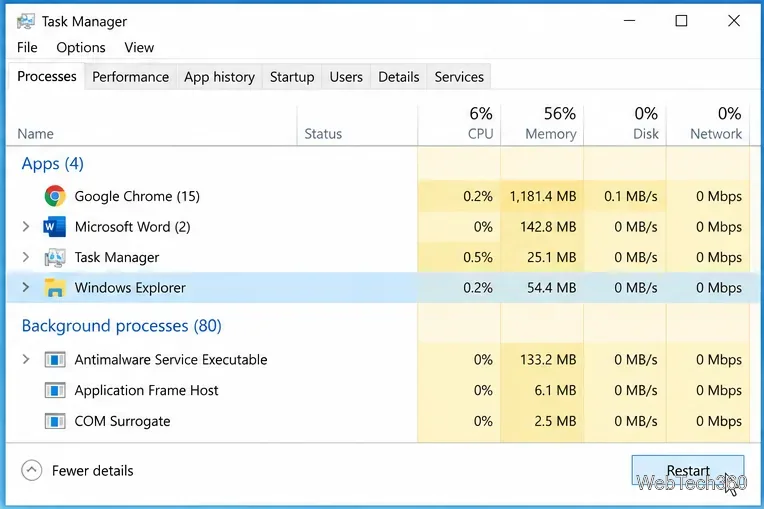
The taskbar and desktop may briefly disappear while Explorer restarts. That is expected.
If you recently disconnected a monitor, dock, TV, or projector, an extended desktop layout can leave icons on another display position.
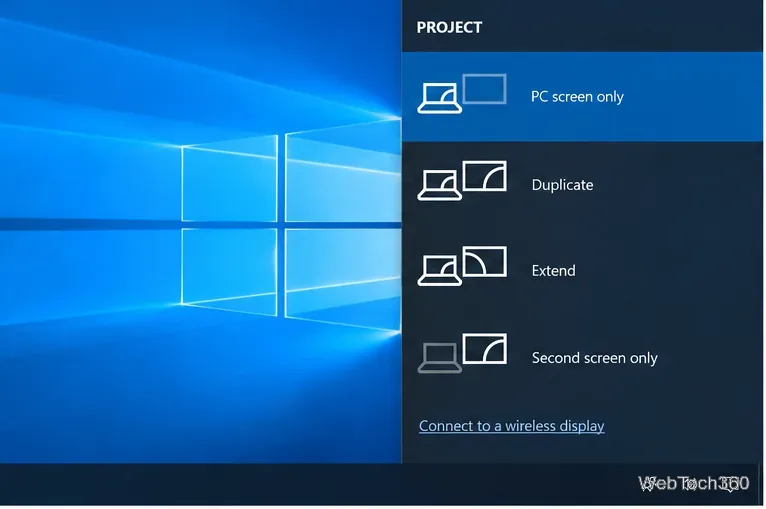
Microsoft documents the same Windows + P display modes in its projection support page.
Tablet mode changes how the Windows 10 interface behaves and can make the desktop look different from the normal desktop experience. Open Action Center from the taskbar and select Tablet mode so the tile is not highlighted.
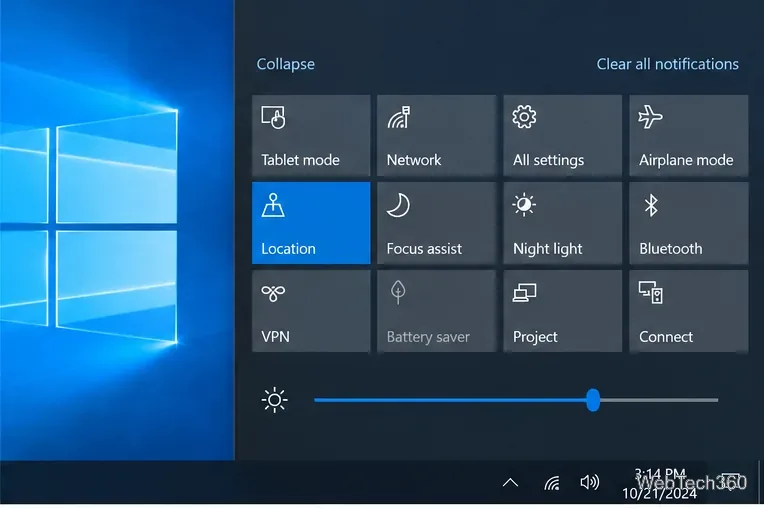
If the tile is missing, Microsoft explains how to add or toggle it in the Windows tablet mode instructions.
If you see Start tiles or an app list instead of the desktop, you may simply have the full-screen Start menu open.
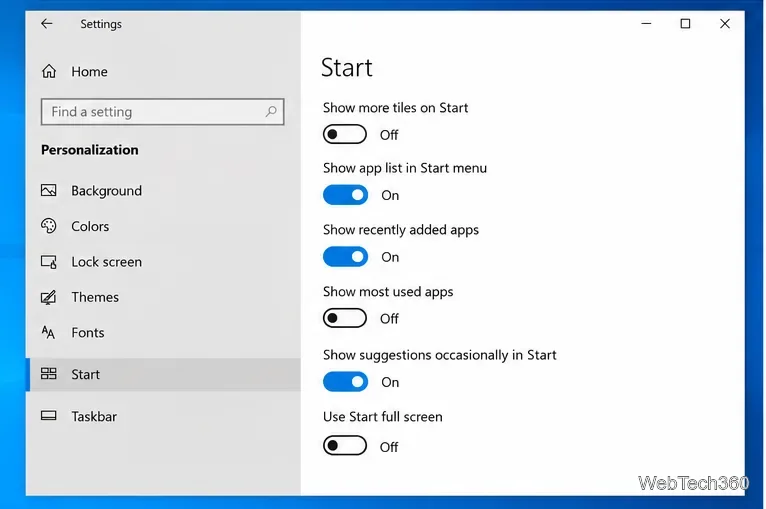
The setting is documented in Microsoft's Start menu customization guide.
If icons remain missing after the settings above, damaged Windows components may be involved. Open Command Prompt as administrator and run these commands in this order:
DISM.exe /Online /Cleanup-Image /RestoreHealth
sfc /scannow
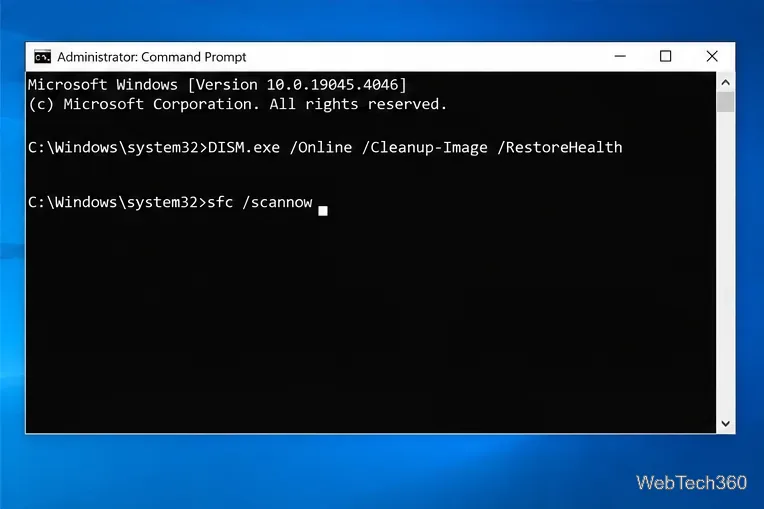
Let each command finish, then restart Windows. Microsoft recommends DISM and System File Checker for repairing missing or corrupted Windows components; follow its official SFC and DISM instructions if either command reports an error.
If file names are still visible but the small pictures are white, generic, or incorrect, the issue is different: Windows is displaying the desktop items but may have a damaged icon cache or a file-association problem. Try restarting Explorer and Windows first. Avoid deleting Desktop files or moving profile folders just to repair a visual icon problem.
Use a screenshot test, cable and port checks, monitor diagnostics, display settings, and driver rollback to pinpoint lines on a Windows 10 monitor.
Show two other time zones beside your Windows 10 clock. Set up each additional clock, give it a clear label, and find it in the taskbar calendar.
Find the File Explorer extension that delays right-click menus in Windows 10, test it safely with ShellExView, and restore any menu features you still need.
Stop Windows 10 from powering down a specific network adapter or USB device with plan-level settings and Device Manager controls, plus tips to avoid excess battery drain.
Check whether Windows 10 uses a digital license or product key, find a firmware-stored OEM key, and save license details securely for a reinstall.
Identify a Windows 10 Task Manager process by checking its executable path, file properties, publisher, linked services, and a Microsoft Defender scan.
Create a searchable Windows 10 folder inventory with PowerShell. Save every file and subfolder path as plain text or export details to a sortable CSV.
Add a custom reminder, quote, or label to your Windows 10 desktop with a Rainmeter text skin. Create the INI file, load it, then adjust its font and position.
Use Bluetooth Swift Pair on Windows 10 to pair a compatible accessory from a notification, with setup steps and fixes when the prompt does not appear.
Learn what common laptop function key symbols mean, how Fn and Fn Lock affect them, and how to confirm the right shortcut for your Windows 10 laptop model.








