How to Open a Linux Shell in a Folder on Windows 10

Open a Linux shell in any Windows 10 folder with File Explorer, PowerShell, and WSL. Check the Linux path and fix common setup issues.
Windows 10 Search not working can mean the taskbar search box will not open, typing produces no results, or files and apps you know exist are missing. Start with the least disruptive fixes: restart the Search process, verify the Windows Search service, then repair the index before you reset anything.
One important 2026 note: Windows 10 version 22H2 reached end of support on October 14, 2025. Eligible Extended Security Updates (ESU) devices and some LTSC editions have different servicing timelines. Microsoft recommends moving to a supported Windows version when possible; see the Windows 10 end-of-support guidance.
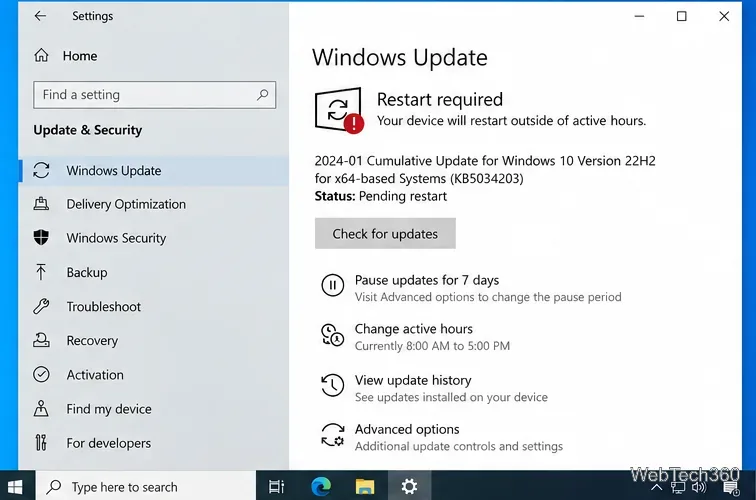
Restart Windows first, especially if the problem appeared after sleep, an update, or a long uptime. Then open Settings > Update & Security > Windows Update and install any updates offered to your device. On Windows 10 systems enrolled in ESU, security updates may still be available; standard 22H2 systems no longer receive normal free servicing.
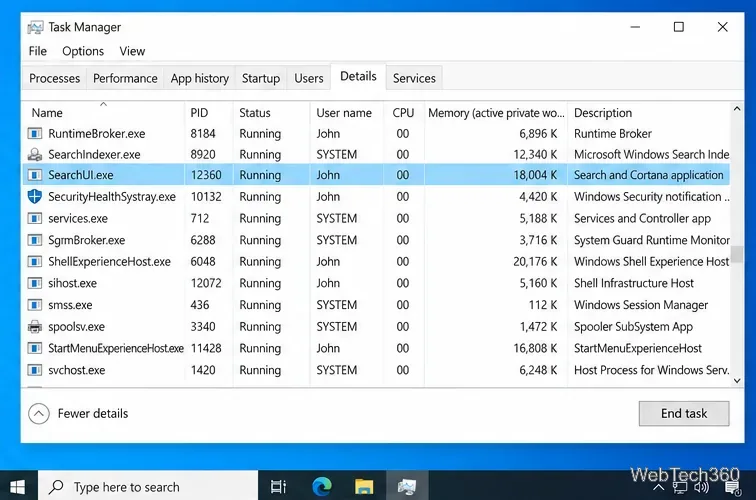
Microsoft recommends ending the Search process so Windows can launch a fresh instance the next time you search.
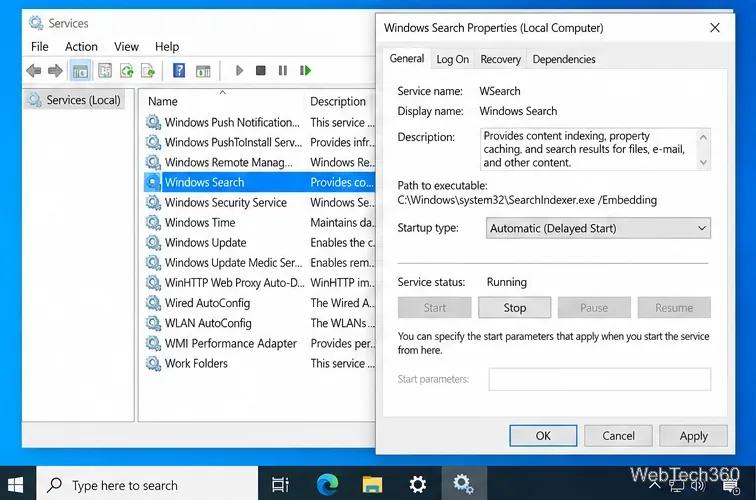
Press Windows + R, type services.msc, and press Enter. Open Windows Search. Microsoft documents the normal configuration as Running with Startup type: Automatic (Delayed Start). If it is stopped, start it; if it is running but Search is stuck, restart the service.
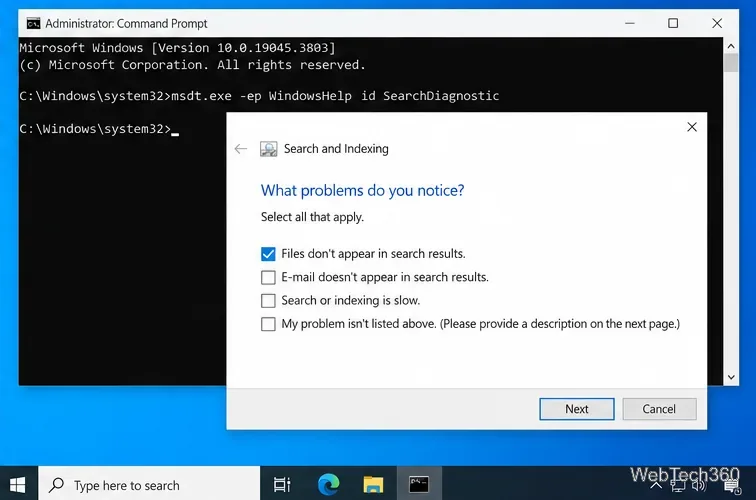
Microsoft still documents the Search diagnostic for Windows 10. Open an elevated Command Prompt and run:
msdt.exe -ep WindowsHelp id SearchDiagnostic
Select the symptom that matches your problem and follow the prompts. The current Microsoft Windows Search troubleshooting guide also covers restarting and resetting Search.
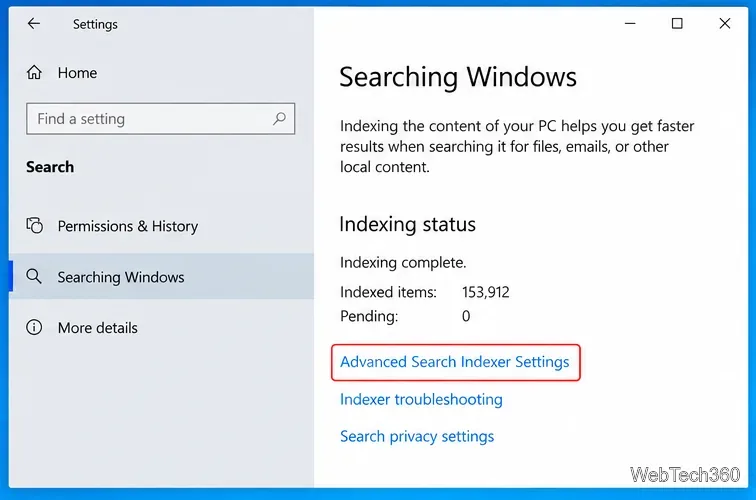
If Search opens but returns incomplete or wrong results, the index is the more likely culprit. Go to Settings > Search > Searching Windows, then open Advanced Search Indexer Settings.
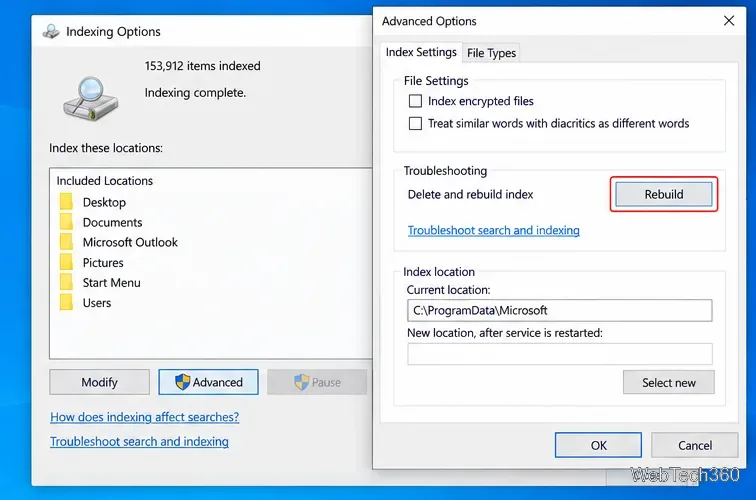
In Indexing Options, choose Advanced > Rebuild. Rebuilding removes and recreates the index; results can remain incomplete while it runs. Microsoft says a rebuild can take up to 24 hours on some systems. Also use Modify to confirm the folders you expect to search are included. See Microsoft’s Windows Search performance guidance for index status and tuning details.
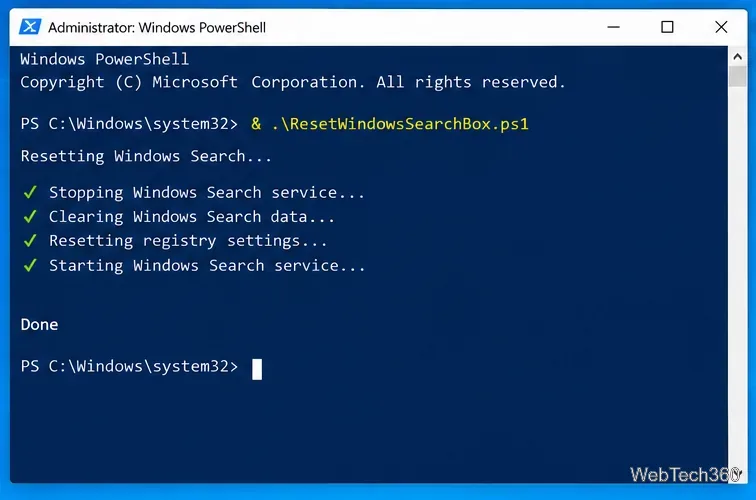
If the search interface is still unresponsive, use Microsoft’s reset procedure. For Windows 10 version 1903 and later, Microsoft provides a PowerShell-based reset method that requires administrator rights. Resetting Search does not delete personal files, although result relevance may be temporarily affected while Search rebuilds its data.
Use the exact instructions on the Microsoft troubleshooting page linked above rather than downloading reset scripts from third-party sites.
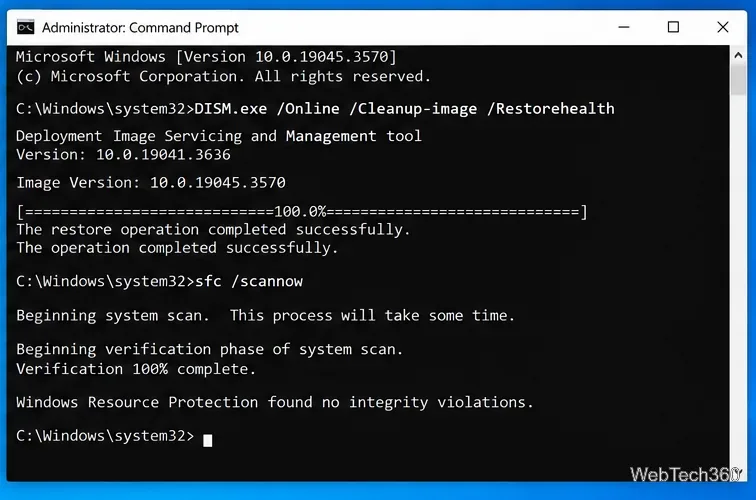
If other Windows features are also failing, repair the component store and protected system files. Open Command Prompt as administrator, then run these commands in order:
DISM.exe /Online /Cleanup-image /Restorehealthsfc /scannow.This order matches Microsoft’s current DISM and System File Checker guidance.
Create a temporary user account and test Search there. If Search works in the new profile, the problem is probably limited to the original user profile. Microsoft’s advanced procedure can regenerate the Microsoft.Windows.Search AppData folder and Search registry key, but it involves deleting profile data and editing the registry, so back up first and follow the official steps exactly.
Avoid old fixes that disable the firewall, broadly turn off security software, or add undocumented Bing/Cortana registry tweaks. Those are not part of Microsoft’s current Windows Search troubleshooting flow and can create additional problems. On an unsupported Windows 10 installation, a move to Windows 11 or another supported Windows release is also the safer long-term fix.
Open a Linux shell in any Windows 10 folder with File Explorer, PowerShell, and WSL. Check the Linux path and fix common setup issues.
Use a screenshot test, cable and port checks, monitor diagnostics, display settings, and driver rollback to pinpoint lines on a Windows 10 monitor.
Show two other time zones beside your Windows 10 clock. Set up each additional clock, give it a clear label, and find it in the taskbar calendar.
Find the File Explorer extension that delays right-click menus in Windows 10, test it safely with ShellExView, and restore any menu features you still need.
Stop Windows 10 from powering down a specific network adapter or USB device with plan-level settings and Device Manager controls, plus tips to avoid excess battery drain.
Check whether Windows 10 uses a digital license or product key, find a firmware-stored OEM key, and save license details securely for a reinstall.
Identify a Windows 10 Task Manager process by checking its executable path, file properties, publisher, linked services, and a Microsoft Defender scan.
Create a searchable Windows 10 folder inventory with PowerShell. Save every file and subfolder path as plain text or export details to a sortable CSV.
Add a custom reminder, quote, or label to your Windows 10 desktop with a Rainmeter text skin. Create the INI file, load it, then adjust its font and position.
Use Bluetooth Swift Pair on Windows 10 to pair a compatible accessory from a notification, with setup steps and fixes when the prompt does not appear.








