How to Fix Lines on a Monitor Screen in Windows 10

Use a screenshot test, cable and port checks, monitor diagnostics, display settings, and driver rollback to pinpoint lines on a Windows 10 monitor.
A yellow or warm cast across your Windows 10 screen is usually caused by a color setting rather than a failing display. The most common causes are Night light, a third-party color-temperature app, custom graphics or monitor controls, an incorrect ICC color profile, or a graphics-driver problem. Start with the software checks below; if the tint remains even when the monitor is connected to another device, focus on the monitor and cable.
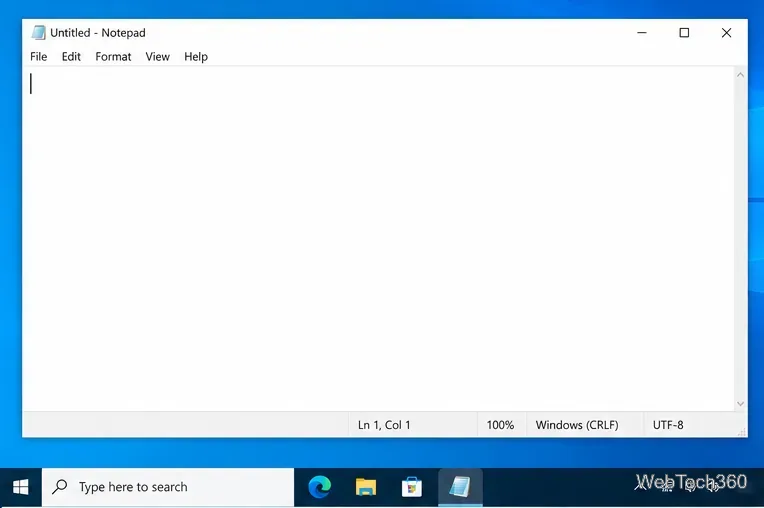
First, check the screen under neutral room lighting. Warm lamps can make a normal white screen look yellow. Open a blank Notepad window or another mostly white page and compare it with a white object in the room. You do not need to run the display at maximum brightness; use a comfortable normal level so you are judging color rather than glare.
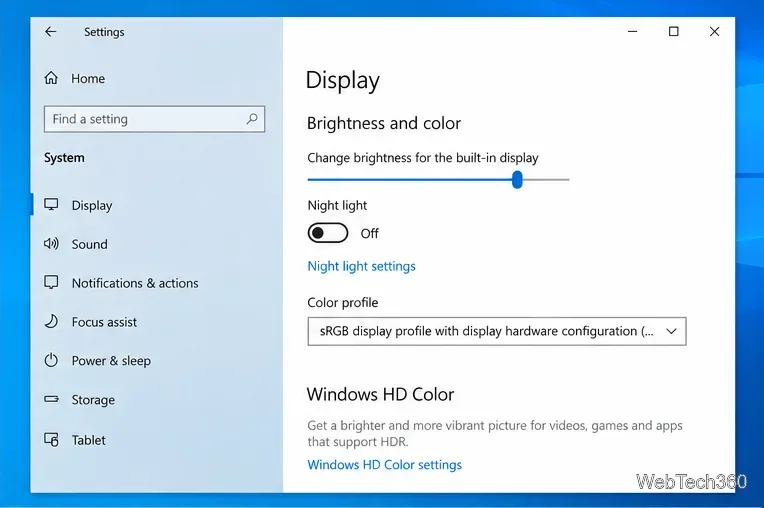
If the whole desktop looks warm, check Night light next. Microsoft explains that Night light intentionally shifts the display toward warmer colors, which can make white look tan, yellow, orange, or red depending on the strength setting.
Microsoft documents the feature and display-color controls in Change display brightness and color in Windows.
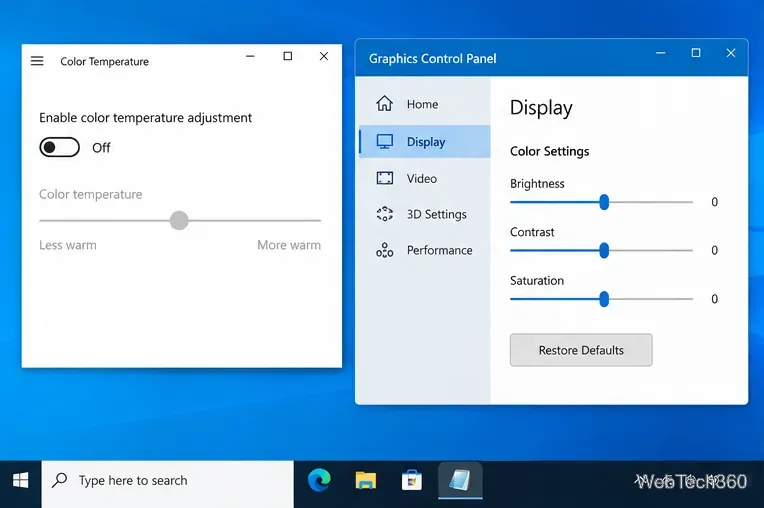
If Night light is already off, quit software that changes color temperature or applies an eye-comfort mode. This can include f.lux-style utilities, manufacturer display apps, browser extensions, or GPU utilities with custom color controls. If the yellow tint appears only in one browser or app, troubleshoot that app first instead of changing the entire system.
Next, open the graphics utility supplied with your PC or GPU and look for display color settings. If you previously changed color temperature, saturation, contrast, hue, or digital vibrance, restore those controls to their defaults. Menu names vary across Intel, NVIDIA, AMD, and PC-manufacturer software, so avoid copying values from another computer.
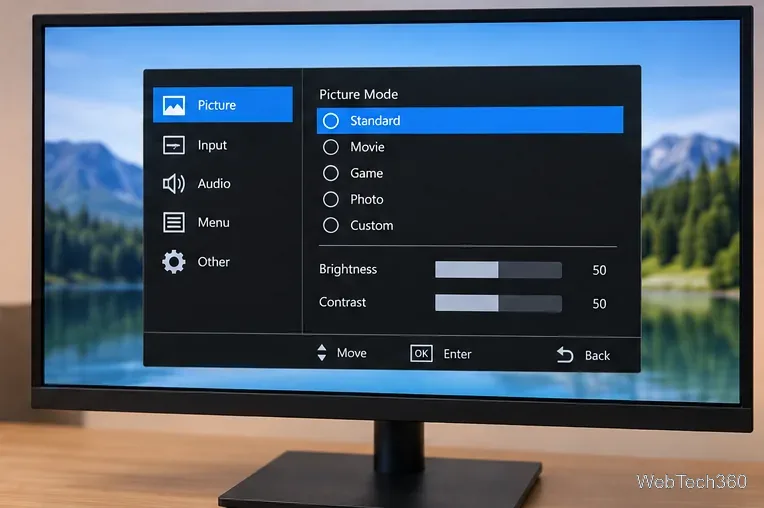
For an external monitor, also check the monitor's own on-screen display. Select a neutral preset such as Standard or sRGB when available, or use the monitor's factory-reset option if you know custom picture settings are not required. Avoid the old workaround of installing a third-party DDC utility just to reset the screen; the monitor's built-in controls are the safer first choice.
An incorrect or corrupted ICC profile can change how colors are rendered. Press Windows + R, type colorcpl, and press Enter. In Color Management, select the affected display carefully if you have more than one monitor. If you recently added a custom profile, temporarily disable or remove that profile and test again.
Use a profile supplied for your exact monitor model or created by a calibration device. A random ICC file from another display can make color accuracy worse. You can also search Windows for Calibrate display color and follow the built-in calibration wizard. Microsoft includes color-profile and calibration guidance on its display color support page.
If the tint survives the color resets, update the display driver. Microsoft recommends getting driver updates through Windows Update first. You can also right-click Start, open Device Manager, expand Display adapters, right-click the active graphics adapter, and choose Update driver. If necessary, use the PC or GPU manufacturer's official driver package. Microsoft provides the supported Device Manager procedure in Update drivers through Device Manager in Windows.
For an external monitor, reseat the HDMI or DisplayPort cable, try a known-good cable, try another video output, and connect the monitor to another computer if possible. Microsoft recommends these checks because they help separate a cable or PC problem from a monitor problem; see Troubleshoot external monitor connections in Windows.
If the monitor's own menu or no-signal screen also looks yellow after a factory reset, and the same tint appears when the monitor is attached to a different device, the issue is probably inside the display rather than Windows. At that point, repair or replacement is more appropriate than further software changes.
Use the order above to identify what is reapplying the color change: scheduled Night light, a background utility, GPU software, a custom ICC profile, or the monitor itself. Recheck after each change instead of changing several settings at once; that makes the cause much easier to identify.
Windows 10 support note: Microsoft ended standard Windows 10 support on October 14, 2025. These troubleshooting steps still apply to Windows 10 PCs, but Microsoft recommends moving to Windows 11 on compatible hardware or using an eligible Extended Security Updates option if you must remain on Windows 10. See Microsoft's Windows 10 end-of-support guidance.
Use a screenshot test, cable and port checks, monitor diagnostics, display settings, and driver rollback to pinpoint lines on a Windows 10 monitor.
Show two other time zones beside your Windows 10 clock. Set up each additional clock, give it a clear label, and find it in the taskbar calendar.
Find the File Explorer extension that delays right-click menus in Windows 10, test it safely with ShellExView, and restore any menu features you still need.
Stop Windows 10 from powering down a specific network adapter or USB device with plan-level settings and Device Manager controls, plus tips to avoid excess battery drain.
Check whether Windows 10 uses a digital license or product key, find a firmware-stored OEM key, and save license details securely for a reinstall.
Identify a Windows 10 Task Manager process by checking its executable path, file properties, publisher, linked services, and a Microsoft Defender scan.
Create a searchable Windows 10 folder inventory with PowerShell. Save every file and subfolder path as plain text or export details to a sortable CSV.
Add a custom reminder, quote, or label to your Windows 10 desktop with a Rainmeter text skin. Create the INI file, load it, then adjust its font and position.
Use Bluetooth Swift Pair on Windows 10 to pair a compatible accessory from a notification, with setup steps and fixes when the prompt does not appear.
Learn what common laptop function key symbols mean, how Fn and Fn Lock affect them, and how to confirm the right shortcut for your Windows 10 laptop model.








