How to Fix Lines on a Monitor Screen in Windows 10

Use a screenshot test, cable and port checks, monitor diagnostics, display settings, and driver rollback to pinpoint lines on a Windows 10 monitor.
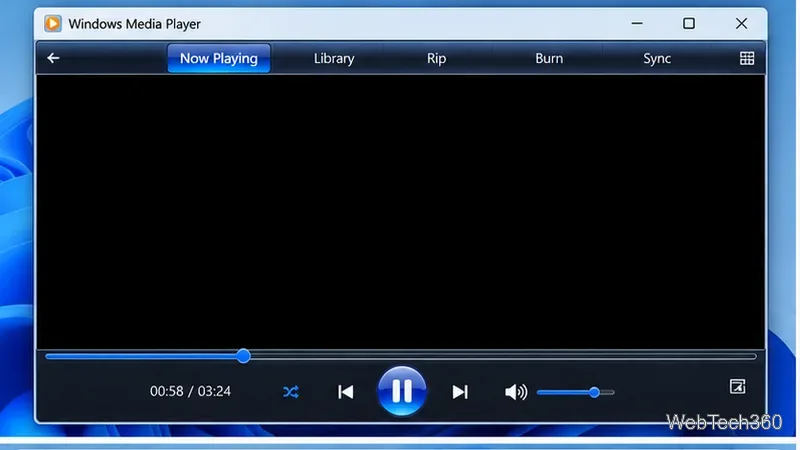
If Windows Media Player plays sound but shows a black or blank video area, start by checking the video file and its codec. If every video has the same problem, move on to Windows updates, graphics drivers, the Media Player library, and finally a reinstall of Windows Media Player Legacy. The steps below use Microsoft’s current guidance for Windows 10 and Windows 11.
Play the same file in another Windows video player, then try a second video that you know works. If only one file fails in Windows Media Player, the file may use a video codec that the player cannot decode even though its audio track is supported. If several known-good videos all play audio with no picture, continue with the player and system fixes below.
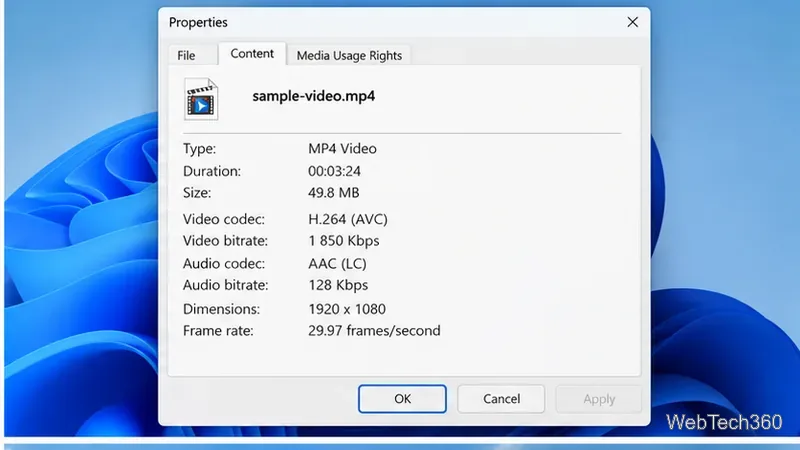
A file extension such as .mp4 identifies the container, not necessarily the video codec inside it. In Windows Media Player Legacy, open the Library, right-click the file, choose Properties, and check the File tab for the Audio codec and Video codec. Microsoft also documents this method in its Windows Media Player codecs FAQ.
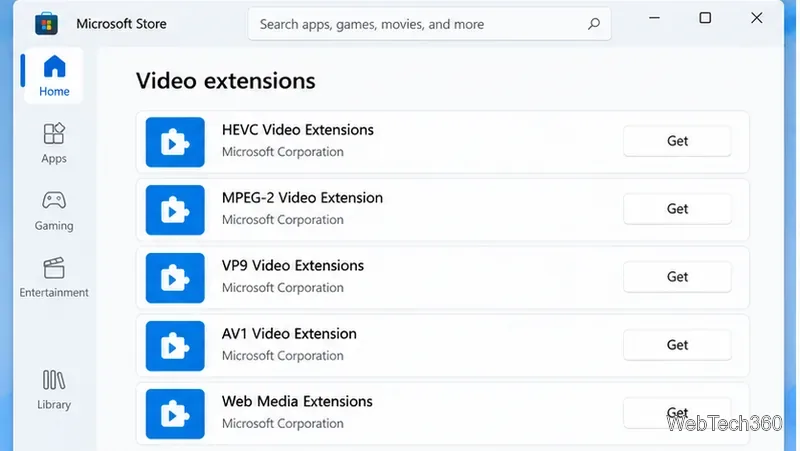
If the file requires a codec that is not installed, use a trusted source. Microsoft lists Store extensions for formats including HEVC (H.265), MPEG-2, VP9, AV1, and Web Media. Avoid installing large, random codec packs from download sites; Microsoft warns that some codec packs can create compatibility problems and make playback issues harder to diagnose.
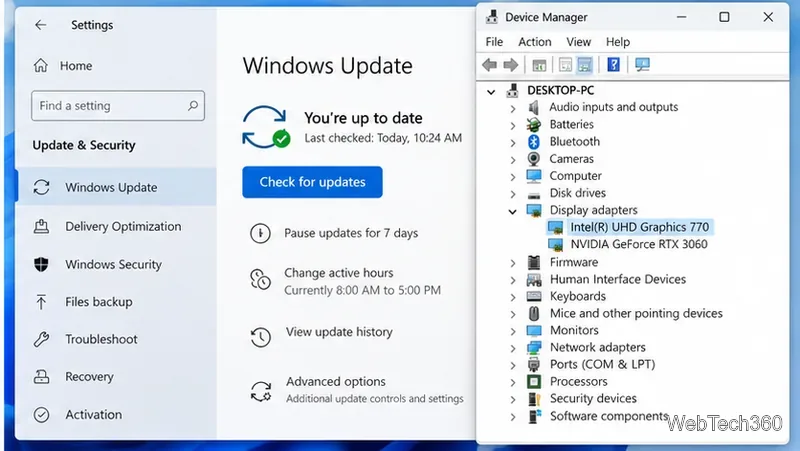
Video can fail while audio keeps playing when the graphics path is broken or outdated. Open Settings > Windows Update and install available updates. Then update the display driver for your Intel, AMD, or NVIDIA graphics hardware, preferably from the PC or GPU manufacturer. Restart Windows after the updates and test the same video again. Microsoft’s Windows Media Player troubleshooting page specifically recommends current Windows and graphics drivers for playback problems.
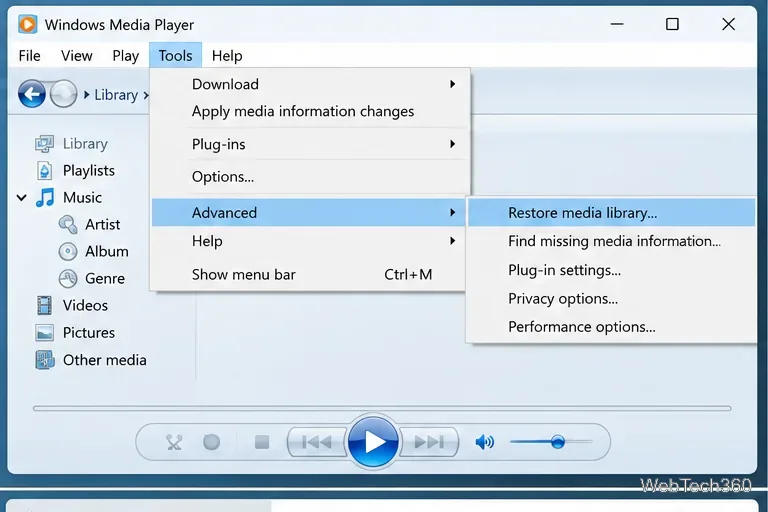
A damaged library database can interfere with playback. In Windows Media Player Legacy, press Ctrl+M if the menu bar is hidden, then choose Tools > Advanced > Restore Media Library. You can also clear player history from Tools > Options > Privacy > Clear History. Reopen the player and test the video.
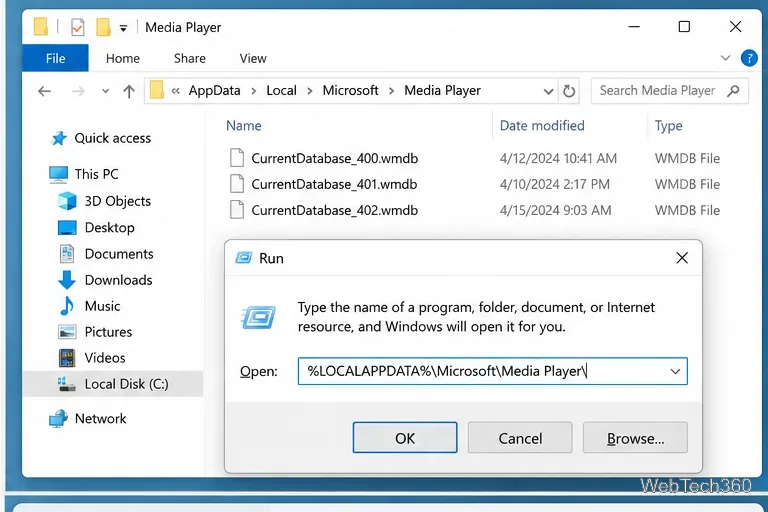
If restoring the library does not help, close Windows Media Player completely. Press Windows+R, enter %LOCALAPPDATA%\Microsoft\Media Player\, and press Enter. Delete the files inside that Media Player folder, but do not delete the folder itself. Start Windows Media Player again so it can rebuild its local database. This is also a Microsoft-recommended step for persistent player errors.
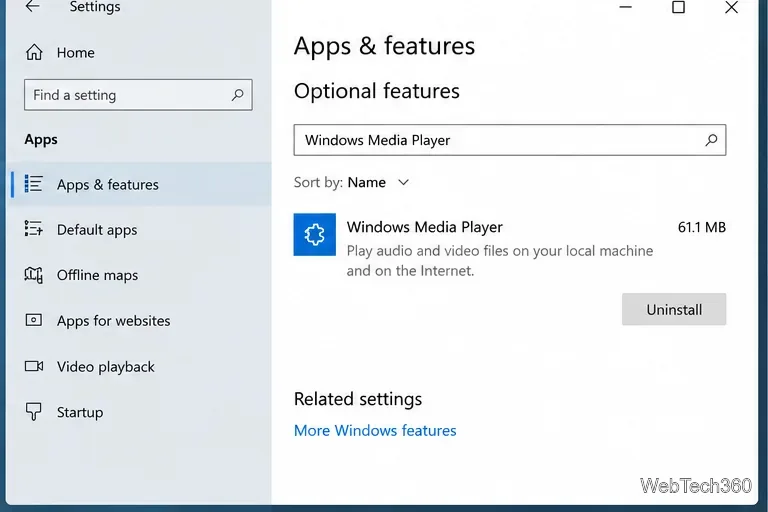
If the player itself appears damaged, remove and add the optional feature again.
Go to Settings > Apps > Apps & features > Manage optional features. Select Windows Media Player, uninstall it, restart the PC, then return to Optional features, choose Add a feature, select Windows Media Player, and install it again.
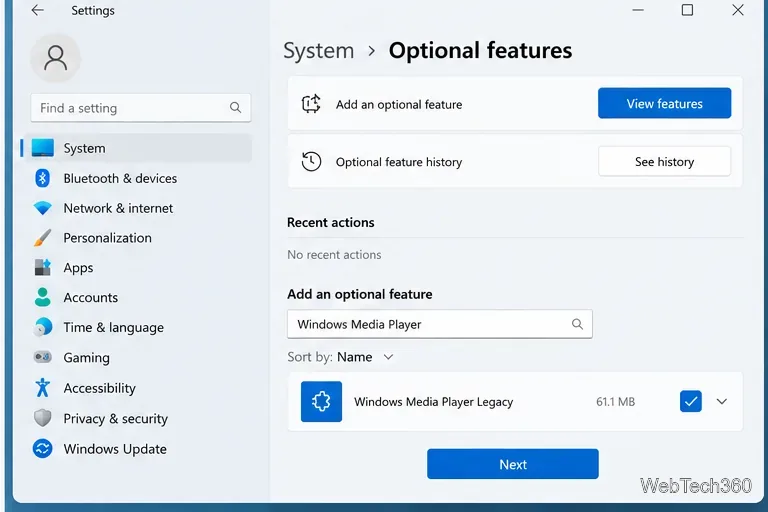
Open Settings > System > Optional features. Remove Windows Media Player Legacy from installed optional features if it is present, restart, then select View features, search for Windows Media Player Legacy, and add it again. Microsoft still provides Windows Media Player Legacy as an optional feature in Windows 10 and 11, although it recommends the newer Media Player app for modern video features such as 4K.
Windows 10 N and Windows 11 N omit Windows Media Player and related media technologies by default. Install the Media Feature Pack from Optional features, restart Windows, and then install any additional codec extension your file requires. Microsoft’s Media Feature Pack documentation notes that a restart is required to complete the installation.
If one specific video still produces sound but no picture after these checks, the fastest next step is to verify its actual video codec and test it in Microsoft’s current Media Player app. If every video still fails only in Windows Media Player Legacy, a repaired or reinstalled player plus current graphics drivers should be the priority.
Use a screenshot test, cable and port checks, monitor diagnostics, display settings, and driver rollback to pinpoint lines on a Windows 10 monitor.
Show two other time zones beside your Windows 10 clock. Set up each additional clock, give it a clear label, and find it in the taskbar calendar.
Find the File Explorer extension that delays right-click menus in Windows 10, test it safely with ShellExView, and restore any menu features you still need.
Stop Windows 10 from powering down a specific network adapter or USB device with plan-level settings and Device Manager controls, plus tips to avoid excess battery drain.
Check whether Windows 10 uses a digital license or product key, find a firmware-stored OEM key, and save license details securely for a reinstall.
Identify a Windows 10 Task Manager process by checking its executable path, file properties, publisher, linked services, and a Microsoft Defender scan.
Create a searchable Windows 10 folder inventory with PowerShell. Save every file and subfolder path as plain text or export details to a sortable CSV.
Add a custom reminder, quote, or label to your Windows 10 desktop with a Rainmeter text skin. Create the INI file, load it, then adjust its font and position.
Use Bluetooth Swift Pair on Windows 10 to pair a compatible accessory from a notification, with setup steps and fixes when the prompt does not appear.
Learn what common laptop function key symbols mean, how Fn and Fn Lock affect them, and how to confirm the right shortcut for your Windows 10 laptop model.








